
AutoCAD’s interface is a sophisticated environment designed to streamline the design and drafting process for professionals. Understanding its core components is crucial for maximizing productivity and efficiency. This article provides a comprehensive overview of the key elements within the AutoCAD interface, from the powerful Ribbon to the essential Status Bar, empowering users to navigate and utilize the software effectively.
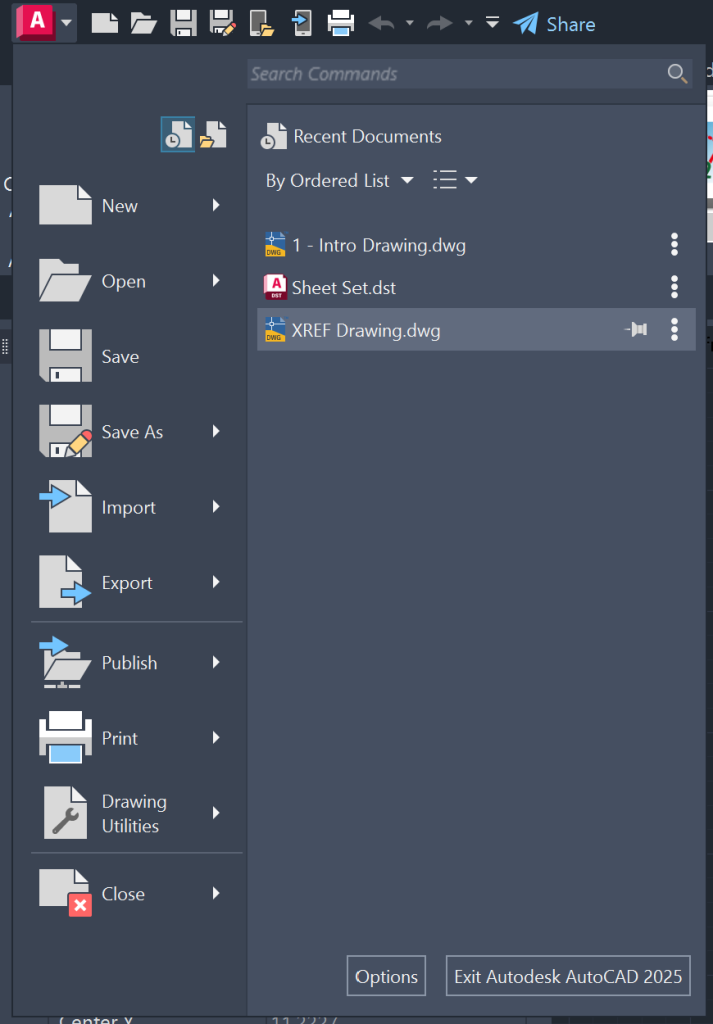
The Ribbon is a central feature, offering a compact yet comprehensive collection of tools and controls, replacing traditional toolbars and dialog boxes for many functions. It can be configured to display horizontally, vertically, or as a floating palette, maximizing workspace. Complementing the Ribbon is the Quick Access Toolbar, where users can store frequently used commands like New, Open, Save, and Plot for immediate access. For those who prefer a more traditional approach or need to access a wider range of commands, the Menu Browser provides access to classic drop-down menus and allows for real-time searching of menu actions, tooltips, and command prompt text.
For automating repetitive tasks, the Action Recorder, found on the Ribbon’s Tools tab, is invaluable. It allows users to record a sequence of actions and save them as action macros, which can then be replayed to perform those tasks automatically. Similarly, Tool Palettes offer a dynamic way to organize, share, and deploy frequently used tools and blocks, enhancing workflow consistency.
The Command Prompt remains a fundamental element for users who prefer direct command-line input. By typing command names or aliases, users can execute operations swiftly. Dynamic Input further enhances this by displaying prompts near the cursor, allowing for command entry within tooltips.
For managing complex designs, Viewports allow users to display multiple views of the same drawing simultaneously, each with distinct visual styles. This is particularly useful for examining a model from different angles or highlighting specific details. Navigation is further enhanced by the ViewCube and SteeringWheels. The ViewCube provides visual feedback on the current model orientation and allows for quick adjustments to viewpoints, while SteeringWheels offer a consolidated interface for 2D and 3D navigation tools like pan, zoom, orbit, and walk.
The Status Bar, located at the bottom of the drawing window, provides essential information such as cursor coordinates and quick access to various drawing and display tools, including annotation scaling. Lastly, InfoCenter serves as a hub for searching information, receiving product updates, and accessing saved topics.
Mastering these interface elements is key to unlocking the full potential of AutoCAD. By understanding the purpose and functionality of each component, users can create a more efficient and personalized drafting environment, ultimately leading to improved design outcomes. The strategic use of these tools, from the expansive Ribbon to the detailed Status Bar, empowers both novice and experienced users to navigate and command AutoCAD with confidence.