
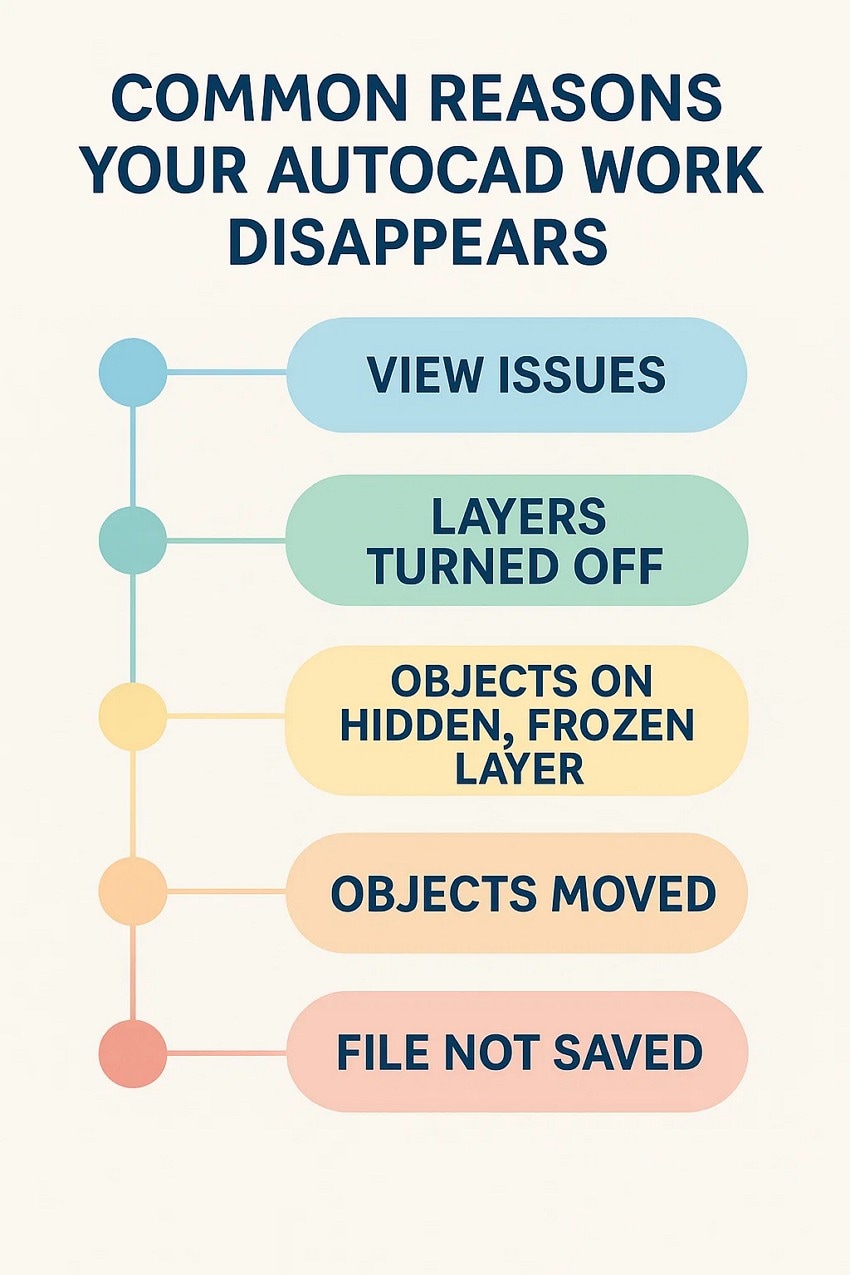
Data loss can be a catastrophic event for any business, especially when dealing with complex projects managed through AutoCAD. Losing entire projects due to accidental deletion, system crashes, file corruption, or malicious attacks can halt productivity and incur significant financial losses. Fortunately, implementing a robust backup strategy for your AutoCAD files is essential for disaster recovery and maintaining business continuity. This guide will walk you through the built-in features of AutoCAD for file backups and introduce how advanced endpoint backup solutions can elevate your data protection efforts.
AutoCAD’s native features offer a foundational layer of security, but understanding their limitations is crucial. By integrating these with a comprehensive backup solution, you can significantly enhance your AutoCAD data resilience. Let’s explore the top methods to ensure your valuable design work is always protected.
1. Leverage AutoCAD’s Built-in File Backups
AutoCAD provides a straightforward mechanism to create backup copies of your drawing files automatically. This feature ensures that a .bak file, a copy of your drawing at the time of the last save, is generated with each save operation.
To enable this crucial feature:
- Navigate to the “Options” menu within AutoCAD.
- Select the “Open and Save” tab.
- Ensure the “Create backup copy with each save” option is checked.
Once enabled, each time you save your .dwg file, a corresponding .bak file will be created in the same directory. It’s important to note that each new save will overwrite the previous .bak file. To restore from a backup, you can simply rename the .bak file extension to .dwg. For those who prefer to preserve their original .dwg files, copying the .dwg file to a different location before renaming the backup is a recommended practice.
2. Ensure Autosave is Enabled and Configure Intervals
Complementing the backup feature, AutoCAD’s autosave functionality is vital for recovering work in the event of unexpected program or system crashes. This feature automatically saves your progress at set intervals, preventing data loss for work that hasn’t been manually saved.
To verify and configure autosave:
- Access the “Options” menu in AutoCAD.
- Go to the “Open and Save” tab.
- Confirm that the “Automatic save” option is enabled.
- Adjust the save interval (default is 10 minutes) to a frequency that suits your workflow.
Autosave files are typically located in a specific directory, which can be found under the “Automatic Save File Location” in the Options menu. These files have a “.sv$” extension. Similar to .bak files, you can restore an autosave by changing the file extension to .dwg before exiting AutoCAD.
3. Implement a Third-Party Endpoint Backup Solution
While AutoCAD’s native backup and autosave features offer a good starting point, they are not a comprehensive backup strategy on their own. The primary limitation is that the .bak file is overwritten with each save, meaning you lose access to previous versions. Furthermore, if a crash occurs before a manual save, any unsaved work will be lost.
Crucially, these built-in features do not offer robust protection against modern threats like ransomware. A malware infection could potentially corrupt both your primary .dwg files and any local backups, leading to complete data loss. This highlights the need for a more advanced and secure backup solution.
Securing AutoCAD Files with Endpoint Backup Solutions
To address these vulnerabilities, integrating a third-party endpoint backup solution is highly recommended. These solutions are specifically designed to minimize data loss by providing continuous, secure, and versioned backups to a cloud environment.
Endpoint backup solutions act as a critical component of any disaster recovery plan for AutoCAD users. They ensure that your files can be quickly restored following a ransomware attack, hardware failure, natural disaster, or any other data-corrupting event. Providers like CrashPlan offer automatic backups of your AutoCAD files every 15 minutes, storing multiple versions of each file. This allows for the restoration of specific versions, offering far greater flexibility than AutoCAD’s overwrite-based backup system. Features such as immutable backups and unlimited versioning further enhance the comprehensiveness of these solutions.
By choosing a reputable endpoint backup provider, you gain peace of mind knowing that your creative work is securely stored in the cloud, protected against a wide range of data loss scenarios.
Secure Your AutoCAD Workflow with CrashPlan
For unparalleled security and reliability that surpasses local AutoCAD backups, consider CrashPlan. By implementing CrashPlan, you can significantly reduce downtime after data loss incidents and guarantee a secure, up-to-date backup of all your critical AutoCAD files. Explore CrashPlan’s disaster recovery solutions and sign up for a free trial to experience how it can safeguard your valuable design data.
Tags
Backup Best Practices
About the Author
Ash Johnson, Manager of Technical Support at CrashPlan, is dedicated to ensuring customer success. With extensive experience in customer-centric technical support roles, Ash brings a deep understanding of user needs to their work as a Product Owner.
See all of this author’s posts
Back to Blogs