
Losing essential toolbars in AutoCAD can significantly disrupt your workflow, turning a productive design session into a frustrating troubleshooting exercise. Whether it’s the entire ribbon, a specific toolbar, or the menubar, these elements are critical for efficient operation. Fortunately, AutoCAD provides several built-in solutions to restore your workspace to its optimal configuration. This guide will walk you through the common reasons for missing toolbars and provide step-by-step instructions to resolve these issues, ensuring you can return to your design work with minimal interruption.
Troubleshooting the AutoCAD Classic Workspace
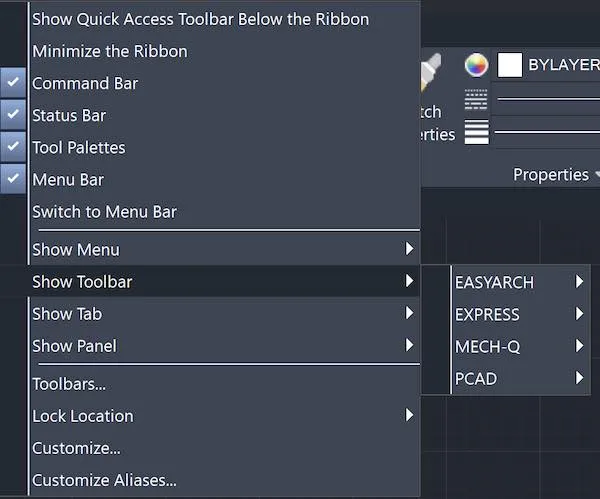
If you’re working within the AutoCAD Classic interface and find your toolbars have vanished, the most common culprit is that they are simply set to hidden. To verify this, perform a simple check: right-click anywhere on the top menu bar. A drop-down menu will appear, offering a “Toolbar” option. If the toolbar you’re looking for isn’t actively checked in this list, simply click on it to make it visible again. This quick step often resolves the issue for users of the Classic workspace.
Restoring a Disappeared AutoCAD Ribbon
For users who prefer or are required to use the AutoCAD Ribbon interface, a missing toolbar can be equally perplexing. Begin by checking if the ribbon is merely minimized. Look for an arrow, typically located in the top-right corner of the screen. Clicking this arrow should expand the minimized ribbon. If this action doesn’t bring back your toolbar, a more robust solution involves resetting the ribbon entirely. To do this, enter RIBBONCLOSE into the command line and press Enter. Subsequently, type RIBBON and press Enter again. This process reloads the ribbon, often restoring any missing components.
Recovering the Missing Menubar
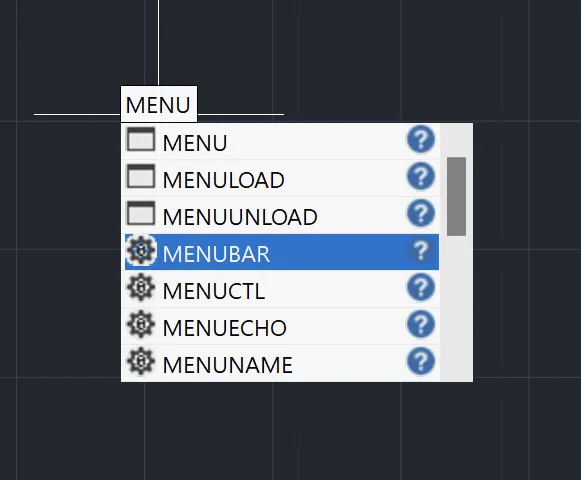
The Menubar, situated above the Ribbon, houses crucial pulldown menus like “File,” “Edit,” “View,” “Insert,” and “Format,” and is a familiar feature for many AutoCAD users. If your Menubar is not displaying, the fix is straightforward: ensure the MENUBAR command is set to 1. Access the command line, type MENUBAR, enter the value 1, and press Enter. This command activates the visibility of the Menubar, restoring access to these essential dropdown options.
Customizing Your Workspace for Optimal Efficiency
Beyond these specific fixes, you might encounter situations where toolbars seem to have been accidentally removed from your workspace configuration. In such cases, it’s beneficial to check your workspace settings. Locate the “Workspace” icon, usually found in the lower status bar, and select either “AutoCAD Classic” or “AutoCAD Ribbon,” depending on your preference.
For users seeking a more tailored setup, the “Customize User Interface” (CUI) command offers extensive control. Type CUI in the command line to access this powerful tool. From the left-hand pane, select “Toolbars,” then click on “Customize Workspace.” This interface allows you to add, remove, and rearrange toolbars precisely to your workflow needs. You can also save these custom workspaces for easy retrieval, ensuring your preferred layout is always accessible.
Conclusion: Regain Control of Your AutoCAD Interface
Missing toolbars in AutoCAD, while inconvenient, are typically resolvable with a few targeted troubleshooting steps. Whether it’s a hidden toolbar in the Classic workspace, a minimized ribbon, or an deactivated menubar, the solutions are readily available. By systematically checking these common issues and utilizing the workspace customization features, you can efficiently restore your AutoCAD interface. For users exploring cost-effective alternatives that offer similar functionality, considering options like AViCAD can provide a compelling value proposition, often with a more accessible price point and a free trial period.
If you’re looking for a powerful yet more budget-friendly alternative to AutoCAD, you should definitely explore AViCAD. It delivers many of the same core features at a significantly lower cost. You can even take advantage of a free 30-day download to experience its capabilities firsthand. Check out AViCAD for a robust and affordable CAD solution.