
In the world of data management, presentation is just as important as accuracy. After spending hours calculating complex formulas and organizing data in Microsoft Excel, the final touch is ensuring your worksheet looks professional and readable. Proper formatting helps key information stand out and allows your audience to grasp the data’s meaning more effectively.
Fortunately, Excel offers several powerful tools to replicate styles across your workbook without manual reformatting. Whether you are using Excel 365 or an older version like Excel 2007, mastering the Format Painter, Fill Handle, and Paste Special features will significantly speed up your workflow.
The Power of the Excel Format Painter
The Format Painter is perhaps the most intuitive yet underutilized tool in the Excel arsenal. Instead of copying the actual data or formulas, this feature copies only the “look and feel” of a cell. This includes a wide range of attributes:
- Number Formats: Currency, percentages, dates, and custom accounting formats.
- Typography: Font type, size, color, and styles like bold, italic, or underline.
- Cell Styling: Background fill colors and custom border configurations.
- Alignment: Text orientation, indentation, and wrap text settings.
You can find the Format Painter icon—shaped like a paintbrush—on the Home tab, within the Clipboard group.
Basic Steps to Use Format Painter
- Select the cell that already has the formatting you want to use.
- Click the Format Painter button on the Ribbon. Your cursor will transform into a small paintbrush.
- Click on the target cell where you want to apply the new style.
Advanced Format Painter Techniques
To maximize your efficiency when working with large datasets, try these professional tips:
1. Formatting a Continuous Range
If you need to style an entire block of data, select your source cell, click the Format Painter, and then click and drag the brush across the entire range of destination cells.
2. Handling Non-Adjacent Cells
To apply the same style to multiple cells that are not next to each other, double-click the Format Painter button. This “locks” the tool, allowing you to click as many different cells or ranges as you like. To stop painting, simply press the Esc key or click the button again.
3. Copying Column and Row Widths
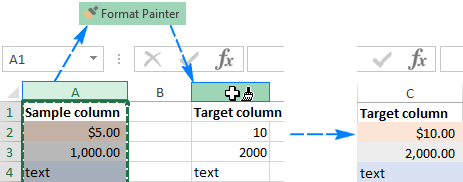
A common frustration is having to manually resize columns to match. To copy formatting—including the column width—select the entire column header (e.g., Column A), click Format Painter, and then click the header of your target column.
Using the Fill Handle for Formatting
The Fill Handle is typically used for dragging formulas or creating sequences, but it has a hidden “Formatting Only” mode that is incredibly useful for vertical data lists.
- Apply your desired format to the first cell in a list.
- Click the small square (Fill Handle) at the bottom-right corner of the cell and drag it down the column.
- Initially, this will copy the cell’s value. To fix this, click the Auto Fill Options icon that appears at the bottom of your selection.
- Select Fill Formatting Only. This reverts the values to their original state while keeping the new visual style.
Paste Special: The Best Choice for Large Scales
When you need to apply formatting to an entire worksheet or massive rows/columns (including empty cells), Paste Special is the most reliable method.
- Copy the source cell (Ctrl + C).
- Select the entire destination area (click the row or column header).
- Right-click and choose Paste Special.
- In the dialog box, select the Formats radio button and click OK.
Alternatively, many modern versions of Excel provide a Formatting (R) icon in the right-click context menu, which offers a live preview before you commit to the change.
Keyboard Shortcuts for Efficiency
For users who prefer to keep their hands on the keyboard, there are two primary ways to trigger these actions:
- Ribbon Navigation: Press Alt, then H, then F, then P. This activates the Format Painter via the keyboard. Note that these keys should be pressed sequentially, not simultaneously.
- Paste Special Shortcut: Copy your cell (Ctrl + C), move to the target, and press Shift + F10 followed by R, then hit Enter. This bypasses the mouse entirely to paste only the formatting.
Conclusion
Mastering these formatting shortcuts is a hallmark of an advanced Excel user. By utilizing the Format Painter for quick fixes, the Fill Handle for lists, and Paste Special for large-scale adjustments, you can ensure your reports are consistently beautiful with minimal effort. Remember, a well-formatted spreadsheet not only looks better but is also less prone to interpretation errors by the end-user.
References
- Microsoft Support: Use the Format Painter.
- Excel Help Center: Paste Special Options.