
When configuring a workstation for demanding software like Autodesk Revit, particularly for tasks involving GPU rendering and complex models, careful consideration of core components is paramount. This guide delves into the essential hardware choices, focusing on CPUs, GPUs, and storage solutions, to help you build or select a system that maximizes performance and efficiency.
Understanding Your IT Department’s Preferences
Before diving into specific components, it’s crucial to ascertain your IT department’s vendor preferences. If they have a preferred vendor like Dell or Lenovo, this will significantly narrow down your options. Assuming you are not building a workstation from scratch, a pre-configured gaming desktop equipped with an NVIDIA GeForce RTX 4090 often provides the best performance for GPU-intensive tasks.
CPU: Balancing Rendering Needs
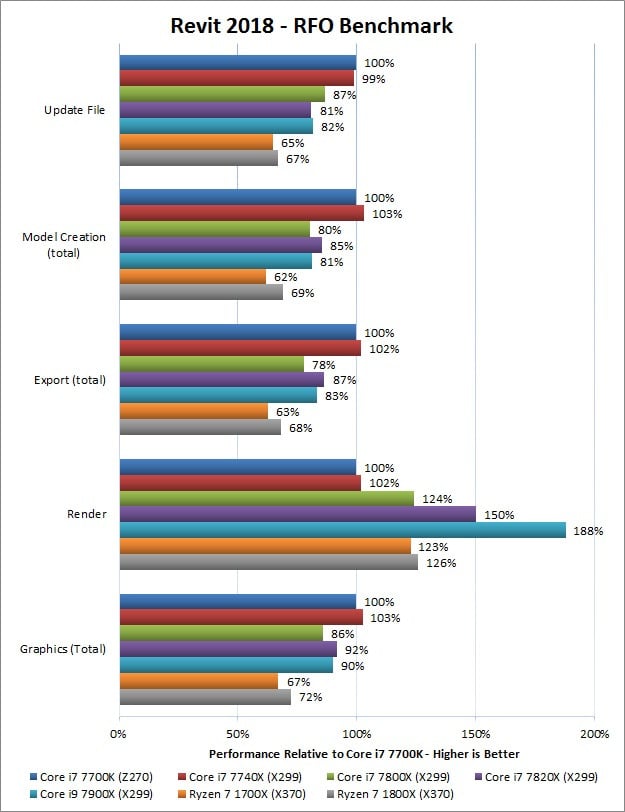
The choice of CPU depends heavily on your rendering workflow. If your work primarily involves CPU rendering, such as with V-Ray, a high-end processor like AMD’s Threadripper series would be ideal. However, for those focusing on GPU rendering, processors like the AMD Ryzen 9 7950X3D or Intel Core i9-14900K offer a strong balance of performance. While slightly less powerful CPUs can also suffice if budget is a concern, these processors represent the upper echelon for demanding tasks.
GPU: Navigating the NVIDIA Landscape
The graphics card is arguably the most critical component for Revit users, especially those leveraging GPU rendering. The market for high-end NVIDIA GPUs, particularly the RTX 4090, has been influenced by the AI boom, sometimes making them more accessible and cost-effective when purchased as part of a pre-built system rather than as a standalone component.
If you are constrained to NVIDIA’s professional “Pro” cards, the RTX 4000 Ada stands out as the current best option. It’s important to navigate NVIDIA’s sometimes obfuscated naming conventions:
- P4000: An older card, likely past its prime for demanding workflows.
- RTX 4000: While functional, its 8GB of VRAM can be a limiting factor compared to newer generations.
- RTX A4000: A capable card with 16GB of VRAM, but now a generation behind with the release of the Ada generation.
- RTX 4000 Ada: Generally, this is the card to aim for within the professional lineup. Ensure you are configuring the correct version, as vendor websites may not always clearly distinguish between the standard and the Small Form Factor (SFF) variant.
- GeForce RTX 4090: Offers substantial power but necessitates a “gaming” oriented setup with robust power supply unit (PSU) specifications.
- RTX 4000 Ada SFF: A compact, lower-power version of the RTX 4000 Ada. It’s suitable for small form factor builds, such as the Lenovo P3 Ultra Workstation, when configured with an Intel 13900 CPU.
- RTX 5000/6000 Ada: These cards come with a significant price tag and should only be considered for exceptionally large and complex scenes that absolutely demand their VRAM and processing power.
Storage Solutions for Efficiency
For storage, a common and effective configuration involves two drives: a ‘C’ drive for the operating system and application libraries, and a ‘D’ drive for project files. While modern NVMe SSDs have reduced the performance gap between drives, maintaining two separate drives offers an added layer of security through quick internal backups of critical project files, mitigating the risk of data loss should one SSD fail.
RAM: Ensuring Smooth Performance
A minimum of 64GB of RAM is highly recommended. With the increasing complexity of Revit models and the demands of real-time rendering applications like Enscape, 32GB of RAM can quickly become a bottleneck, leading to performance issues and longer processing times.
By carefully selecting these core components, you can build a powerful workstation tailored to your specific Revit workflow, ensuring a smoother and more productive experience.