
We’ve all faced this scenario: sending an Excel file to colleagues or clients, only to have the email bounce back because the attachment is too large. Or opening a workbook and watching Excel lag for a full minute before you can type a single cell. When these issues start interrupting your workflow, learning how to reduce Excel file size becomes crucial to maintaining productivity and smooth data sharing.
In this guide, we’ll explore practical techniques to shrink Excel file size efficiently, offering clear, step-by-step instructions for each method.
Quick Manual Fixes to Shrink Your Excel File
Before diving into advanced techniques, many Excel files can be reduced by addressing hidden overhead and unnecessary formatting.
Clear Excess Formatting
One common reason for large files is unnecessary formatting. For example, formatting an entire column far beyond your actual data can bloat the file.
Solution: Select the empty rows or columns beyond your active data, navigate to the Home tab, and click Clear → Clear All to remove formatting, styles, and residual data.
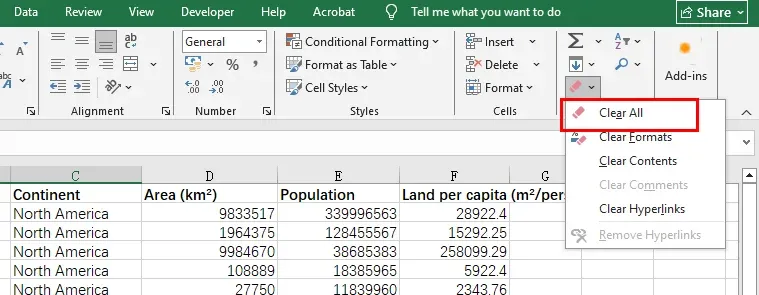
To completely remove unused rows or columns, select the headers of those rows or columns, right-click, and choose Delete.
Save as Binary Workbook (.xlsb)
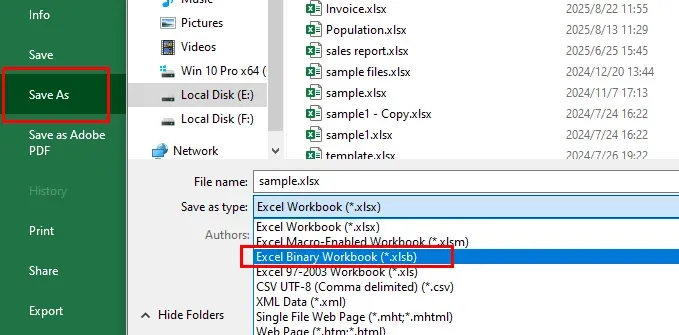
Switching your .xlsx file to a binary workbook (.xlsb) can often reduce the file size by 30% to 50%. Binary files are faster to read and write, making them ideal for large datasets.
Solution: Open the file, go to File → Save As, and choose the .xlsb format. Avoid simply renaming the file extension, as this can lead to corruption.
Optimize Images in Excel
Images like logos, screenshots, or product photos can significantly increase file size.
Solution: Click on any image, go to the Picture Format tab, and select Compress Pictures.
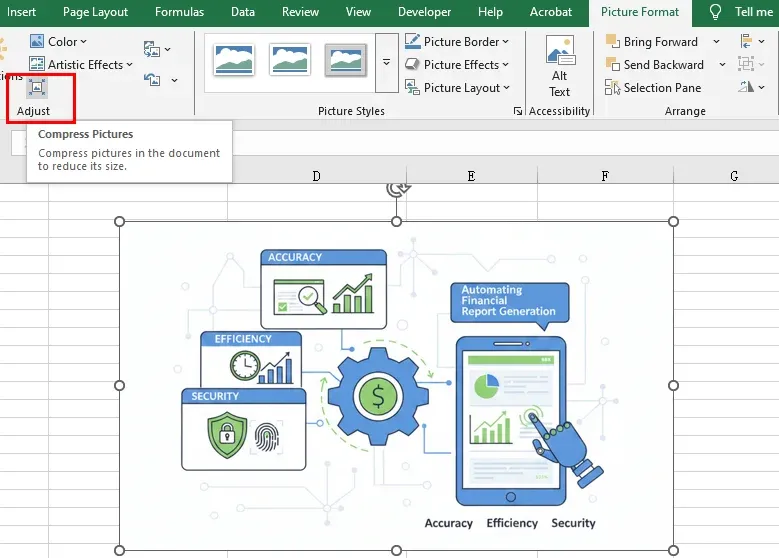
Pro Tip: Uncheck “Apply only to this picture” to compress all images simultaneously, and select “Email (96 ppi)” for maximum reduction when high resolution is not essential.
Programmatic Optimization Using Free Spire.XLS for Python
For developers or businesses handling numerous Excel files, automation is more efficient than manual editing. Free Spire.XLS for Python enables programmatic optimization without opening Excel.
Benefits of a programmatic approach
- Compress Image Quality: Reduce storage footprint by iterating through worksheets and applying the ExcelPicture.Compress() method.
- Remove Redundant Styles: Use Clear(ExcelClearOptions.ClearFormat) to eliminate unnecessary formatting and metadata.
- Optimize Data Storage: Delete blank rows or columns with Worksheet.DeleteRow() and Worksheet.DeleteColumn(), ensuring a clean, high-performance dataset.
Example Python snippet:
from spire.xls import *
from spire.xls.common import *

# Load workbook
workbook = Workbook()
input_path = "/input/sample excel.xlsx"
output_path = "/output/Compressed_Excel_Full.xlsx"
workbook.LoadFromFile(input_path)

# Optimize each worksheet
for i in range(workbook.Worksheets.Count):
    sheet = workbook.Worksheets[i]
    for picture in sheet.Pictures:
        picture.Compress(50)  # Compress images to 50% quality
    target_range = sheet.Range["A1:D1"]
    target_range.Clear(ExcelClearOptions.ClearFormat)
    for r in range(sheet.LastRow, 0, -1):
        if sheet.Rows[r-1].IsBlank:
            sheet.DeleteRow(r)
    for c in range(sheet.LastColumn, 0, -1):
        if sheet.Columns[c-1].IsBlank:
            sheet.DeleteColumn(c)

# Save optimized workbook
workbook.SaveToFile(output_path, ExcelVersion.Version2016)
workbook.Dispose()
print(f"Optimization complete! File saved at: {output_path}")
Excel file size before and after programmatic optimization:
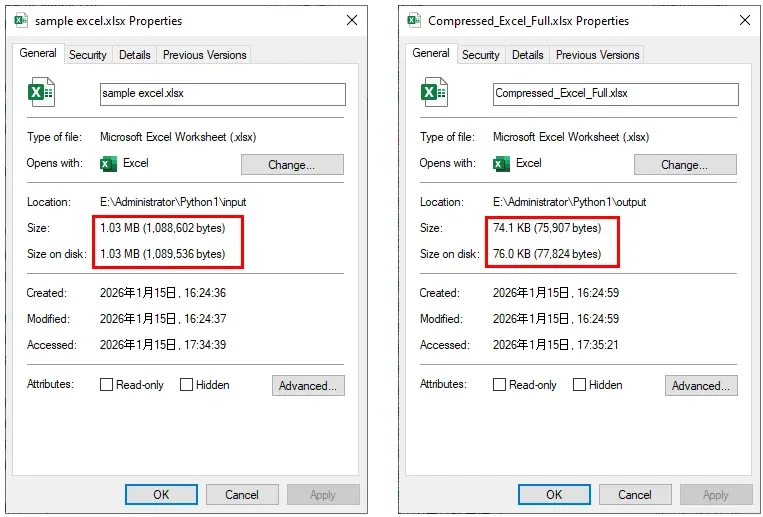 Reduce Excel File Size by Clearing All Unwanted Formatting
Advanced Techniques for Large Datasets
When the file is large due to data rather than media, storage methods need adjustment.
Use Excel Data Model (Power Pivot)
For millions of rows, avoid keeping all data in standard worksheets. The Excel Data Model uses the Vertipaq compression engine, efficiently handling vast amounts of data while keeping file size low.
Remove Hidden Sheets and Objects
Old versions of files may contain hidden sheets or objects inflating file size. Use Inspect Document (File → Info → Check for Issues) to detect and remove hidden content.
Conclusion
Reducing Excel file size improves performance and ensures smooth data sharing. Quick manual methods, like saving as .xlsb or compressing images, provide immediate results. For developers and businesses, automated solutions using Free Spire.XLS for Python enable comprehensive optimization by purging redundant formatting, compressing media, and removing ghost cells. By combining manual and programmatic strategies, Excel workbooks can remain fast, lightweight, and professional.