
External references (X-refs) are powerful tools for managing complex drawing projects. When an external reference is inserted into a drawing, you can often edit it directly within your current IntelliCAD session, and these changes will automatically update the source file. This “in-place editing” streamlines the workflow, saving you the hassle of locating and manually loading the source drawing file for modifications. This guide will walk you through the process of editing external references directly within IntelliCAD.
Initiating In-Place Reference Editing
There are several straightforward ways to begin editing an external reference in-place:
- Ribbon Interface: Navigate to the
Inserttab on the ribbon, then selectEdit Reference in Place(found within theReferencepanel). - Menu Options: Access the
Toolsmenu, and choose eitherEdit BlockorX-Ref In-Place > Edit In-Place. - Command Line: Type
refeditand pressEnter.
Following any of these commands, you will be prompted to select the specific external reference you wish to edit.
The Reference Edit Dialog Box
Once you initiate the in-place editing process, the Reference Edit dialog box will appear. Here, you’ll need to:
- Select Reference: In the
Reference Namefield, choose the external reference you intend to modify. - Configure Settings: Navigate to the
Settingstab to customize your editing experience. You have two key options:- Create Unique Layer, Style and Block Names: Selecting this option ensures that any layers, styles, or blocks you alter within the external reference will receive unique names. A prefix will be added to the original name of modified items, while unchanged elements retain their original names. This prevents naming conflicts.
- Display Attribute Definitions for Editing: This setting allows you to hide attributes and instead display their definitions while editing. Keep in mind that changes made to attribute definitions will only impact new insertions after the reference is saved.
After configuring your settings, click OK to proceed.
Making Edits and Managing Entities
With the external reference open for in-place editing, you can now make direct changes to its contents. Any new entities you create during this process will be automatically incorporated into the source file when you save and close the reference.
Adding Existing Entities: If you need to include an entity that is already present in your current drawing into the external reference you are editing, simply select the entity. Then, you can either:
- Use the ribbon: Go to
Tools > Edit BlockorX-Ref In-Place > Add to Working Set. - Use the command line: Type
refset, pressEnter, and then selectAdd.
Removing Entities: Conversely, to exclude an entity from the external reference, select it and perform one of the following actions:
- Use the ribbon: Navigate to
Tools > Edit BlockorX-Ref-In-Place > Remove from Working Set. - Use the command line: Type
refset, pressEnter, and then selectRemove.
Saving and Closing the Edited Reference
Once you have completed all your desired modifications:
Close Reference: Initiate the closing process by either:
- Using the ribbon: Select
Tools > Edit BlockorX-Ref In-Place > Close Reference. - Using the command line: Type
refcloseand pressEnter.
- Using the ribbon: Select
Save or Discard: You will be prompted to either
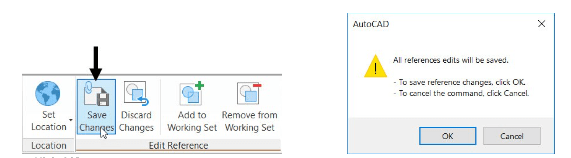
Saveyour changes, which will update the source file, orDiscardto cancel any modifications made during the session.
Upon saving, the external reference will be updated, and your current drawing will immediately reflect these changes.
For direct access to open an external reference, you can also utilize the xopen command. If you make changes to an external reference that is already open, remember to reload it in your current drawing to view those modifications.