
AutoCAD BAK files are backup copies of your drawing files, created automatically by AutoCAD whenever you save a drawing that has been previously saved. These backups are crucial for data recovery in case of accidental data loss, file corruption, or unforeseen system issues. This guide will walk you through the process of opening and recovering your work from a BAK file, ensuring you can access your valuable design data.
Understanding AutoCAD BAK Files
When you save an AutoCAD drawing (.dwg file), if that drawing has been saved before, AutoCAD creates a backup of the previous version. This backup is saved with a .bak extension in the same folder as the original .dwg file. For example, if your drawing is named MyDrawing.dwg, its backup file will be MyDrawing.bak. It’s important to note that AutoCAD’s default settings for creating these BAK files can be managed through the ISAVEBAK system variable. Setting ISAVEBAK to 1 enables this feature, while setting it to 0 disables it.
Steps to Open a BAK File
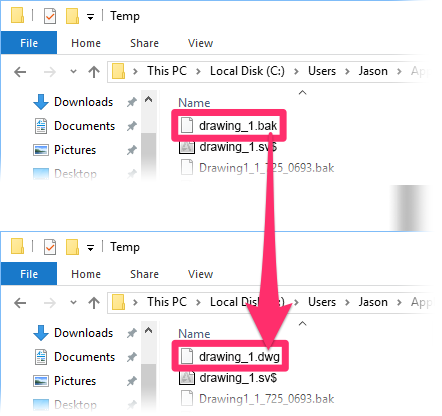
Opening a .bak file is a straightforward process that involves renaming the file extension.
- Locate the BAK File: Navigate to the folder where your original AutoCAD drawing (
.dwgfile) was saved. You should find the.bakfile there, with the same name as your drawing but with the.bakextension. - Rename the File: Right-click on the
.bakfile and select “Rename.” Change the file extension from.bakto.dwg. For instance,MyDrawing.bakwill becomeMyDrawing.dwg. - Confirm the Change: Windows may warn you that changing a file extension can make the file unusable. Confirm that you want to proceed with the renaming.
- Open the Renamed File: Double-click the newly renamed
.dwgfile. AutoCAD should now open this file as a regular drawing.
This process effectively transforms the backup file into a usable AutoCAD drawing. However, it’s important to remember that this restored file represents the state of your drawing at the time the BAK file was created, which might be an older version than your most recent saved .dwg file if the corruption occurred after the last save.
When BAK Files Might Not Be Enough
While .bak files are excellent for recovering from minor issues or recent accidental saves, they have limitations. If your .dwg file is severely corrupted, or if the issue occurred after the last time AutoCAD created a .bak file, the .bak file might also be corrupted or represent an outdated version of your work. In such scenarios, you might need to explore other recovery methods.
AutoCAD also creates automatic save (.sv$) files, which are typically saved in a temporary location. These are distinct from .bak files and can sometimes offer a more recent recovery point. The location of these automatic save files can be configured in AutoCAD’s options. Additionally, AutoCAD offers a drawing recovery manager that can help identify and open salvageable drawing files, including .sv$ files, when you start AutoCAD after a crash.
Best Practices for Data Protection
To minimize the risk of data loss and ensure you always have access to your work, consider implementing the following practices:
- Regular Saving: Save your work frequently as you make changes.
- Enable ISAVEBAK: Ensure the
ISAVEBAKsystem variable is set to 1 in AutoCAD to automatically create.bakfiles. - Frequent Backups: Implement a regular backup schedule for your project files, storing backups on a separate drive or cloud storage.
- Incremental Saves: Consider using AutoCAD’s incremental save feature, which saves a new version of the drawing each time you save, creating files like
Drawing1.dwg,Drawing2.dwg, and so on. - Professional Backup Software: Utilize professional backup solutions that can automate the process and provide version history.
By understanding how to open .bak files and adopting robust data protection strategies, you can safeguard your AutoCAD projects against potential data loss and ensure a smooth workflow.