
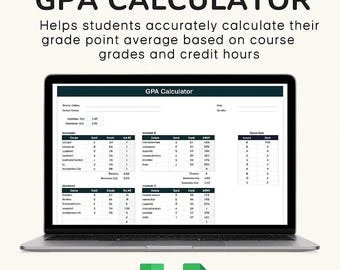
An Excel GPA calculator determines GPA by multiplying each course’s grade points by its credit hours, adding the resulting quality points, and dividing by total GPA credit hours. The formula is GPA = Total Quality Points / Total Credit Hours, where Quality Points = Grade Points × Credit Hours.
An Excel GPA calculator helps solve a common tracking problem: students need to calculate and monitor GPA accurately but often lack a spreadsheet structure that automatically converts grades, accounts for credit hours, and combines semesters without manual recalculation. This guide shows how to build a reusable GPA workbook that calculates semester GPA, weighted GPA, and cumulative GPA from your own academic records.
You can calculate GPA in Excel by multiplying each course’s grade points by its credit hours, adding the resulting quality points, and dividing by total GPA credit hours. A basic formula is GPA = Total Quality Points / Total Credit Hours, where quality points are calculated as Grade Points × Credit Hours. The spreadsheet becomes reusable when grade conversions, course inputs, and formulas are separated into organized sections.
Calculate GPA in Excel with course credits and grade points
A GPA calculation in Excel is a weighted average, not a simple average of letter grades. Each course contributes according to both its grade value and the number of credit hours assigned to it.
The core relationship is:
Quality Points = Grade Points × Credit Hours
For example, a 3-credit course with a 4.0 grade point contributes 12 quality points. A 1-credit course with the same grade contributes only 4 quality points. This difference is why averaging course grade points without considering credits can produce an incorrect result.
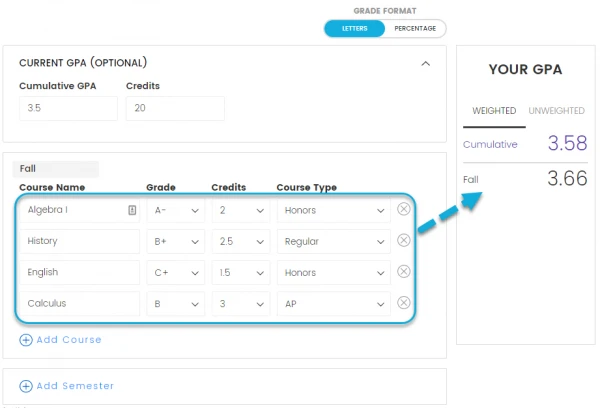
To calculate GPA in Excel using credit hours and grade points, collect three values for every course:
- The letter grade received, such as A, B+, or C.
- The converted grade point value used by your grading scale.
- The course credit hours counted toward GPA.
The final calculation uses the total quality points from all courses divided by the total GPA credit hours included in that semester.
When creating a college GPA sheet, keep the grade conversion separate from the calculation itself. This prevents a change in grading policy from requiring every formula to be rewritten.
Build the GPA spreadsheet structure for course tracking
A reliable spreadsheet starts with separate input and calculation fields. Avoid placing manual grade conversions directly inside GPA formulas because this makes future changes harder to manage.
The following structure supports a reusable GPA spreadsheet template:
Spreadsheet Structure
| Spreadsheet field | Purpose | Required input | Calculation use |
|---|---|---|---|
| Course name | Identifies each academic record | Course title or code | Links each grade entry to a specific class row |
| Letter grade | Stores the awarded grade before conversion | Grade value such as A, B+, or C | Feeds the grade lookup table to retrieve grade points |
| Credit hour | Defines the weight of each course | Numeric credit value | Multiplies with grade points to calculate quality points |
| Grade points | Stores the numeric value used in GPA math | Lookup result from grading scale | Provides the grade-point input for GPA formulas |
| GPA calculation output | Shows calculated results | Formula result | Displays semester or cumulative GPA values |
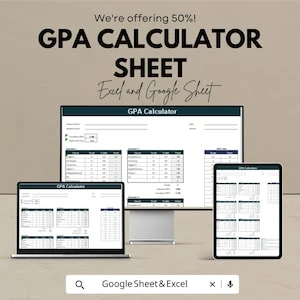
A practical workbook often uses one row per course. This makes it easier to add new classes, filter records, and review where a GPA change came from.
Set up grade records and calculation columns
Create columns such as:
- Course Name
- Letter Grade
- Credit Hours
- Grade Points
- Quality Points
The quality point column can use a formula such as:
=Credit Hours Cell * Grade Points Cell
For example, if credit hours are in column C and grade points are in column D, the quality point calculation could be =C2*D2.
This layout makes troubleshooting easier because each part of the calculation is visible. If a GPA result looks incorrect, you can check whether the problem comes from the grade conversion, credit entry, or formula.
Create a grade lookup table for conversions
A lookup table allows the same workbook to support different grading systems. Instead of rewriting formulas when a school changes its letter-grade scale, update the conversion table.
Use this workflow:
- Create a separate grading scale table with letter grades and numeric points.
- Connect course grade cells to the scale table with a lookup function.
- Update only the scale table when the grading system changes.
A VLOOKUP function can retrieve the grade point value from the letter grade entered by the user. For newer Excel versions, XLOOKUP can also perform this task.
For example, if a student enters B+ in the grade column, the lookup formula returns the corresponding grade point from the grading scale table. This approach prevents inconsistent manual conversions across many course rows.
Add Excel formulas that calculate GPA automatically
Once course records and grade conversions are organized, formulas can calculate GPA without repeated manual work.
There are two common approaches. A quality-point column is easier to audit because every multiplication is visible. A direct weighted formula is faster when grade points and credits are already stored in separate columns.
A formula that ignores credit hours can make a result appear reasonable while still being mathematically wrong.
Calculate semester GPA with Excel formulas
The Excel formula that calculates GPA from weighted grade points is:
GPA = SUMPRODUCT(grade_points, credit_hours) / SUM(credit_hours)
Variables:
grade_points: The numeric grade point value for each course after conversion.credit_hours: The credit value assigned to each course.GPA: The credit-weighted grade point average.
Example:
For courses with grade points [4.0, 3.0] and credit hours [3, 2]:
GPA = ((4.0×3)+(3.0×2)) / (3+2) = 18/5 = 3.6
The SUMPRODUCT formula is useful because it combines multiplication and addition in one calculation. However, the formula depends on matching ranges. If the grade point range contains five courses but the credit range contains four, the result may not represent the intended records.

Apply weighted GPA formulas for advanced courses
Some schools adjust GPA calculations for advanced classes using weighted grade points. The spreadsheet design should separate the original grade point from any adjustment rule.
Example situation: a weighted GPA sheet contains a course with a grade point of 4.0, 3 credit hours, and a course multiplier of 1.1.
- Calculate the adjusted grade point by multiplying the original grade point by the course multiplier.
- Multiply the adjusted grade point by the course credit hours.
- Add adjusted quality points for all courses and divide by total credit hours.
Result: the adjusted grade point becomes 4.4, and its weighted quality points become 13.2 for the 3-credit course.
Schools may define different weighting rules, so multiplier values should come from the applicable grading policy rather than being assumed.
Customize the Excel GPA calculator for different schools
A fixed GPA calculator template works only when the grading scale matches the user’s institution. A customizable workbook should treat the grading scale as a changeable component.
A safer design separates:
- Course data sheets.
- Grade conversion tables.
- Calculation formulas.
- Semester summaries.
For example, one school may assign different numeric values to letter grades than another. Instead of changing formulas across the workbook, update the lookup table entries and allow the existing formulas to continue referencing those values.
When a school uses plus and minus grades, include those entries separately. A table containing A, A-, B+, B, and other grades gives the lookup function a clear match rather than forcing users to estimate conversions.
A decision rule helps choose the right setup: use a simple letter-grade table for one grading scale, but use a separate lookup sheet when the workbook needs to track multiple programs, schools, or academic years.
Combine semesters into a cumulative GPA tracker
A cumulative GPA tracker should combine total quality points and total GPA credit hours across semesters. It should not calculate cumulative GPA by averaging semester GPAs.
The formula is:
Cumulative GPA = Total Quality Points / Total GPA Credit Hours
Variables:
- Total quality points: The sum of all course credit hours multiplied by their grade points across included semesters.
- Total GPA credit hours: The sum of all credit hours counted toward GPA.
- Cumulative GPA: The overall GPA calculated from all included academic records.
Example:
If two semesters contain 30 total quality points over 10 GPA credit hours and 36 total quality points over 12 GPA credit hours:
Cumulative GPA = (30+36) / (10+12) = 66/22 = 3.0
A common mistake is calculating (Semester 1 GPA + Semester 2 GPA) / 2. That method gives each semester equal importance even when the semesters contain different numbers of credits.
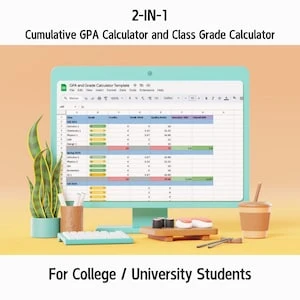
For long-term tracking, use separate semester worksheets connected to a summary sheet. Each semester sheet can store courses, while the summary sheet adds total quality points and credits from all included terms.
Prevent GPA spreadsheet errors with Excel controls
In practical spreadsheet design, the easy-to-miss step is preventing incorrect inputs before formulas run. A correct formula cannot fix a missing credit value or an invalid letter grade.
Use Excel controls to make errors visible early:
Use validation rules for accurate grade entries
A grade dropdown prevents spelling variations such as entering B plus, B+, and b+ as separate values.
Use these checks:
- Apply Excel Data Validation to the letter grade column with allowed values from the grading scale lookup table.
- Require every course row to contain a credit hour value before calculation.
- Verify every entered letter grade returns a valid converted grade point from the lookup table.
- Flag rows where either the course grade or credit value is missing before adding them to GPA totals.
- Compare calculated totals with manual quality-point checks when reviewing formula accuracy.
A useful diagnostic signal is an unexpected blank or error value in the grade point column. That usually indicates the entered letter grade does not match the lookup table.
Review formulas before relying on GPA results
Before using the workbook for academic planning, check:
- Whether every course row references the correct credit and grade point cells.
- Whether excluded courses are removed according to the institution’s rules.
- Whether repeated courses, grade replacement policies, or special credits are handled correctly.
An Excel result is a calculation tool, not automatically the official academic record. Verify final GPA values against your institution’s official record when policies differ.
Maintain an Excel GPA workbook for ongoing use
A GPA workbook becomes more useful when treated as a record system rather than a one-time calculator.
Add new semesters by extending the same structure: course name, letter grade, credit hours, converted grade points, and quality points. Keeping consistent columns allows formulas and summaries to continue working as records grow.
Free spreadsheet templates for tracking grades can be useful starting points, but customization matters. A template should be adjusted to match the grading scale, credit rules, and academic tracking needs of the user.
Regular maintenance also reduces errors. When a new term begins, add the semester structure first, confirm the lookup table still matches the grading system, and then enter course records.
Keep a copy of the workbook before major formula changes. This makes it easier to compare previous calculations if a grading rule or course record is updated later.
Create your GPA workbook by adding five columns—course name, letter grade, credit hours, grade points, and quality points—because that structure gives you an automatic calculation base you can expand across future semesters while keeping the math visible.
FAQ
Can I use an Excel GPA calculator on Google Sheets?
Yes, an Excel GPA calculator can be adapted to Google Sheets when the spreadsheet structure and formulas are supported. Keep course records, grade conversion tables, and calculation formulas organized separately so the workbook remains easier to update and maintain.
What happens if my school uses a different GPA scale?
If your school uses a different GPA scale, update the grade conversion table instead of rewriting the calculation formulas. A separate lookup table allows letter grades and grade points to match the institution’s grading system while keeping the workbook structure reusable.
Can an Excel GPA workbook track graduate and undergraduate records?
An Excel GPA workbook can track different academic records when the course data, grade conversion tables, calculation formulas, and semester summaries are organized separately. The grading rules and included credits should be adjusted to match the records being tracked.
How often should I update my GPA spreadsheet?
Update your GPA spreadsheet whenever new course records are added or academic information changes. Maintaining consistent columns for course name, letter grade, credit hours, grade points, and quality points helps formulas and summaries continue working as records grow.