

The TeamMate Excel add in connects TeamMate Analytics with Microsoft Excel so auditors can analyze spreadsheet data. To set it up, confirm TeamMate Analytics access, enable or install the approved add-in, restart Excel, verify the TeamMate Analytics tab appears, and test the tools with a valid worksheet data range.
The TeamMate Excel add in can help auditors analyze spreadsheet data inside Microsoft Excel, but many users get stuck before the first test: they cannot confirm access, enable the correct component, or understand what happens after the TeamMate Analytics tab appears. This guide explains how to verify requirements, set up the Excel integration, run a basic audit analysis, and check results before using them in a review workflow.
TeamMate Analytics is an Excel-based audit analytics tool that works through an Excel add-in to provide data analysis features such as duplicate detection, sampling, stratification, and exception identification. The add-in places TeamMate Analytics capabilities inside Microsoft Excel, while TeamMate+ audit management handles broader audit workflow activities such as planning, workpapers, review processes, and issue tracking.
TeamMate Excel add in access and purpose
TeamMate Analytics is designed for auditors and accountants who need to examine structured spreadsheet data without moving every analysis task into a separate application. The Excel add-in acts as the working layer for data analysis, allowing users to prepare a worksheet, select a data range, choose an analytical procedure, and review the generated output.
A common source of confusion is treating TeamMate Analytics, TeamMate+, and TeamMate Audit as interchangeable names. They serve related but different purposes. TeamMate Analytics focuses on spreadsheet-based analysis, while the broader TeamMate environment is intended to support audit management activities.

The exact features available depend on an organization’s TeamMate configuration, access rights, and deployment choices. Before following installation steps, confirm which TeamMate component your organization provides.
The typical relationship looks like this:
Table Title
| Component | Primary role | Where it is used |
|---|---|---|
| TeamMate Analytics | Spreadsheet analysis and audit testing tools | Microsoft Excel workbooks |
| TeamMate+ audit management platform | Audit planning, documentation, workflow, and review management | Audit management environment |
| Microsoft Excel | Worksheet preparation and data analysis interface | Desktop spreadsheet application |
For a user trying to understand how does TeamMate Excel add in work, the simplest model is: Excel holds the data, TeamMate Analytics performs selected analysis procedures, and the auditor documents and reviews the outcome within the appropriate audit process.
Prepare requirements before enabling the add-in
Before attempting setup, confirm that the technical and organizational conditions are ready. Many installation problems are not caused by the add-in itself but by missing access, policy restrictions, or an unsupported environment.
A safer way to check is to verify each requirement before changing Excel settings. This prevents repeated installation attempts when the real issue is entitlement or administrator control.
Table Title
| Requirement | Why it matters | Where to check | Expected result |
|---|---|---|---|
| TeamMate Analytics access or entitlement | The add-in may require organization-controlled access before features appear | Confirm with the TeamMate administrator or internal software owner | Your account is authorized to use the analytics features |
| Microsoft Excel environment | The add-in depends on the organization’s supported Excel setup | Check the installed Office environment and internal requirements documentation | Excel matches the approved environment |
| Administrator permissions or deployment policy | Some organizations restrict Office add-in installation or activation | Review company software policies or contact IT support | Installation or activation is permitted |
| Add-in activation status | Confirms that Excel can load the component | Check the Excel add-in management area after setup | TeamMate Analytics loads without an activation warning |

Do not assume that having access to TeamMate+ automatically means the Excel add-in is available. Access is often controlled separately.
Confirm compatibility and account access
Before installation, verify the four access points that commonly determine whether the setup can succeed:
- Confirm that your organization provides TeamMate Analytics access and that your user account is included in the permitted group or configuration.
- Confirm the Microsoft Excel environment follows your organization’s approved requirements. Avoid assuming that every Excel installation supports the same add-in behavior.
- Confirm whether your computer requires administrator approval before adding or enabling Office add-ins.
- Confirm whether security policies block macros, external connections, or installed components that the workflow depends on.
If you cannot answer the first question, stop the installation process and contact the person responsible for TeamMate administration. Installing repeatedly will not resolve missing product access.
Identify the correct TeamMate component
The first visible sign of the correct Excel integration is that TeamMate Analytics tools appear within Excel after activation. The exact ribbon layout can vary by deployment, so the important check is not a particular button name but whether the expected TeamMate Analytics functions are available.
In practical audit workflow planning, the easy-to-miss step is separating analysis from audit management. An Excel analysis result is not the same as a completed audit workpaper. The output still requires documentation, review, and retention according to the organization’s audit process.
Use this decision rule before proceeding:
Table Title
| If | Then |
|---|---|
| Excel opens but TeamMate Analytics tools are unavailable | Verify access rights and the add-in activation state before reinstalling |
| TeamMate+ is available but Excel tools are missing | Confirm whether TeamMate Analytics is separately provided in your environment |
| The add-in appears but expected functions are restricted | Check organizational permissions or administrator settings |
Install and verify the TeamMate Excel add in
The exact installation method depends on your organization’s deployment method. Some environments distribute add-ins centrally, while others require a user-driven installation process. Follow the approved TeamMate documentation and internal IT process rather than assuming one universal installation package.
The general verification path is:
- Confirm that TeamMate Analytics access has been granted before starting installation.
- Complete the organization-approved installation or activation process.
- Close and reopen Microsoft Excel after the add-in change is applied.
- Look for the TeamMate Analytics tab or available TeamMate Analytics commands in the Excel ribbon.
- Open a test worksheet and confirm that the analysis tools respond when a valid data range is selected.
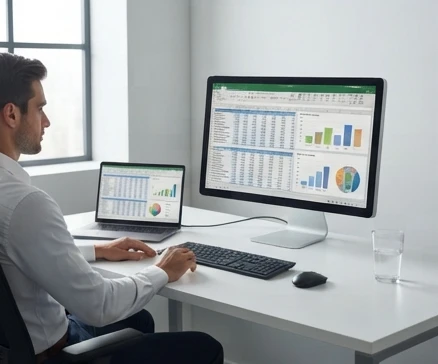
A successful setup has a visible result: Excel loads the TeamMate Analytics tools and the user can begin a data analysis workflow. If the tab is missing after restart, treat that as a troubleshooting issue rather than assuming the installation completed successfully.
When searching for a teammate excel add in setup guide, users should prioritize instructions that match their organization’s current deployment model because interface details can differ between installations.
Run an audit analysis from an Excel worksheet
Once the TeamMate Analytics tab is available, the next challenge is preparing data correctly. An add-in can only analyze the information it receives, so worksheet structure directly affects the reliability of the output.
The recurring failure mode is beginning analysis before confirming that the worksheet represents clean, testable records. A technically successful analysis can still produce misleading results if the source range contains totals, incomplete rows, or inconsistent fields.
Start with a data readiness check:
Table Title
| Requirement | Why it matters | Where to check | Expected result |
|---|---|---|---|
| Stable field names in the first row | Ensures the analysis can identify columns correctly | Review the first row of the worksheet | Each column has a clear label |
| One record per row | Prevents accidental duplication during analysis | Inspect rows and remove merged layouts | Each row represents one business record |
| Exclude totals and blank separators | Prevents non-record lines from affecting calculations | Review the selected range before running a test | Only relevant records are included |

A simple row reconciliation helps confirm what was actually analyzed:
Source row count - Excluded row count = Tested row count
Variables:
- Source row count: the total number of rows considered before exclusions.
- Excluded row count: rows removed because they are totals, headers, blanks, or outside the testing scope.
- Tested row count: records included in the TeamMate Analytics procedure.
Example: If a worksheet contains 100 source rows and 5 rows are excluded, the tested row count is 95.
Prepare data for reliable spreadsheet automation
Before running an analysis, check conditions that commonly affect spreadsheet automation:
- Verify that column headers describe the data below them and are not repeated in the middle of the worksheet.
- Remove merged cells from the testing range because they can interfere with record-based analysis.
- Check whether formulas return expected values before analyzing calculated fields.
- Separate summary rows, subtotals, and manually inserted notes from transactional records.
A practical sign that data is ready is that every row follows the same pattern: the same columns appear in the same order, each record represents one item, and there are no visual separators inside the testing range.
Complete a sample audit testing workflow
A common use case is identifying duplicate transactions that require investigation.
Situation: A financial analyst needs to check transaction data for possible duplicate records.
Steps:
- Select the transaction data range in Excel, excluding totals and unrelated notes.
- Open the TeamMate Analytics tools and choose the duplicate record identification procedure.
- Review the output to identify records flagged as potential duplicates.
- Compare flagged records against the original worksheet to determine whether they represent genuine issues or expected repeated activity.
- Document the procedure, selected fields, exclusions, and review conclusion.
Result: The analyst creates a list of duplicate candidates for follow-up rather than treating every match as an automatic error.
Note: The reliability of the result depends on the selected fields. For example, matching only an amount field may identify many false positives, while combining appropriate transaction attributes may produce a more meaningful review list.
Other TeamMate Analytics procedures can support tasks such as sampling, stratification, and exception identification. The best way to use TeamMate with Excel is to define the audit question first, then select an analytical procedure that directly supports that question.
Fix common TeamMate Excel add in problems
Most add-in issues can be narrowed down by matching the visible symptom with the stage where the workflow failed. Avoid reinstalling immediately; first identify whether the problem is access, activation, data structure, or permissions.
Table Title
| Symptom | Possible cause | Recommended fix | Escalation point |
|---|---|---|---|
| TeamMate Analytics tab is missing | Add-in is not enabled, unavailable, or not assigned to the user | Confirm entitlement, check activation status, and restart Excel | TeamMate administrator or IT support |
| Tab appears but commands are disabled | Current worksheet selection or permissions do not meet requirements | Select a valid data range and verify access settings | TeamMate administrator if restrictions remain |
| Range detection fails | Worksheet contains blank rows, merged cells, or inconsistent structures | Prepare a clean table with one record per row | Data owner if source formatting cannot change |
| Analysis returns no output | No matching results, invalid parameters, or unsuitable input data | Review parameters and compare the tested range with source records | Audit reviewer or application support |

A missing tab and an empty result are different problems. A missing tab means Excel did not expose the tool. An empty result means the tool ran but found nothing matching the selected conditions or could not interpret the input as expected.
For teammate excel add in troubleshooting steps, use a staged approach: verify access first, verify activation second, verify worksheet structure third, and only then review the analysis settings.
Validate analysis results before audit reliance
An analytical output is a starting point for audit work, not automatic proof. The reviewer still needs to confirm that the source data, procedure settings, and results are properly documented.
Which worksheet conditions can invalidate or distort an analysis depends on the procedure used, but common warning signs include inconsistent column formats, missing records, unexpected row counts, or analysis parameters that do not match the audit objective.
Before relying on the output, complete these checks:
- Compare the original source record count with the tested record count and explain exclusions.
- Document the analytical procedure selected, fields analyzed, parameters entered, and date of execution.
- Review exceptions against source documents or business explanations rather than accepting every flagged item as an error.
- Store the analysis output and supporting information according to the audit retention process.
The difference between an analysis result and audit evidence is important. The result shows what a procedure identified; the audit file must show why the procedure was appropriate, how the data was validated, and how conclusions were reached.
Check worksheet conditions that affect accuracy
Common worksheet problems have observable symptoms:
- Blank rows inside the data range can cause the selected records to stop earlier than expected. Check whether the analysis range ends before the final transaction row.
- Duplicate headers can make fields difficult to interpret. Check the first row and confirm each column label appears only where intended.
- Mixed data types can affect grouping or comparison. Check whether a column contains both numbers and text versions of the same value.
- Formula-driven values should be reviewed before testing. Confirm that calculated cells display the expected result rather than an error message.
A useful verification habit is to record the starting condition before analysis: source file name, selected range, excluded rows, test parameters, and final output location.
Decide when Excel analysis is appropriate
The Excel add-in is most useful when the audit question can be answered through structured spreadsheet analysis. It is less suitable when the main need is workflow control, long-term issue management, or complex data processing outside the workbook environment.
Table Title
| Situation | Better approach |
|---|---|
| Testing a prepared transaction worksheet for duplicates or exceptions | Use TeamMate Analytics within Excel |
| Managing audit plans, assignments, reviews, and workpaper workflow | Use the appropriate TeamMate+ audit management functions |
| Working with data sources that require specialized processing outside Excel | Evaluate a separate analytics platform or data workflow |
When TeamMate Analytics is used, the reviewer should still confirm that the procedure answers the audit objective and that the output can be traced back to the source records.
TeamMate Excel add in workflow limits and alternatives
The TeamMate Excel add in extends Excel with audit analysis capabilities, but it does not replace every part of an audit technology environment. Understanding the boundary prevents users from expecting the wrong tool to manage the wrong task.
Inside Excel, the add-in can support analytical procedures performed on worksheet data. Typical examples include identifying unusual records, testing selected populations, and organizing exceptions for review.
Outside the workbook, activities such as audit planning, engagement management, review sign-offs, issue tracking, and controlled workpaper retention usually belong to a broader audit management workflow.
Table Title
| Activity | TeamMate Analytics Excel add-in | TeamMate+ or other audit workflow tools |
|---|---|---|
| Analyze worksheet data | Yes | May support through broader workflow integration |
| Run spreadsheet-based tests | Yes | Not the primary purpose |
| Manage audit assignments and review stages | No | Yes |
| Maintain complete audit documentation workflow | Limited | Yes |
| Control final evidence retention process | Requires organizational workflow | Typically handled by audit management processes |
The right choice depends on the audit task. Use the Excel integration when the analysis starts with structured spreadsheet data and requires focused testing. Move beyond the add-in when the work requires broader engagement control or specialized data handling.
Open your Excel workbook today, verify whether the TeamMate Analytics tab is available, and check the access and data-readiness conditions before running a test so you can identify setup gaps before they affect an audit procedure.
FAQ
What is TeamMate Analytics used for?
TeamMate Analytics is used by auditors and accountants to analyze structured spreadsheet data inside Microsoft Excel. It provides audit analysis features such as duplicate detection, sampling, stratification, and exception identification, helping users test worksheet data and review analytical results as part of an audit workflow.
Does TeamMate integrate with Microsoft Excel?
Yes. TeamMate Analytics integrates with Microsoft Excel through an Excel add-in that places analysis capabilities inside the spreadsheet environment. The add-in allows users to prepare worksheet data, select ranges, run analytical procedures, and review outputs while broader TeamMate+ functions support audit management activities.
Can you audit an Excel spreadsheet with TeamMate?
Yes. TeamMate Analytics can be used to perform spreadsheet-based audit testing in Excel, including procedures such as duplicate identification, sampling, stratification, and exception analysis. The reliability of results depends on preparing clean worksheet data and validating the analysis output before using it in an audit review.
What is TeamMate+ used for compared with TeamMate Analytics?
TeamMate+ is used for broader audit management activities such as planning, documentation, workflow, review processes, and issue tracking. TeamMate Analytics focuses on spreadsheet-based analysis inside Microsoft Excel, so the two components support different parts of the overall audit process.