
If the Excel status bar is missing in Office 365, you can usually restore it by right-clicking the bottom edge of the Excel window and enabling the needed options in the Customize Status Bar menu. The status bar is the bottom information area of the worksheet window that shows details such as quick calculations, view controls, and the zoom slider. After restoring it, you can re-enable items like Sum, Average, and Count to bring back the quick checks you use while working with spreadsheets.
Restore the missing Excel status bar in Office 365
The fastest fix is to check whether the status bar is simply hidden or has its display items disabled. In Microsoft 365 desktop Excel, the status bar is controlled from the bottom edge of the worksheet window rather than from the main ribbon.
Use this two-minute recovery path:
- Right-click the empty area along the bottom edge of the Excel window where the status bar normally appears.
- Open the Customize Status Bar menu that appears.
- Select the status bar items you want Excel to display, such as Sum, Average, or Count.
- Confirm that the information bar appears below the worksheet and that selected cells show the enabled calculations.
If the bottom bar was hidden only because its options were unchecked, these steps restore the Excel status bar without changing Office settings or repairing the application.
- Right-click the bottom edge of the Excel window near the status bar area.
- Select the required status bar options from the Customize Status Bar menu.
- Confirm that the status bar appears below the worksheet and shows enabled items.
- Select a range of numeric cells to verify that calculation indicators can display.
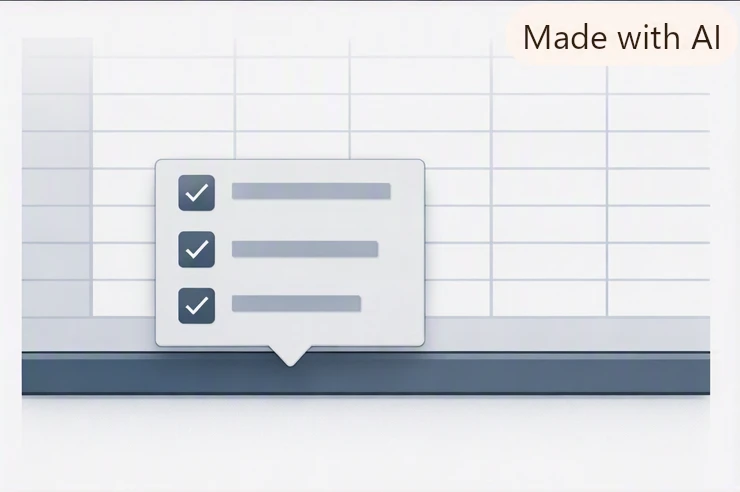
The Customize Status Bar menu is also useful after an interface change because it separates two issues: the bar itself being unavailable and individual indicators being turned off. A visible status bar with missing calculations usually needs option changes, not a full Excel reset.
What the Excel status bar displays and why it disappears
The Excel status bar is the information strip at the bottom of the worksheet interface. It provides quick feedback without opening additional menus, including selected-cell calculations, worksheet view buttons, and the zoom slider.
For many Office workers, analysts, and students, the most useful feature is the ability to select a group of cells and immediately see calculations such as Sum, Average, or Count when those indicators are enabled. It also helps with spreadsheet navigation by showing the current view mode and zoom controls.
The status bar can disappear for several reasons. The most common causes are disabled status bar options, differences between Excel versions, or a workbook environment that affects how the interface appears.
In practical spreadsheet support work, the easy-to-miss step is checking whether the status bar is actually gone or whether only its information items are disabled. A blank-looking bottom area and a missing bottom bar are different problems with different fixes.
Common causes include:
- A hidden or disabled status bar setting where the bottom area does not display expected information.
- A workbook-specific issue where one file behaves differently from a new blank workbook.
- An add-in or interface conflict where Excel controls behave differently after an update or configuration change.
- Using Excel for the web, which does not provide exactly the same desktop customization controls.
Check settings that control Excel status bar visibility
When the basic right-click method does not restore the expected behavior, identify whether the issue comes from a setting, a workbook, or the Excel environment. Avoid changing unrelated Office settings before confirming the cause.
Table of possible causes and fixes
| Possible cause | Typical symptom | Where to check | Recommended fix |
|---|---|---|---|
| Disabled status bar items | Bottom bar exists but useful indicators are missing | Right-click the status bar area | Enable needed items such as Sum, Average, or Count |
| Workbook or template issue | Only specific files show the missing interface behavior | Open a new blank workbook and compare | Check workbook templates or file-specific settings |
| Add-in or version difference | Controls behave differently after updates or in another Excel environment | Review installed add-ins and Excel version type | Test with add-ins disabled or use desktop Excel controls |
Separate display settings from workbook issues
The next step is determining whether Excel itself has a display problem or whether a particular file is affecting the worksheet interface. A simple comparison can reveal the difference.
Open a new blank workbook and compare it with the workbook where the status bar disappeared. If the status bar works in the blank workbook but not in one file, the problem is likely connected to that workbook, template, or file environment rather than the global Excel interface.
Table of comparison checks
| If | Then |
|---|---|
| Right-clicking the bottom edge opens Customize Status Bar options | Treat Excel as functioning normally and enable the missing status bar items instead of repairing the application. |
| The Customize Status Bar menu is unavailable or the bottom interface area does not respond | Investigate workbook, template, display, or add-in conflicts before considering Office repair. |
| The issue appears only in Excel for the web | Use the available web interface options and do not expect identical desktop status bar customization controls. |
A workbook-related problem often has a clear signal: only one file or one template shows the missing behavior. If every workbook has the same missing status bar, the cause is more likely a broader Excel interface setting or version difference.
Add-ins are another possible source of interface changes. A practical check is to compare Excel behavior with optional add-ins disabled. If the status bar returns under that condition, the add-in environment becomes a likely area to investigate.
Verify Excel versions with different controls
The restoration process depends on which Excel version you are using. Microsoft 365 desktop Excel and older desktop versions generally use the bottom status bar area with right-click customization, but menu names and available options can vary by release.
Excel for the web is different. It runs inside a browser and does not provide every desktop Excel interface control. If the status bar is missing in Excel for the web, do not assume a desktop troubleshooting path will apply exactly.
Use this decision rule:
- If you are using Microsoft 365 desktop Excel and can right-click the bottom worksheet area, use Customize Status Bar.
- If you are using an older desktop Excel release, look for the same bottom-area customization options but expect minor interface differences.
- If you are using Excel for the web, check the available browser-based worksheet controls instead of searching for desktop-only settings.
Customize restored status bar calculations and tools
After the Excel status bar returns, the next step is choosing which information appears there. The default configuration may not include every quick calculation you need.
To restore quick calculations, select a range of numeric cells in a worksheet and check the bottom status bar. If Sum, Average, or Count does not appear, right-click the status bar and enable those calculation indicators.
The goal is not to enable every available item. A crowded status bar makes it harder to find the information you actually use.
- Select a range containing numeric cells in the worksheet.
- Check whether enabled calculation indicators such as Sum, Average, or Count appear on the status bar.
- Enable only the calculation indicators needed for quick totals rather than unrelated display options.
Useful status bar items often depend on your workflow:
Table of useful status bar options
| Need | Useful status bar option |
|---|---|
| Quick total checks | Sum |
| Basic data review | Count |
| Checking average values | Average |
| Navigation between worksheet views | View controls |
| Adjusting worksheet size on screen | Zoom slider |
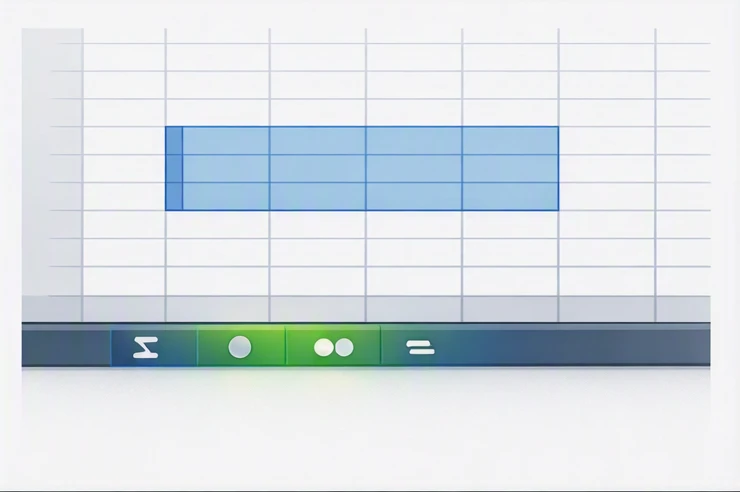
A restored status bar should support the way you review spreadsheets. For example, someone checking sales numbers may need Sum frequently, while someone reviewing a text list may rely more on Count.
Fix cases where the Excel bottom bar stays hidden
If the Excel bottom bar is still not showing after enabling the status bar options, use targeted checks instead of immediately reinstalling Microsoft 365. Most missing status bar problems can be narrowed down by observing when the issue occurs.
A safer troubleshooting sequence is:
- Close Excel completely and reopen it to refresh the worksheet interface.
- Open a new blank workbook and compare the status bar behavior.
- Check whether the problem occurs only with one workbook, one template, or every file.
- Review add-ins if the interface changes only after certain Excel features load.
- Consider Office repair only after the built-in visibility and comparison checks fail.
From an editorial review of spreadsheet troubleshooting patterns, the recurring failure mode is skipping the diagnosis step and changing application settings without confirming the symptom. A missing calculation indicator, a hidden status bar, and a workbook-specific display issue can look similar but require different actions.
For example, a user may report that the status bar is missing because selecting cells no longer shows Sum or Average. The observable sign is that the bottom bar exists, but the calculations are absent. The correct fix is enabling calculation indicators, not repairing Office.
Another example is a workbook where the bottom interface behaves differently from every other file. The observable sign is that a blank workbook works normally while the affected file does not. That points toward a workbook or template issue that needs file-level investigation.
Table of troubleshooting situations
| Situation | Check | Result to look for |
|---|---|---|
| Status bar returns after right-click customization | Enable needed options | Quick calculations appear when cells are selected |
| Only one workbook has the problem | Compare with a blank workbook | File-specific behavior is confirmed |
| Problem follows every workbook | Compare versions and add-ins | Broader Excel environment issue is more likely |
Do not start with reinstalling Office 365. Reinstallation changes the entire application environment but does not fix a disabled status bar option or a workbook-specific display problem.
A worked example:
Situation: An Excel 365 desktop workbook opens with the bottom status area visible but without quick calculation results when cells are selected.
Steps:
- Select a group of cells containing numeric values.
- Right-click the status bar area and check whether calculation options are enabled.
- Enable the needed calculation indicators and select the cells again.
Result: The status bar displays the selected calculation indicators when numeric ranges are highlighted.
Note: The available controls depend on whether the file is opened in desktop Excel or Excel for the web.
Select the bottom status bar area now and open Customize Status Bar; enabling the missing calculation items or visibility options will immediately confirm whether the issue was only a display setting.
FAQ
Can I restore the Excel status bar without reinstalling Office 365?
Yes. You can usually restore the Excel status bar without reinstalling Office 365 by right-clicking the bottom edge of the Excel window and enabling the needed options in the Customize Status Bar menu. Reinstalling Office changes the entire application environment and is not needed for a disabled status bar option.
Why is my Excel status bar still missing after restarting the app?
If the Excel status bar is still missing after restarting, check whether the issue is caused by disabled status bar items, a workbook-specific problem, an add-in conflict, or an Excel version difference. Compare the affected workbook with a new blank workbook to identify whether the issue is file-specific or broader.
Does Excel for the web have the same status bar controls as desktop Excel?
No. Excel for the web does not provide exactly the same desktop Excel interface controls. If the status bar is missing in Excel for the web, check the available browser-based worksheet controls rather than expecting all Microsoft 365 desktop customization options.
Can I restore Sum and Average calculations after the status bar returns?
Yes. After the status bar returns, select a range of numeric cells and check the bottom bar. If Sum, Average, or Count does not appear, right-click the status bar area and enable the calculation indicators you need for quick spreadsheet checks.