
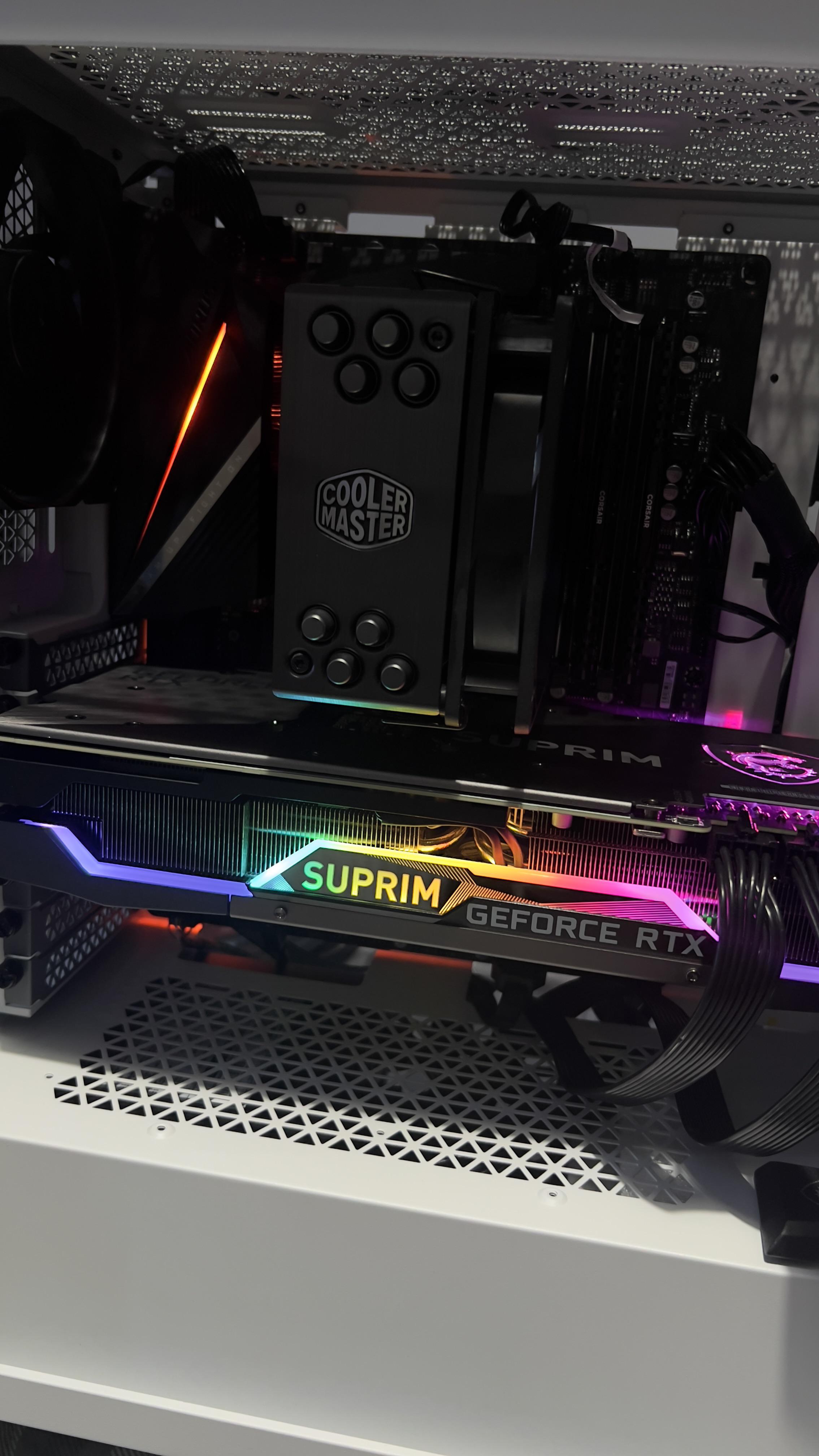
Upgrading your Graphics Processing Unit (GPU) BIOS might sound like a complex task reserved for seasoned hardware enthusiasts. However, this tutorial reveals a surprisingly simple process that can be completed in just a few minutes. Whether you’re an NVIDIA or AMD user, this guide will walk you through updating your GPU’s BIOS, potentially unlocking performance enhancements or resolving stability issues.
Sometimes, manufacturers release BIOS updates to address minor stability concerns or introduce performance tweaks. Other times, you might be looking to install a custom BIOS to overcome limitations like voltage locks, enabling more significant overclocking potential on cards such as the GIGABYTE Windforce GTX 780. This guide is designed to equip you with the knowledge to perform this crucial update safely and efficiently.
What You’ll Need
Before embarking on this BIOS upgrade, ensure you have the following:
- Your GPU model name/number: Knowing the exact model of your graphics card is essential for finding the correct BIOS file.
- A web browser: This will be used to locate and download the necessary BIOS file and flashing utility.
Part 1: Selecting Your BIOS and Flashing Tool
The initial step involves identifying the correct BIOS file for your specific GPU and downloading the appropriate flashing utility.
1. Locating Your GPU Model
To begin, navigate to a reputable hardware website that hosts GPU BIOS files. Websites like TechPowerUp are excellent resources. You’ll need to pinpoint your exact GPU model. Most sites provide filters at the top to help you narrow down your search by manufacturer and card series. Carefully use these filters to find your specific graphics card.
2. Downloading the Correct BIOS File
Once you’ve located your card’s series, you’ll need to choose the most up-to-date BIOS version available. Many BIOS lists are organized with older versions at the top and newer ones towards the bottom. Therefore, it’s often most efficient to scroll to the bottom of the list and work your way up until you find your GPU model.
Upon finding your model, click the download button for the corresponding BIOS file. You can usually click on “details” or a similar option to view a picture of the GPU. This visual confirmation can help ensure that you’ve selected the correct BIOS for your card. A cautionary note: some users have reported that the list order can be reversed depending on browser settings, so always double-check the date associated with the BIOS version.
3. Obtaining the Flashing Tool
After successfully downloading your BIOS file, you’ll need the appropriate flashing tool. This utility is specific to your GPU’s manufacturer:
- For AMD users: You will need the ATIWinFlash tool. Find AMD flashing tools here.
- For NVIDIA users: You will require the NVFlash utility. Find NVIDIA flashing tools here.
Ensure you download the correct tool that matches your graphics card manufacturer.
Flashing Your BIOS: A Step-by-Step Guide
With your BIOS file and flashing tool in hand, you’re ready to proceed with the flashing process.
For AMD Users
- Prepare your files: After downloading the ATIWinFlash tool, extract its contents into a dedicated folder. It’s crucial to keep all the extracted files together. Then, place the BIOS file you downloaded earlier into this same folder.
- Run as Administrator: Locate the
ATIWinflash.exefile, right-click on it, and select “Run as administrator.” - Initiate the flash: The ATIWinFlash utility is designed to be user-friendly. Follow the on-screen prompts within the program to flash your GPU’s BIOS with the new file. Exercise common sense during this process.
For NVIDIA Users
- Prepare your files: Extract the downloaded NVFlash utility into its own folder. Similar to the AMD process, place your downloaded BIOS file into this folder, ensuring it’s alongside
nvflash.exeand its related files. - Launch the tool: Double-click on
nvflash.exe. A console window will appear, similar to the example image. - Execute the command: To update your BIOS, type the following command into the console, replacing
yourfilenameherewith the actual name of your BIOS file:
nvflash yourfilenamehere.bios
Press Enter, and the tool will proceed with flashing your BIOS. Once complete, you’ve successfully updated your NVIDIA GPU’s BIOS. Upgrading your graphics card can indeed enhance performance, and a BIOS update is a key part of that process.
Conclusion
This guide has demonstrated that updating your GPU BIOS is an accessible task for most users. By carefully selecting the correct BIOS file and using the appropriate flashing tool, you can perform this upgrade quickly and efficiently. This process can be beneficial for enhancing stability or unlocking further performance potential from your graphics card. If you’re considering new hardware, exploring options like 16GB NVIDIA graphics cards or looking into refurbished graphic cards might be your next step after optimizing your current setup. Remember to always proceed with caution and ensure you have backed up any critical data before making hardware modifications.