
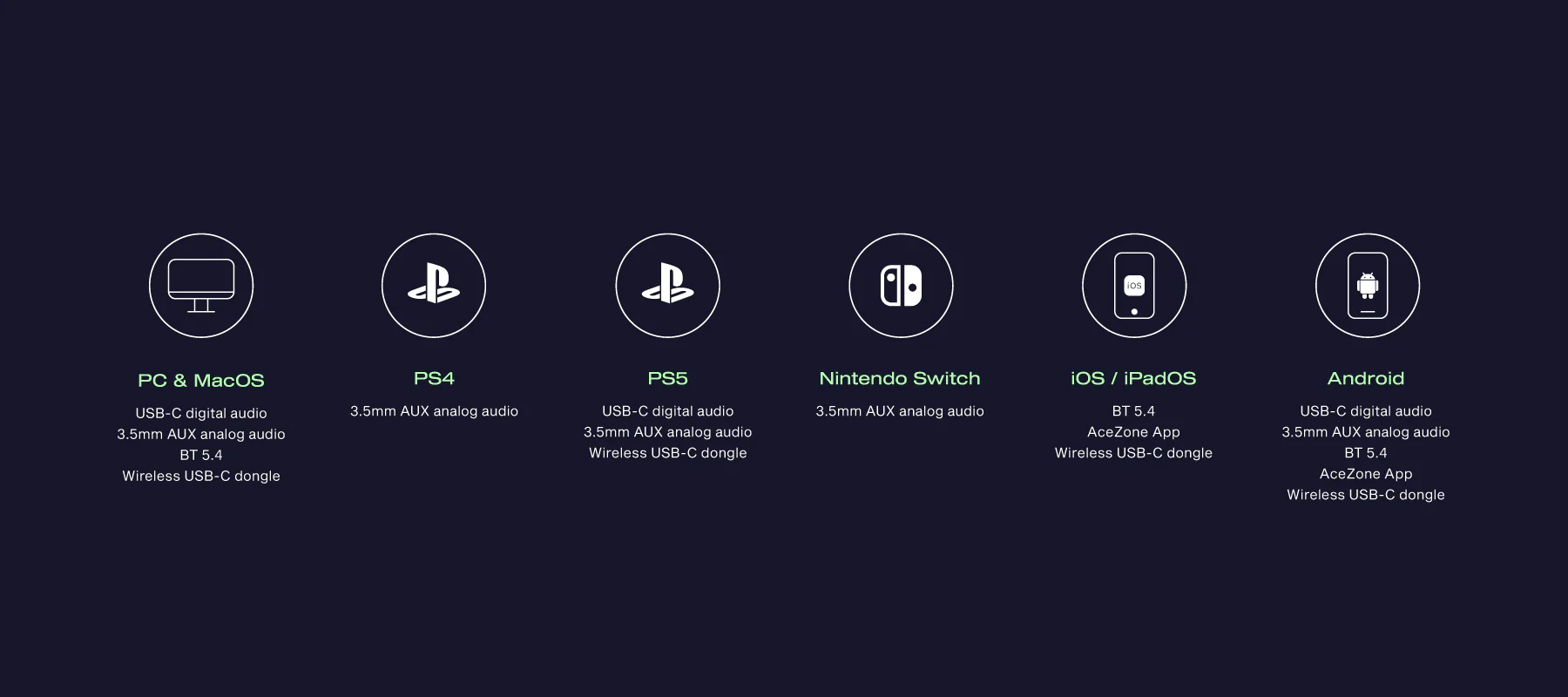
The AceZone A-Spire headset aims to deliver an immersive gaming experience, but like any advanced piece of technology, understanding its features and functionalities is key to maximizing its potential. This guide delves into common questions and provides clear answers to help you get the most out of your A-Spire headset. Whether you’re a competitive gamer seeking the lowest latency or a casual player looking for comfort and versatility, this information is designed to enhance your setup.
Understanding Wireless Capabilities and Audio Quality
While the A-Spire and A-Rise models offer Bluetooth connectivity, AceZone advises against using them wirelessly for intense, competitive gaming. Bluetooth can introduce latency, which is detrimental in fast-paced games where split-second reactions are crucial. Furthermore, when the microphone is active, Bluetooth connections often limit audio output to mono, compromising the rich, stereo soundscape that enhances immersion.
For a true wireless gaming experience without compromise, AceZone recommends their A-Blaze or A-Spire Wireless headsets, which utilize the latest true wireless technology designed to minimize latency.
Ear Pad Durability and Maintenance
To maintain the exceptional performance and comfort of the A-Spire headset, the ear pads are not designed to be swappable. This decision ensures that the ear pads are constructed from high-quality materials, providing both durability and long-lasting comfort during extended gaming sessions. For routine maintenance, gently cleaning the ear pads with a slightly damp cloth is recommended to preserve their condition and feel.
If interchangeable ear pads are a priority, consider the A-Blaze, A-Spire Wireless, and A-Rise models, all of which feature this convenience.
Sidetone: Understanding and Adjusting Your Voice Input
The feature that allows you to hear your own voice through the headset is called “Sidetone,” and it’s an intended function. When wearing a headset that seals your ears, the perception of your own voice changes. Sidetone helps you naturally adjust your speaking volume, preventing you from whispering (making it hard for your mic to pick you up) or shouting (disturbing others).
If you wish to adjust or disable Sidetone on your A-Spire headset, please refer to this guide. For the A-Blaze, A-Spire Wireless, and A-Rise models, Sidetone can be disabled directly within the companion mobile app.
Wired vs. Wireless Configuration
The AceZone A-Spire is primarily a wired gaming headset, ensuring a stable, low-latency connection essential for competitive play. It also incorporates Bluetooth 5.0 and a detachable cable, offering versatility for listening to music or using it on the go without a wired connection. However, for the optimal gaming performance, utilizing the wired connection is strongly recommended.
Performing a Factory Reset
If you encounter persistent issues or wish to clear all settings, performing a factory reset on your A-Spire headset is straightforward. First, disconnect all cables and Bluetooth devices. Turn off the headset and wait for at least 35 seconds. Then, press and hold the power button until you hear the “Bluetooth pairing” voice prompt. Release the button, wait one second, and then press and hold the Play/Pause button for about 3 seconds until you hear “factory reset complete.” This action will remove all saved Bluetooth connections, so you’ll need to re-pair your devices and sync with the AceZone app afterward.
Updating Headset Firmware
To ensure your A-Spire headset has the latest features and performance enhancements, firmware updates are available via the AceZone iOS and Android app. It’s recommended to use an Android device for updates if possible, as the iOS app may occasionally require multiple attempts to complete the process. If you’ve previously paired the headset but are now unable to connect, first remove the headset from your phone’s saved Bluetooth devices.
To update, power off the headset with no cables connected. Ensure your phone’s Bluetooth is enabled and connected to Wi-Fi. Press and hold the power button until the “pairing” prompt is heard, then pair the headset to your phone. Open the AceZone app, tap the “+” to add a new headset, select “A-Spire,” and tap “Connect.” If the firmware is outdated, you will be prompted to update by following the on-screen instructions. The current firmware version for the A-Spire is 146.
References:
- AceZone Official Website. (n.d.). A-Spire Headset. Retrieved from https://www.acezone.io/products/a-spire
- AceZone Support. (n.d.). Sidetone Guide A-Spire. Retrieved from https://cdn.shopify.com/s/files/1/0625/17575926/files/Sidetone_Guide_A-Spire.pdf?v=1760608533
- AceZone App. (n.d.). iOS App Store. Retrieved from https://apps.apple.com/us/app/acezone/id6443547116
- AceZone App. (n.d.). Google Play Store. Retrieved from https://play.google.com/store/apps/details?id=io.acezone.app&pcampaignid=web_share