
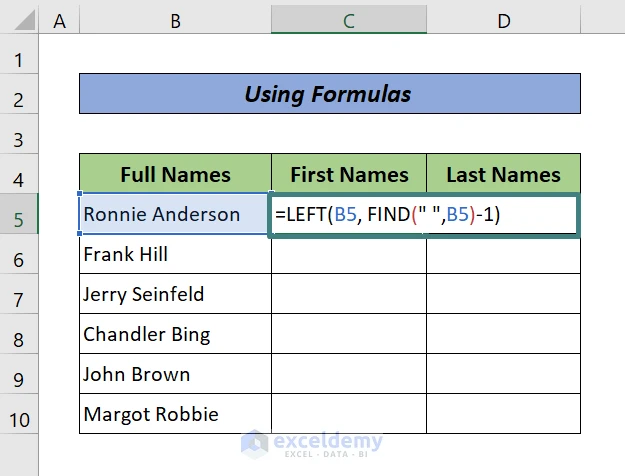
To separate first and last names in Excel, use Flash Fill for a quick one-time split, Text to Columns for names separated by spaces, or formulas such as TEXTSPLIT, LEFT, RIGHT, and FIND when you need results that update with the source data.
If you have a spreadsheet where full names are stored in one column, separating first and last names can become a frustrating cleanup task, especially when imported data contains inconsistent spacing or middle names. This guide shows how to split a full name into separate columns using Flash Fill, Text to Columns, and formulas so you can organize your data without manually copying every entry.
To separate first and last names in Excel, use Flash Fill for a quick one-time split, Text to Columns for simple delimiter-based separation, or formulas such as TEXTSPLIT, LEFT, RIGHT, and FIND when you need results that update with the source data. For broader workflows involving Excel first name last name tasks, choosing the right method helps keep spreadsheet data clean.
Quickest Ways to Split First and Last Names in Excel
For a small or static list, Excel provides built-in tools that can separate names in seconds. Before using any method that changes your worksheet, copy the original name column to another column or save a separate file so the source data remains available if the split creates unexpected results.
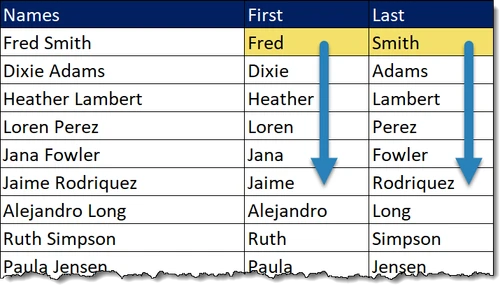
Using Flash Fill to Split Names Into Separate Columns
Flash Fill is useful when the pattern is easy for Excel to recognize. It works best for clean lists where each row follows the same structure, such as John Smith or Maria Lopez.
Using Text to Columns With a Space Delimiter
Text to Columns is a practical choice when names are separated consistently by spaces and you need a permanent split. It separates the original text into multiple columns based on a delimiter.
Using Formulas to Separate Names Dynamically
Formulas are the better option when your spreadsheet will receive new names regularly. Unlike Flash Fill or Text to Columns, formulas can recalculate when the original full name changes.
The easy-to-miss step is choosing a formula that matches the name structure. A simple two-part name needs less logic than a list containing middle names, suffixes, or inconsistent spacing.
TEXTSPLIT for Clean and Simple Separation
The TEXTSPLIT function is designed for modern Excel versions and can divide text into separate cells automatically.
For a full name stored in cell A2, enter:
=TEXTSPLIT(A2," ")
LEFT, RIGHT, and FIND for Advanced Control
Older Excel versions can still separate names by combining text functions. These formulas are useful when you need more control over where Excel cuts the name.
Choosing the Right Method for Your Data
The best way to separate first and last name in Excel depends on whether your data is finished or will continue changing.
Use Flash Fill when the list is short and will not change. Use Text to Columns when the names follow a simple delimiter pattern and you need a quick permanent split. Use formulas when the source column will be updated repeatedly.
Troubleshooting Common Name Splitting Issues
Name separation problems usually come from the original formatting rather than the Excel tool itself.
Fixing Extra Spaces and Misalignments
Extra spaces can cause formulas and Text to Columns to create unexpected results. Use =TRIM(A2) in a helper column before splitting when needed.
Handling Middle Names and Complex Formats
Names with middle names require a different decision rule. If the goal is to separate every word, use TEXTSPLIT. If the goal is specifically first name and last name only, you need a rule for what happens to the middle part.
Splitting Names in Google Sheets
Google Sheets offers similar options for separating names, but the menu names and functions are not identical to Excel.
Preserving Original Data During Separation
Separating names changes the structure of your spreadsheet, so protecting the original column is part of a reliable workflow.
- Create a backup copy before splitting.
- Insert helper columns beside the original names.
- Review results before deleting source data.