
AutoCAD’s BLOCK (B) command is essential for grouping objects, improving drawing organization, and enabling reuse. This guide explains block types, how to create and name blocks, insert them, explode them, and purge unused blocks—targeted at technical users and CAD practitioners. The primary keyword: “AutoCAD BLOCK command”.
Overview: block types and when to use them
- Block: A static grouped object that preserves geometry and requires editing inside the block definition to change size or shape. Use for repeated, unchanging assemblies.
- Dynamic Block: A parametrized block that supports in-place adjustments (stretch, visibility states, parameters). Use when you need flexible, configurable instances without creating many separate blocks.
- Attribute Block: A block that includes editable text attributes (metadata such as part numbers, descriptions, or other variables) for schedules and data extraction.
Create and name a block (B command)
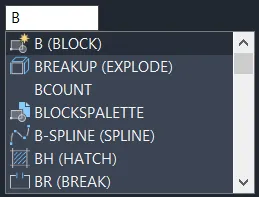
- Start the Block command:
- Menu: Insert > Block > Create Block
- Or type B and press Enter.
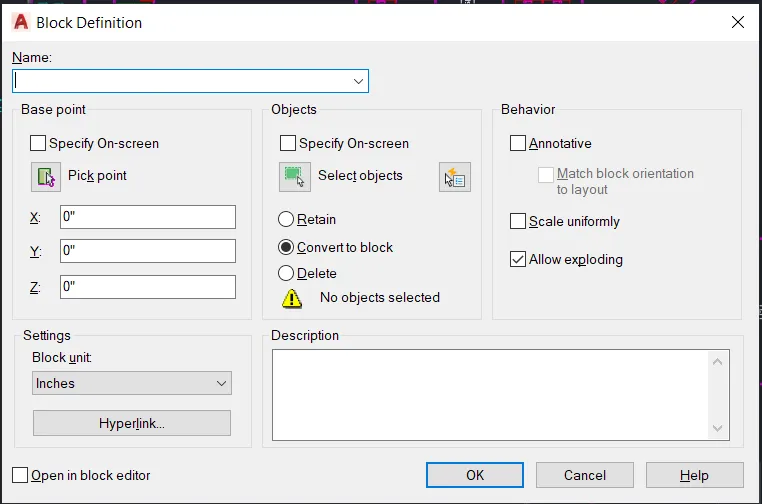
- In the Block Definition dialog:
- Select Objects: pick the geometry you want to include, then press Enter.
- Base Point: specify coordinates or click Pick Point on the objects to set an insertion base point.
- Name: enter a clear, consistent block name (use a naming convention: e.g., ROOM-DOOR_900x2100 or EL-CANOPY_V1).
- Click OK to create the block. The block is now stored in the current drawing’s block table.
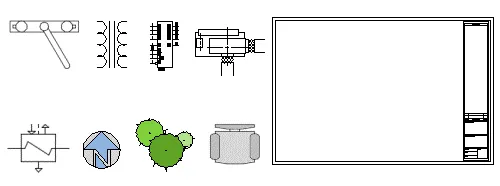
Insert blocks into drawings
- Menu: Insert > Block > Insert
- Commands: I (INSERT) or use BLOCKSPALETTE (or BLOCKS PALETTE) to open the Block Palettes.
Block Palettes sections: - Recent Blocks: quick access to recently used blocks.
- Libraries: link to external block libraries (set library path).
- Current Drawing: view and insert blocks defined in the active drawing.
When inserting, confirm insertion point, scale, and rotation or use the block’s base point and dynamic parameters if applicable.
Edit block instances and definitions
- To modify geometry or attributes inside a block, use BEDIT (Block Editor) or REFEDIT to edit a specific instance.
- For dynamic blocks, use the Block Editor to add or adjust parameters (stretch, lookup, visibility, alignment).
- Update instances by saving changes in the Block Editor; all instances update automatically unless the block is exploded.
Explode blocks when needed (EXPLODE / X)
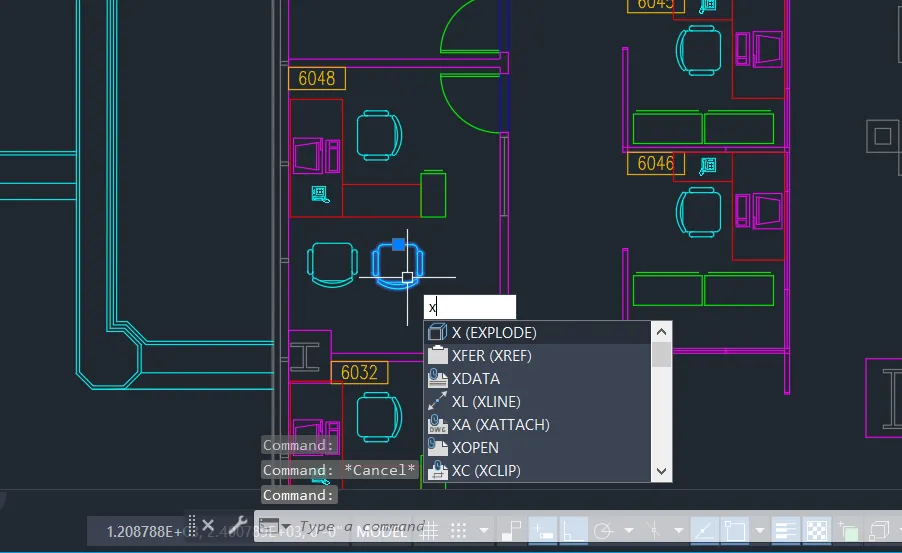
- Use EXPLODE (command X) to break a block back into individual entities.
- Type X and press Enter.
- Select the block to explode and press Enter.
- After exploding, each component becomes independently editable. Note: exploding attribute blocks will convert attributes to text; consider extracting or exporting attribute data first if needed.
 Pha Block AutoCAD
Remove unused blocks to reduce file size (PURGE / PU)
- Unused block definitions increase drawing size and clutter the block table. Use PURGE:
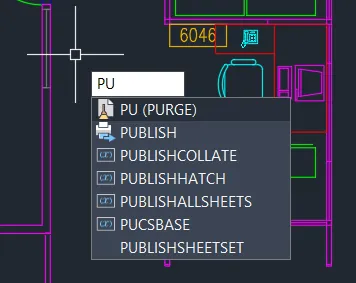
- Type PU (PURGE) and press Enter.
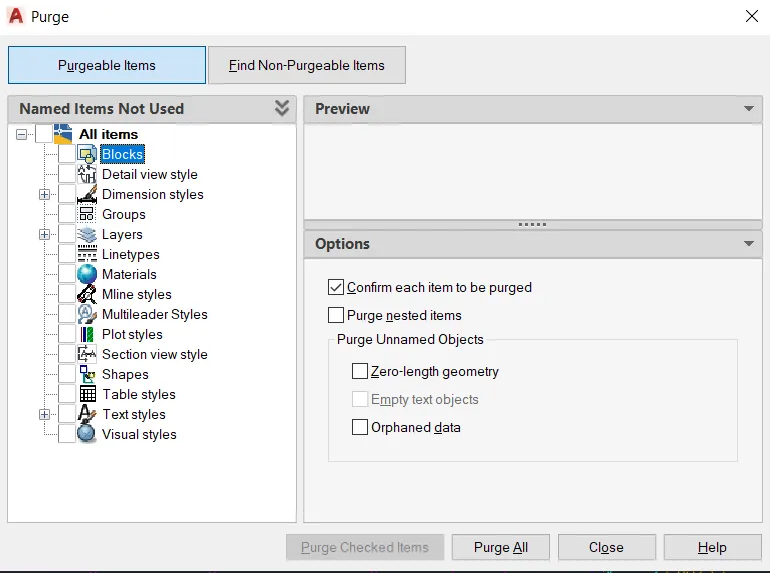
- In the Purge dialog, select Purge All or expand to choose only Blocks.
- Confirm to remove unused blocks. If a block is nested or referenced, it won’t purge until all references are removed.
 Xoa Block AutoCAD 1 3
Best practices for block management
- Naming conventions: use structured, descriptive names (CATEGORY-FAMILY_VARIANT) to ease search and library management.
- Library organization: keep external .dwg block libraries organized by discipline (architectural, structural, MEP) and versioned.
- Use dynamic blocks to limit the number of block definitions while supporting multiple configurations.
- Keep attributes consistent (attribute tags, prompts, default values) to ensure reliable data extraction.
- Avoid excessive nesting of blocks unless necessary; deep nesting complicates editing and purging.
- Regularly purge unused blocks and audit drawing standards to maintain performance.
Quick workflow examples
- Create a door block with attributes:
- Draw door geometry and single-line door swing.
- Define attributes: TAG = DOOR_ID, SIZE = DOOR_SIZE, MAT = MATERIAL.
- Create block (B) with base point at hinge location.
- Insert instances and fill attribute values per instance.
- Use a dynamic window block:
- Add parameters for width and sill height.
- Add stretch actions tied to grips.
- Insert block and adjust grips on each instance instead of creating multiple sizes.
Conclusion and next steps
Blocks improve consistency, editing efficiency, and drawing performance in AutoCAD. Use the BLOCK command to create well-named, attribute-enabled, or dynamic blocks; insert them via the Block Palette; explode only when necessary; and purge unused definitions to optimize file size. For hands-on practice, create a small library (doors, windows, furniture) and convert repetitive geometry into blocks to observe time savings.
References
- AutoCAD documentation and help resources for Block, Block Editor (BEDIT), INSERT, EXPLODE, and PURGE commands.
- Community tutorials and CAD standards discussions for naming conventions and attribute usage.