
The Excel AutoSum feature is one of the fastest ways to calculate totals in spreadsheets without manually writing formulas. Whether you’re working with budgets, financial reports, or simple data lists, AutoSum helps you quickly sum rows or columns with just a few clicks. This guide explains how to use Excel AutoSum effectively across different devices, including Windows, macOS, Android, and Excel for the web.
If you often work with numbers in Microsoft Excel, mastering AutoSum will significantly speed up your workflow and reduce calculation errors.

What is Excel AutoSum and How It Works
Excel AutoSum is a built-in tool that automatically inserts a formula using the SUM function to add up selected numbers. Instead of typing formulas manually, Excel detects the range of cells and generates the calculation for you.
When you select a cell next to a group of numbers and click AutoSum, Excel immediately proposes a range to total. You simply confirm by pressing Enter, and the result is displayed instantly.
How to Use AutoSum Step by Step
Using AutoSum is simple and requires only a few clicks:
- Select the cell directly below a column of numbers or to the right of a row of numbers.
- Go to the Home tab and click AutoSum.
- Press Enter to confirm the formula.
Once completed, Excel automatically calculates the total and inserts it into the selected cell.
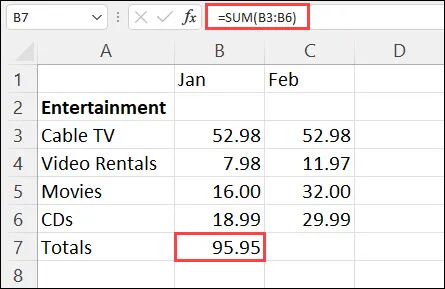
In this example, Excel sums values in a budget sheet and displays the result instantly in the selected cell.
Example: Summing a Budget in Excel
A common use case for AutoSum is calculating monthly expenses in a budget table. For example, if January expenses are listed in column B, you can select cell B7, click AutoSum, and Excel will automatically highlight the range B3:B6.
After pressing Enter, the total (such as 95.94 in this example) appears in cell B7, and the formula is stored in the formula bar for later editing if needed.
This method is especially useful for financial tracking, accounting tasks, and data analysis where accuracy and speed are important.
Key Notes When Using AutoSum
To get the most out of Excel AutoSum, keep these important tips in mind:
- To sum a column, select the cell directly below the last number.
- To sum a row, select the cell immediately to the right.
- AutoSum is available in both Home > AutoSum and Formulas > AutoSum.
- You can copy formulas to other cells, and Excel will automatically adjust the cell references.
- You can apply AutoSum to multiple cells at once for faster calculations.
- You can also create manual formulas using the SUM function if needed for advanced use cases.
These features make AutoSum flexible for both beginners and advanced Excel users.
Using AutoSum on Android Devices
Excel AutoSum is also available on mobile devices, making it easy to calculate totals on the go.
To use AutoSum on Android:
- Tap the first empty cell after your data range.
- Tap AutoSum.
- Select Sum from the options.
- Tap the check mark to confirm.
Excel will instantly calculate and display the result, making mobile spreadsheet management much easier and more efficient.
Why Use Excel AutoSum?
The AutoSum feature is especially useful because it:
- Saves time compared to manual formulas
- Reduces human errors in calculations
- Works across desktop, web, and mobile versions of Excel
- Automatically adjusts formulas when copied or moved
For anyone working with numerical data, AutoSum is a must-have productivity tool.
Conclusion
Excel AutoSum is a powerful yet simple feature that helps users quickly calculate totals without manually writing formulas. Whether you’re managing budgets, analyzing data, or working on spreadsheets for school or business, AutoSum can significantly improve your efficiency.
By mastering this tool, you can streamline your workflow and ensure more accurate results in less time. Start using Excel AutoSum today and make your spreadsheet tasks faster and easier.