
To share an Excel file, save the workbook to OneDrive or SharePoint, open it in Excel, select Share, choose Can view or Can edit access, enter recipients or copy a link, then send it.
Sharing an Excel file can be confusing when you have a workbook ready but do not know whether others should only view it, edit it, or work on it together without creating conflicting copies. This guide shows how to share an Excel file with the right access settings, choose a suitable sharing method, and enable collaboration when the workbook supports it.
The fastest way to share an Excel workbook is to save it to OneDrive or SharePoint, open it in Excel, select the Share button, choose whether recipients get Can view or Can edit access, enter people’s names or copy a link, and send the invitation. Recipients can then open the shared workbook through the link and use Excel for the web or a supported Excel app to access the file.
Share an Excel File with Others Using the Share Button
The Share button is the standard workflow in current versions of Microsoft Excel. Before sending access, decide whether the recipient needs to review information or make changes because that choice determines the permission setting.
In Excel desktop or Excel for the web, follow these steps:
- Open the workbook you want to share.
- Save the workbook to OneDrive, OneDrive for Business, or a SharePoint Online library if you want cloud-based collaboration.
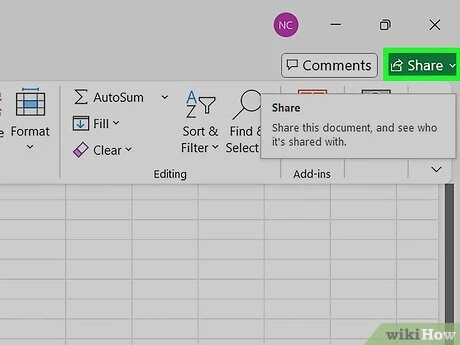
- Select the Share button in Excel.
- Choose the people who should receive access or select the option to copy a sharing link.
- Set the permission level to Can view or Can edit.
- Add a message if needed, then select Send or Copy Link to distribute access.
When you invite specific people, the workbook access is tied to those recipients rather than being available to anyone who receives a forwarded link. Link sharing can be faster for groups, but the link settings determine who can open the file and what they can do.
To share an Excel workbook with multiple users, add each recipient during the Share process instead of sending separate email attachments. Multiple people can receive access to the same cloud-stored workbook, and each person can use the permission level assigned to them.
Prepare the Workbook Before Sharing
The location of the file affects which sharing features are available. A workbook saved only on your computer does not automatically become a shared online document when you select Share.
Before sharing, prepare the file with this checklist:
- Save the workbook to OneDrive, OneDrive for Business, or a SharePoint Online library before using cloud sharing features.
- Confirm the workbook is stored in the location that matches your intended workflow, such as cloud storage for co-authoring or local storage for internal file access.
- Verify that recipients have the required account access or organization permissions before sending an invitation.
- Open the saved cloud version of the workbook instead of accidentally sharing a separate local copy.

If you want to know how to share Excel file using OneDrive, the key step is making sure the workbook is actually stored in OneDrive before creating the link. The Share button works with the cloud version, not a disconnected copy that remains only on your device.
A common failure mode is sharing the wrong file version. The warning sign is that collaborators open a workbook but do not see recent changes because someone edited a local copy instead of the shared cloud file.
Choose the Right Excel Sharing Method for Your Goal
Different Excel file sharing options solve different problems. The right method depends on whether you need a review copy, ongoing collaboration, internal access, or a simple transfer.
Excel Sharing Methods Compared
| Method | Best for | Access type | Collaboration support |
|---|---|---|---|
| OneDrive | A single workbook that several people need to edit together | Named people or link with Can view or Can edit permissions | Real-time co-authoring for supported Excel workflows |
| SharePoint Online | Team or organization workbooks managed in a shared library | Organization-controlled permissions with Can view or Can edit access | Live collaboration with supported Microsoft 365 Excel apps |
| Local network folder | Organizations that require files stored on internal servers | Operating-system folder permissions | File access without modern cloud co-authoring |
| Email attachment | Sending a standalone copy for review or separate use | Recipient receives an independent file copy | No synchronized editing of one shared workbook |
| Google Drive | Teams considering non-Microsoft cloud storage | Drive sharing permissions | Requires checking Excel workflow compatibility before use |

Use a simple decision rule before you share:
Sharing Decision Guide
| If | Then |
|---|---|
| Several people must update one live workbook together | Store the workbook in OneDrive or SharePoint Online and share it with Can edit access. |
| Recipients only need to inspect the workbook without changing it | Share the workbook with Can view access. |
| The recipient needs a separate file copy rather than a shared document | Send an email attachment instead of creating a collaboration link. |
| The organization requires files to remain on internal storage | Use a local network folder with appropriate operating-system permissions. |
In practical Excel file management, the easy-to-miss step is matching the storage location to the collaboration goal. A cloud workbook supports a different workflow from an attachment because the shared file remains in one place instead of creating separate copies.
Set Permissions for Controlled Excel Access
Permissions decide what recipients can do after they open the shared Microsoft Excel document. Selecting a sharing method without checking permissions can result in people being unable to edit or making changes when you only wanted review access.
Excel Access Levels
| Access level | Recipient action | Use case |
|---|---|---|
| Can view | Open and inspect the workbook without changing the shared file | Reviewing data, reports, or completed worksheets |
| Can edit | Modify workbook content and save changes back to the shared file | Collaborative updates and team editing |
| Named recipient access | Allow only selected people to open the workbook | Controlled sharing with specific collaborators |

For view-only sharing, choose Can view when recipients should read the workbook but not update the original file. This is useful for distributing reports, schedules, or finalized information.
For editing access, choose Can edit when collaborators need to update cells, add information, or maintain the workbook together. Before selecting this option, confirm that every recipient should be able to change the shared document.
A safer way to check link sharing is to review whether the link is limited to specific people or available more broadly. A copied link can be convenient, but the access scope determines who can open the workbook and whether they can make changes.
Enable Real-Time Excel Co-Authoring
Real-time collaboration requires more than sending a link. The workbook, storage location, account access, and Excel environment must all support the same workflow.
Requirements for simultaneous workbook editing
Before expecting several users to edit one workbook at the same time, check these conditions:
- Confirm the workbook is saved in OneDrive or SharePoint Online rather than only on a local device.
- Check that each collaborator has the required account access and a supported Excel app or browser.
- Make sure collaborators open the shared workbook itself instead of downloading separate copies.
- Review the Excel version, device, and connection conditions when simultaneous editing is unavailable.
The clearest sign that co-authoring is not working is that changes appear only in one person’s copy. This usually indicates that someone opened a downloaded file or a separate attachment instead of the shared workbook.
Managing multiple users during live editing
When multiple people update the same workbook, keep everyone working from the same shared location. Sending a new attachment after each change creates competing versions that are difficult to reconcile.
A practical collaboration workflow looks like this:
- Store the workbook in OneDrive or SharePoint.
- Give each collaborator the appropriate permission level.
- Ask users to open the shared link rather than downloading a separate copy.
- Review workbook changes in the shared file instead of combining edits from multiple attachments.
The legacy Shared Workbook feature should not be confused with modern co-authoring. Older Shared Workbook workflows may have version-dependent limitations and do not provide the same experience as current cloud collaboration through OneDrive or SharePoint.
Fix Common Excel Sharing Problems
Sharing problems usually come from one of four areas: file location, account access, permission settings, or incompatible collaboration conditions. Identifying the visible symptom helps narrow down the cause.
Resolving missing Share buttons and blocked uploads
If the Share button is missing or unavailable, check these items:
Share Button Troubleshooting
| If | Diagnosis | Action |
|---|---|---|
| The Share button or cloud sharing option is unavailable | The workbook may only exist as a local file or the account may not have access to cloud storage | Save the workbook to OneDrive or SharePoint Online and confirm the signed-in account can use that location. |
| The workbook cannot be uploaded or shared | The file location or account permissions may not match the sharing workflow | Check where the workbook is stored and whether the current Excel account has access to the destination. |
A common sign of this problem is that Share works for one workbook but not another. The difference is often the storage location rather than the workbook content itself.
Fixing failed links and access errors
When a recipient cannot open an Excel sharing link, check the access path instead of sending the same link again.
Link Access Troubleshooting
| If | Diagnosis | Action |
|---|---|---|
| A recipient cannot open the shared link | The link scope, sign-in status, or permission level may prevent access | Check whether the recipient is the intended person, whether sign-in is required, and whether the assigned permission allows access. |
| A recipient can open the file but cannot edit it | The workbook was shared with view-only access | Change the permission setting to Can edit if that person should update the workbook. |
The visible warning sign is usually a message asking the recipient for access or opening the workbook in read-only mode. Review the sharing settings before creating a new file copy.
Solving co-authoring compatibility issues
If simultaneous editing fails, check the setup in this order:
- Confirm the workbook is stored in OneDrive or SharePoint instead of only on a local drive.
- Verify that collaborators opened the shared workbook and not downloaded copies.
- Check whether the Excel app or browser being used supports the intended collaboration workflow.
- Review whether an older Shared Workbook process is being used instead of modern co-authoring.
From an editorial review of Excel collaboration guidance, the recurring failure mode is treating every shared file as if it were automatically a live document. The storage location and permission model decide whether people are editing one workbook or exchanging separate versions.
Share Excel Files Without OneDrive
OneDrive and SharePoint are common choices for modern collaboration, but they are not the only ways to send an Excel file. The correct alternative depends on whether you need a copy, internal access, or another cloud platform.
For one-time delivery, an email attachment is often enough. The recipient receives a separate workbook copy, but changes made by one person will not automatically update the file held by another person.
For organizations using internal storage, a local network folder can provide access through existing operating-system permissions. This approach keeps files on internal systems but does not provide the same real-time co-authoring workflow as cloud storage.
If you want to share an Excel file without OneDrive through Google Drive, upload the workbook to Google Drive and use its sharing controls. Before relying on this method for collaboration, check that the Excel features, editing workflow, and user expectations match the setup.
Choose the method based on the outcome you need:
- Use OneDrive or SharePoint when several people need to edit the same workbook.
- Use Can view sharing when recipients only need to review information.
- Use email attachments when the goal is to send an independent copy.
- Use a local network folder when files must remain on internal storage.
- Use Google Drive when the team already works in that environment and understands the compatibility considerations.
Create your first sharing link today by saving a workbook to OneDrive, selecting Share, and setting the permission to Can view or Can edit before sending it, because this confirms that recipients receive the correct access level from the start.
FAQ
Can recipients open a shared Excel file without an Excel account?
It depends on the permission and link settings you choose. Some sharing links allow anyone with the link to open the workbook through Excel for the web, while named-recipient sharing restricts access to specific people who may need to sign in. Check your link settings to confirm whether an account is required before sending it.
Can I stop sharing an Excel file after sending a link?
Yes, you can review and change who has access to a shared workbook at any time by adjusting the sharing settings from the Share option in Excel or in OneDrive or SharePoint. Changing the permission level or removing a recipient updates the access scope for the shared file going forward.
Does sending an Excel attachment create live workbook updates?
No, an email attachment gives the recipient a separate, independent copy of the workbook. Changes made by one person will not automatically update the file held by another person, so an attachment does not support the same real-time collaboration as a workbook shared through OneDrive or SharePoint.
Can I share an Excel file from a mobile device?
Yes, sharing is supported through Excel mobile apps when the workbook is stored in OneDrive or SharePoint. You can open the workbook, select the Share option, and set the permission to Can view or Can edit, following the same basic workflow used in Excel desktop or Excel for the web.