
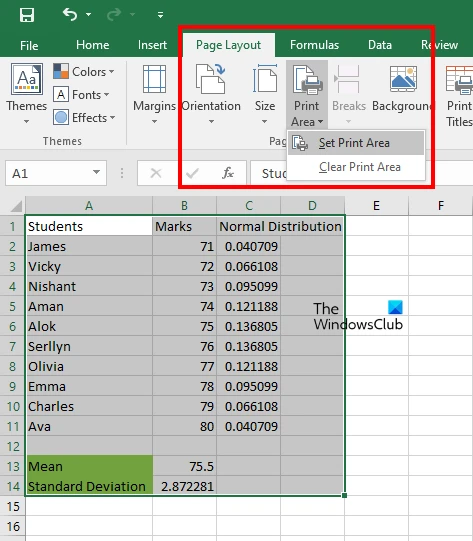
Microsoft Office Excel did not find anything to print when Excel cannot identify a valid printable range. Fix it by checking worksheet content, clearing an incorrect Print Area, changing Print Selection to Print Active Sheets, and reviewing Print Preview before troubleshooting printer drivers or Windows printing issues.
Microsoft Office Excel did not find anything to print can appear when a worksheet has data but Excel cannot identify a valid printable range. The problem may come from an incorrect Print Area, the wrong print selection option, hidden worksheet content, or a Windows printing issue. This guide helps you identify the cause and apply the correct fix so your worksheet appears in Print Preview and prints successfully.
Excel says it did not find anything to print when it cannot locate content that matches the current print settings. The fastest fixes are to check whether the worksheet contains visible printable content, clear an incorrect Print Area, change Print Selection to Print Active Sheets, and only then troubleshoot printer or Office issues if Excel settings are not the cause.
Why Excel Says It Did Not Find Anything to Print
Excel does not print every cell automatically in every situation. It uses settings such as Print Area, selected ranges, worksheet visibility, and print options to decide what content belongs in the output. A worksheet can look normal on screen while Excel Print Preview shows nothing because the printable range does not include the visible data.
The message is not always a printer problem. In many cases, the failure happens before Excel sends anything to the printer because Excel cannot create a print job from the current worksheet settings.
Common causes include:
- An empty or incorrect Print Area that points away from the data you want to print.
Print Selectionbeing active after a temporary cell selection was removed or changed.- Hidden rows, hidden columns, filters, or an invisible worksheet state preventing expected content from appearing.
- A corrupted workbook, Excel add-in conflict, or Office configuration issue.
- A Windows printer connection, driver, or print queue problem after Excel has already created a valid preview.
A useful distinction is whether Excel can display the worksheet content in File > Print. If the preview is empty, start with Excel settings. If the preview looks correct but paper output fails, move toward printer system troubleshooting.
Check Worksheet Content Before Changing Print Settings
Before changing printer settings, confirm that Excel actually has printable worksheet content. This avoids spending time repairing drivers when the problem is only an empty print range.
Confirm visible worksheet data and print preview content
Start with the worksheet itself, then compare it with what Excel prepares for printing.
- Open the worksheet that shows the error.
- Confirm that the cells you expect to print contain visible values, formulas, or objects.
- Check that you are viewing the correct worksheet tab.
- Open
File > Printand review the Print Preview panel. - Compare the preview with the visible worksheet area.
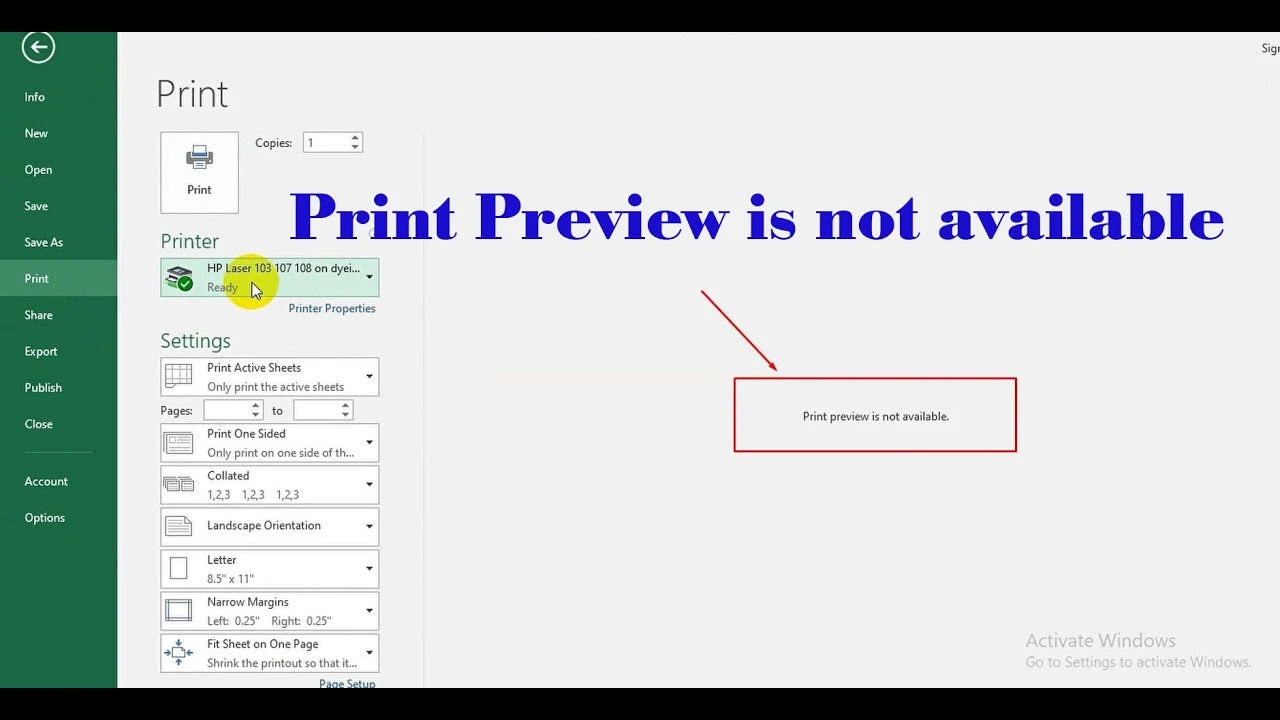
If the worksheet contains a table but Print Preview is blank, the issue is likely related to Excel’s printable range rather than missing data.
A practical diagnostic sequence is:
- Confirm the worksheet contains visible cells with values, formulas, or objects that should appear on paper.
- Check whether hidden rows, hidden columns, filters, or an empty selection are preventing the intended content from being included.
- Open
File > Printand verify whether the preview shows the expected worksheet content. - Clear or adjust Print Area and print range settings before changing Windows printer settings.
- Test printer connections or print services only after Excel confirms that printable content exists.
Check hidden content, filters, and worksheet visibility
A worksheet can contain data that Excel does not include in the print output because the printable view is restricted.
Look for these signs:
- The worksheet has visible data, but the Print Preview area is empty.
- Only a small part of the worksheet appears even though more data exists.
- Rows or columns expected in the output are hidden.
- A filter leaves no visible records in the selected range.
To check, remove filters temporarily, unhide rows or columns, and verify that the intended cells are visible before opening Print Preview again.
When Excel Print Preview shows nothing, the question to answer first is not "Is my printer working?" but "Does Excel have a valid range to send to the printer?"
Fix Excel Print Settings That Remove Printable Content
Incorrect print settings are among the most common reasons Excel shows no printable content. The fix depends on whether Excel is using an incorrect Print Area or an unsuitable print selection.
Clear an incorrect Print Area
A Print Area defines which cells Excel should include when printing. If that range was created for a previous task and no longer contains useful content, Excel may report that there is nothing to print.
To clear the Print Area:
- Open the worksheet with the printing problem.
- Select the
Page Layouttab. - Select
Print Area. - Choose
Clear Print Area. - Open
File > Printagain and check Print Preview.
A quick sign that this was the cause is that the preview changes from empty to showing the worksheet after the Print Area is cleared.
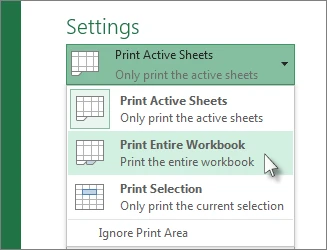
Change Print Selection to Print Active Sheets
Excel can accidentally stay in Print Selection mode after you print a small range. If the selected cells are empty or no longer selected, Excel may have no content to send to the printer.
To restore normal worksheet printing:
- Open
File > Print. - Under Settings, open the print option menu.
- Change
Print SelectiontoPrint Active Sheets. - Review the Print Preview window.
- Select Print when the expected worksheet content appears.
From an editorial review of spreadsheet troubleshooting, the recurring failure mode is confusing a temporary selection setting with a permanent worksheet problem. The visible clue is usually that the worksheet looks complete while the Print Preview contains no matching range.
Print troubleshooting checks
| If | Then |
|---|---|
| File > Print preview is empty while worksheet cells contain visible data | Check Print Area and print selection settings before reinstalling printer components |
| Clearing the Print Area immediately restores the preview | Keep the corrected worksheet range and continue printing because the issue was a restricted printable range |
| The preview remains empty after clearing Print Area | Check hidden content, selected ranges, worksheet visibility, or Excel printing configuration |
| Excel preview displays content but printing fails afterward | Move troubleshooting to Windows printer services, queue status, or driver checks |
Restore the expected print range in Page Layout settings
Page Layout settings can preserve a previous printing arrangement even after worksheet data changes. This is common when a workbook is reused for new reports or shared between users.
Example: a worksheet contains a table, but File > Print shows a blank preview and Excel reports that it did not find anything to print.
- Open
Page Layoutand review the current Print Area settings. - Remove the incorrect Print Area and return to
File > Printto refresh the preview. - If the preview is still empty, check whether
Print Selectionis active and change it toPrint Active Sheets.
The print preview shows the worksheet table again when the workbook contains a valid printable range.
A saved workbook may keep a previous print range, so verify the preview before printing shared files.
Separate Excel Settings Problems From Printer System Issues
After Excel settings have been checked, determine whether the failure belongs to Excel or the Windows printing system. Changing printer settings too early can hide the actual cause.
In practical spreadsheet troubleshooting, the easy-to-miss step is separating a missing print range from a failed printer connection. The key signal is whether Excel can create a correct preview before the print command is sent.
Excel printing issue comparison
| Symptom | Likely cause | First check | Next action |
|---|---|---|---|
| Worksheet shows data but File > Print preview is empty | Print Area or print selection excludes the worksheet content | Check Page Layout > Print Area and Settings > Print Selection | Clear Print Area or switch to Print Active Sheets |
| Only part of the worksheet appears in Print Preview | A restricted print range or selected cells are limiting output | Review the current print range and selected worksheet cells | Adjust the range or choose the correct print option |
| Excel preview shows content but the printer produces no output | Windows printer queue, connection, or driver issue | Print a test page or check the printer status outside Excel | Resolve printer service or driver problems after Excel settings are confirmed |

A simple decision rule helps narrow the problem:
- Empty preview means continue with worksheet and Excel setting checks.
- Correct preview but no paper output means investigate the printer system.
- The same workbook fails while another Excel file prints correctly means focus on the workbook or its settings.
- Multiple applications fail to print means focus on Windows printing services.
Resolve Remaining Excel Printing Failures
If Excel still cannot print after the worksheet and print settings are correct, the problem may involve Office, Windows, or the workbook itself.
Check the Windows print queue and printer drivers
A printer issue becomes more likely when Excel Print Preview displays the expected content but the print job does not complete.
Check these items:
- Confirm the selected printer under
File > Printis the intended device. - Verify that the printer status shows it is ready.
- Check whether stuck jobs are waiting in the Windows print queue.
- Confirm the printer driver is compatible and up to date.
- Test printing from another application such as Notepad or Paint.
If another application also fails, the problem is probably outside Excel.
Repair Office or check Excel add-ins
Microsoft Office problems can affect printing when application files or settings become damaged.
Possible checks include:
- Open Excel without unnecessary add-ins if an extension may interfere with printing.
- Test whether a new workbook prints correctly.
- Repair Microsoft Office through Windows installed apps using Quick Repair first, then Online Repair if needed.
A corrupted Excel file can also produce unusual behavior. If only one workbook fails, copy the worksheet into a new workbook and test printing again.
Prevent Empty Print Ranges From Returning
Many Excel printing problems return because a workbook keeps temporary print settings after a one-time task. A few habits can prevent the same "nothing to print" message from appearing again.
Common actions that accidentally create empty printable ranges include selecting a small range for a one-time print, saving the workbook while that selection is active, or leaving an outdated Print Area after removing worksheet data.
Use these checks before sharing or saving important workbooks:
- Switch Settings back to
Print Active Sheetsafter usingPrint Selectionfor a one-time print job. - Review Print Preview before saving or sharing a workbook with custom print settings.
- Remove outdated Print Areas that no longer match the worksheet content.
- Keep the intended worksheet and printable range selected before starting a print task.
A useful prevention rule is to treat Print Preview as the final checkpoint. The worksheet view shows what exists; Print Preview shows what Excel plans to send.
Verify the Worksheet Is Ready to Print
Before trying another print command, confirm that the worksheet, Excel settings, and printer path are aligned.
A final verification checklist:
- Open
File > Printand confirm the preview shows the intended worksheet content. - Confirm the correct worksheet is active.
- Check that the print option is
Print Active Sheetsunless you intentionally need a selection. - Review Print Area settings in the
Page Layouttab. - Confirm the printer status is ready only after Excel displays a valid preview.
This order reduces unnecessary troubleshooting because it checks the source of the print job before checking the device that receives it.
Open the affected workbook today, clear the Print Area, and check File > Print again because restoring a valid printable range can immediately show whether the issue was caused by Excel settings rather than the printer system.
FAQ
Why does Excel say it did not find anything to print?
Excel says it did not find anything to print when it cannot locate content that matches the current print settings. Common causes include an incorrect Print Area, an active Print Selection option with no valid range, hidden worksheet content, or printing configuration issues.
Can hidden rows or columns stop Excel from printing?
Yes. Hidden rows, hidden columns, filters, or worksheet visibility settings can prevent expected content from appearing in the printable range. Unhide the required content, remove filters temporarily, and check Print Preview to confirm Excel can see the intended worksheet data.
What should I check if Excel Print Preview is still empty?
If Excel Print Preview is empty, first check the worksheet content, Print Area, and print selection settings. Clear an incorrect Print Area, change Print Selection to Print Active Sheets, and verify that the correct worksheet contains visible printable content.
Can printer drivers cause Excel printing problems?
Yes, printer drivers can cause printing problems, especially when Excel Print Preview displays the correct content but the printer does not produce output. Check the printer connection, print queue, and printer driver after confirming that Excel can create a valid preview.