
Excel offers powerful tools for efficiently managing dates, whether you need a simple series or complex sequences. This guide explores two primary methods for generating dates in Excel: the traditional AutoFill feature and the modern SEQUENCE function. Understanding both allows you to select the most suitable approach for your specific needs, ensuring accuracy and saving valuable time.
Utilizing Excel’s AutoFill for Date Series
The AutoFill feature remains a quick and intuitive method for populating cells with sequential data, including dates.
Creating a Basic Date Series with AutoFill
To fill a column or row with dates that increment by a single day:
- Enter the starting date into the first cell.
- Select this cell and drag the fill handle (the small green square at the bottom-right corner) across the desired cells.
Excel will automatically generate a series of dates, mirroring the format of your initial entry.
Generating Series of Weekdays, Months, or Years
For sequences that advance by weekdays, months, or years, you have a couple of options:
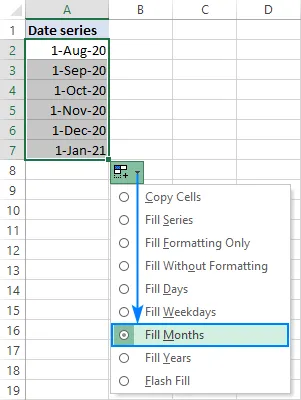
- After creating a basic date series, click the AutoFill Options button that appears and choose your desired increment (e.g., Fill Months).
- Alternatively, right-click and hold the fill handle while dragging. Upon releasing the mouse button, a context menu will appear, allowing you to select options like Fill Years.
Customizing Date Series with a Specific Increment
To generate dates with a custom step (e.g., every other day, every two months):
- Enter the starting date in the first cell.
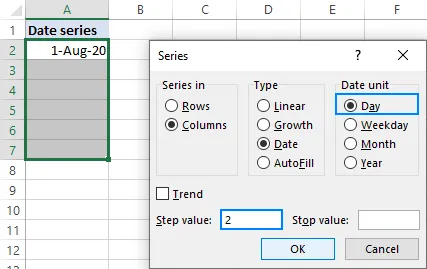
- Right-click and hold the fill handle, then drag across the desired number of cells.
- Select Series from the pop-up menu.
- In the Series dialog box, choose the appropriate Date unit and set your desired Step value.
- Click OK.
For more detailed examples, refer to How to insert and autofill dates in Excel.
Generating Date Sequences with the SEQUENCE Function
The introduction of dynamic array functions, particularly the SEQUENCE function, provides a formula-driven approach to creating date series in Excel. This method is available in Microsoft 365 versions of Excel.
Creating a Basic Date Sequence with a Formula
The SEQUENCE function can generate dates by leveraging Excel’s internal storage of dates as serial numbers. The function’s arguments are configured as follows:
SEQUENCE(rows, [columns], [start], [step])
- rows: The number of rows for the date series.
- columns: The number of columns for the date series.
- start: The initial date, which can be entered as text (e.g., “8/1/2020”) or preferably using the
DATEfunction (e.g.,DATE(2020, 8, 1)). - step: The increment between each subsequent date.
For instance, to create 10 dates starting from August 1, 2020, with a daily increment:
=SEQUENCE(10, 1, "8/1/2020", 1)
Or using the DATE function:
=SEQUENCE(10, 1, DATE(2020, 8, 1), 1)
You can also reference cells containing the desired number of rows, start date, and step for dynamic formula creation.
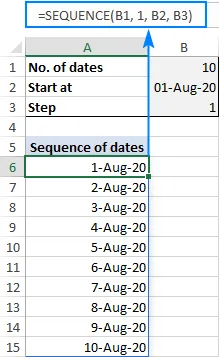
Important: By default, these dates may appear as serial numbers. Ensure you apply a Date format to the resulting cells to display them correctly. You can learn more about this in change date format in Excel.
Generating a Series of Workdays
To create a sequence of only workdays, you can combine the SEQUENCE function with WORKDAY or WORKDAY.INTL:
=WORKDAY(start_date - 1, SEQUENCE(no_of_days))
The -1 ensures that the starting date itself is included in the sequence. For example, to generate a sequence of workdays starting from the date in cell B2:
=WORKDAY(B2-1, SEQUENCE(B1)) (where B1 contains the desired number of workdays).
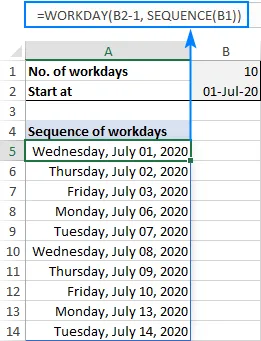 Making a series of workdays in Excel with a formula
The WORKDAY function treats Saturdays and Sundays as weekends. For custom weekend definitions or holidays, use the WORKDAY.INTL function.
Creating a Month Sequence
To generate a series of dates incremented by one month, you can use the DATE function combined with SEQUENCE:
=DATE(year, SEQUENCE(12), day)
For example, to create a sequence of 12 months in the year 2020, starting on the 1st:
=DATE(2020, SEQUENCE(12), 1)
To display only month names, apply custom date formats like “mmm” (short month) or “mmmm” (full month) to the results.
For sequences starting from a specific date and incrementing by month, use the EDATE function:
=EDATE(start_date, SEQUENCE(12, 1, 0))
Where the start_date is in a cell, for instance, B1:
=EDATE(B1, SEQUENCE(12, 1, 0))
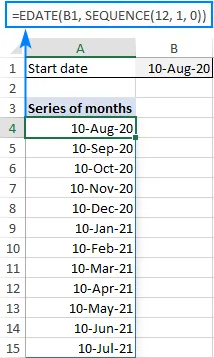
Remember to format the results as dates.
Generating a Year Sequence
To create a series of dates incremented by year:
=DATE(SEQUENCE(n, 1, YEAR(start_date)), MONTH(start_date), DAY(start_date))
Here, n is the number of years you wish to generate. If your start date is in B1:
=DATE(SEQUENCE(10, 1, YEAR(B1)), MONTH(B1), DAY(B1))
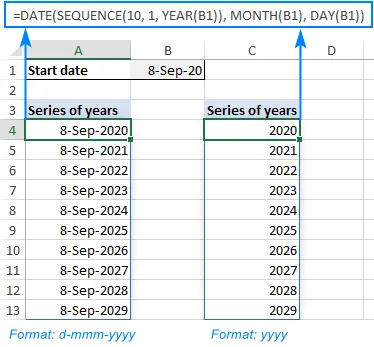 A formula to output a year sequence in Excel
Creating a Time Sequence
Times in Excel are represented as decimal fractions of a day. The SEQUENCE function can directly work with these values.
Assuming the start time is in B1, you can increment by hours or minutes:
- 30 minutes apart:
=SEQUENCE(10, 1, B1, 1/48) - 1 hour apart:
=SEQUENCE(10, 1, B1, 1/24) - 2 hours apart:
=SEQUENCE(10, 1, B1, 1/12)
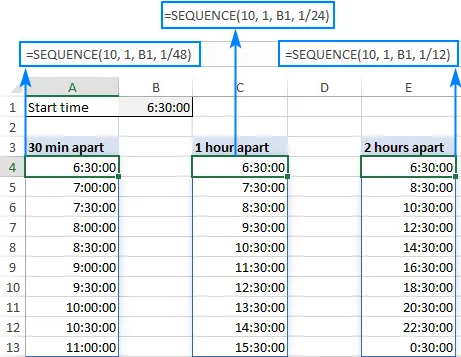
You can also define custom time increments using the TIME function:
=SEQUENCE(rows, columns, start, TIME(hour, minute, second))
For example, using cells to define the increment:
=SEQUENCE(B2, B3, B4, TIME(E2, E3, E4))
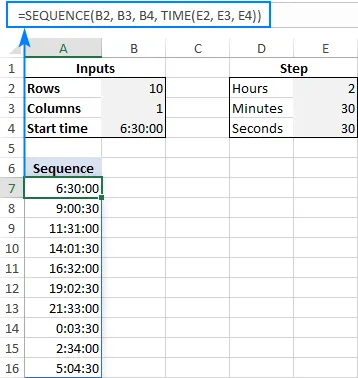 Formula to create a time sequence in Excel with any increment step size
Building a Monthly Calendar with Formulas
The SEQUENCE function, combined with DATEVALUE and WEEKDAY, enables the creation of dynamic monthly calendars. The formula in cell A5 might look like this:
=SEQUENCE(6, 7, DATEVALUE("1/"&B2&"/"&B1) - WEEKDAY(DATEVALUE("1/"&B2&"/"&B1)) + 1, 1)
This formula generates a 6×7 grid of dates, starting from the Sunday preceding the first day of the specified month and year. Conditional formatting can then be used to hide dates from adjacent months:
=MONTH(A5)<>MONTH(DATEVALUE($B$2 & "1"))
Applying white font color with this rule effectively creates a clean monthly calendar view.
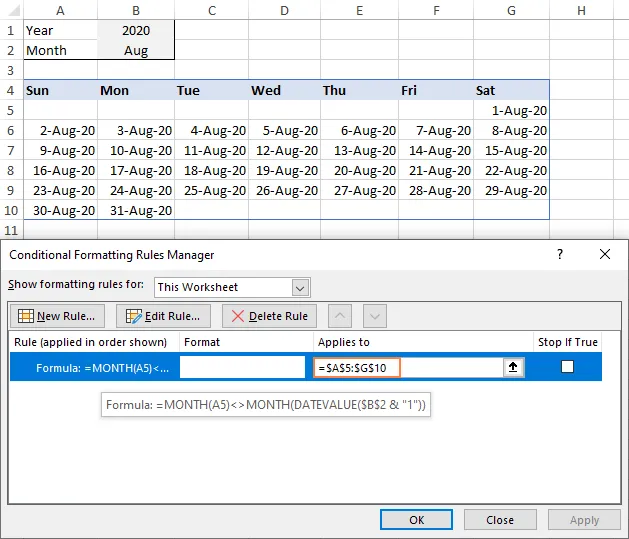
For comprehensive instructions, consult How to create a formula-based conditional formatting rule in Excel.
By mastering both AutoFill and the SEQUENCE function, you can efficiently generate any date sequence required in Excel, enhancing your productivity and data management capabilities.
Practice Workbook
Download a practice workbook with formula examples: Date sequence in Excel – formula examples (.xlsx file)