

To add Data Analysis ToolPak in Excel, open Excel’s add-in settings, select Excel Add-ins, enable Analysis ToolPak, and confirm the Data Analysis command appears on the Data tab. In Windows Excel, use File → Options → Add-ins → Excel Add-ins → Go. Mac Excel users can enable it through Tools → Excel Add-ins.
If the Data Analysis ToolPak is missing from Excel, you cannot access its built-in analysis commands until the add-in is enabled. This guide shows how to add Data Analysis ToolPak in Excel for Windows, Mac, Microsoft 365 desktop, and explains what Excel Online users can and cannot do. By the end, you will be able to activate the correct add-in and confirm that the Data Analysis button appears on the Data tab.
To enable the Data Analysis ToolPak in Excel, open Excel’s add-in settings, select Excel Add-ins, turn on Analysis ToolPak, and confirm that the Data Analysis command appears on the Data tab. In Windows Excel, the path is File → Options → Add-ins → Manage Excel Add-ins → Go, while Mac Excel uses Tools → Excel Add-ins. Excel Online does not provide the same desktop add-in activation workflow.
Enable the Data Analysis ToolPak in Excel quickly
The fastest way to turn on Data Analysis in Excel is to activate the built-in Analysis ToolPak add-in rather than installing a separate program. The exact menu path depends on whether you use Windows desktop Excel or Mac desktop Excel, so first identify your Excel environment.
For most desktop installations, the process follows the same pattern: open Excel settings, find the add-in management area, select Excel Add-ins, enable Analysis ToolPak, and return to the Data tab to confirm the new command appears.
Follow these steps in desktop Excel:
- Open Excel and select a workbook.
- Open the add-in management menu for your operating system.
- Select
Analysis ToolPakfrom the available Excel Add-ins list. - Confirm the selection and return to the worksheet.
- Open the Data tab and look for the Data Analysis command in the Analysis group.
If the Data Analysis button appears, the add-in is active and ready for use. If it does not appear, move to the troubleshooting steps later in this guide instead of repeating the same activation path.

What the Excel Data Analysis ToolPak adds
The Excel Data Analysis ToolPak is a built-in add-in that expands Microsoft Excel with statistical analysis tools. It adds access to features such as descriptive statistics and regression analysis, allowing users to perform structured data analysis without manually building every calculation.
The ToolPak is separate from regular worksheet formulas. It provides a collection of analysis commands that appear through the Data Analysis button after activation.
In practical Excel setup work, the easy-to-miss step is checking the Excel environment before following instructions. Windows desktop Excel, Mac desktop Excel, and Excel Online do not expose the same add-in controls.
Excel environment comparison
| Excel environment | ToolPak availability | Activation method | Data Analysis location |
|---|---|---|---|
| Excel desktop for Windows | Available through Excel add-ins | Open File > Options > Add-ins, choose Excel Add-ins, select Go, and enable Analysis ToolPak | Data tab > Analysis group |
| Excel desktop for Mac | Available through Excel add-ins | Open Tools > Excel Add-ins and select Analysis ToolPak | Data tab > Analysis group |
| Excel Online (web version) | Does not provide the same desktop add-in activation path | Use a supported desktop Excel installation for ToolPak activation | No desktop Add-ins activation workflow |
Supported Excel versions and environments
The Analysis ToolPak is designed for desktop versions of Microsoft Excel that support Excel add-ins. Microsoft 365 Excel desktop installations generally follow the same add-in model as other current desktop releases.
Before trying to activate the ToolPak, check whether you are using the installed desktop application or the browser-based Excel Online version. A missing add-in menu in a browser is not the same problem as a disabled add-in in desktop Excel.
A simple decision rule helps:
- If you see File → Options or Tools → Excel Add-ins, you are likely using a desktop version that can manage add-ins.
- If you only see browser-based Excel controls, use desktop Excel if you need the Data Analysis ToolPak workflow.
The difference between Analysis ToolPak and Solver Add-in is also important. They are separate Excel add-ins: Analysis ToolPak provides statistical analysis features, while Solver is used for optimization problems involving changing values and constraints. Enabling one does not automatically enable the other.
Where Data Analysis appears after setup
After successful activation, open any workbook and select the Data tab on the Excel ribbon. The Data Analysis command should appear in the Analysis group.
The visible confirmation is simple: you should be able to select Data Analysis and see a list of available analysis tools. If the add-in checkbox was selected but this command is missing, treat that as a separate display or installation issue rather than assuming activation failed.
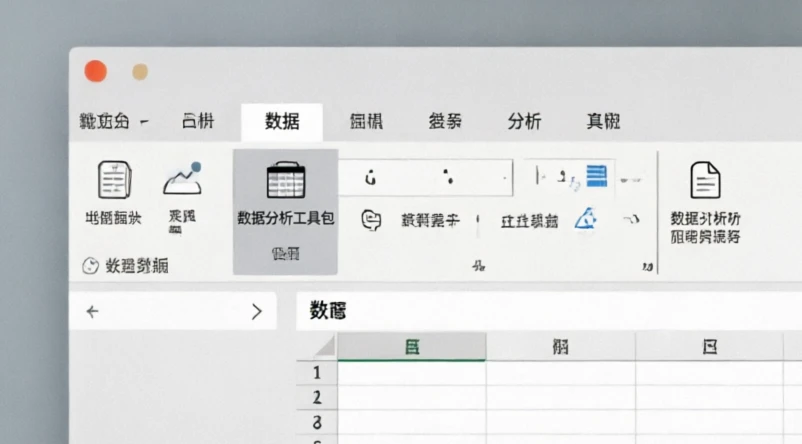
Install Analysis ToolPak in Excel for Windows
Windows desktop Excel uses the Excel Options menu to manage the Analysis ToolPak. The process is usually an activation step, not a separate download or installation.
To install Analysis ToolPak in Excel on Windows:
- Open Excel.
- Select File in the top-left corner.
- Choose Options to open Excel Options.
- Select Add-ins from the left menu.
- At the bottom of the window, find Manage and select Excel Add-ins.
- Click Go.
- Check Analysis ToolPak.
- Select OK and return to the workbook.
After activation, open the Data tab and check for the Data Analysis button. The command should appear in the Analysis group rather than in the main Home tab.
A common mistake is confusing add-in activation with software installation. If Analysis ToolPak is listed in the Add-ins window, Excel already has the component available; you only need to enable it.
Turn on Data Analysis in Excel 365 and Mac
Excel 365 desktop and Mac Excel both support the Analysis ToolPak, but their navigation paths are different. The safest approach is to match the instructions to the application you have installed instead of following Windows-only steps.
Add the ToolPak on Excel for Mac
Mac users can activate the ToolPak through the Excel Add-ins menu.
Use these steps:
- Open Excel on your Mac.
- Select Tools from the top menu.
- Choose Excel Add-ins.
- Select Analysis ToolPak.
- Confirm the change and return to the workbook.
- Open the Data tab and check for Data Analysis.
The verification signal is the same as Windows: the Data Analysis command should be visible under the Data tab after activation.
Enable the add-in in Microsoft 365 desktop
Microsoft 365 desktop Excel follows the desktop add-in system. The subscription model does not remove the need to activate optional Excel add-ins.
Use the Windows or Mac instructions that match your installed application. For Windows installations, the path remains File → Options → Add-ins. For Mac installations, use Tools → Excel Add-ins.
Excel Online users cannot install or enable the desktop Data Analysis ToolPak through browser-based Excel controls. To use this ToolPak workflow, open the workbook in a supported desktop version of Excel and activate the add-in there.
Before starting analysis tasks, confirm two things:
- The Analysis ToolPak checkbox remains selected after reopening Excel.
- The Data Analysis command appears in the Data tab ribbon.
This prevents a common failure mode where a user enables an add-in but never verifies whether Excel loaded the command successfully.
Fix Excel Data Analysis ToolPak not showing
When Excel Data Analysis ToolPak is not showing, the cause is usually one of three situations: the add-in is not enabled, the add-in is unavailable in that Excel environment, or Excel cannot display the command correctly.
The visible symptom matters: a missing checkbox, a missing ribbon command, and unavailable add-in controls require different fixes.

Excel ToolPak troubleshooting
| Problem symptom | Possible cause | Recommended fix | Expected result |
|---|---|---|---|
| Analysis ToolPak is not listed in Excel Add-ins | Desktop Excel installation may be incomplete or missing required components | Repair or update the Microsoft Excel desktop installation and check available add-ins again | Analysis ToolPak appears in the add-in selection list |
| ToolPak is enabled but Data Analysis is missing | Ribbon display or Excel settings may prevent the command from appearing | Check the Data tab ribbon configuration and confirm the add-in remains enabled | Data Analysis appears in the Analysis group |
| Add-in controls are unavailable | Account permissions or organization restrictions may limit add-in changes | Check account permissions or contact the administrator managing the Excel installation | Add-in settings can be changed or the limitation is identified |
Check disabled or unavailable Excel add-ins
If the Analysis ToolPak checkbox is missing, start by identifying what Excel shows rather than changing random settings.
Add-in issue checks
| If | Then |
|---|---|
| The ToolPak option is missing from the Add-ins list | Check the Excel installation and repair or update the desktop application if required |
| The ToolPak is enabled but Data Analysis is not visible | Check ribbon visibility and confirm the Data tab Analysis group settings |
| Add-in settings cannot be changed | Review account permissions or organization-managed Excel restrictions |
A practical diagnostic sequence is:
- Check whether you can open the Excel Add-ins window.
- Check whether Analysis ToolPak appears as an available option.
- Check whether the Data Analysis command appears after activation.
Each result points to a different next step. For example, an unavailable Add-ins menu suggests a permissions or installation issue, while a missing ribbon command suggests a display or loading issue.
Resolve ribbon and installation problems
If the add-in appears enabled but Data Analysis is still missing, check Excel itself rather than repeatedly selecting the checkbox.
Possible causes include:
- The ribbon configuration does not display the expected Data tab group.
- The Excel installation needs an update or repair.
- Organization-managed settings prevent add-in changes.
Repairing or updating Microsoft Excel may restore missing components, but it should be treated as a possible solution rather than a guaranteed fix. After any repair, return to the Add-ins window and verify that Analysis ToolPak is still enabled.
Verify the ToolPak is ready for analysis
Activation is complete only when Excel exposes the Data Analysis command. A checked box alone does not confirm that the feature is ready.
Use this verification checklist:
- Open the Excel workbook after completing the ToolPak activation steps.
- Select the Data tab on the Excel ribbon.
- Confirm that the Data Analysis command appears in the Analysis group.
- Open Data Analysis and check that available analysis tools are listed.
The final check is observable: the Data Analysis window should open from the Data tab and display available tools. If that command is absent, return to the troubleshooting section and identify whether the issue is the add-in list, ribbon display, or Excel installation.
When you can see the Data Analysis command, you have completed the setup needed to begin using Excel’s built-in statistical analysis features.
FAQ
Can Excel Online users use the Data Analysis ToolPak?
Excel Online does not provide the same desktop add-in activation workflow for the Data Analysis ToolPak. To use this ToolPak setup, open the workbook in a supported desktop version of Excel and enable the add-in through the desktop Excel add-in settings.
Is the Analysis ToolPak included with Excel by default?
The Analysis ToolPak is available as a built-in Excel add-in, but it may need to be enabled before the Data Analysis command appears. You can activate it through Excel’s add-in management settings instead of installing a separate program.
Do I need Solver Add-in to use the Analysis ToolPak?
No. Analysis ToolPak and Solver Add-in are separate Excel add-ins. The Analysis ToolPak provides statistical analysis features, while Solver is used for optimization problems involving changing values and constraints. Enabling one does not automatically enable the other.
Why does the Data Analysis button disappear after enabling the add-in?
If the Data Analysis button is missing after enabling the add-in, check whether the ToolPak remains enabled, whether the Data tab ribbon displays the Analysis group, and whether Excel needs an update or repair. A missing button may be a display or installation issue rather than an activation issue.
Can I use the ToolPak in older Excel versions?
The Analysis ToolPak is designed for desktop versions of Microsoft Excel that support Excel add-ins. Older Excel versions that support add-ins can use the same general activation approach through Excel’s add-in management settings.