
If your TV is no longer detected after a Windows update, or you encounter issues such as HDMI no signal, missing audio, screen flickering, or display detection problems, updating your HDMI driver on Windows 11 and Windows 10 is often the most effective solution. Although HDMI itself does not require a dedicated driver, it relies heavily on graphics and audio drivers to transmit video and sound correctly between devices.
This guide explains what HDMI is, how HDMI-related drivers work, and the best methods to download, update, and troubleshoot HDMI drivers on modern Windows systems.
What Is HDMI and Why Do Drivers Matter?
HDMI (High-Definition Multimedia Interface) is a standard technology used to transfer both digital video and audio through a single cable. It allows computers, laptops, gaming consoles, and media devices to connect to TVs, monitors, and projectors.
When HDMI stops working properly, the problem is often related to:
- Outdated graphics drivers
- Corrupted audio drivers
- Incorrect display settings
- Windows update conflicts
- Faulty cables or ports
Updating the underlying display and audio drivers can resolve many common HDMI connectivity issues.
Method 1: Update HDMI Drivers Using Device Manager
Windows includes Device Manager, a built-in utility that can search Microsoft’s driver repository and install available updates.
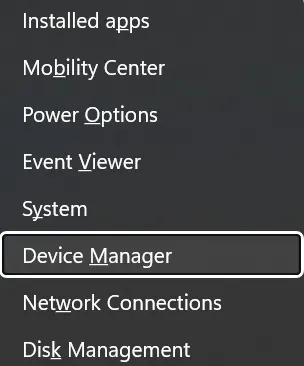
First, open Device Manager by pressing Windows + X and selecting Device Manager from the menu.
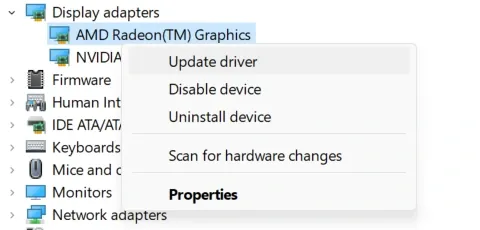
After opening Device Manager, locate the graphics adapter under the Display Adapters section.
Expand Display adapters, right-click your graphics device (Intel, NVIDIA, or AMD), and choose Update driver.
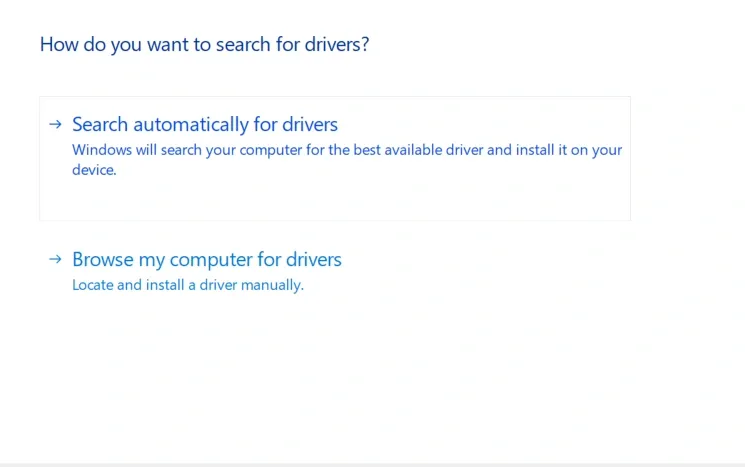
Select Search automatically for drivers and allow Windows to look for available updates.
Next, expand Sound, video and game controllers, locate High Definition Audio Device or your display audio driver, and update it as well.
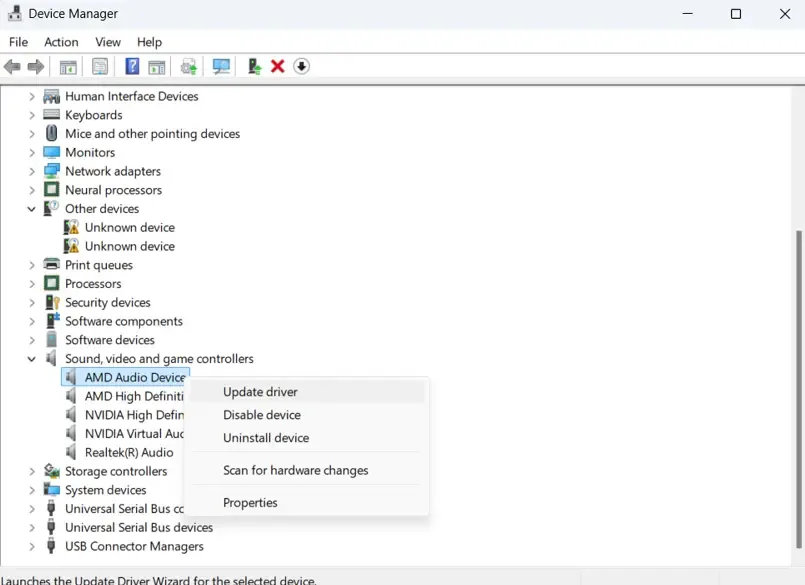 Windows High Definition Audio Device driver entry
Restart your computer after installation completes.
Advantages
- Free and built into Windows
- Easy for beginners
- No additional software required
Limitations
- May not find the latest manufacturer-specific drivers
- Depends on Microsoft’s driver database
Method 2: Download HDMI Drivers from the Manufacturer
If Device Manager cannot resolve the issue, downloading drivers directly from the graphics card manufacturer is usually the best option.
Intel Graphics
For systems with integrated Intel graphics:
- Visit Intel’s official driver portal.
- Download the latest Intel Graphics Driver.
- Install the package and restart the PC.
NVIDIA Graphics
For NVIDIA graphics cards:
- Open NVIDIA’s driver download page.
- Select your GPU model and Windows version.
- Download the latest Game Ready or Studio Driver.
- Complete installation and restart.
AMD Graphics
For AMD graphics hardware:
- Visit AMD’s official support page.
- Select your graphics card model.
- Download the latest Adrenalin Edition package.
- Install and reboot the system.
These graphics packages typically include both HDMI video support and HDMI audio drivers, ensuring complete functionality.
Method 3: Use Automatic Driver Update Software
Users who prefer a faster approach can use dedicated driver update tools. These applications scan the system, identify outdated drivers, and download compatible updates automatically.
The typical process involves:
- Installing the driver updater application.
- Running a full system scan.
- Reviewing detected driver issues.
- Updating graphics and audio drivers.
- Restarting Windows after installation.
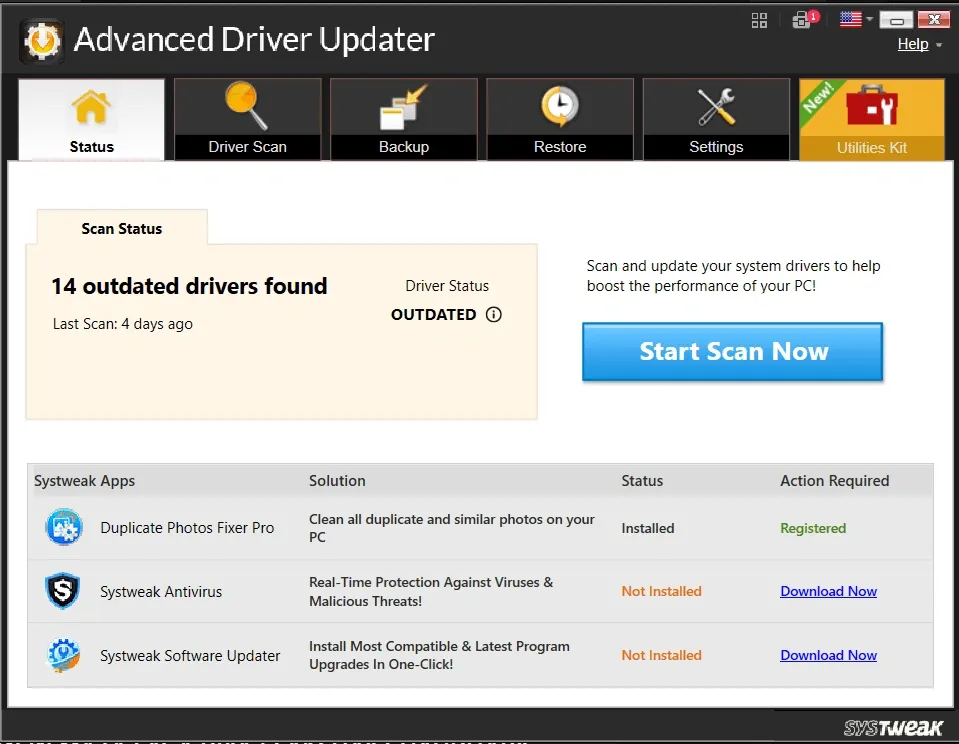
After scanning, the software identifies outdated components and recommends updates.
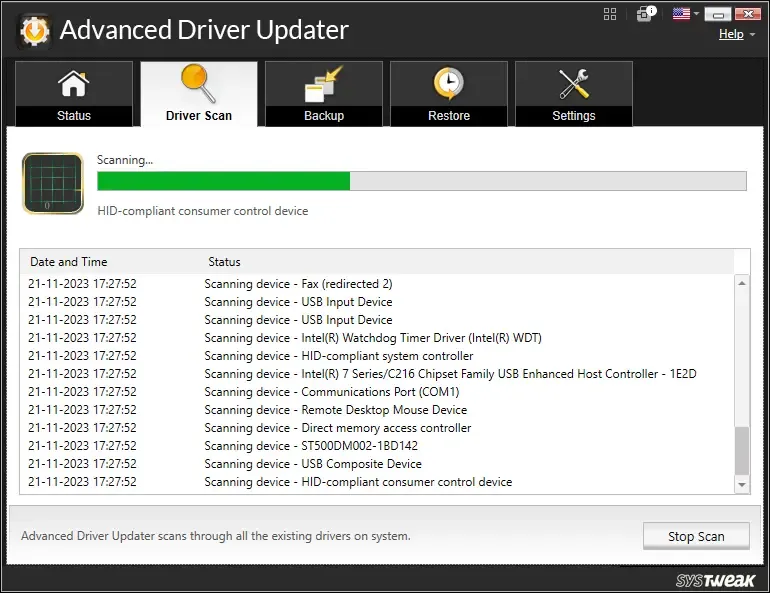 Driver scanning process analyzing installed hardware
Once the scan is complete, updates can be applied with minimal manual intervention.
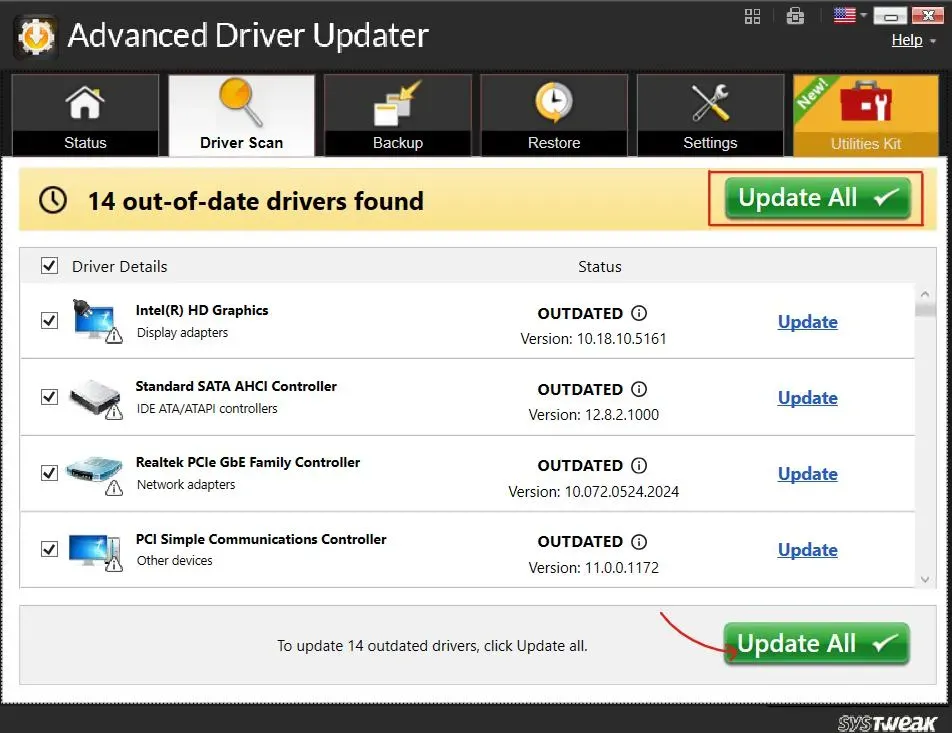
This approach is especially useful for users managing multiple hardware devices or older PCs.
Troubleshooting HDMI Port Issues
Before assuming a driver problem exists, verify the hardware itself.
Basic Checks
- Test the HDMI cable with another device.
- Connect the display using a different HDMI port.
- Power cycle both the computer and external display.
- Try a replacement HDMI cable.
- Verify the monitor or TV input source is set correctly.
Many HDMI problems are caused by faulty cables rather than driver issues.
Check Windows Display Settings
Incorrect display configuration can prevent Windows from detecting an external monitor or TV.
Open Display Settings by right-clicking the desktop and selecting Display settings.
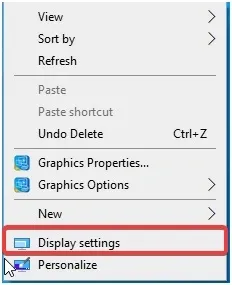 Windows display settings menu on desktop
Under Multiple displays, click Detect to search for connected devices.
If Windows still cannot identify the display, press Windows + P and test the available projection modes:
- PC Screen Only
- Duplicate
- Extend
- Second Screen Only
Switching between these options often restores HDMI output.
Update Windows for Additional Driver Fixes
Windows Update can provide newer display and audio drivers.
To check for updates:
- Open Settings.
- Navigate to Windows Update.
- Click Check for Updates.
- Install all available updates.
- Open Advanced Options.
- Review Optional Updates.
- Install any available driver updates.
- Restart the computer.
Updating Windows can resolve compatibility issues introduced by previous system upgrades.
How to Identify the Correct HDMI Video Driver
If automatic updates fail, determining your exact graphics hardware is essential.
Use DirectX Diagnostic Tool
Press Windows + R, type dxdiag, and press Enter.
This opens the DirectX Diagnostic Tool, which provides detailed hardware information including:
- Graphics card manufacturer
- Driver version
- Display configuration
- DirectX support details
By identifying your graphics hardware accurately, you can download the correct driver package directly from Intel, NVIDIA, or AMD.
Common HDMI Problems and Their Causes
HDMI No Signal
Possible causes include:
- Incorrect display source selected on the TV
- Outdated graphics drivers
- Damaged HDMI cable
- Faulty HDMI port
- Improper display settings
No HDMI Audio
Potential solutions:
- Update display audio drivers
- Set the HDMI device as the default playback device
- Reinstall audio drivers
- Check Windows sound settings
Screen Flickering
Common reasons include:
- Unsupported refresh rate
- Driver conflicts
- Loose cable connections
- Defective graphics hardware
TV Not Detected
Try:
- Running display detection
- Updating graphics drivers
- Switching projection modes
- Installing optional Windows driver updates
Frequently Asked Questions
Why Is HDMI Not Working on My Windows PC?
The most common causes are outdated graphics drivers, corrupted audio drivers, damaged HDMI cables, incorrect display settings, or hardware faults.
Does HDMI Require a Dedicated Driver?
No. HDMI ports do not require standalone drivers. HDMI functionality depends on the graphics and audio drivers installed on your system.
How Do I Connect My Laptop to a TV Using HDMI?
- Connect the HDMI cable between the laptop and TV.
- Turn on both devices.
- Select the correct HDMI input on the TV.
- Press Windows + P if necessary and choose the desired display mode.
How Can I Display My PC on a TV Through HDMI?
Open Display Settings, click Detect, and configure the display mode using Windows + P. If the TV remains undetected, update your graphics and audio drivers.
Additional Windows Driver Resources
You may also find these related guides useful:
- How to update AMD graphics drivers on Windows
- How to update Realtek Bluetooth drivers
- How to fix VGA controller driver issues
- How to update Bluetooth adapter drivers
- How to troubleshoot USB ports that are not working
Conclusion
Keeping your HDMI driver updated on Windows 11 and Windows 10 is one of the most effective ways to resolve display detection issues, audio problems, and HDMI connection errors. Start with Device Manager, move to manufacturer-provided drivers if necessary, and consider automated driver management tools for ongoing maintenance.
If HDMI problems persist after updating drivers, inspect the cable, verify display settings, install the latest Windows updates, and test the hardware on another device. Taking these steps systematically will help restore reliable HDMI video and audio performance on your PC.