
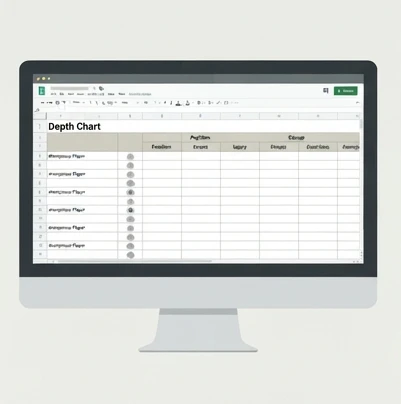
A football depth chart Excel template is a spreadsheet that organizes a team roster by position groups, starters, backups, and additional players. It helps coaches manage offense, defense, and special teams in one editable file for clear, easy-to-update weekly lineup decisions.
A football team depth chart can become difficult to manage when player roles, backups, injuries, and position changes are tracked in scattered notes. A football depth chart Excel template gives coaches, team managers, and staff a structured way to organize players by position and depth so weekly lineup decisions are easier to update.
A football depth chart Excel template is a spreadsheet layout that organizes a team roster by position groups, starting players, backups, and additional player options. It helps teams manage offense, defense, and special teams information in one editable file while keeping lineup decisions clear. This type of template solves common organization problems by replacing separate notes with a single chart that shows who fills each role and where backup coverage is available.
What a Football Depth Chart Excel Template Provides
A depth chart spreadsheet is a visual plan of player order within each position group. Instead of listing only who is on the roster, it shows how players are arranged for potential roles, such as starting quarterback, backup quarterback, or additional quarterback options.
For coaches and team managers, the main benefit is organization. A structured sheet makes it easier to see position coverage, identify where backups are needed, and update roles after practices, injuries, or roster changes.
A football roster spreadsheet and a depth chart solve related but different problems. A roster spreadsheet stores the complete list of players and information about them, while a depth chart focuses on role order and lineup planning.
Depth Chart vs. Roster Spreadsheet
| Tool | Main Purpose | Typical Information Included |
|---|---|---|
| Depth chart | Show player hierarchy by position | Starter, backup, position group, notes |
| Roster spreadsheet | Maintain team records | Player name, jersey number, contact details, availability |
A practical football team organization template often combines both ideas. One worksheet can store the full roster, while another displays the depth chart used for weekly planning.
Build a Football Depth Chart Spreadsheet in Excel
Creating a football depth chart spreadsheet in Excel starts with a simple structure. The goal is not to build a complicated database but to create a file that staff members can understand and update quickly.
A useful layout separates four areas: player identity, position groups, depth order, and status notes. This structure keeps the spreadsheet connected to real team decisions instead of becoming only a list of names.
- Separate player identity fields such as player name, jersey number, and primary position.
- Group players by offense positions, defense positions, and special teams roles.
- Define depth order using labels such as starter, backup, and additional players.
- Add status notes for injuries, availability, practice observations, or role changes.
Set Up the Roster and Position Layout
Start with a roster worksheet that contains the information needed to identify each player. Common columns include player name, jersey number, position, class or experience level, availability status, and notes.
The depth chart view should then organize players by position group. For example, an offense section may include quarterback, running back, wide receiver, tight end, and offensive line positions. A defense section may include defensive line, linebacker, cornerback, and safety groups. Special teams can include kicker, punter, returner, and coverage roles.
A worked example helps show the structure. Imagine a team organizing the quarterback group.
Situation: The team needs a clear quarterback depth order with role assignments and update notes.
Steps:
- Create a column for Position Group and enter Quarterback.
- Add rows labeled Starter, Backup, and Additional Players.
- Place player names under the correct role level.
- Add a Notes column for availability, injuries, or role changes.
Result: The quarterback position group becomes a clear depth chart section that can be updated without rebuilding the spreadsheet.
Note: Keep an open area for additional players because roster movement can change position coverage during a season.
For other positions, use the same structure. A wide receiver group may include multiple depth levels because teams often need several players listed by role. A linebacker section may need additional notes because players can sometimes cover multiple defensive responsibilities.
Add Excel Features for Easier Updates
A customizable football depth chart Excel file becomes more useful when basic spreadsheet tools reduce manual work. The goal is easier maintenance, not unnecessary complexity.
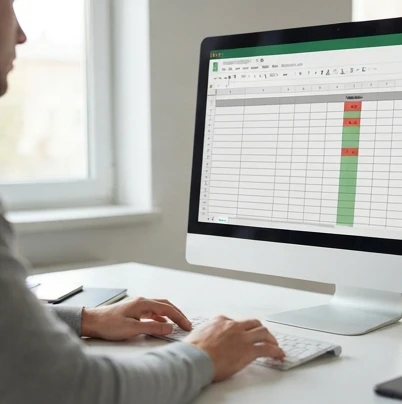
Conditional formatting can highlight important changes. For example, a team can apply different formatting rules to show unavailable players, open position groups, or recently changed roles. The visual signal should make the issue easy to find when reviewing the sheet.
Simple spreadsheet formulas can also help with tracking. A roster sheet can count listed players, identify missing information, or flag blank fields that need attention. These formulas should support the depth chart rather than replace coaching decisions.
In practical football roster management, the easy-to-miss step is keeping player records and depth order synchronized. A common failure mode occurs when a player is moved on the depth chart but the roster worksheet still shows an old position. The warning sign is inconsistent information between sheets, such as a player appearing at one position in the roster and another in the lineup planner.
Create a Weekly Lineup Planning System
A football lineup depth chart spreadsheet template works best when it becomes part of a weekly routine. Treat the file as a working document rather than a one-time chart.
A simple weekly workflow can include:

- Review practice availability and update player status notes.
- Adjust starter and backup roles after coaching decisions.
- Add game preparation notes for position groups.
- Save the updated version before sharing with staff members.
Player statistics can be added when they help explain decisions. Useful fields may include practice participation, special teams roles, or performance notes. Avoid adding information that the staff will not maintain, because unused columns make the spreadsheet harder to manage.
Organize the Spreadsheet Around Real Team Decisions
A football roster management Excel template should reflect the questions a team asks during the season: Who is available? Who fills each role? Which positions need backup coverage?
The spreadsheet becomes more valuable when player details are connected to decisions rather than stored as isolated data.
Spreadsheet Categories
| Category | Examples | Purpose | Users |
|---|---|---|---|
| Player Identity | Name, Jersey Number, Position | Track individual players | Coaches, Managers |
| Position Groups | Quarterback, Linebacker, Wide Receiver | Organize players by role | Coaches, Team Staff |
| Depth Order | Starter, Backup, Additional Players | Clarify hierarchy within positions | Coaches |
| Status Notes | Injuries, Performance, Availability | Monitor player conditions | Coaches, Support Staff |
College teams, youth teams, and recreational teams may use similar structures, but the level of detail should match the team’s workflow. A large roster may need more position tracking, while a smaller team may prioritize flexibility and simple updates.
A youth football depth chart often benefits from fewer fields. Instead of tracking extensive statistics, the spreadsheet may focus on player name, available positions, current role, and development notes. The best template is the one staff members will actually keep current.
Maintain the Depth Chart Throughout the Season
A depth chart only remains useful when updates happen consistently. Roster changes, injuries, and position adjustments can make an old chart misleading.
The most reliable approach is to create a repeatable update process. The spreadsheet should have clear places for changes so staff members do not need to search through multiple documents.
Track Player Information Beyond Positions
Position alone does not explain every lineup decision. Additional player fields can help organize information that affects weekly planning.
Useful fields may include:
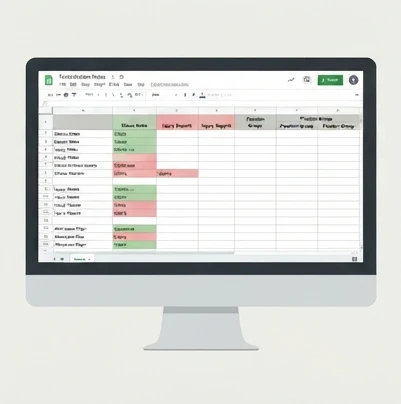
- Availability status: Shows whether a player can currently fill a role.
- Secondary position: Identifies players who can cover another position group.
- Development notes: Records areas to monitor during practices.
- Special teams role: Tracks coverage, kicking, or return responsibilities.
A common failure mode is storing too much information without a clear purpose. The diagnostic sign is a worksheet with many columns that are rarely updated. Remove fields that do not support a decision.
Treat the depth chart as a changing planning tool instead of a finished document. A useful check is whether the chart reflects the team’s current roster situation when reviewed before each game week.
Create a Weekly Update Routine
A consistent review schedule prevents outdated lineup information. A simple checklist can keep the file accurate.
- Update the player list immediately after any roster addition or removal.
- Adjust position depth after injuries or role changes are confirmed.
- Compare the roster worksheet and depth chart to ensure names and positions match.
- Review the final lineup before sharing the chart with staff or players.
The exact update frequency depends on the team’s activity level. Teams with frequent roster movement may review the chart several times each week, while smaller groups may only need updates around practices and games.
Choose the Right Format for Your Football Team
The best format depends on how the team works. A single coach managing detailed records has different needs from a staff that needs live collaboration.
Format Comparison
| Format | Best Use | Update Method | Collaboration |
|---|---|---|---|
| Excel | Detailed records managed by one person | Manual or formula-based updates | Single-user |
| Google Sheets | Live edits by multiple staff members | Real-time cloud updates | Multi-user |
| Printable Charts | Fixed lineups for meetings or games | Manual updates before printing | None |
Use this decision guide when selecting a format:
Format Decision Guide
| If | Then |
|---|---|
| One person manages detailed records | Use Excel for full control and offline access. |
| Multiple staff members need live edits | Use Google Sheets for real-time collaboration. |
| Sharing fixed lineups during meetings or games | Use printable charts for easy distribution. |
An Excel sports lineup template is often a good starting point when the team wants customization and control over the layout. Google Sheets is useful when several staff members need access to the same current version. Printable charts work best when the lineup is finalized and does not need frequent editing.
Customize the Template for Different Team Needs
A football coaching depth chart Excel template should be adjusted to match the team’s size, communication style, and level of detail. A small team does not need the same structure as a larger organization.
Adapt the Chart for Smaller Teams
Smaller teams often need flexibility because players may cover multiple positions. A simplified spreadsheet can include primary position, secondary position, current role, and availability.
For example, one player may appear in a quarterback section and also be listed as an emergency option elsewhere. Clear notes prevent confusion about whether the player is a regular starter or a backup option.
The key is keeping position coverage visible. If a position group has no backup listed, the chart should make that gap obvious so staff can plan alternatives.
Improve Sharing and Printing Options
A digital depth chart is useful for ongoing updates, while a printable version can help during meetings or game preparation. The layout should be readable without requiring staff members to interpret complex spreadsheet formatting.
Keep important information near the top of each section, use consistent position labels, and avoid overcrowding cells with unnecessary details. A coach reviewing the chart should quickly identify starters, backups, and available alternatives.
You can create your first working version today by opening a blank Excel workbook, adding roster columns and offense, defense, and special teams sections, then entering your current player list so every upcoming lineup decision starts from an organized record.
FAQ
What is a football depth chart Excel template?
It’s a spreadsheet layout that organizes your team roster by position group, showing starters, backups, and additional player options. It combines offense, defense, and special teams information in one editable file so you can see who fills each role and where you need more backup coverage.
How do you create a football depth chart in Excel?
Start by separating player identity fields like name, jersey number, and position. Then group players by offense, defense, and special teams. Define depth order with labels like starter, backup, and additional players, and add a notes column for injuries, availability, or role changes. Update the sheet weekly to keep it accurate.
What positions should be included in a football depth chart spreadsheet?
Your offense section can include quarterback, running back, wide receiver, tight end, and offensive line. Defense can cover defensive line, linebacker, cornerback, and safety groups. Special teams should include kicker, punter, returner, and coverage roles, each organized with starter and backup levels.
Can a football depth chart template include offense, defense, and special teams?
Yes, a well-built template organizes all three groups within one file. Each section lists position groups with starter, backup, and additional player rows, plus notes for availability or injuries. Keeping everything in a single spreadsheet makes it easier to compare coverage across your entire roster at once.
Is there a free football depth chart template available in Excel format?
You can build your own free version by opening a blank Excel workbook and setting up roster columns alongside offense, defense, and special teams sections. Enter your current players under each position group with starter and backup labels, and you’ll have a working template ready to update each week.