
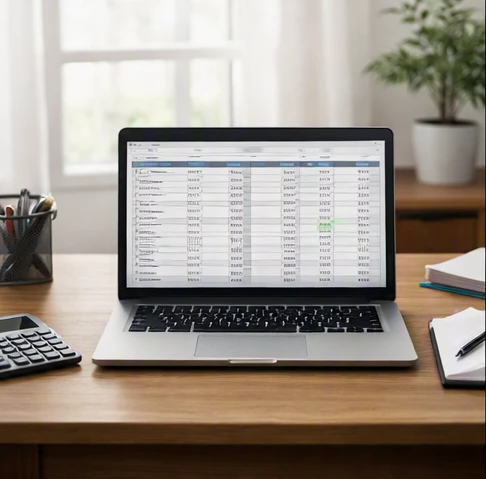
An Excel check register uses a formula to automatically calculate running balance: Current Balance = Previous Balance + Deposits – Withdrawals. Set up columns for Date, Check Number, Payee, Deposits, Withdrawals, and Balance. Enter your starting balance, then use formulas like =F2+D5-E5 for the first row and =F5+D6-E6 for subsequent rows, copying downward to track each transaction’s updated balance.
An Excel check register with running balance helps track checks, deposits, withdrawals, and account balances by using a structured worksheet and formulas that carry transaction totals forward. By setting up the correct columns and formulas, you can create a reliable record of transactions for personal finances or small-business cash tracking.
An Excel check register is a worksheet that records each financial transaction and calculates the current balance automatically. The basic formula is: Current Balance = Previous Balance + Deposits – Withdrawals. A dependable register includes transaction details, separate credit and debit columns, a starting balance, and formulas that update as new entries are added.
Excel check register with running balance setup
A check register spreadsheet works like a digital version of a paper checkbook. Each row represents one transaction, and the running balance shows how much money should remain after that transaction is recorded. The register is a record-keeping tool, not a replacement for official bank statements, so account reconciliation is still necessary.
The transaction flow is simple: enter the starting balance first, add each check or payment as a withdrawal, record incoming money as a deposit or credit, and let spreadsheet formulas calculate the balance after every row.
A well-designed register prevents common problems because every transaction has a clear location. Before adding formulas, decide which information you need to track consistently.
Check Register Column Reference
| Column | Purpose | Entry Type | Balance Impact |
|---|---|---|---|
| Date | Records when the transaction occurred | Manual entry | Provides transaction order for balance tracking |
| Check Number / Reference | Identifies checks, transfers, or payment references | Manual entry | Does not change balance directly |
| Payee or Description | Explains who received money or why money was received | Manual entry | Does not change balance directly |
| Deposit / Credit | Stores incoming money amounts | Positive amount entry | Increases the running balance |
| Withdrawal / Debit | Stores outgoing payment amounts | Positive amount entry | Decreases the running balance |
| Balance | Shows the calculated amount remaining after each transaction | Formula result | Updates after deposits and withdrawals |

Place the starting balance above the transaction table or in the first balance cell before the first transaction. This gives the first formula a reference point instead of forcing the spreadsheet to calculate from an empty value.
For example, if the opening amount is an example value of $1,000, the first transaction row should calculate from that starting balance rather than from another transaction. The same structure works whether you are tracking household expenses, checks, or a simple bank account tracker spreadsheet.
Create the worksheet structure and formulas
Creating an Excel checkbook register from a blank worksheet requires two parts: a consistent transaction layout and formulas that carry the balance forward. The goal is not only to calculate today’s balance but also to keep the sheet usable when additional transactions are entered later.
In spreadsheet setup, the key step is separating money coming in from money going out. A single amount column can work for simple lists, but separate deposits and withdrawals make errors easier to identify during account reconciliation.
Building transaction columns step by step
Start with a new Microsoft Excel spreadsheet and create one row for headings. A beginner-friendly layout usually includes:
- Date: Enter the transaction date so entries remain in order.
- Check Number or Reference: Add a check number, transfer reference, or payment identifier when available.
- Description or Payee: Record the reason for the transaction, such as a bill payment, customer payment, or transfer.
- Category: Add an optional category such as groceries, supplies, income, or operating expenses.
- Deposit / Credit: Enter money added to the account.
- Withdrawal / Debit: Enter money removed from the account.
- Balance: Use a formula to calculate the amount remaining after each transaction.
Keep deposits and withdrawals in separate columns. This makes it easier to spot whether a transaction was entered in the wrong direction.
For example, a payment to a supplier belongs in the Withdrawal / Debit column, while a customer payment belongs in the Deposit / Credit column. Both amounts may be positive numbers, but their columns determine whether they increase or decrease the balance.

Keeping formulas active for new transactions
The core rule behind an automatic balance calculation is:
Current Balance = Previous Balance + Deposits - Withdrawals
Variables:
- Current Balance: The account amount shown on the current transaction row.
- Previous Balance: The balance calculated on the row immediately above.
- Deposits: Money added to the account on the current row.
- Withdrawals: Money removed from the account on the current row.
Example: Starting with an example previous balance of $1,000, a deposit of $250, and a withdrawal of $80:
Current Balance = $1,000 + $250 - $80 = $1,170
For an Excel worksheet, assume:
- Starting balance is stored in
F2. - The first transaction row begins on row 5.
- Deposits are in column
D. - Withdrawals are in column
E. - Balance is in column
F.
The first transaction balance formula can be:
=F2+D5-E5
The next row formula can be:
=F5+D6-E6
Copying the second formula downward allows each new transaction to reference the previous calculated balance. Check the references after copying because a formula that skips a row can create a balance error that looks like a missing transaction.
For a monthly checkbook register with automatic balance calculation, convert the transaction area into an Excel table if that fits your workflow. A table can make adding new rows easier because formulas can extend with new entries, but the underlying balance logic still needs to be reviewed.
Prevent blank rows and balance calculation errors
A spreadsheet can appear correct while quietly producing misleading information. Empty transaction rows, incorrect copied formulas, and misplaced deposits or withdrawals are among the most common causes of inaccurate balances.
Blank transaction rows should not display a balance as if a real transaction occurred. To prevent this, add a condition that checks whether a transaction field contains data before calculating. For example, a balance formula can be adjusted so an unused row returns a blank result until the Date, Description, Deposit / Credit, or Withdrawal / Debit field has an entry.
Fixing incorrect running balance formulas
When a running balance is wrong, first identify whether the issue is the formula or the transaction data. Do not immediately adjust the final balance number because that can hide the original mistake.
Running Balance Formula Troubleshooting
| Problem | Possible Cause | How to Check | Fix |
|---|---|---|---|
| Running balance does not match expected amount | Previous balance reference points to the wrong row | Select the formula cell and inspect the referenced balance cell | Update the formula to use the immediately previous transaction balance |
| Empty rows show active zero-dollar transactions | Formula calculates even when transaction details are missing | Check whether blank-row conditions are included in the formula | Add an empty-cell condition that returns a blank result |
| Register balance differs from bank statement | Missing entries, incorrect amounts, or unrecorded transactions | Compare each transaction in the register with the statement for the review period | Add missing records and correct differences before relying on the balance |

A useful diagnostic rule is to compare the balance after each transaction, not only the final total. If the error begins after one specific row, inspect that row first.
For example, if a balance suddenly changes by the amount of a missing payment, the likely cause is an omitted withdrawal. If the balance changes by twice the expected amount, inspect whether a transaction was entered once manually and once through a copied row.
Correcting transaction entry mistakes
Many checkbook spreadsheet errors come from correct formulas receiving incorrect inputs. A running balance formula can only calculate from the information entered into the worksheet.
A safer review process is:
- Check the transaction date and description to confirm the entry exists.
- Confirm incoming money is in the Deposit / Credit column.
- Confirm outgoing money is in the Withdrawal / Debit column.
- Compare the transaction amount with the bank statement or receipt.
- Recalculate the balance after correcting the entry.
If a deposit was entered as a withdrawal, the balance will usually be lower than expected. If a withdrawal was entered as a deposit, the balance will usually be higher than expected. These signs help separate data-entry mistakes from formula problems.
Improve tracking with categories and reconciliation
A basic register records movement of money. A more useful bank account tracker spreadsheet adds context so you can understand why money moved and verify that the spreadsheet matches the account records.
In personal finance tracking, reconciliation is a required step. A running balance inside Excel shows what the worksheet calculates, but account reconciliation compares that calculation against the bank’s official record.
A simple reconciliation process is:
- Choose a review period, such as the end of a month or another regular checkpoint.
- Compare each transaction in Excel with the corresponding bank statement entry.
- Mark missing transactions, duplicate entries, or incorrect amounts.
- Correct the register before using the balance for future decisions.

The purpose is to identify differences, not to replace the bank statement.
Adapting one register for multiple accounts
One Excel check register can be expanded for multiple accounts, but organization becomes more important as the number of accounts increases.
A practical approach is to give each account its own section or worksheet. Each account should have:
- Its own starting balance.
- Its own transaction history.
- Its own running balance formula.
- A clear account name at the top of the worksheet.
Avoid combining several accounts into one balance column unless every row also identifies the account. Otherwise, a correct formula can still produce a confusing total because transactions from different accounts are mixed together.
For household budgeting, categories may focus on spending areas such as housing, food, transportation, and savings. For a small business, categories usually need more detail, such as sales income, supplier payments, equipment costs, and operating expenses.
Using the register for small-business cash flow
A personal Excel check register can support small-business bookkeeping when the goal is basic cash tracking, but it should not be treated as complete accounting software.
A small-business version may include:
- Customer or vendor reference fields to identify who paid or received money.
- Income and expense categories to separate business activity.
- Separate worksheets for different bank accounts.
- Regular reconciliation against bank statements.
A simple register answers "what money moved and when." A personal register often focuses on household spending and deposits, while a small-business register usually needs clearer income, vendor, and expense categories to support bookkeeping records.
Maintain an error-resistant Excel checkbook workflow
A good Excel check register is not only about the first setup. The worksheet should remain understandable after weeks or months of new transactions.
A few habits improve reliability:
- Enter transactions regularly instead of relying on memory later.
- Keep a backup copy before making major structure changes.
- Review formulas when adding new rows or copying sections.
- Use conditional formatting to highlight missing information, unusual entries, or negative balances if those warnings help your workflow.
A digital check tracking system reduces the friction of reviewing transaction history because searches, categories, and sorting are easier than paper records. However, convenience does not remove the need to verify entries against bank statements.
Choose the simplest structure that answers your tracking needs. A personal budgeting worksheet may only need dates, descriptions, categories, and balances, while a small business may need additional references for income and expenses.
Create your first five transaction rows in Excel today using the column layout and formulas above, then compare the calculated balance with your starting balance plus the sample entries; this immediately confirms that your running balance logic is working before you add real financial transactions.
FAQ
Is there a free Excel template for a check register?
Microsoft Office provides free check register templates within Excel. Open Excel, select File > New, search for "check register" or "checkbook," and download a template that fits your needs. You can also build a custom register using the column layout and formulas described in this guide, which gives you full control over the structure.
Can an Excel check register track more than one bank account?
Yes, you can track multiple accounts in one workbook. The best approach is to give each account its own worksheet with separate starting balances, transaction histories, and running balance formulas. This keeps accounts clearly organized and prevents mixing transactions from different sources into a single balance column.
Can a check register spreadsheet replace accounting software?
An Excel check register is useful for basic cash tracking and personal finances, but it should not replace full accounting software for a business. A spreadsheet answers "what money moved and when," but it lacks features like invoicing, tax categorization, financial reports, and automatic bank imports that accounting software provides.
Is there a free checkbook register template for Google Sheets?
Yes, Google Sheets has free checkbook templates available. Open Google Sheets, select the template gallery, and search for "checkbook register" or "check register." You can also create a custom register in Sheets using the same column layout and formulas described for Excel, since the formula logic is similar across both platforms.