
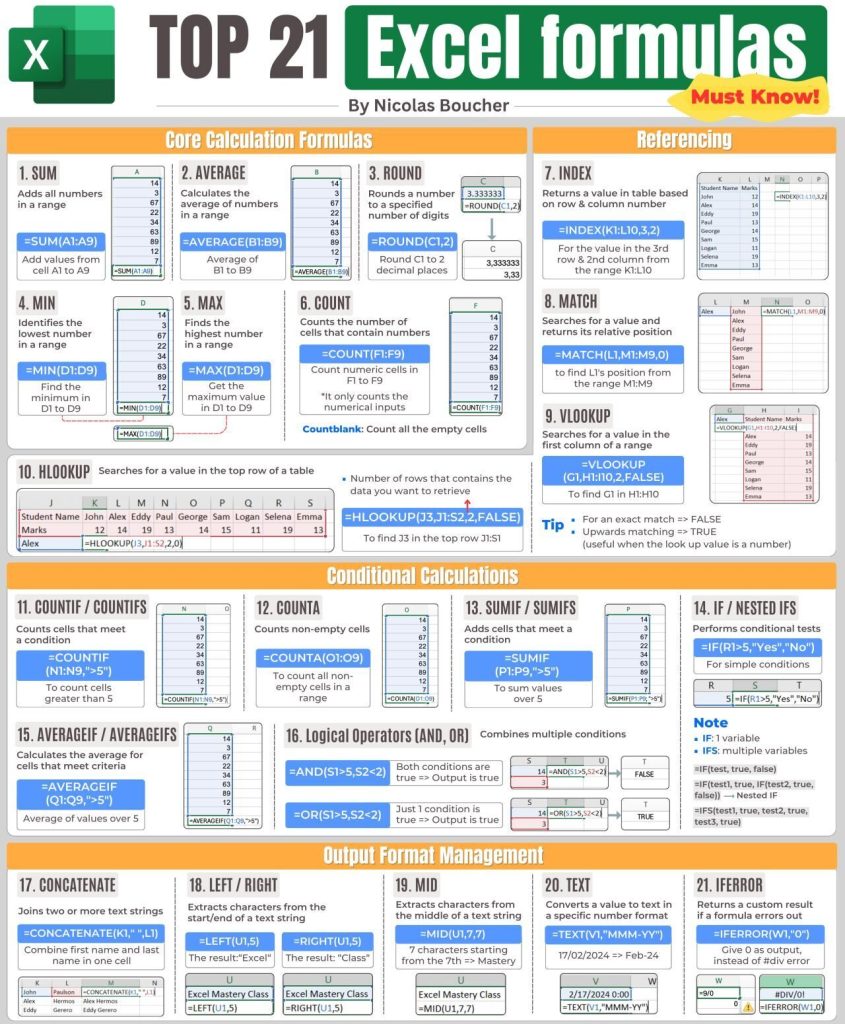
Understanding how to check if a value falls within a specific range is a fundamental skill in Excel, crucial for data analysis, reporting, and decision-making. Whether you’re dealing with numerical data or dates, Excel offers powerful formulas to efficiently determine if a given value lies between two defined boundaries. This guide will walk you through the most effective methods, ensuring you can accurately analyze your datasets.
Checking if a Number is Between Two Values
To determine if a number falls between two other numbers in Excel, you can leverage the AND function in conjunction with logical operators. The AND function is ideal for this as it returns TRUE only if all its conditions are met.
Using the AND Function for Number Ranges
The core logic involves two comparisons: checking if the value is greater than the lower boundary and if it’s less than the upper boundary.
Excluding boundaries: To check if a number in cell
A2is strictly between10and20(i.e., not including10or20), use the formula:
=AND(A2>10, A2<20)Including boundaries: To include the boundary values (
10and20in this case), use the “greater than or equal to” (>=) and “less than or equal to” (<=) operators:
=AND(A2>=10, A2<=20)
These formulas will return TRUE if the condition is met and FALSE otherwise.
Customizing Output with the IF Function
Often, you’ll want to display a specific message or value instead of TRUE or FALSE. This is where the IF function becomes invaluable. By nesting the AND function within the IF function’s logical test, you can define custom outputs.
Returning “Yes” or “No”:
- Excluding boundaries:
=IF(AND(A2>10, A2<20), "Yes", "No") - Including boundaries:
=IF(AND(A2>=10, A2<=20), "Yes", "No")
- Excluding boundaries:
Returning the value itself or an error message:
- Excluding boundaries:
=IF(AND(A2>10, A2<20), A2, "Invalid") - Including boundaries:
=IF(AND(A2>=10, A2<=20), A2, "Invalid")
- Excluding boundaries:
Tip: To make your formulas more flexible, consider storing your boundary numbers in separate cells and referencing them. This allows you to easily update the range without modifying the formula itself. For instance, if your lower bound is in B2 and upper bound in C2, the formula becomes:
=IF(AND(A2>=B2, A2<=C2), "Yes", "No")
Handling Interchanged Boundary Values
When the smaller and larger numbers might not always be in a predictable order (e.g., B2 could be greater than C2), you can use the MIN and MAX functions within your AND statement.
Excluding boundaries:
=AND(A2>MIN(B2, C2), A2<MAX(B2, C2))Including boundaries:
=AND(A2>=MIN(B2, C2), A2<=MAX(B2, C2))
These can also be integrated with the IF function for custom outputs.
Checking if a Date Falls Between Two Dates
The logic for checking date ranges in Excel is very similar to checking numbers. However, Excel needs to correctly interpret dates, especially when entered directly into formulas.
Basic Date Range Check
The fundamental formula structure remains the same:
Including boundaries:
=IF(AND(A2>=start_date, A2<=end_date), value_if_true, value_if_false)Excluding boundaries:
=IF(AND(A2>start_date, A2<end_date), value_if_true, value_if_false)
Important Note on Dates: When entering dates directly into formulas, it’s best practice to wrap them with the DATEVALUE function to ensure Excel recognizes them correctly as dates, not text strings. For example, to check if a date in A2 is between January 1, 2022, and December 31, 2022 (inclusive):
=IF(AND(A2>=DATEVALUE("1/1/2022"), A2<=DATEVALUE("12/31/2022")), "Yes", "No")
If your start and end dates are stored in cells (e.g., E2 and E3), you can use absolute references ($E$2, $E$3) to lock those cell references, which is especially useful when copying the formula down:
=IF(AND(A2>=$E$2, A2<=$E$3), "Yes", "No")
You can also combine MIN and MAX with DATEVALUE if your boundary dates might be interchanged.
Checking if a Date is Within the Next N Days
To see if a date falls within a future period, you can use the TODAY() function.
- Within the next N days: This formula checks if the date in
A2is after today and within the nextndays:
=IF(AND(A2>TODAY(), A2<=TODAY()+n), "Yes", "No")
For example, to check for the next 7 days:
=IF(AND(A2>TODAY(), A2<=TODAY()+7), "Yes", "No")
Checking if a Date is Within the Last N Days
Similarly, you can check for dates in the past using TODAY().
- Within the last N days: This formula checks if the date in
A2is on or afterndays ago and before today:
=IF(AND(A2>=TODAY()-n, A2<TODAY()), "Yes", "No")
For example, to check for the last 7 days:
=IF(AND(A2>=TODAY()-7, A2<TODAY()), "Yes", "No")
Conclusion and Call to Action
Mastering the “IF BETWEEN” logic in Excel empowers you to perform sophisticated data validation and analysis. By skillfully employing the AND, IF, MIN, MAX, DATEVALUE, and TODAY functions, you can create dynamic and insightful spreadsheets. Experiment with these formulas in your own workbooks to solidify your understanding and enhance your Excel proficiency. For further practice and examples, download the provided workbook.
Practice Workbook
Excel If between – formula examples (.xlsx file)