
Installing Microsoft Office 2007 may seem outdated today, but many users still rely on this classic productivity suite for compatibility with older systems and documents. Whether you need Word, Excel, PowerPoint, or Access for legacy workflows, understanding the correct installation process is essential for avoiding activation errors and setup issues.
Because Office 2007 is no longer officially supported, you must have the original installation disc and a valid product key before starting. This guide walks you through the complete process of installing and activating Office 2007 on your computer safely and correctly.
Important Things to Know Before Installing Office 2007
Before beginning the installation, make sure you prepare the following items:
- An original Office 2007 installation CD or DVD
- A valid Office 2007 product key
- Administrative access to your computer
- Sufficient storage space on your hard drive
Since Microsoft ended support for Office 2007, you will no longer receive security updates or technical support. However, the software can still function on compatible Windows systems if properly installed and activated.
Step-by-Step Guide to Install Office 2007
Insert the Office 2007 Installation Disc
Place the Office 2007 CD into your computer’s optical drive. In most cases, the setup wizard will launch automatically.
If the installer does not appear, follow these steps manually:
- Open File Explorer
- Navigate to the CD/DVD drive
- Double-click SETUP.EXE
This will start the Office 2007 installation wizard.
After launching the setup program, you will be asked to enter your product key.
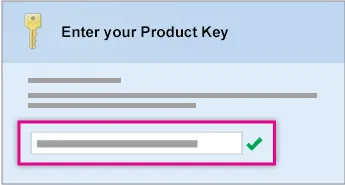
Enter Your Office 2007 Product Key
Type the 25-character product key exactly as it appears on the product packaging or disc case. The key is required to verify that your copy of Microsoft Office 2007 is genuine.
If you cannot locate the key, check:
- The sticker inside the DVD case
- The original retail packaging
- Documentation included with the software purchase
Be careful when entering the code because incorrect characters can prevent installation and activation later.
Accept the Microsoft Software License Terms
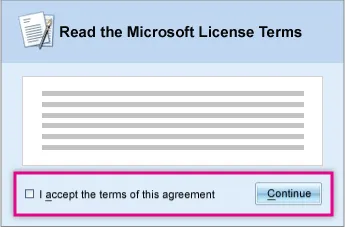
Once the product key is verified, the installer will display the Microsoft Software License Terms. Read through the agreement carefully before proceeding.
To continue:
- Check the box confirming acceptance of the terms
- Click Continue
This step authorizes the installation of the software on your device according to Microsoft’s licensing rules.
Complete the Office 2007 Installation
Follow the remaining prompts displayed by the setup wizard. During installation, the system will copy the necessary Office files to your computer.
Depending on your hardware speed, the process may take several minutes.
When installation finishes:
- Click Close
- Restart your computer if prompted
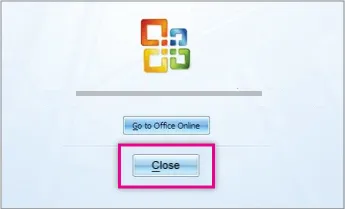
At this point, Office applications such as Word, Excel, and PowerPoint should appear in your Start menu.
How to Activate Office 2007
Activation is required to unlock the full functionality of Office 2007. Without activation, some features may become limited after a trial period.
Activate Office from Word, Excel, PowerPoint, or Access
Open any of the following applications:
- Microsoft Word 2007
- Microsoft Excel 2007
- Microsoft PowerPoint 2007
- Microsoft Access 2007
Then follow these steps:
- Click the Microsoft Office Button
- Select Options
- Choose Activate Microsoft Office
The activation wizard will guide you through the remaining process.
Activate Office from Other Office Applications
For other Office 2007 programs, activation steps may differ slightly.
To activate:
- Open the application
- Click Help
- Select Activate Product
Follow the instructions shown on the screen to complete activation successfully.
Common Office 2007 Installation Problems
Although Office 2007 installation is generally straightforward, some users encounter issues during setup or activation.
Setup Wizard Does Not Start
If the installation wizard does not open automatically:
- Open This PC or File Explorer
- Navigate to the disc drive
- Run SETUP.EXE manually
You may also need to right-click the file and choose Run as administrator.
Invalid Product Key Error
If your product key is rejected:
- Verify that all characters were typed correctly
- Avoid confusing letters and numbers such as O/0 or B/8
- Ensure the key matches the Office 2007 edition being installed
Activation Fails
Activation can fail if:
- The product key has already been used too many times
- Internet connectivity is unstable
- The installed edition differs from the licensed edition
In such cases, contacting Microsoft support may help resolve licensing issues.
Tips for Using Office 2007 Safely
Since Office 2007 no longer receives security updates, it is important to take extra precautions:
- Keep your Windows system updated
- Use reliable antivirus software
- Avoid opening unknown email attachments
- Regularly back up important Office documents
Users who need modern collaboration features and ongoing support may also consider upgrading to newer versions of Microsoft Office or Microsoft 365.
Conclusion
Installing Office 2007 is still possible if you have the original installation media and a valid product key. By carefully following the setup and activation steps, you can continue using classic Microsoft Office applications for document creation, spreadsheets, presentations, and database management.
Make sure to keep your product key secure and maintain good system security practices when using unsupported software. If you frequently rely on Office tools for work or study, upgrading to a newer Office version may provide better compatibility, enhanced security, and improved productivity features.