
Converting designs from static PDFs into editable AutoCAD formats like DWG and DXF is a critical step for professionals in manufacturing, architecture, and engineering. This transformation allows for precise edits, seamless integration into CAD workflows, and preserves the integrity of original designs. This guide provides a comprehensive overview of why this conversion matters, the tools available, and a detailed step-by-step process to achieve high-quality results.
Why Convert PDF to DWG or DXF?
While the PDF format is the universal standard for sharing and viewing design documents, its static nature presents significant limitations when it comes to editing or integrating designs into a Computer-Aided Design (CAD) workflow. Converting these files to DWG or DXF unlocks a new level of control and efficiency.
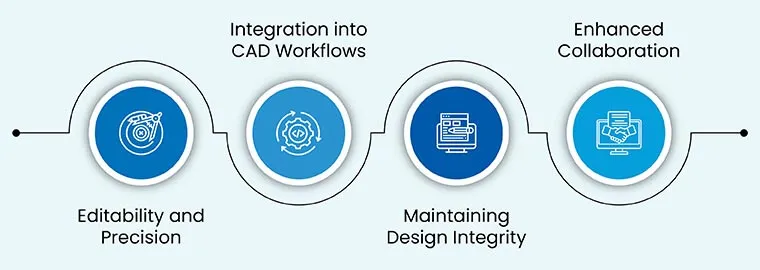
Precision and Editability
The primary driver for converting PDFs to DWG or DXF is the need for precision. PDFs are excellent for sharing final designs, but they are not designed for modification. Converting to AutoCAD’s native formats allows drafters and engineers to make accurate edits to the very specific details of a design, ensuring that modifications are precise and reliable.
Seamless CAD Workflow Integration
Most manufacturing and design processes rely on CAD data for everything from initial prototyping to final fabrication. Converting PDFs into DWG or DXF files creates a direct pathway to transport these files into the core workflow. This facilitates seamless project management and ensures that all team members are working with the most up-to-date, editable files.
Preserving Design Integrity
Maintaining the integrity of the original design during the transition from concept to manufacturing is paramount. DWG and DXF formats are capable of retaining the original design’s critical attributes, including dimensions, layers, and other specific details. This reduces the potential for errors during fabrication and ensures the final product matches the original intent.
Enhanced Collaboration
Static PDF files hinder collaboration. When sharing designs with team members or stakeholders, the need to edit, annotate, or extract specific components is common. Converted DWG and DXF files provide the necessary flexibility for teams to interact with the design, improving communication and ensuring everyone remains aligned throughout the project lifecycle.
Software Solutions for PDF to DWG/DXF Conversion
Several software options exist for converting PDF files to DWG or DXF formats. The right choice depends on your existing software ecosystem, budget, and the complexity of the files you are converting. We will focus on two primary methods: using native features in AutoCAD and using third-party conversion tools.
1. Converting with AutoCAD
AutoCAD, Autodesk’s flagship CAD software, offers robust native features for importing and converting PDF files directly. This is often the preferred method for users already within the Autodesk ecosystem due to its accuracy and reliability.
- Direct PDF Import: AutoCAD allows users to import PDF files directly using the
PDFIMPORTcommand. - Control Over Parameters: The software provides detailed control over layers, scale, resolution, and other import settings, allowing for a highly customized conversion.
- High Accuracy: As the industry standard, AutoCAD’s conversion engine is known for its accuracy and reliable output, making it suitable for complex and detailed drawings.
2. Third-Party Conversion Software
For users who may not have access to AutoCAD or are looking for dedicated conversion tools with specific features, several third-party options are available. These tools often focus on streamlining the conversion process and may include advanced functionalities.
- Any PDF to DWG Converter: This tool is specifically built for batch converting PDF files to DWG or DXF formats, making it a good option for speeding up large-volume conversion tasks.
- Able2Extract: This software supports conversion to multiple output formats, including DWG and DXF. It offers advanced options for data extraction and can be a versatile tool for managing various document types.
- Scan2CAD: This is a powerful option, particularly for dealing with scanned PDFs. Its advanced Optical Character Recognition (OCR) capabilities allow it to accurately recognize and convert text and vector entities from raster-based PDF files.
Step-by-Step Conversion Guide
The conversion process can be broken down into clear, actionable steps. Below are detailed guides for both methods.
How to Convert PDF to DWG/DXF in AutoCAD
1. Open AutoCAD and Create a New Drawing
- Launch AutoCAD.
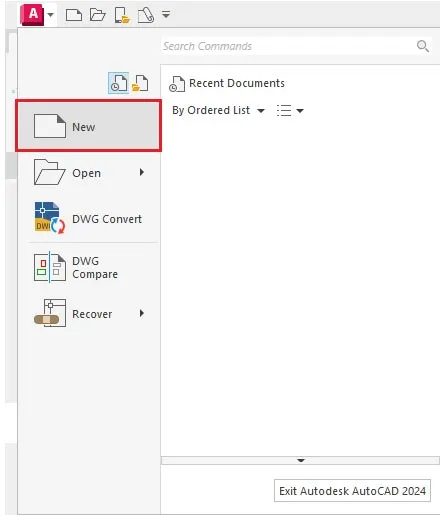
- Navigate to the “File” menu and select “New” to open a blank drawing template where you will import your PDF.
2. Import the PDF File
- Use the
PDFIMPORTcommand. You can type “PDFIMPORT” directly into the command line or find the “PDF Import” option under the “Insert” tab on the ribbon.
3. Adjust Import Settings
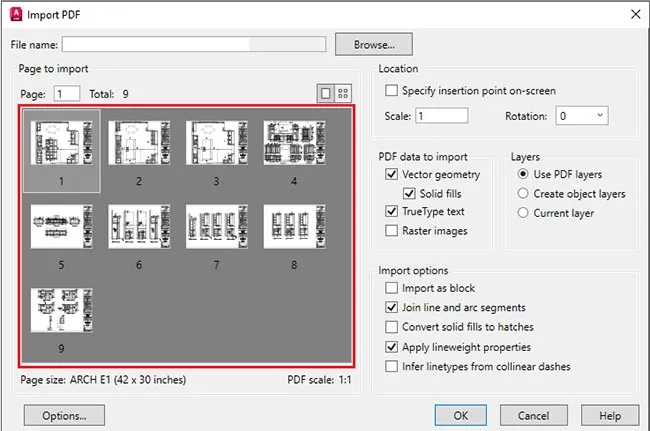
Before finalizing the import, AutoCAD presents a dialog box with several critical settings. Configuring these correctly is key to a successful conversion.
- Pages: Select the specific page or pages from the multi-page PDF that you wish to import.
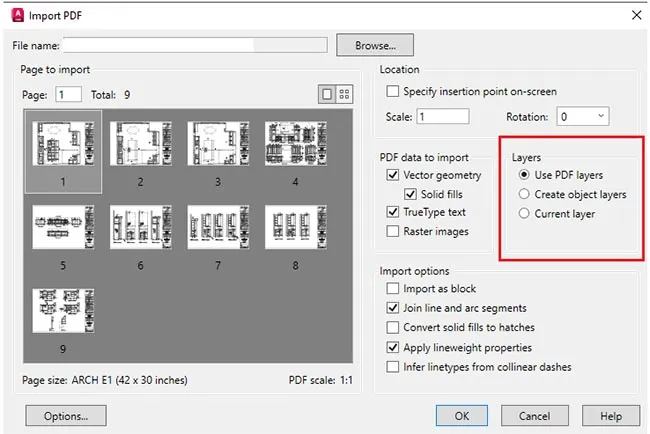
- Layers: Decide whether to import the PDF data as a single layer or to create individual layers based on the source file’s layer information.
- Resolution: For the best results, set the resolution to “High Quality” to capture as much detail as possible.
- Scale: Set the scale to match your drawing units. Ensure the imported geometry is sized correctly for your project.
 3. Adjust Import Settings
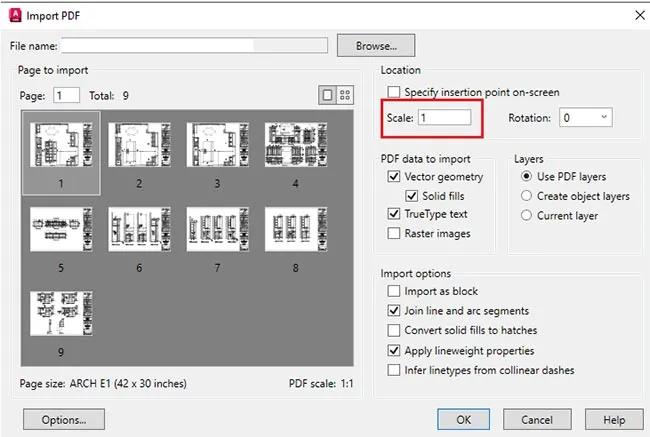 3. Adjust Import Settings
4. Convert and Edit
- Click “OK” to initiate the import process. Once complete, the previously non-editable PDF data is now converted into editable DWG/DXF geometry. You can now proceed to edit the drawing as needed.
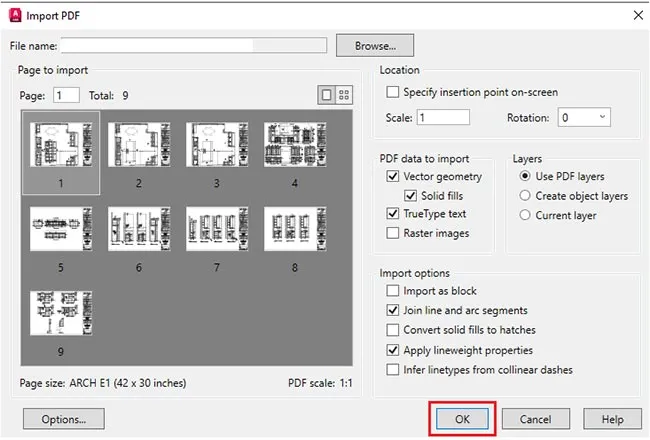 4. Convert and Edit
5. Save as DWG or DXF
- After editing, save your file. Go to the “File” menu, select “Save As,” and choose either DWG (the native AutoCAD drawing format) or DXF (Drawing Exchange Format) from the file type dropdown menu.
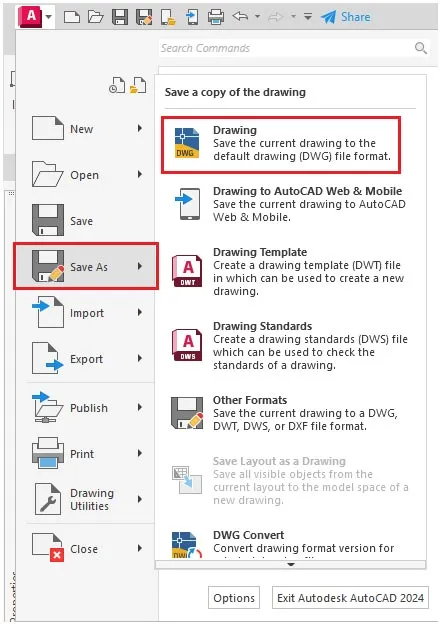
How to Convert PDF to DWG/DXF with Third-Party Software
The general process for third-party converters follows a similar pattern, though specific options may vary by software.
1. Open the Conversion Application
- Launch your chosen third-party PDF to DWG/DXF conversion software.
2. Import the Source PDF
- Use the application’s “Open,” “Import,” or “Add File” button to select the PDF file you want to convert.
3. Set Conversion Options
- Locate the output settings section. Configure the following options as needed:
- Output Format: Choose either DWG or DXF as your target file format.
- Layers: Select whether to preserve the layer structure from the original PDF or merge all elements into a single layer.
- Text Recognition: If your software supports OCR (like Scan2CAD), enable it to accurately extract and convert text, especially from scanned documents.
- Resolution and Scaling: Adjust the resolution and scale to meet your clarity and size requirements for the final CAD file.
4. Start the Conversion
- Click the “Convert,” “Start,” or “Process” button. The software will process the PDF and generate the CAD file based on your specified settings.
5. Save and Verify
- Once the conversion is complete, save the new DWG or DXF file to your desired location. Open the file in AutoCAD or another CAD program to inspect the results and make any final edits.
Overcoming Common Conversion Challenges
Even with the best tools, PDF to CAD conversion can sometimes present issues. Being aware of these common problems and their solutions can help you achieve a cleaner, more accurate result.
Accuracy and Alignment Issues
- Problem: After conversion, elements such as lines, arcs, and text are not properly aligned, are deformed, or are placed on the wrong scale.
- Solution: Pay meticulous attention to the scale and resolution settings during the import or conversion stage. Always use the highest quality PDF source available to capture the maximum amount of detail. Double-check scaling factors before finalizing the import.
Layer Management Problems
- Problem: Layers from the original PDF are flattened or lost entirely, making it difficult to organize and edit the new CAD file.
- Solution: If using AutoCAD, ensure the “Import Layers” option is selected during the
PDFIMPORTprocess. For third-party tools, look for specific settings that allow you to preserve or re-create layer information based on the source file’s color or object properties.
Text and Font Distortion
- Problem: Text in the converted DWG/DXF file appears as garbled, distorted shapes, or is missing entirely.
- Solution: For scanned PDFs, using a third-party tool with robust OCR capabilities is essential. In AutoCAD, after import, you may need to manually verify and correct text using the software’s text editing tools. Exploding text objects can sometimes help, but careful manual verification is often required.
Large File Size and Performance
- Problem: Converting a large or complex PDF results in a DWG/DXF file that is very large, causing slow performance in AutoCAD.
- Solution: Simplify the PDF before conversion by removing any unnecessary objects, raster images, or layers that are not needed. In AutoCAD, after conversion, use the
PURGEcommand to remove unused elements like layers, blocks, and line types from the drawing to clean it up.
Compatibility and Missing Data
- Problem: Certain objects from the PDF, such as complex hatches or proprietary shapes, do not convert properly, leading to missing information in the final file.
- Solution: Carefully compare the converted file against the original PDF to identify missing elements. Manually add the missing components in AutoCAD. Ensure your CAD software is updated to the latest version to maintain compatibility with the most recent DWG and DXF formats.
The Benefits of Outsourcing CAD Conversion Services
For complex, high-stakes projects, or when dealing with a large volume of files, outsourcing PDF to DWG/DXF conversion to a professional service offers significant advantages over using software alone.
- Expertise and Accuracy: Professional CAD drafters bring a high level of expertise to critical projects. They ensure the preservation of all dimensional attributes, annotations, and critical information from the original PDF, resulting in a more reliable and accurate CAD file.
- Time Efficiency: Outsourcing frees up your internal team to focus on core business activities. You can rely on experts to handle the tedious process of analyzing and converting layers, delivering error-free CAD files faster than if you were to do it yourself.
- Customization to Your Standards: Professional services ensure that the output adheres to your specific company standards, procedures, and workflows. They can tailor layer naming conventions, formatting, and other details to match your exact specifications.
- Access to Specialized Tools: Reputable outsourcing partners utilize professional-grade CAD conversion software and tools. This often yields superior results compared to what is achievable with standard consumer-level software.
- Professional Quality Assurance: A reliable outsourcing partner will conduct a comprehensive quality assurance (QA) check on all converted files before delivery. They review the files against your specific requirements, ensuring they are accurate, complete, and ready for use.
Conclusion
Converting PDF files to editable DWG or DXF formats is an essential process for ensuring seamless collaboration and precision from design through to fabrication in industries like manufacturing, millwork, and sheet metal. The ability to successfully convert and edit these files allows for easy integration into established CAD processes, unlocking the full potential of your design data.
To achieve accurate and efficient results, it is crucial to be familiar with the available conversion tools and to follow a structured, step-by-step process. While performing the conversion in-house can work for smaller projects, outsourcing to professional CAD conversion services offers significant benefits in terms of accuracy, speed, flexibility, and overall quality assurance for larger-scale or more complex endeavors.