
Achieve perfectly centered text across multiple columns in Excel without the hassle of merging cells.
Excel 365 offers powerful formatting tools to enhance the presentation of your financial models and reports. While accuracy is paramount, proper formatting significantly influences how a model is perceived and utilized. One common formatting challenge is centering titles or headers across multiple columns. Excel 365 provides an elegant solution: Center Across Selection. This feature allows you to center text horizontally across a range of cells while preserving the integrity of individual cells, offering a distinct advantage over the traditional Merge & Center function.
Center Across Selection is a formatting feature that enables users to horizontally center text over a specified range of cells. Unlike the Merge & Center option, which combines multiple cells into one, Center Across Selection centers the text within the selected cells without altering their individual structure. This distinction is crucial for maintaining data integrity and formula functionality.
Why Opt for Center Across Selection?
The Center Across Selection feature presents several compelling benefits compared to other formatting methods, particularly Merge & Center:
- Preserved Cell Integrity: Unlike merging cells, which can lead to data manipulation issues and complicate formula referencing, centering text across a selection keeps each cell distinct and fully functional.
- Enhanced Formatting Flexibility: Users can easily modify the centered text without affecting adjacent cells or the overall structure of the worksheet.
- Uncompromised Formula Functionality: Center Across Selection ensures that all original cell references remain intact, allowing formulas and data manipulation to operate correctly and without issue. When cells are merged, references often default to the upper-left cell, which can be problematic.
Key Takeaways
- Excel’s Center Across Selection offers superior flexibility and easier modifications compared to Merge & Center.
- Crucially, Center Across Selection preserves original cell references, ensuring formulas and data manipulation remain reliable.
- This feature is ideal for creating professional headers and titles, making it a preferred choice for financial models, dashboards, and reports where both visual appeal and full functionality are essential.
Applying Center Across Selection in Excel 365
Implementing Center Across Selection in Excel is a straightforward process:
- Select the Cells: Highlight the range of cells across which you wish to center your text.
- Open Format Cells:
- Use the keyboard shortcut
Ctrl + 1(orCmd + 1on Mac). - Alternatively, right-click the selected cells and choose “Format Cells,” or navigate to the Home tab > Format > Format Cells (
Alt + H + O + E).
- Use the keyboard shortcut
- Navigate to Alignment: Within the “Format Cells” dialog box, select the “Alignment” tab.
- Choose Center Across Selection: Under the “Horizontal” alignment options, select “Center Across Selection.”
- Confirm: Click “OK” to apply the formatting.
Important Note: Ensure the text you want to center is located in the first cell of your selected range.
Common Scenarios for Center Across Selection
This feature is particularly useful in several common Excel formatting situations:
Headers and Titles
Center Across Selection is the ideal tool for formatting headers and titles that span multiple columns. It enhances model readability and draws attention to key information, creating a polished and professional look. Examples include:
- Report titles extending across several columns.
- Titles for financial statements, such as the Income Statement or Balance Sheet.
- Creating clear section dividers within extensive spreadsheets.
Dashboard Formatting
For dashboards, Center Across Selection ensures a clean and professional layout, enabling users to quickly grasp key findings and metrics. It facilitates:
- Consistent formatting across various sections and data tables.
- Creating professional headers without the complexities associated with merged cells.
- Maintaining the correct alignment for KPI titles and associated metrics.
- Clean formatting for chart titles and descriptions.
Center Across Selection in a Dashboard. Source: CFI’s 3-Statement Modeling course.
Center Across Selection vs. Merge & Center: A Detailed Comparison
Understanding the fundamental differences between Center Across Selection and Merge & Center is key to leveraging Excel’s formatting capabilities effectively.
Cell Structure Differences
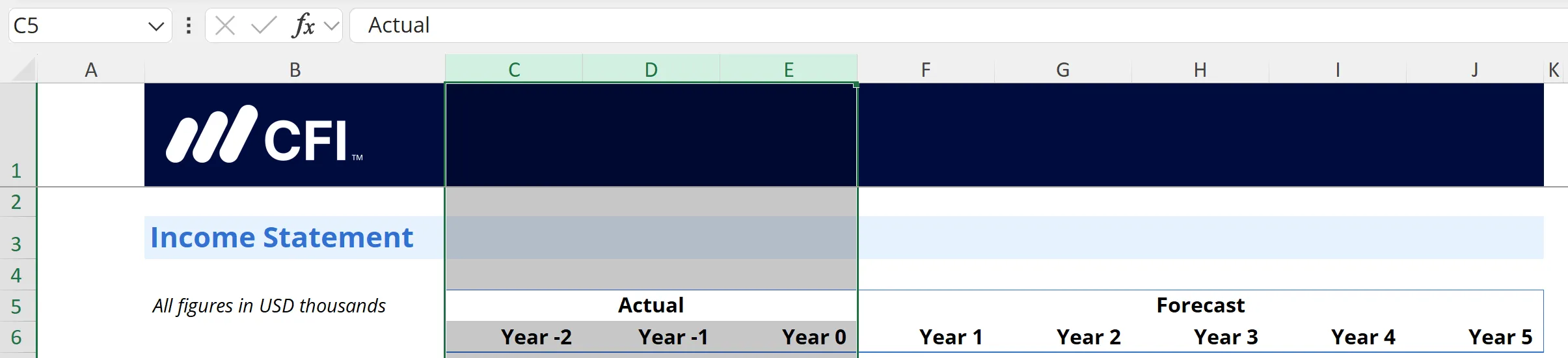
In this example, “Actual” is formatted using Center Across Selection. The text is centered, but cells C5, D5, and E5 remain distinct.
Here, “Actual” is centered using Merge & Center. Cells C5, D5, and E5 are combined into a single cell, C5.
Functional Differences
- Cell Preservation: Center Across Selection preserves individual cells, simplifying editing and data manipulation. Copying and pasting operations are also seamless.
- Sorting and Filtering: Center Across Selection allows for proper sorting and filtering of data, which can be problematic with merged cells. Merged cells often only allow filtering based on the first column of the merged range.
Merged cells impact filtering capabilities.
Issues with Merge & Center
- Cell Combination: Merging permanently combines multiple cells into one.
- Data Manipulation Problems: Merging can lead to issues with data manipulation, analysis, sorting, and filtering.
- Formula Complications: Merged cells can complicate cell references and potentially cause errors in formulas.
- Column Selection Difficulty: Selecting individual columns within a merged range becomes difficult.
Column Selection
Center Across Selection maintains the integrity of individual columns, making selection straightforward. Using Ctrl + Spacebar selects the entire column.
Selecting a column with Center Across Selection applied.
Conversely, using the same shortcut on a merged range selects the entire merged area, not just an individual column.
For financial analysts and power users, the control offered by Center Across Selection makes it the preferred method over merging.
Limitations of Center Across Selection
While superior to merging, Center Across Selection has its own limitations:
- Horizontal Only: It only works horizontally across columns; it does not apply vertically down rows. To achieve vertical centering, merging cells is typically required.
Center Across Selection (horizontal) vs. Merge (vertical). Source: CFI’s DCF Valuation Modeling course.
- No Ribbon Button: Unlike Merge & Center, there isn’t a dedicated button for Center Across Selection on the Excel ribbon. Accessing it requires navigating through the “Format Cells” dialog box.
- Lesser Known: Center Across Selection is less commonly known and used than Merge & Center, especially among less experienced Excel users.
Conclusion
Center Across Selection is an indispensable tool for Excel users aiming for professional spreadsheet aesthetics without compromising functionality. Understanding its advantages over Merge & Center, particularly in preserving cell integrity and ensuring formula reliability, is crucial for effective spreadsheet design. By utilizing the “Format Cells” dialog box, users can master this feature to create visually appealing and fully functional Excel models and analyses. As you become more familiar with it, Center Across Selection will undoubtedly become a go-to feature for enhancing your spreadsheets.
Additional Resources
Thank you for exploring CFI’s guide to Excel’s Center Across Selection. To further enhance your skills, consider these related resources: