
The Revit 2025.2 update has officially rolled out, bringing a series of meaningful improvements designed to boost efficiency for architects, engineers, and BIM professionals working daily inside Revit. Whether you rely on Dynamo for automation, spend hours navigating the Project Browser, or coordinate models across multiple file formats, this release introduces changes that directly affect your workflow. In this article, we’ll walk through the most notable additions in the Revit 2025.2 update and explain how each one can streamline your day-to-day work.

Dynamo Revit 3.2.1 Upgrade
One of the standout components of the Revit 2025.2 update is the upgrade to Dynamo Revit 3.2.1. This version brings a range of enhancements aimed at improving the experience of building automated workflows and visual programming graphs. Key improvements include:
- Redesigned Dynamo home interface: The new home screen offers a more consistent experience with Revit itself, adding tabs for recently viewed graphs and sample graphs built specifically for Revit. This makes it far easier to locate and manage graphs, ultimately optimizing the overall workflow.
- New T-spline nodes: These new nodes allow users to generate smooth, continuous surfaces from smaller surface segments, expanding the toolkit available for complex form-finding tasks.
- Panel creation on curved surfaces: This new capability lets designers create panels directly on curved surfaces, extending design flexibility when working with intricate geometries.
- Updated node icons and library interface: All node icons have been redesigned with larger, clearer visuals, making it simpler to search and manage content within the node library.
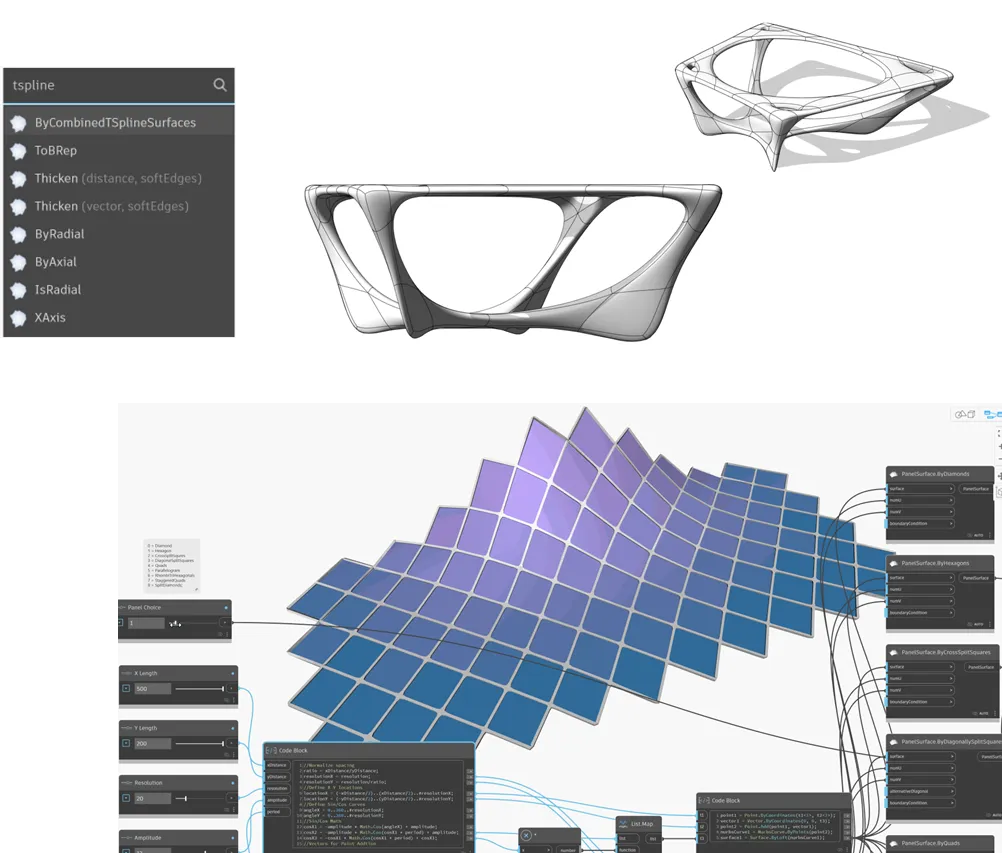
For BIM teams that rely heavily on parametric design and automation, these Dynamo enhancements alone make the Revit 2025.2 update worth exploring in detail.
New Revit Home Interface Set as Default
Another significant change in this release is that the redesigned Revit Home interface is now set as the default. This update focuses on four main areas:
- Improved performance: Users can expect faster, smoother interactions when launching and navigating projects.
- Better searchability: Locating and managing content becomes noticeably easier.
- Refined visual interface: A more intuitive layout helps users complete tasks with fewer clicks.
- Legacy interface option: Users who prefer the previous layout can still switch back if needed, ensuring a smooth transition for teams that aren’t ready to change habits immediately.
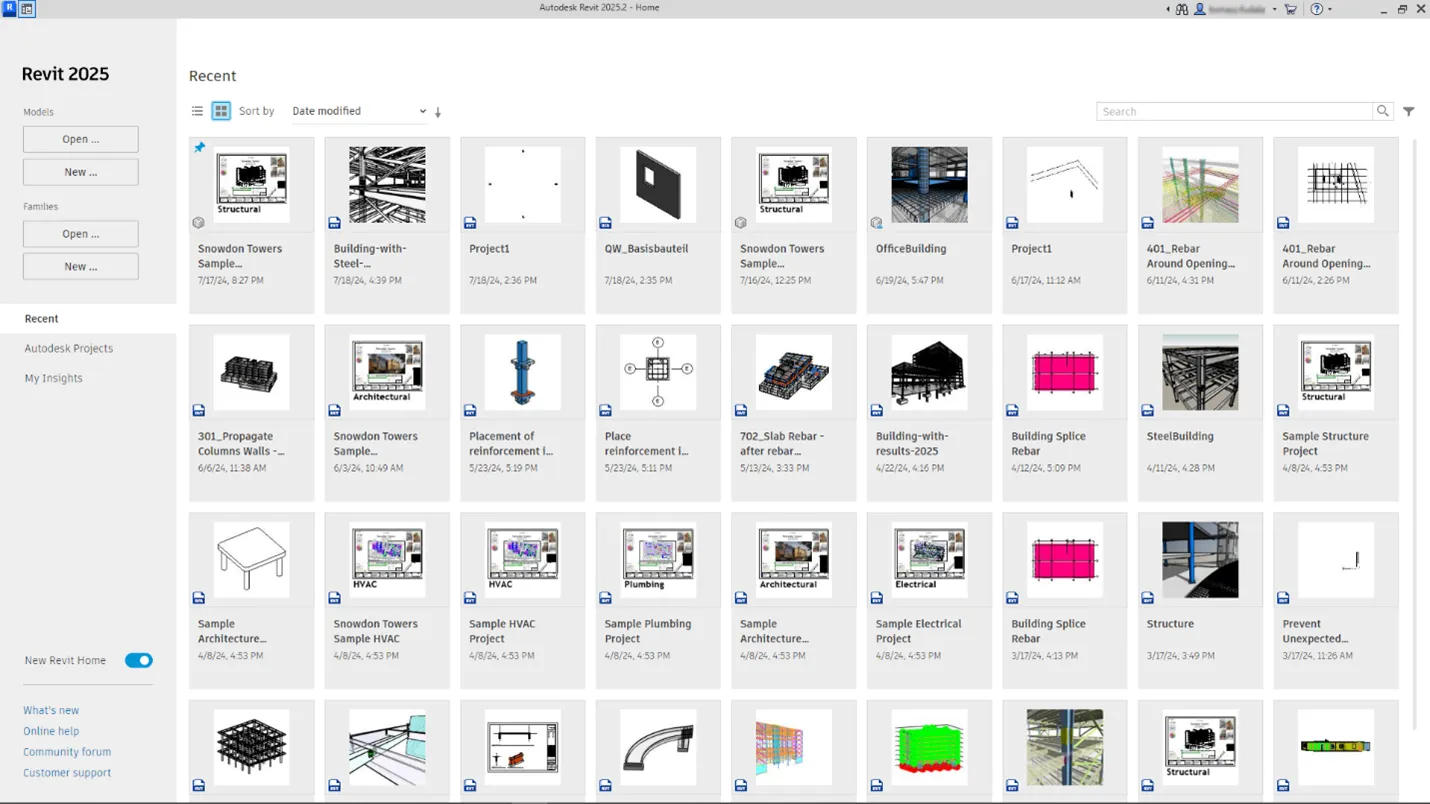
From experience supporting design teams during software transitions, having the option to revert to a familiar interface significantly reduces onboarding friction — a detail many software updates overlook.
Enhanced Model Comparison in Coordination Model
The Revit 2025.2 update also improves the model comparison feature within Coordination Model, supporting comparisons across RVT, IFC, DWG, and NWC formats. This is particularly valuable for multidisciplinary coordination, as it helps teams track design changes and distribute updated models more effectively among stakeholders.
It’s worth noting that this feature only supports IFC files exported from specific software versions, including AutoCAD Architecture, MEP, and Civil 3D (2018 or later), ARCHICAD, Revit, MagiCAD for Revit, and Tekla Structures. Teams working with older export versions may need to update their source software to take full advantage of this comparison tool.
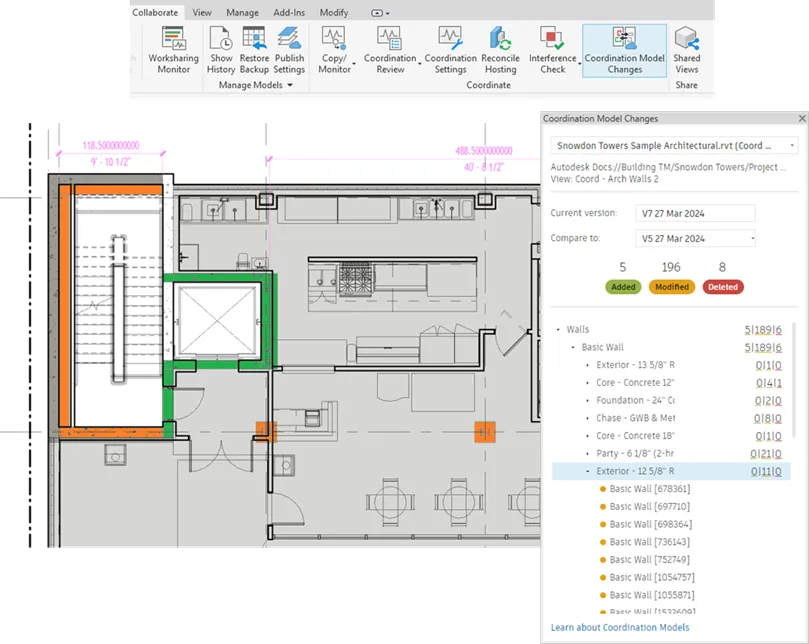 Model comparison feature in Revit
New Tab Feature in Project Browser
Navigating large projects has always been a common pain point for Revit users, and the Revit 2025.2 update addresses this directly. New tabs have been added to the Project Browser, organizing and displaying objects by category, with eight tabs remaining permanently visible for the most frequently used element types.
The search functionality has also been improved, now working seamlessly across all tabs. This means users no longer need to manually scroll through long lists to locate a specific family, view, or sheet — a small change that adds up to meaningful time savings on large-scale projects.
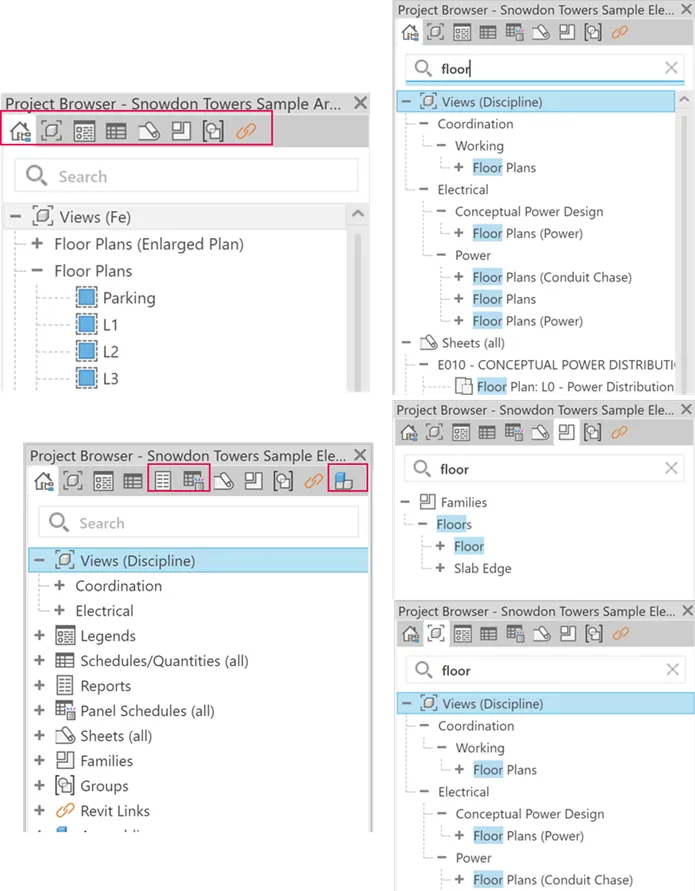
New Manage Links Interface
The Manage Links dialog has also received a visual and functional overhaul. The new interface organizes and displays linked data types more effectively, including detailed data information, color-coded status icons, and additional contextual information for each link.
This update makes it considerably easier for project teams to manage and monitor links throughout a project, ensuring a more consistent and efficient experience — especially important for firms coordinating with multiple external consultants and linked models simultaneously.
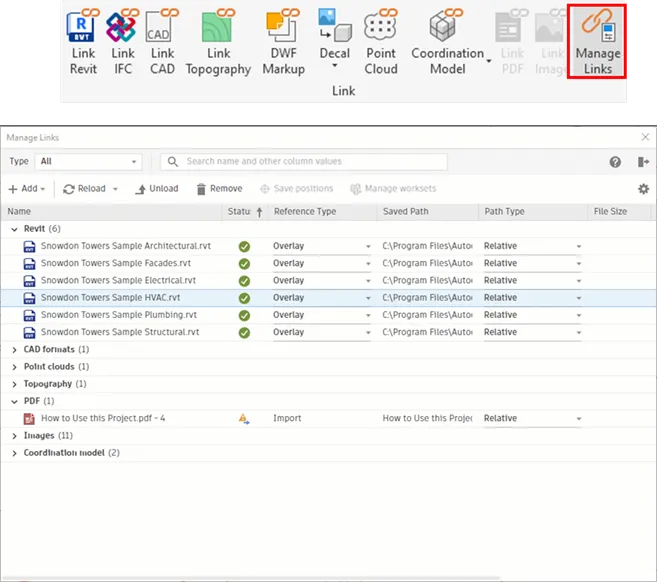 Manage Links window for linked objects
Revit Family to Twinmotion Asset Substitution
Perhaps one of the most exciting additions for visualization-focused teams is the Revit Family to Twinmotion asset substitution feature. This tool improves rendering efficiency by replacing low-detail Revit families with high-quality Twinmotion assets.
Users can link low-resolution Revit families to high-resolution Twinmotion assets, then synchronize or re-import them to accurately and vividly reflect Revit updates in real-time visualization. For architecture and interior design firms that rely on Twinmotion for client presentations, this integration can meaningfully reduce the manual work involved in swapping out placeholder geometry for polished, presentation-ready assets.

Final Thoughts
Overall, the Revit 2025.2 update delivers a well-rounded set of improvements that touch nearly every stage of the BIM workflow — from automation with Dynamo, to daily navigation through the Project Browser, to final visualization with Twinmotion. None of these changes are flashy on their own, but together they reflect a clear effort to reduce friction in everyday tasks for architects, engineers, and BIM coordinators.
If your team hasn’t yet updated to Revit 2025.2, it’s worth reviewing these changes closely, particularly the Dynamo 3.2.1 upgrade and the enhanced Coordination Model comparison, as both can have a direct impact on project efficiency and cross-team collaboration. As always, testing the update in a non-production environment first is a sound practice before rolling it out across an entire studio or firm.