
If you check Autodesk’s official page for AutoCAD system requirements, you’ll see that 8 GB of RAM is listed as “enough” to get started. Technically, that’s true. Practically, it’s a different story entirely. Few things are more frustrating than buying or configuring a machine based on “minimum requirements,” only to watch it stutter the moment you add a hatch pattern or open a moderately large drawing file.
That kind of mismatch wastes money and kills productivity. It’s also one of the most common questions asked in CAD communities: “How much computing power do I actually need for AutoCAD?” The honest answer depends on how you use the software. This guide walks through the official AutoCAD system requirements, then breaks down what those numbers mean in real-world drafting and 3D modeling scenarios, so you don’t overspend on hardware you’ll never use, or underspend on a machine that can’t keep up.
Understanding Minimum vs. Recommended Requirements

Before breaking down individual components, it helps to define what these two tiers actually mean.
Minimum requirements represent “survival mode” specifications. AutoCAD will launch and function, but working with large files, complex layouts, or 3D rendering will be a struggle. Recommended requirements represent “thrive mode” — the tier at which commands execute instantly, the interface feels responsive, crashes are rare, and multitasking alongside other applications doesn’t bring the system to a crawl.
Official AutoCAD 2025 System Requirements
Here’s the baseline straight from Autodesk’s documentation for AutoCAD 2025:
| Component | Minimum Requirement | Recommended Requirement |
|---|---|---|
| Operating System | 64-bit Windows 11 or Windows 10 (version 1809+) | Windows 11 |
| Processor | 2.5–2.9 GHz base clock | 3+ GHz base, 4+ GHz Turbo |
| Memory (RAM) | 8 GB | 32 GB |
| Display Resolution | 1920 x 1080 | 3840 x 2160 (4K) |
| Graphics Card | 2 GB GPU (DirectX 11) | 8 GB GPU (DirectX 12) |
| Disk Space | 10.0 GB (SSD recommended) | 10.0 GB (SSD recommended) |
For Mac users, AutoCAD supports macOS Sequoia (v15), Sonoma (v14), Ventura (v13), and Monterey (v12). Apple Silicon chips (M1/M2/M3) are fully supported and are a strong choice for CAD work on macOS.
Breaking Down Each Component in Practical Terms
Now let’s translate these specification sheets into what they actually mean for your day-to-day drafting workflow.
The Processor: Single-Core Speed Is King
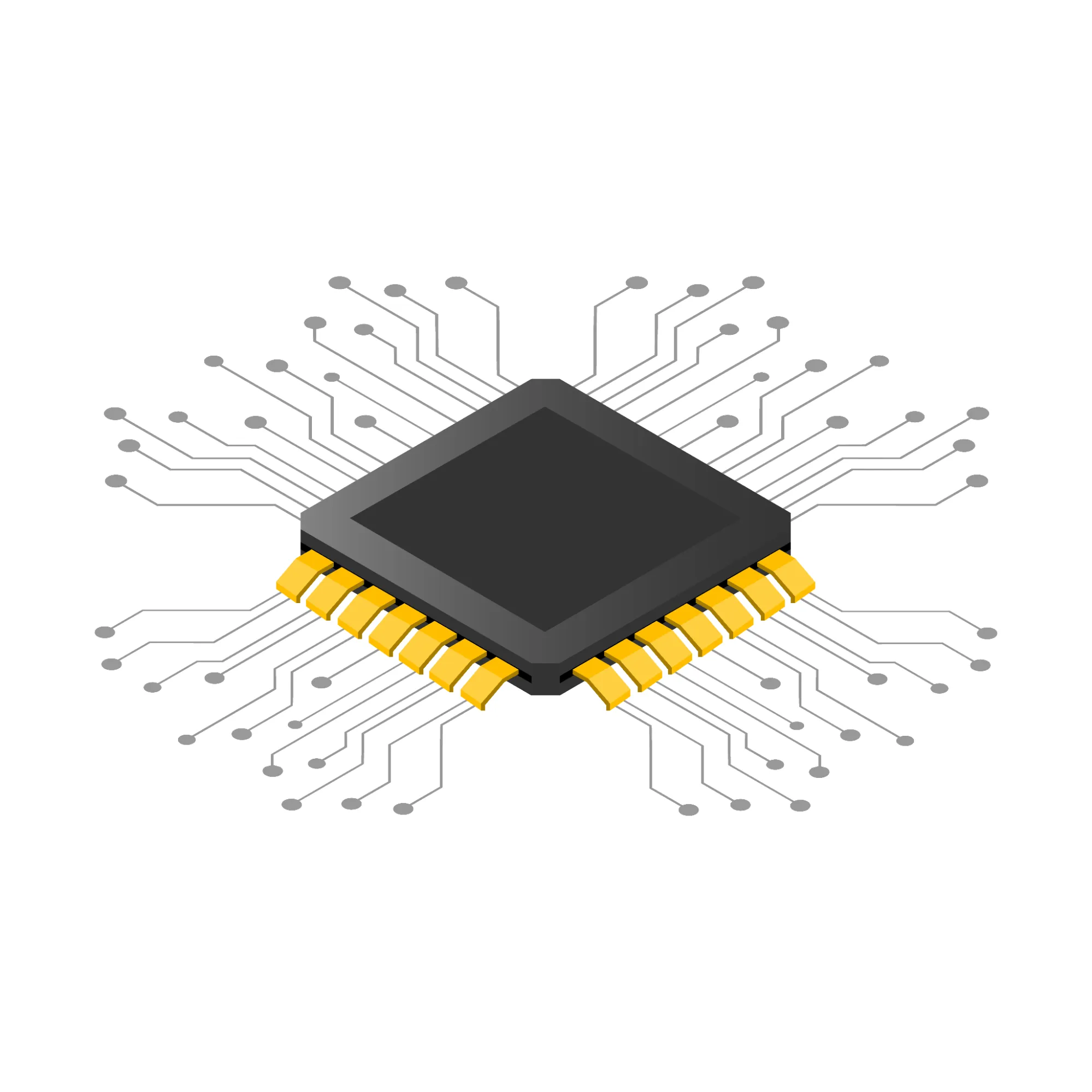
The CPU functions like the conductor of an orchestra, directing every other component in your system. AutoCAD is fundamentally a single-threaded application — most everyday tasks like drawing lines, regenerating views, and moving objects are processed sequentially and rely on just one core. This means a 64-core processor won’t make your drafting faster; a handful of very fast cores will.
When shopping for a CPU, prioritize a high Turbo Boost clock speed (4 GHz or above) over core count. Intel Core i7/i9 or AMD Ryzen 7/9 chips are typically the sweet spot for AutoCAD users.
Memory (RAM): The Multitasking Engine
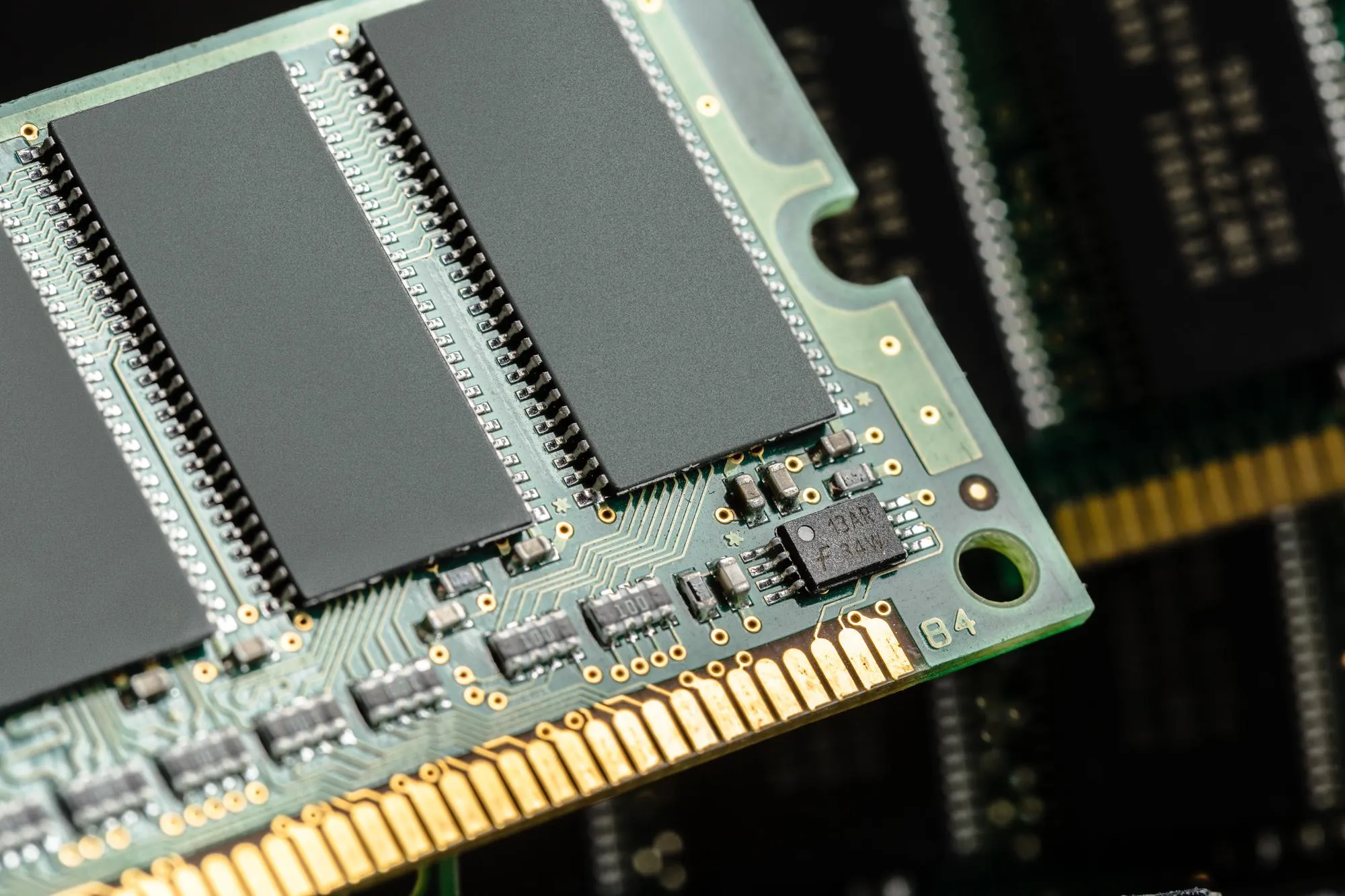
RAM is your system’s short-term working memory, temporarily storing data for every open application. More RAM lets you run more programs simultaneously without slowdown, and faster RAM improves overall responsiveness. When AutoCAD exhausts available RAM, it begins offloading to your hard drive as virtual memory — a process that is painfully slow and disrupts your entire workflow.
While Autodesk lists 8 GB as the minimum, 16 GB should be treated as the realistic floor for most users. Anyone doing regular 3D modeling should aim for 32 GB. If budget allows, DDR5 RAM is preferable; otherwise, DDR4 rated above 3200 MHz is a solid alternative.
Graphics Card: Rendering What You See
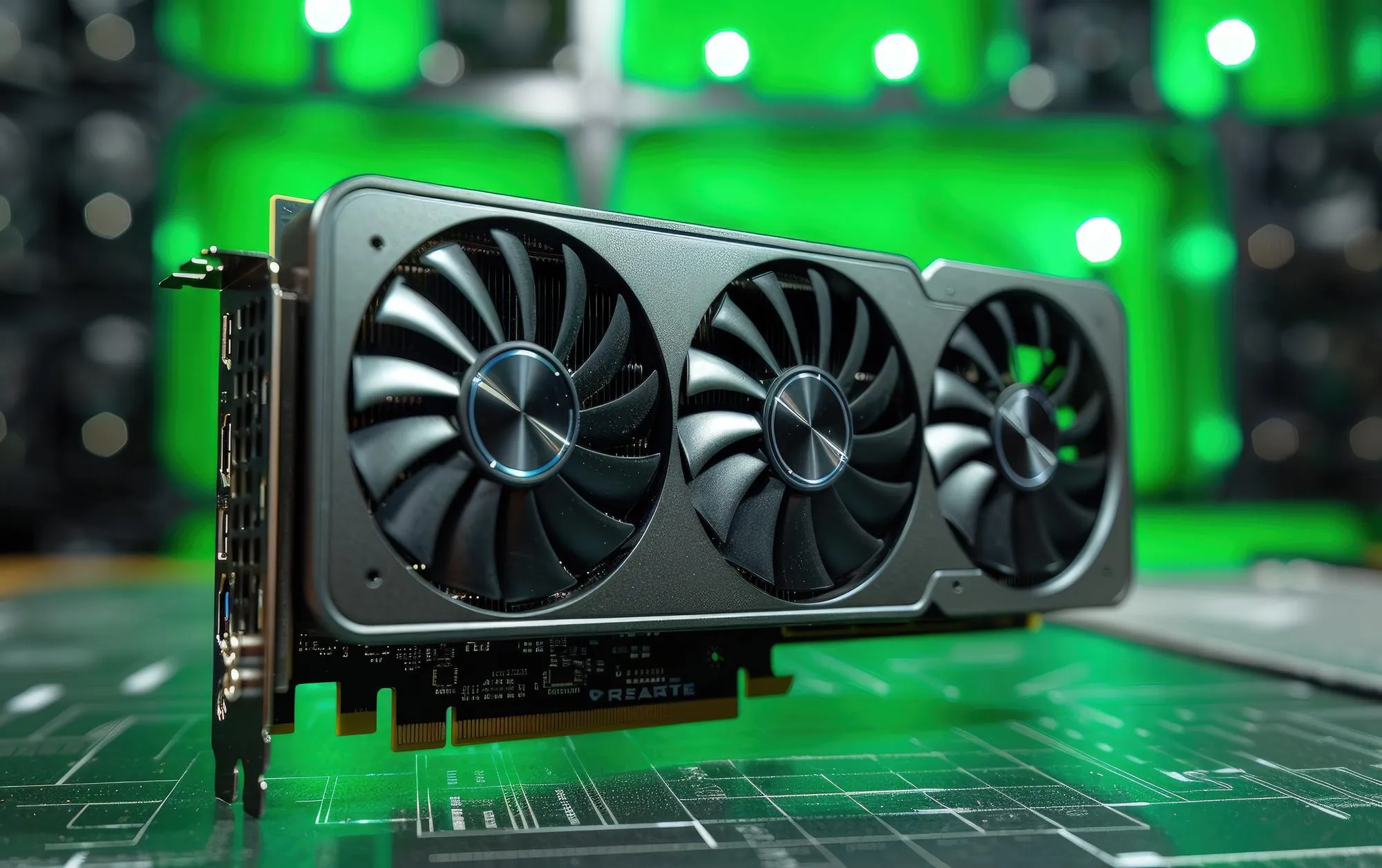 Dedicated graphics card with cooling fans mounted inside a desktop tower
While the CPU handles calculations, the GPU manages visuals — zooming, panning, and orbiting your model. There are two configurations to consider: integrated graphics, built directly into the CPU and adequate for simple 2D layouts; and dedicated graphics, a separate card such as an NVIDIA RTX model, which is essential for 3D modeling, point cloud processing, and large assemblies.
Autodesk’s recommended specs now call for an 8 GB GPU, a notable jump from prior years that reflects how demanding modern display and rendering tasks have become.
Storage: The Easiest Upgrade You’ll Make
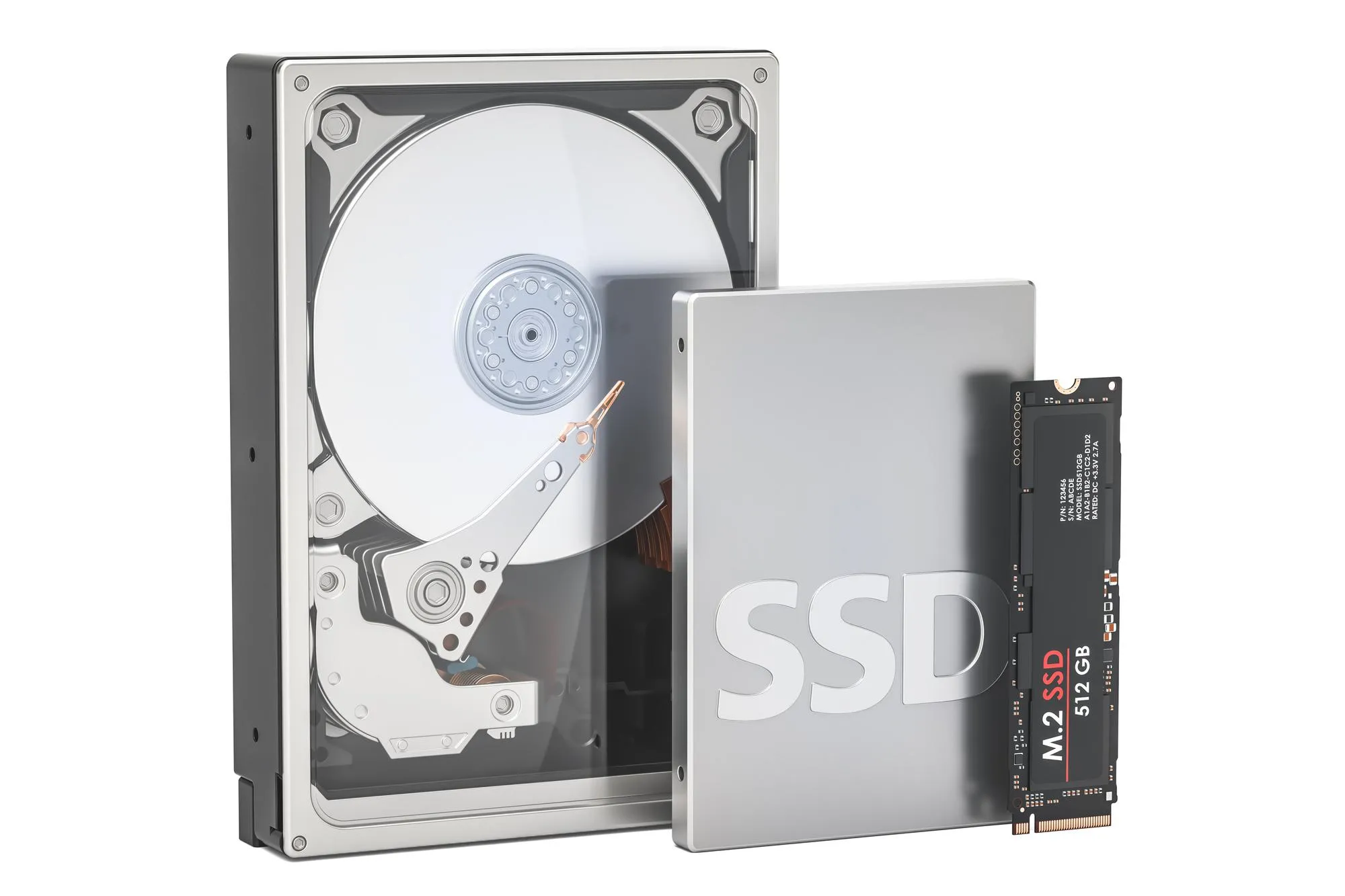
Storage comes down to two options: HDDs (Hard Disk Drives), which use spinning platters and are cheap but slow, and SSDs (Solid State Drives), which use flash memory and are dramatically faster. AutoCAD should never be installed on an HDD. An SSD can cut software launch time from roughly 30 seconds down to 5, and makes saving files feel instantaneous. While Autodesk recommends only 10 GB of free space, a realistic target is a 512 GB SSD or larger to comfortably house your OS, software, and project files.
Matching Your Setup to Your Workflow
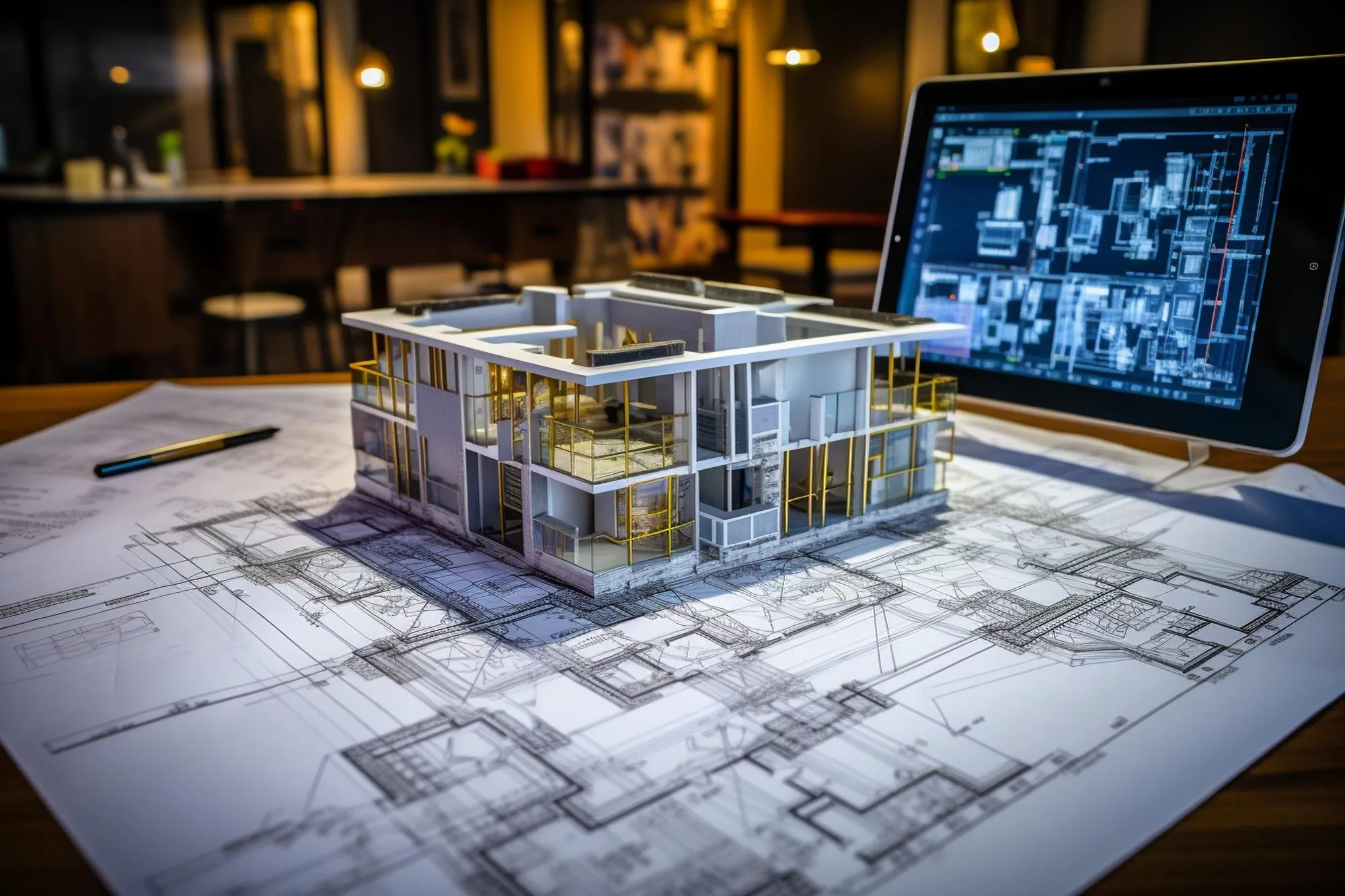 Workstation setup with multiple monitors displaying CAD drafting software
Not every AutoCAD user has the same needs — a student sketching floor plans has very different requirements than an engineer processing LiDAR scans. Here’s a breakdown by user type:
The Student / 2D Drafter — For those working strictly with 2D floor plans or learning fundamentals: Intel i5 / Ryzen 5, 16 GB RAM, 512 GB SSD, integrated or entry-level dedicated graphics.
The Professional / 3D Modeler — For AutoCAD 3D, Civil 3D, or large Xref-heavy projects: Intel i7 / Ryzen 7, 32 GB RAM, 1 TB SSD, NVIDIA RTX 4060 or higher.
The Power User — For LiDAR scans or photorealistic rendering: Intel i9, 64 GB RAM, 2 TB SSD, NVIDIA RTX 4000 Ada Generation or a top-tier GeForce card.
Frequently Asked Questions
Can I use a gaming laptop for AutoCAD?
Yes. Gaming laptops are often a cost-effective way to get strong CPU and GPU performance suited to AutoCAD’s demands. The trade-offs are shorter battery life and, for some models, a design that may look less professional in client-facing settings.
Is a Mac good for AutoCAD?
Yes, with some caveats. AutoCAD for Mac runs well on Apple Silicon, but the interface differs from Windows, and certain specialized toolsets (such as Electrical or MEP) aren’t available on macOS. If your industry standard is Windows-based, it’s usually safer to stay on that platform.
Do I need a workstation GPU (like Quadro) or a gaming GPU (like GeForce)?
For most users, a standard GeForce RTX card offers the best balance of price and performance. Workstation-class cards (now branded RTX A-series) are Autodesk-certified for maximum stability but come at a significantly higher cost.
Final Thoughts
Choosing the right hardware is ultimately an investment in your own productivity. A sluggish computer wastes time, drains budget, and disrupts creative flow — costs that compound over the life of a project. If you’re working with a limited budget, prioritize a fast single-core processor and generous RAM over a premium graphics card. A quick CPU paired with 32 GB of RAM will keep day-to-day drafting feeling snappy, and an SSD — even a 512 GB model — will noticeably improve both AutoCAD’s responsiveness and your system’s overall feel.
If you have questions about configuring your own AutoCAD setup or need help troubleshooting performance issues, drop a comment and the discussion below can help point you in the right direction.