
For seasoned AutoCAD users who frequently utilize a suite of LISP programs, the manual loading of each application with every new drawing can be a significant time drain. This tutorial delves into two effective methods for automating this process, empowering users to streamline their workflow and enhance productivity.
AutoCAD’s capability to automatically load custom programs upon startup can dramatically improve efficiency. Whether you manage a personal collection of LISP routines or deploy standardized tools across a team, understanding these loading mechanisms is crucial. This guide will walk you through the user-friendly Startup Suite and the more powerful ACADDOC.lsp file, offering insights into their implementation and best practices for tech-savvy users.
Method 1: Leveraging the Startup Suite
The Startup Suite offers the most accessible approach to automatic program loading, requiring no prior LISP programming knowledge. This method is ideal for individual users or small teams looking for a quick setup.
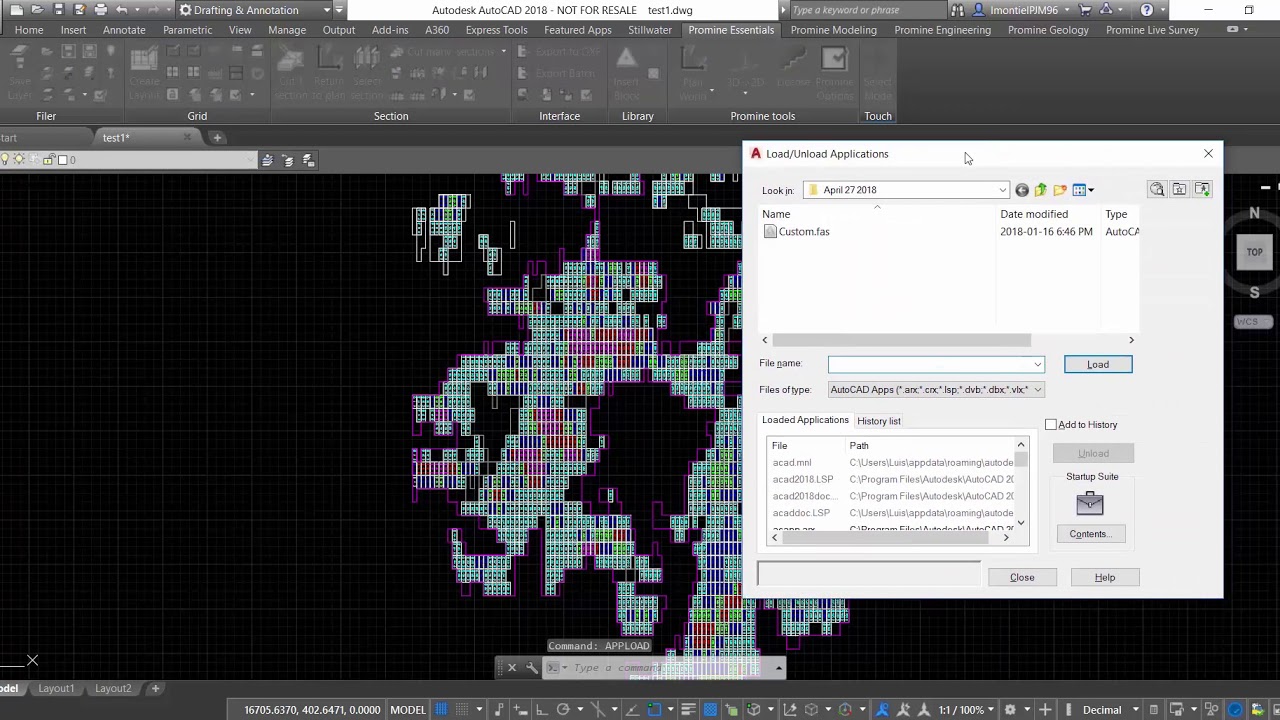
To initiate the process, type AppLoad into the AutoCAD command line or navigate to Tools > Load Application. This action will open a dialog box where you’ll find the “Startup Suite” section. Click on the “Contents” button within this section.
A new dialog will appear, allowing you to manage the programs designated for automatic loading. To add a program, click the “Add” button and browse to the desired LISP file. Any program listed here will be executed automatically each time an AutoCAD drawing is opened.
While the Startup Suite is straightforward, it presents certain drawbacks. Primarily, transferring your custom program setup to a new computer necessitates manually reconfiguring the Startup Suite on the new machine. Furthermore, historical versions of AutoCAD have occasionally exhibited bugs related to the Startup Suite’s functionality. For these reasons, an alternative method, ACADDOC.lsp, is often preferred for its greater flexibility and robustness, especially for users comfortable with basic AutoLISP.
Method 2: Utilizing the ACADDOC.lsp File
AutoCAD actively scans specified support paths, including the current working directory, for a file named ACADDOC.lsp whenever a drawing is opened or a new one is created. If one or more ACADDOC.lsp files are detected, AutoCAD loads the first one it encounters. This behavior can be harnessed to execute custom AutoLISP expressions automatically at startup.
If multiple ACADDOC.lsp files exist, AutoCAD’s behavior can become unpredictable. To determine if an ACADDOC.lsp file is already in use, enter the following command at the AutoCAD prompt: (findfile "ACADDOC.lsp"). If a file path is returned, you can edit that existing file. If the command returns nil, you can create a new ACADDOC.lsp file using a text editor like Notepad or the VLIDE, and save it within one of AutoCAD’s support paths.
A significant advantage of the ACADDOC.lsp method is its ease of migration. The file can be readily copied between computers or placed on a network drive to manage program loading across multiple workstations simultaneously. This centralized approach simplifies maintenance and deployment for organizations.
The Load Function
The load function is a core AutoLISP utility that evaluates all AutoLISP expressions within a specified file, effectively loading a program file (such as .lsp, .fas, or .vlx) into the current drawing session.
The load function accepts two arguments: (load <filename> [on failure]). The <filename> parameter is the name of the program file to be loaded. The [on failure] argument is optional and specifies a return value if the program fails to load, typically a string or nil.
If the program file is located within an AutoCAD support path, you only need to provide the filename. Otherwise, a full file path is required.
Example with file in support path: