
Installing Revit 2024 or Revit 2025 sounds simple until something goes wrong halfway through — a stalled progress bar, a mysterious error, or an update that refuses to complete. If you’re preparing to install Revit 2025 or update an existing Revit 2024 setup, a few preparation steps and the right installation method can save you hours of frustration. This guide walks through the recommended process for a smooth Revit installation, based on real troubleshooting experience with these versions.
Check Your System Requirements First
Before you even download the installer, confirm that your computer hardware meets the minimum specifications for Revit 2025/Revit LT 2025 or Revit 2024/Revit LT 2024. Autodesk publishes detailed system requirements covering processor, RAM, graphics card, and storage needs for each release. Skipping this step is one of the most common reasons installations stall or crash midway, so it’s worth five minutes of checking before you start.
Confirm Administrative Permissions
You’ll need administrator rights on your computer to install Revit software correctly. If you’re not sure whether your account has this level of access, contact your IT department beforehand. Attempting to install without proper permissions is a frequent cause of incomplete or corrupted installations, and it’s much easier to sort out access issues before you begin than after an installation has already failed.
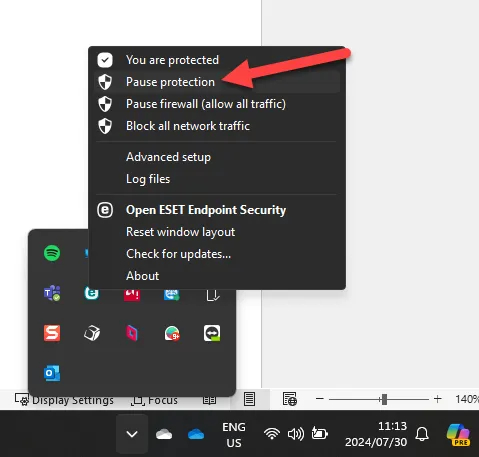
Temporarily Disable Antivirus Software
Virus protection software can interfere with the Revit installation process, sometimes blocking files or slowing the setup to a crawl. Temporarily pausing your antivirus while you install and activate Revit is recommended. Exactly how you do this depends on which antivirus product you’re running, and in managed corporate environments, your IT team may need to assist.
Lower User Account Control Settings
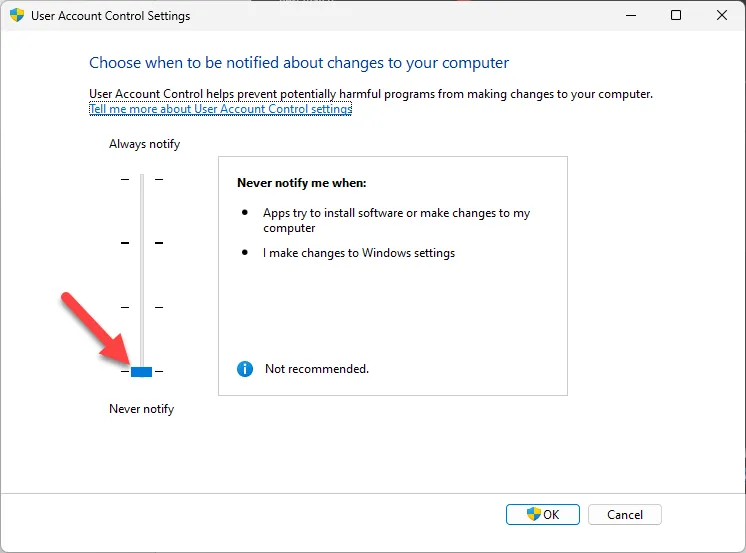
Windows User Account Control (UAC) can also get in the way of a clean install. Search for the User Account Control settings in Windows, then use the slider to temporarily move it to the lowest possible level. Remember to set it back to your normal setting once installation and activation are complete — this is a temporary adjustment, not a permanent security change.
Avoid Autodesk Access — Download Directly Instead
This is arguably the most important tip in this guide: do not use Autodesk Access to install or update Revit 2024 or Revit 2025, including the LT versions. Unexpected exceptions have been observed when installing through Access, sometimes with a real impact on the affected computer and a costly fix.
Instead, download the installer directly from your Autodesk account and run it manually as Administrator. Here’s the process:
- From Autodesk Access, click “View all your products and services” to open your account.
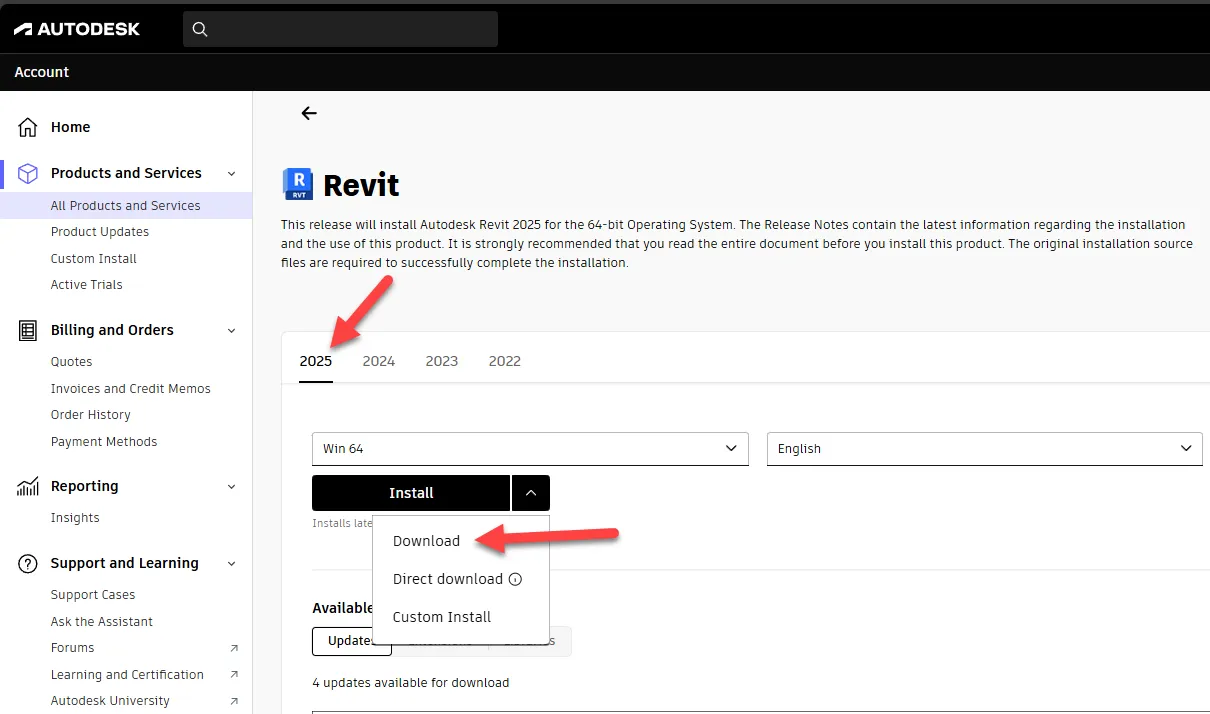
- Navigate to the All Products and Services tab and select “View Details” under the Revit panel.
- Choose the version of Revit you want and use the dropdown to select Download — not “Install” or “Direct Download.”
Once the Create Installer file downloads, do not run the .exe directly from the browser prompt. Instead, go to your Windows Downloads folder, right-click the .exe file, and choose “Run as administrator.” This ensures the installer has the permissions it needs from the very start of the process.
The installer will then place the actual installation files in a subfolder under Downloads/Autodesk, named for the specific software and version. Once that download finishes, the tool usually jumps straight to the installation step — but don’t run it yet. Open the folder instead, right-click Setup.exe, and again choose “Run as administrator.”
What to Do If Installation Stalls at 97%
A well-known quirk of Revit 2024 and 2025 installations is the progress bar freezing at 97%. If this happens, resist the urge to cancel. Wait at least 30 minutes — in most cases, the installation quietly completes in the background even though the visible progress hasn’t moved.
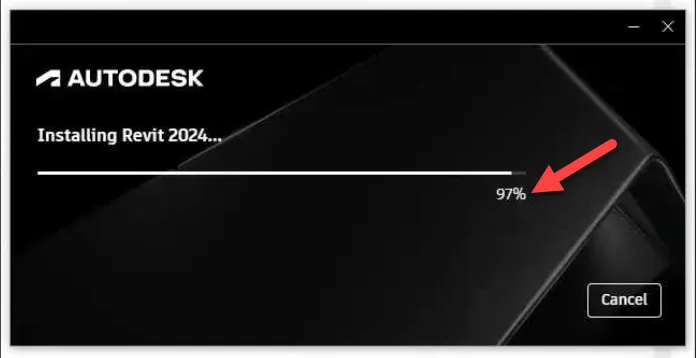 Revit installer appearing stuck at 97 percent during setup
To check whether the installer is actually still working, open Task Manager (right-click the Windows icon) and look at CPU, Memory, and Disk activity for the installer process. If you see any activity at all — even a small percentage — let it continue running rather than cancelling.
If you do cancel and the uninstall then gets stuck around 3%, you’ll likely need to force-close the process via Task Manager’s “End Task.” At that point, it’s best to get technical support involved rather than troubleshooting further on your own, since the next steps often involve a clean uninstall and reinstall of Revit, clearing out leftover registry entries, or in more stubborn cases, a full clean uninstall and reinstall of all Autodesk software. In rare situations, a full computer reset has been the only way to resolve a persistently broken installation.
Apply the Same Process for Future Updates
Whatever method you use for the initial install, apply the same careful approach — download directly, run as Administrator, avoid Autodesk Access — for any future Revit 2024 or Revit 2025 updates. Consistency here is what prevents most of the update-related headaches users run into.
Final Thoughts
Installing Revit 2024 or Revit 2025 doesn’t have to be a gamble. Checking your system requirements, confirming admin rights, temporarily easing antivirus and UAC settings, and downloading installers directly rather than through Autodesk Access will resolve the vast majority of installation problems before they start. If you do hit a stubborn issue — particularly one that requires a clean uninstall or registry cleanup — it’s worth reaching out to a specialist rather than risking further complications on your own. If you’re planning a broader rollout of the AEC Collection or Autodesk Construction Cloud, or considering a hardware upgrade to support it, getting expert guidance early can save significant time down the line.