
In Excel, copying and pasting data or formulas is a routine task, but did you know there are faster ways to do it without relying on your mouse? While traditional methods like dragging the fill handle or using CTRL + C and CTRL + V work, they often require multiple keystrokes. Today, we’ll explore two powerful keyboard shortcuts—CTRL + ENTER and SHIFT + F8—that can significantly speed up your workflow.
Why Use Keyboard Shortcuts in Excel?
Keyboard shortcuts are essential for efficiency, especially when working with large datasets. They reduce reliance on the mouse, minimize errors, and save time. The CTRL + ENTER and SHIFT + F8 shortcuts are particularly useful for filling formulas across multiple cells or non-contiguous ranges.
Method 1: Copy and Paste with CTRL + ENTER
Step-by-Step Guide
Select the Target Cells
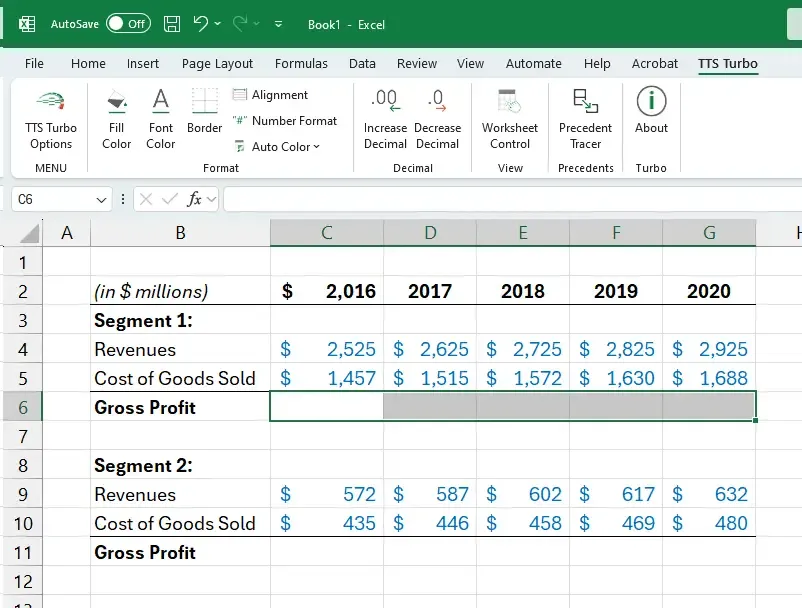
Suppose you have a table with revenue and cost forecasts, and you want to calculate Gross Profit in row 6. First, select all the cells where you want the formula applied (e.g., C6:G6). Selecting cells for Gross Profit calculation
Create the Formula
Start typing your formula as usual (e.g.,=C4-C5). Notice that Excel will only display the formula in the top-left cell of your selection (in this case, C6).Creating the formula in the active cellApply the Formula to All Selected Cells
Instead of pressing ENTER, press CTRL + ENTER. Excel will instantly replicate the formula across all selected cells.Applying the formula with CTRL + ENTER
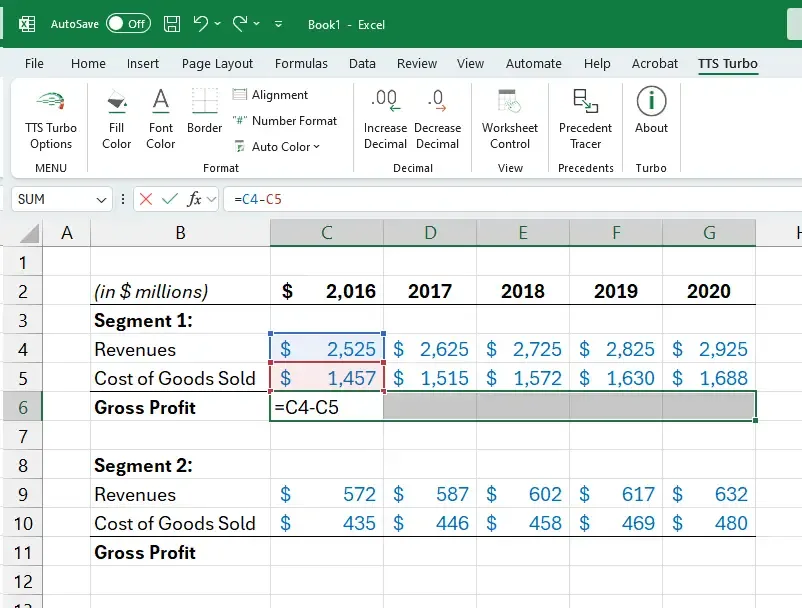 Creating the formula in the active cell
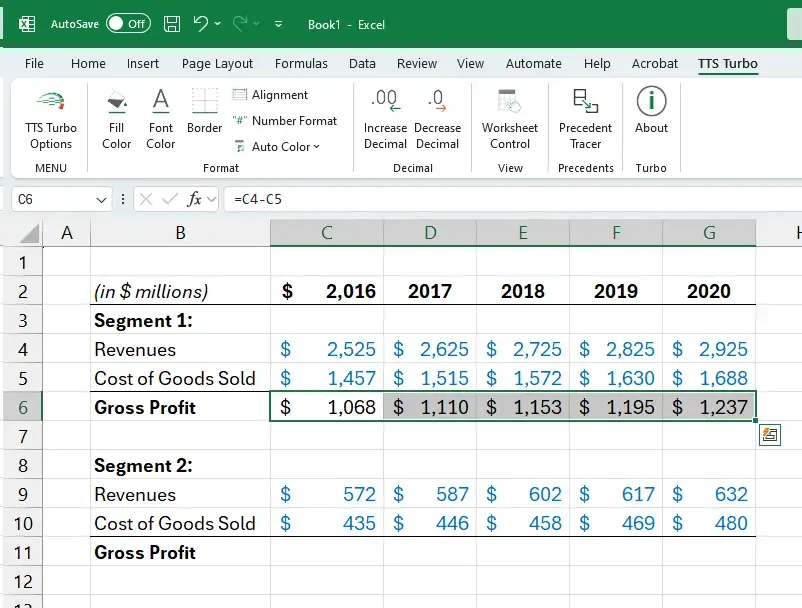 Applying the formula with CTRL + ENTER
Efficiency Comparison
Let’s compare the number of keystrokes required for different methods to fill row 6:
- Option 1: Build C6, select C6:G6, press CTRL + R → 12 keystrokes
- Option 2: Build C6, select D6:G6, press CTRL + V → 13 keystrokes
- Option 3: Select C6:G6, build C6, press CTRL + ENTER → 10 keystrokes
Option 3 is 17% faster than Option 1 and 23% faster than Option 2. It eliminates the need to return to the original cell after creating the formula.
Method 2: Copy and Paste Across Non-Contiguous Ranges with SHIFT + F8
Step-by-Step Guide
Select the First Range
Select the cells in row 6 where you want to apply the Gross Profit formula.Enable “Add to Selection” Mode
Press SHIFT + F8. You’ll see “Add to Selection” appear in the bottom-left corner of Excel. This allows you to select additional ranges using your keyboard. Enabling Add to Selection mode
Select Additional Ranges
Use the arrow keys to move to C11, then hold SHIFT and press the right arrow to select the rest of the range in row 11. Both ranges (row 6 and row 11) will remain selected. Selecting non-contiguous ranges
Create the Formula in the Active Cell
Type your formula in the active cell (e.g., C11).Creating the formula in the active cellApply the Formula to All Selected Cells
Press CTRL + ENTER. Excel will apply the formula to all selected cells in both ranges.Applying the formula with CTRL + ENTER
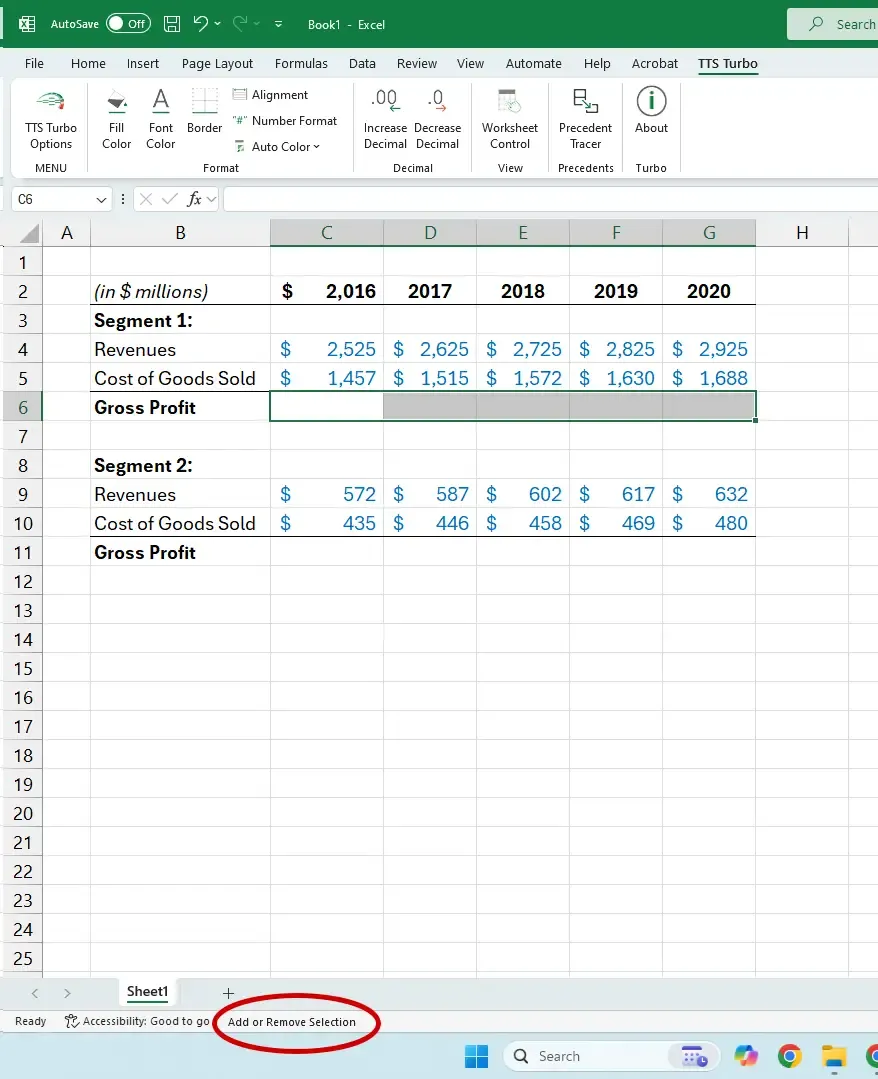 Enabling Add to Selection mode
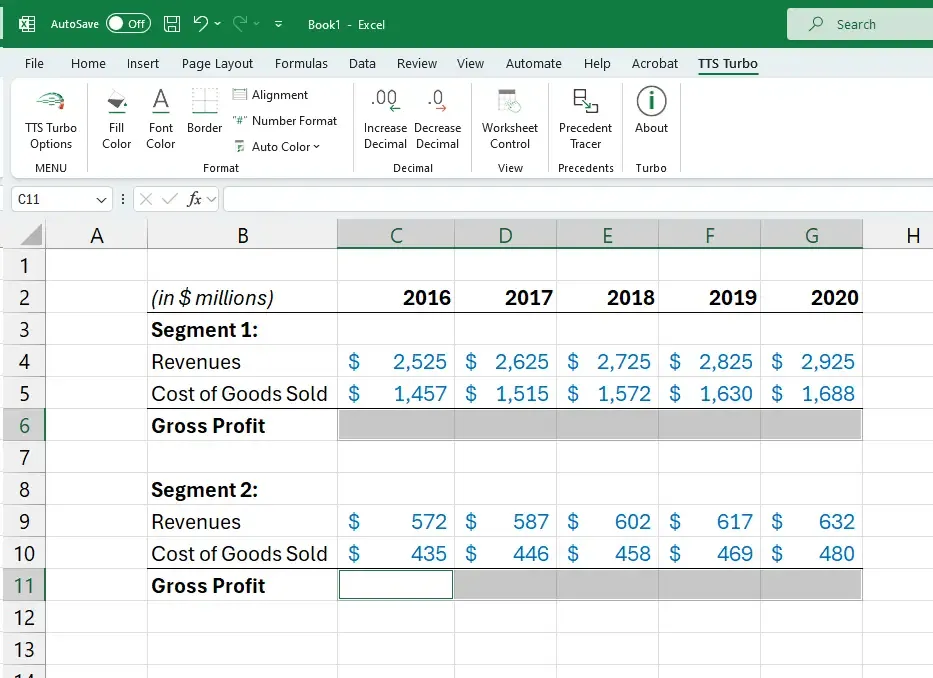 Selecting non-contiguous ranges
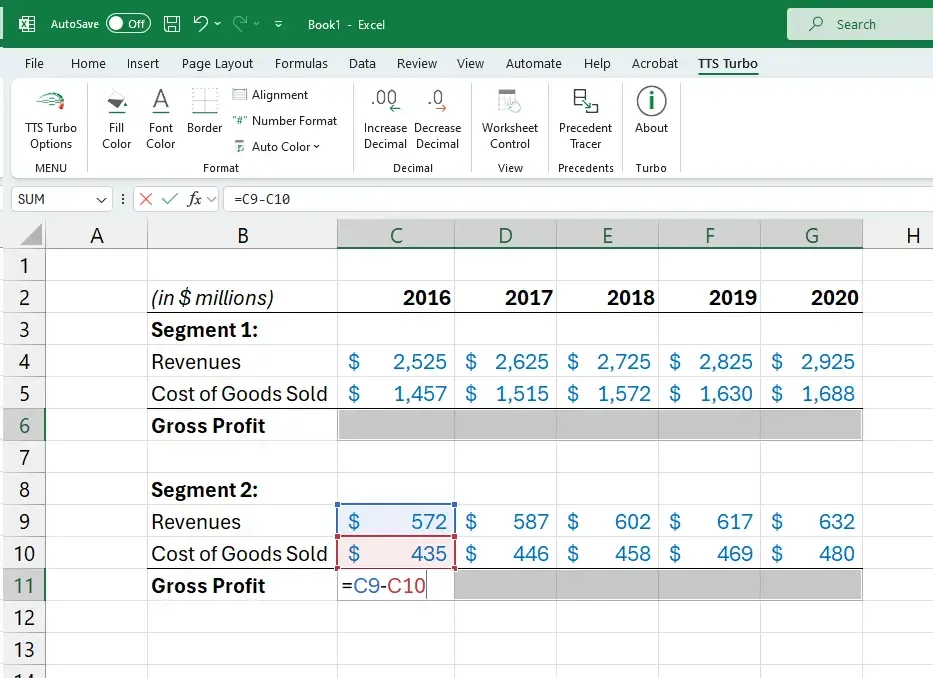 Creating the formula in the active cell
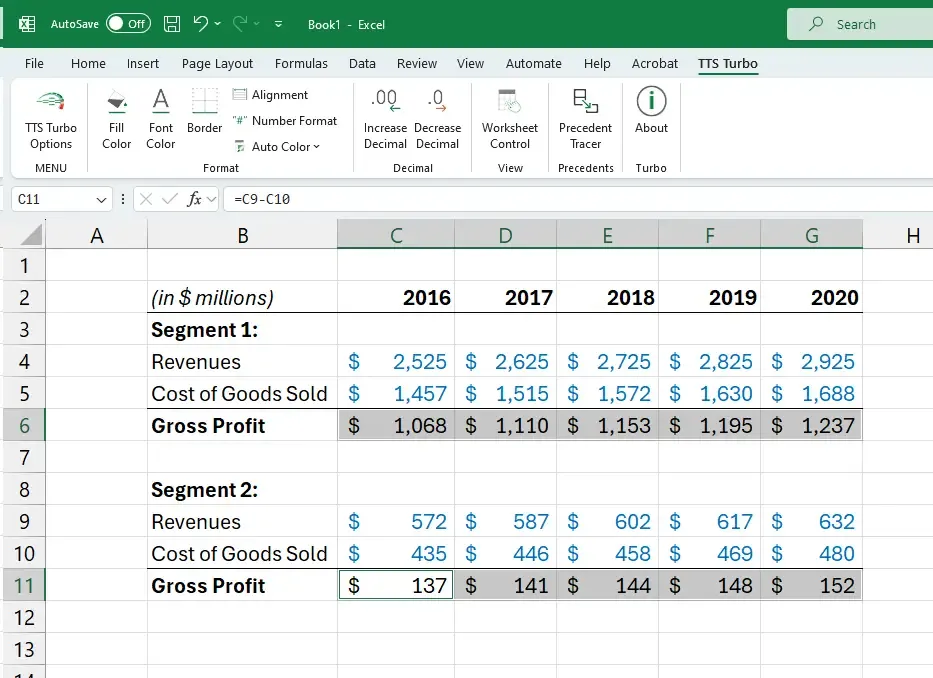 Applying the formula with CTRL + ENTER
Important Note
If one of your selected ranges is a single cell, you must press SHIFT + F8 twice before selecting the next range. Otherwise, Excel will deselect the previous ranges.
Why These Shortcuts Matter
- Speed: Reduce the number of keystrokes and save time.
- Accuracy: Minimize errors by avoiding manual copying and pasting.
- Flexibility: Work with non-contiguous ranges effortlessly.
These shortcuts are game-changers for anyone who frequently works with Excel, whether for financial modeling, data analysis, or reporting.
Conclusion
Mastering CTRL + ENTER and SHIFT + F8 can transform how you work in Excel. These shortcuts not only save time but also make your workflow smoother and more efficient. Experiment with them in your next project, and you’ll likely find yourself reaching for them again and again.
Start practicing today and take your Excel skills to the next level!