
If you have ever spent time perfecting a Word document—carefully setting margins, aligning images, and choosing the right fonts—only to have it look completely different on someone else’s computer, you know how frustrating formatting issues can be. Lines break in the wrong places, images jump to new pages, and fonts are replaced without warning. This is exactly why many users choose to save Word as PDF in Office 2007 before sharing or printing important files. A PDF locks your layout in place, ensuring that what you see is exactly what others see, regardless of their device or software. While newer versions of Microsoft Office make PDF export effortless, Office 2007 works a little differently. In this guide, you will learn exactly how to convert your Word 2007 documents to PDF using the tools you already have—or a quick add-in you can install in minutes.
Why Convert Word Documents to PDF?
One of the biggest advantages of PDF files is their ability to preserve document formatting across all platforms. When you convert a Word document to PDF, your page layout, fonts, and embedded images remain fixed. This is critical for professional reports, contracts, resumes, and academic papers where presentation matters.
PDFs are also harder to edit accidentally. Unlike a Word file that opens directly for typing, a PDF requires dedicated software to modify. This makes it a safer choice when you want recipients to view or print without altering your content.
Additionally, sending a PDF simply looks more professional. The switch from a .docx extension to .pdf signals that the document is finalized and ready for review. Finally, PDF files are universally compatible. Whether your recipient uses Windows, macOS, Linux, or a mobile device, they can open your file without owning Microsoft Office. This reliability is why PDF remains the global standard for digital document sharing.
Does Office 2007 Support Direct PDF Export?
The short answer is yes—but with a condition. Unlike modern Office releases, Word 2007 did not ship with native PDF saving built into the core installation. Instead, Microsoft offered a free add-in called the Save as PDF or XPS Add-in that enables this functionality.

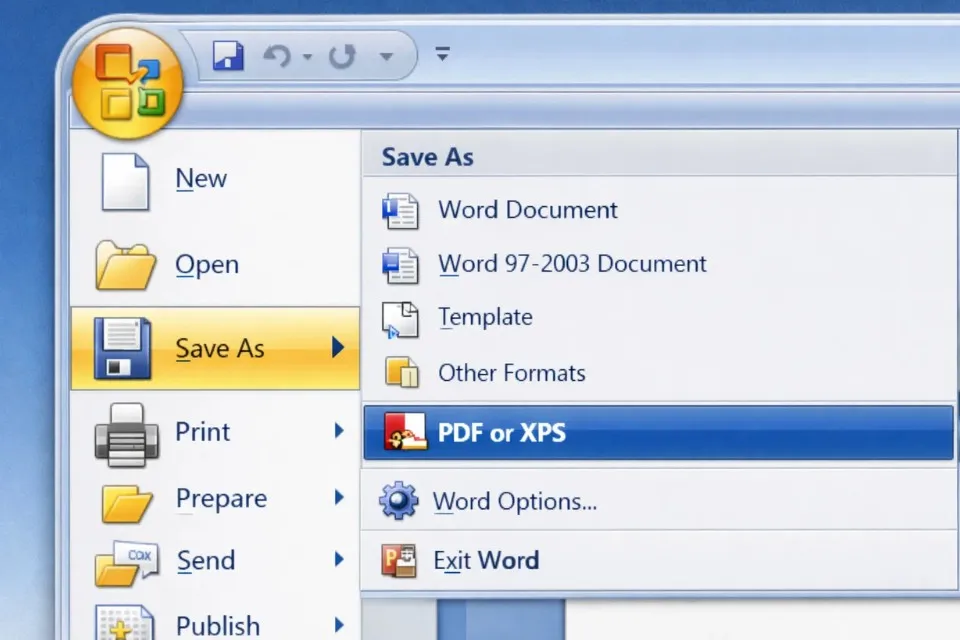
If this component is already installed on your computer, you will see a direct option to export PDFs from the Save As menu. If it is missing, the PDF option simply will not appear, which leads many users to believe their copy of Office 2007 cannot create PDFs at all. Fortunately, that is not the case—there are multiple ways to get the job done.
Method 1: Save Directly as PDF in Word 2007
If your system already has the Save as PDF or XPS Add-in, converting a document takes just a few clicks. This is the fastest and most straightforward method available within Office 2007 itself.
Start by opening the Word document you want to convert. Before exporting, take a moment to review your content. Check that your fonts display correctly, images are positioned properly, page numbers are accurate, and tables fit within margins. Once a document is published as a PDF, correcting errors becomes more time-consuming.
Next, click the round Office Button located in the top-left corner of the Word window. Hover over or click Save As, then look for the option labeled PDF or XPS. If you see it, click it immediately.
A dialog box will appear asking where to save the file. Choose your destination folder, enter a clear file name, and ensure the Save as type dropdown is set to PDF. Then click Publish (or Save, depending on your add-in version). Word will process the document and create the PDF in seconds.
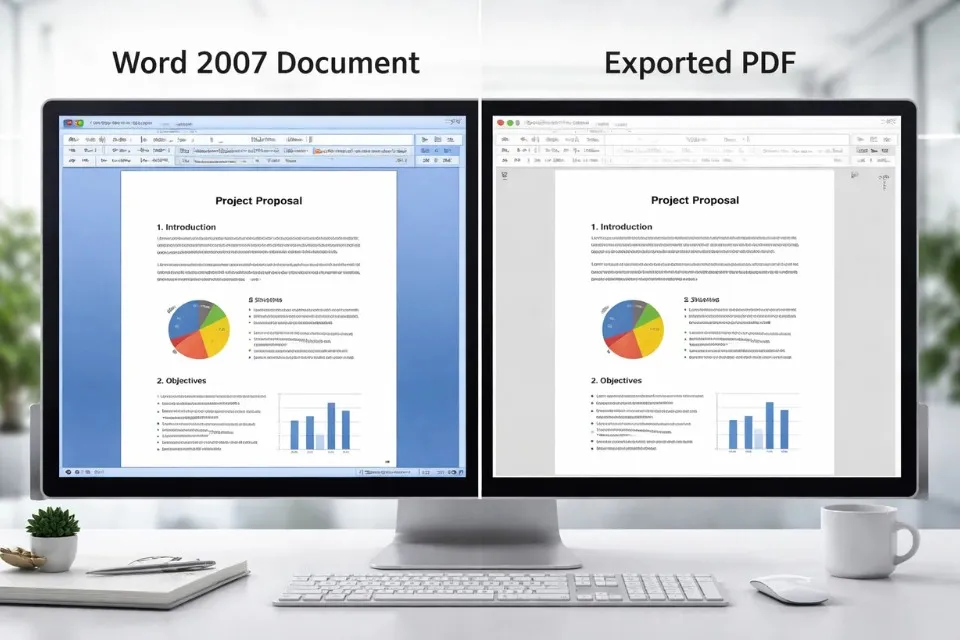
After saving, it is a good habit to open the newly created PDF to confirm everything transferred correctly. This quick verification can save you from discovering formatting mistakes after you have already emailed the file.
Alternative Solution: Print to PDF Using a Virtual Printer
What if the Save As menu does not list PDF at all? In that situation, the easiest workaround is to use a virtual PDF printer. This method does not require installing an Office add-in. Instead, it relies on a system-level PDF driver that acts like a physical printer.
To begin, open your Word document and press Ctrl + P (or click the Office Button and choose Print). In the printer selection list, look for an option such as Microsoft Print to PDF, PDFCreator, Foxit PDF Printer, or CutePDF Writer. These are software-based printers that output a PDF file instead of paper.
Select the virtual printer and click Print. Windows will prompt you to choose a save location and file name. Once you confirm, the system generates a PDF containing the exact content sent to the printer. The process feels slightly indirect compared to a direct export, but the final result is functionally identical.
One thing to note: older versions of Windows may not include Microsoft Print to PDF by default. If your computer lacks any virtual PDF printer, you can download and install a free one from a trusted vendor. After installation, it will appear in your printer list for all future conversions.
Method 2: Install the Official Microsoft Save as PDF Add-in
If you frequently convert Word 2007 files to PDF, installing the official add-in is worth the small effort. Once integrated, it adds native PDF export directly into Word’s Save As menu, streamlining your workflow permanently.
The process involves downloading the Microsoft Save as PDF or XPS add-in package, closing Microsoft Word completely, and running the installer. After installation finishes, reopen Word 2007 and navigate back to Save As through the Office Button. You should now see the PDF or XPS option ready for use.
Because Office 2007 is legacy software, finding the official installer may require visiting Microsoft’s download archives or reputable software repositories. Always verify that you are downloading from a trustworthy source to avoid bundled malware or counterfeit versions.
Essential Tips for a Perfect PDF Conversion
Before you publish your document, keep these practical guidelines in mind. They will help you avoid common pitfalls and ensure your PDF looks polished every time.
Always review your document layout one last time inside Word. Complex elements like text boxes, custom fonts, and nested tables occasionally behave differently after PDF conversion. Catching these issues early prevents headaches later.
Use clear, descriptive file names rather than vague placeholders like Document1 or Final_Final_v2. Names such as March_Report.pdf or Lease_Agreement_2026.pdf make retrieval and sharing much easier for everyone involved.
 PDF document verification after saving from Word 2007
Most importantly, open your saved PDF and scan through every page before distributing it. Look for shifted images, missing fonts, or broken page breaks. This thirty-second check protects your professionalism and ensures recipients receive the document exactly as you intended.
Troubleshooting Common Word-to-PDF Errors in Office 2007
Even with the right method, you may encounter occasional issues. Here is how to handle the most frequent problems Word 2007 users face when creating PDFs.
PDF option missing from Save As: This almost always means the Save as PDF or XPS Add-in is not installed. Resolve it by either installing the official add-in or using the virtual printer method described above.
Fonts appear corrupted or change in the PDF: This typically happens when your document uses rare, custom, or legacy fonts that the PDF engine cannot embed. To prevent this, stick to standard fonts like Arial, Times New Roman, or Tahoma before converting.
Page layout shifts after conversion: Documents with heavy manual formatting, large images, or complex tables sometimes reflow during export. Use Word’s Print Preview feature to spot problems before conversion, and consider simplifying layouts if shifts persist.
Exported PDF file is too large: If your Word file contains many high-resolution images, the resulting PDF can become bulky and difficult to email. Compress your images inside Word before exporting, or adjust the PDF quality settings if your tool allows it.
Which Method Should You Choose?
The best approach depends entirely on your current setup and how often you need to convert files.
If the PDF or XPS option is already visible in your Save As menu, use it. It is the quickest path and produces clean results with minimal steps.
If that option is missing and you only need an occasional PDF, printing through a virtual PDF printer is the fastest workaround. It requires no Office modifications and works immediately.
If you regularly share finalized documents from Office 2007, take ten minutes to install the official Microsoft Save as PDF Add-in. It restores native functionality and simplifies your workflow for every future project.
Conclusion
Knowing how to save Word as PDF in Office 2007 is a small but valuable skill that protects your document’s integrity and ensures professional presentation. Whether you use the built-in add-in, a virtual printer, or install Microsoft’s official PDF component, each method delivers reliable results. Start by checking which option your computer already supports, follow the steps above, and always verify your final PDF before sending it out. Once you have converted your first file successfully, you will have a permanent solution for sharing flawless documents from any legacy Office setup.