
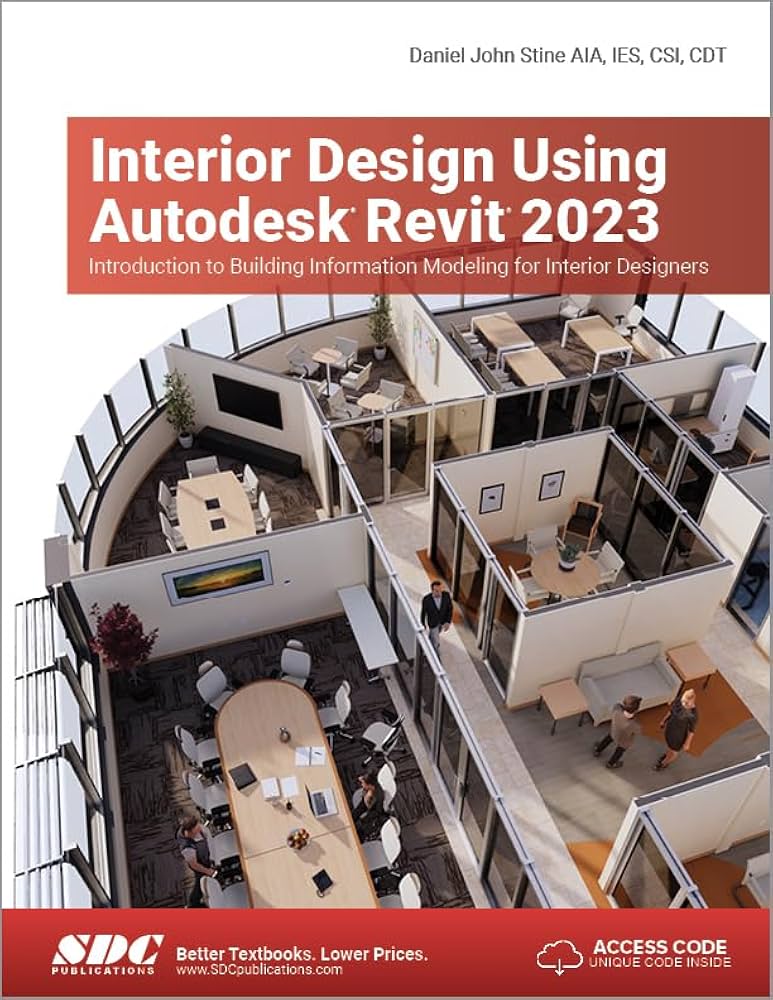
Embarking on a new design project requires powerful tools, and for interior designers, Autodesk Revit stands out as a leading Building Information Modeling (BIM) software. This guide will walk you through the essential aspects of using Revit, from its core purpose and installation to navigating its interface and managing your project files. Whether you’re new to BIM or looking to refine your skills, understanding these fundamentals is crucial for leveraging Revit’s full potential in your design workflow.
Revit, originally developed by Charles River Software and later acquired by Autodesk, is designed for a wide range of professionals in the Architecture, Engineering, and Construction (AEC) industry, including architects, interior designers, structural engineers, and contractors. Its strength lies in its ability to serve as a robust collaboration tool, facilitating seamless communication among different disciplines. While the learning curve for Revit can be steep, the increased productivity and advanced capabilities it offers justify the investment in both the software and potentially more powerful hardware. Many commercial interior design and architectural firms rely on Revit for creating comprehensive construction documents. For those focused on rendering, Revit may have limitations, but it does support virtual reality plugins and integrates well with CAD users. Learning to effectively use Revit educational software can significantly enhance your design process.
Why Interior Designers Choose Revit
Revit’s BIM capabilities allow interior designers to create intelligent, data-rich models that go beyond simple 2D drawings. This parametric modeling approach means that changes made in one view are automatically reflected across all other views, ensuring consistency and accuracy throughout the design process. For interior designers, this translates to more efficient creation of floor plans, elevations, sections, and detailed schedules, all while managing project information effectively. The software’s extensive libraries and support for plugins further enhance its utility, enabling designers to incorporate detailed information about furniture, materials, and lighting directly into their models.
Installing Autodesk Revit
Getting started with Revit involves a straightforward installation process, especially for students and educators who can access the software for free.
- Step 1: Navigate to the Autodesk Education website (https://www.autodesk.com/education/free-software/revit) via your web browser.
- Step 2: Create an Autodesk account or sign in if you already have one.
- Step 3: Locate and select Revit under the “Get product” section.
- Step 4: Choose your operating system (Windows), the desired version (e.g., 2021), and language (English), then click “INSTALL.”
- Step 5: Agree to the license and services agreement.
- Step 6: You will receive an email from Autodesk containing license information, which may be required for activation.
- Step 7: Initiate the download and installation by clicking “Install.”
- Step 8: Run the downloaded installation file.
- Step 9: The setup will initialize and download the necessary software components, which may take some time. During installation, ensure you select the “Architecture” discipline from the drop-down menu.
- Step 10: After installation, follow the prompts to activate Revit using your license information.
Understanding Project Templates
When you first open Revit, you’ll be presented with the Home page, where you can access recent projects, create new ones, or manage families. For new projects, using templates is highly recommended to streamline your workflow. Autodesk provides various templates, and firms often create their own customized “seed files” for consistency.
To create a new project using an architectural template:
- Step 1: From the Home page, click “NEW” under the “Models” section.
- Step 2: Select an appropriate template, such as “Imperial-Architectural Template.”
- Step 3: Click “OK” to create your new project file.
If your firm has a specific template, you can browse for it by clicking the “BROWSE” button. This ensures all projects adhere to company standards, saving time and resources.
Saving Your Revit Files
Establishing a consistent and safe saving habit is paramount. Always save your project as soon as you create a new file.
To save a file for the first time:
- Step 1: Click the “FILE” tab.
- Step 2: Select “SAVE AS” from the menu.
- Step 3: Choose “Project” under the submenu.
- Step 4: Navigate to your desired project folder location. Creating a dedicated project folder to store your Revit files, family files, and material images is a best practice. Consider using an external hard drive or cloud storage for added safety and to maintain optimal hardware performance. For managing your projects, exploring resources like download learning Revit 2025 can be beneficial.
- Step 5: Name your project file uniquely.
- Step 6: Before clicking “SAVE,” click “OPTIONS” to configure backup settings. Revit can automatically create backup files, which is a valuable safety net. You can adjust the number of backup files to retain, with a default of 20; setting it to around 5 may be sufficient.
To save your work while actively editing or at the end of a session, simply click “SAVE” on the “FILE” tab or use the keyboard shortcut “CTRL + S.”
Opening Existing Project Files
Revit offers two primary methods for opening existing project files:
- Direct Opening: Double-clicking the Revit project file directly from your file explorer.
- In-Application Opening: Opening the file through the Revit application itself. This method is often preferred as it can help reduce potential errors, especially when collaborating with colleagues.
To open a file using the second method:
- Step 1: Launch the Revit software.
- Step 2: Go to the “File” tab.
- Step 3: Select “Open.”
- Step 4: Navigate to and select the desired file from its folder location.
- Step 5: Click “Open.”
Mastering Keyboard Shortcuts
Increasing your productivity in Revit significantly relies on memorizing and utilizing keyboard shortcuts. Here are some essential ones for your reference:
MV: MoveTL: Thin LineVV: Visibility/Graphics OverridesZE: Zoom All to FitWT: Tile ViewsTW: Tab ViewsDI: Aligned DimensionDL: Detail LineCO: CopyRO: RotateMA: Match Type PropertiesAL: AlignPT: Paint
For a comprehensive list, consult the official Autodesk Revit shortcuts guide at https://www.autodesk.com/shortcuts/revit.
Navigating the Revit User Interface
The Revit user interface shares similarities with AutoCAD, featuring toolbars, drawing areas, and various panels. Understanding these components is key to efficient use.
- Toolbar/Ribbon: Located at the top, this contains various tabs (Architecture, Insert, Annotate, Analyze, Massing & Site, Collaborate, View, Manage, Add-Ins, Modify) with numerous tools for your design tasks.
- Properties Palette: Displays the properties of selected elements.
- Drawing Area: The main workspace where you create and modify your model.
- Option Bar: Located below the ribbon, this provides context-sensitive options for the active tool.
- Project Browser: Typically on the left side, this lists all the views, sheets, families, and schedules in your project.
You can customize the layout by repositioning the Properties palette and Project Browser to maximize your drawing area. You can also adjust the size of the ribbon panels by using the minimize button.
If you accidentally close a crucial panel like the Properties palette or Project Browser, you can easily reopen them by navigating to the “VIEW” tab, clicking “USER INTERFACE,” and checking the desired boxes. Learning about Autodesk Revit 2025 Architecture Book can further deepen your understanding of these interface elements.
Remember to save your file before closing the application, and consider saving a version in a different location, such as a cloud folder, for backup.
References
- Aynazinsaat. (2016). Revit Architecture. Wikimedia Commons. Retrieved October 20, 2020, from https://commons.wikimedia.org/wiki/File:Revit.jpg
- Autodesk.Help. (2020, April 14). Parts of the User Interface. Autodesk Knowledge Network. Retrieved October 20, 2020, from https://knowledge.autodesk.com/support/revit-products/getting-started/caas/CloudHelp/cloudhelp/2019/ENU/Revit-GetStarted/files/GUID-7793667D-5657-4382-9BEC-F7CB6AC8F53E-htm.html
- Revit Keyboard Shortcuts, Hotkeys & Commands Guide. (n.d.). Autodesk. Retrieved October 21, 2020, from https://www.autodesk.com/shortcuts/revit