
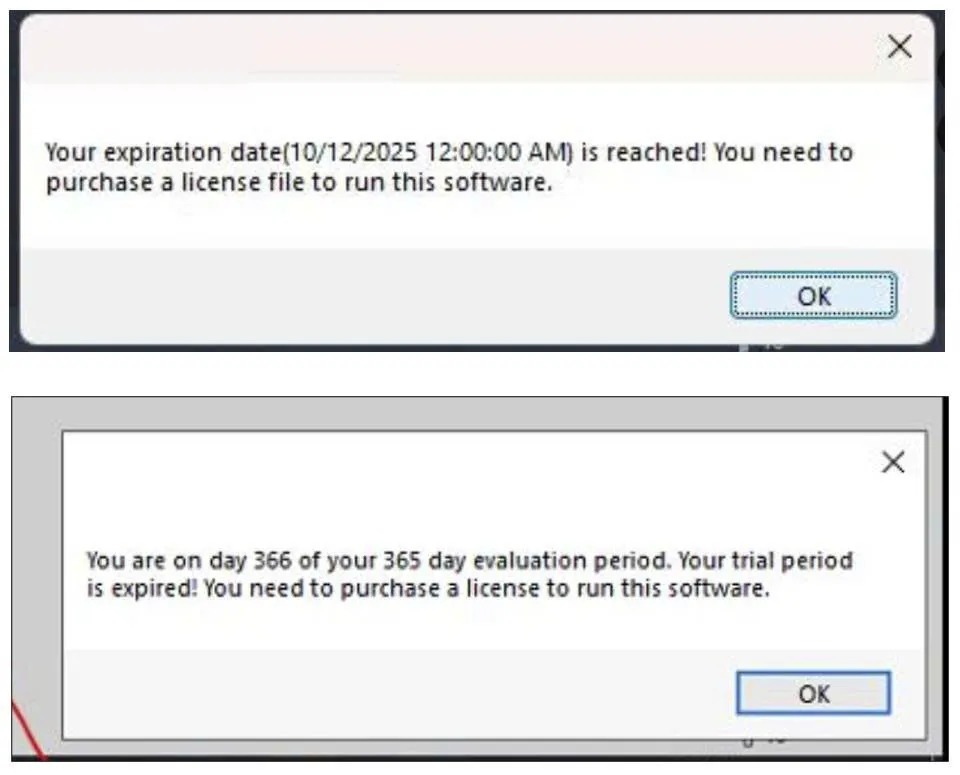
If you’ve ever launched Revit only to be greeted by a message like “You are on day 3** of your 365-day evaluation period. Your trial period has expired!” or “Your expiration date is reached! You need to purchase a license file to run this software” — and then watched the application shut itself down — you’re not alone. This is a frustrating but well-documented issue that affects Revit users across multiple versions and machine configurations. Understanding what causes it and how to fix it can save you hours of downtime on critical projects.
Understanding the Problem
The error itself mimics the behavior of an expired trial license, but in most cases, users experiencing this issue have a valid, active license. Several characteristics make this bug particularly tricky to diagnose:
- The day counter in the message keeps incrementing each day, giving the impression of a genuine trial countdown.
- The issue is not tied to a single user account. Multiple users logging into the same machine may all encounter it — and in some cases, the error appears even when no user is actively logged in.
- It is version-selective. A common pattern reported is that Revit 2019 runs without problems, while versions 2021, 2022, and 2023 fail, and then Revit 2024 works fine again. This inconsistency can make troubleshooting feel like guesswork.
- No event logs are generated, which means standard diagnostic methods won’t point you toward a root cause.
Despite the cryptic nature of the error, there are two structured solutions that resolve it in the vast majority of cases.
Solution 1: Uninstall Third-Party Revit Plug-ins
Third-party plug-ins are one of the most common culprits behind this type of licensing conflict. Some plug-ins interact with Revit’s license verification process in unexpected ways, causing the software to misread its own activation state. Removing them is a clean first step.
To do this, open Control Panel and navigate to Programs and Features. Scroll through the list and identify any plug-ins associated with Revit from third-party developers — these might include add-ons for rendering, BIM collaboration, structural analysis, or project management. Uninstall each one, then relaunch Revit to see whether the error persists.
If Revit opens successfully after this step, you’ve found your culprit. You can then reinstall plug-ins one at a time to identify which specific add-on was causing the conflict, and either keep it removed or check with the plug-in vendor for an updated, compatible version.
Solution 2: Recreate the Revit User Profile
If removing plug-ins doesn’t resolve the issue, the next step is to reset Revit’s user profile data. Over time, Revit stores configuration and cache files in your local and roaming AppData folders, as well as registry entries. Corruption or conflicts within these files can trigger the trial expiration message even on a fully licensed installation. Renaming these folders (rather than deleting them) lets you preserve the old data as a backup while forcing Revit to generate a clean profile on next launch.
Follow these steps carefully:
Step 1 — Rename the Local AppData folder:
Navigate to C:Users<YourUsername>AppDataLocalAutodeskRevit and find the folder named after your Revit version (e.g., Revit_2022). Rename it to Revit_2022_OLD.
Step 2 — Rename the Roaming AppData folder:
Navigate to C:Users<YourUsername>AppDataRoamingAutodeskRevit and do the same — rename the version folder to Revit_Version_OLD.
Step 3 — Update the Windows Registry:
Open Registry Editor (press Win + R, type regedit, and press Enter). Navigate to:
HKEY_CURRENT_USERSoftwareAutodeskRevit
Find the key corresponding to your Revit version and rename it by appending _Old to the name (e.g., Revit2022 becomes Revit2022_Old).
Step 4 — Relaunch Revit:
Open Revit. It will detect that the usual profile data is missing and automatically generate fresh configuration files. In most cases, this eliminates the licensing error entirely.
Additional Tips and Considerations
It’s worth noting that the AppData folder is hidden by default in Windows. To access it, open File Explorer, click on the View tab, and check Hidden items. Alternatively, you can type %appdata% or %localappdata% directly into the File Explorer address bar to jump to those locations.
Before making any registry changes, it’s good practice to export a backup of the relevant registry key. In Registry Editor, right-click the key and select Export — this gives you a restore point if anything goes wrong.
If neither solution resolves the issue, consider reaching out to your Autodesk reseller or IT administrator. In enterprise environments, network license servers and firewall configurations can also interfere with Revit’s ability to verify its license, producing similar symptoms.
Conclusion
The Revit trial expiration error is one of those issues that looks alarming but is almost always solvable with a methodical approach. Start by removing third-party plug-ins to rule out the most common cause. If the problem persists, resetting the Revit user profile — including AppData folders and registry entries — reliably restores normal behavior in the majority of cases. Keeping your Revit installation free of outdated or incompatible plug-ins and periodically clearing stale profile data are good habits that can prevent this issue from recurring. If you work in a team environment, share these steps with your colleagues to help them resolve the same error quickly should it appear on their machines.
References
- Autodesk Support: Revit Trial Expiration Error — support.autodesk.com
- Autodesk Knowledge Network: Troubleshooting Revit Licensing Issues
- Microsoft Documentation: Using Registry Editor Safely — docs.microsoft.com