
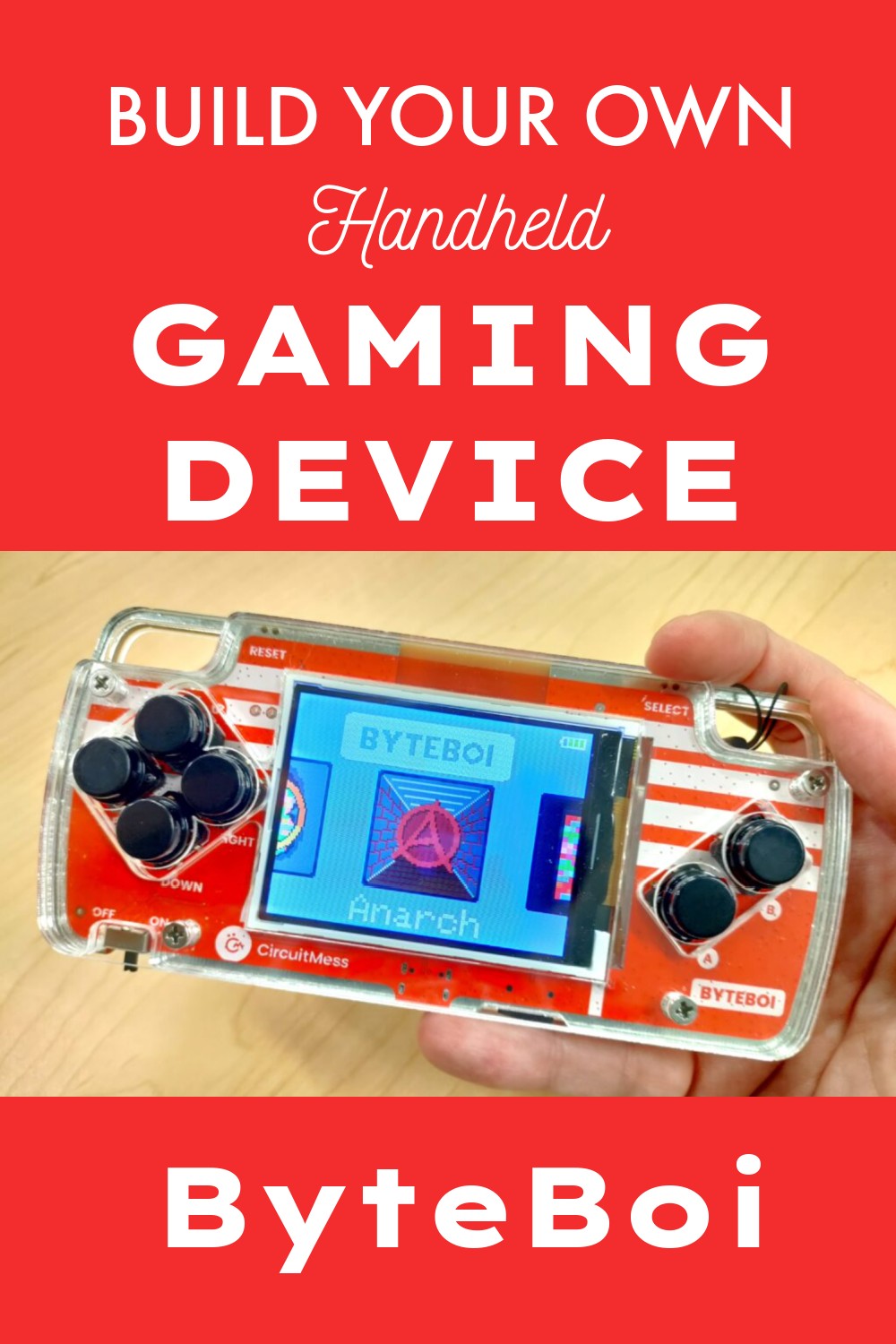
Building your own handheld game console can be a rewarding project, especially for those with a passion for retro gaming and a knack for electronics. This comprehensive guide details the process of creating a DIY handheld game console, focusing on a Raspberry Pi-based build that allows for gradual improvement and affordability. This project is best suited for individuals with existing experience in programming, soldering, 3D printing, and general electronics.
About This Guide
This guide provides a step-by-step approach to building a functional DIY handheld game console. While it aims for maximum detail, some level of tinkering and problem-solving on your part is expected, as hardware projects often require adjustments. It is recommended to read the entire guide and watch the accompanying video before beginning to understand the overall process and available alternatives.
Philosophy: A Playable Project from Day One
The core philosophy behind this project is to allow users to enjoy a functional game console from the very first step. The build is structured in layers, enabling you to add improvements over time as your budget and time allow. You can start playing games with just a Raspberry Pi connected to a monitor and keyboard, and progressively add a portable screen, buttons, and a battery. This approach ensures that the console is usable at any stage of the building process, making the journey more enjoyable.
Affordability and Component Choices
While specific component choices are detailed, the project emphasizes affordability by offering multiple options. For instance, older Raspberry Pi models can be used, and the 3D printable case can be made with basic PLA material on smaller print beds. Alternative options like using a local makerspace or printing service are also viable. For those seeking high-end performance, the guide briefly mentions the possibility of using x86-based Single Board Computers (SBCs) with AMOLED screens.
Materials and Components
The project is divided into several key components:
01. CPU: The Raspberry Pi
Any computer can run games, but for a DIY handheld console, a small yet powerful Single Board Computer (SBC) is ideal. The Raspberry Pi 4 Model B is recommended due to its extensive community support, consistent footprint across models, and affordability. RetroPie is suggested as the operating system for its user-friendliness and broad community. While overclocking is possible, careful attention to heat dissipation is necessary. Using a Raspberry Pi Compute Module is an alternative for space-saving but requires more specialized knowledge.
Step 1: Install RetroPie on a Raspberry Pi.
- Identify your Raspberry Pi model.
- Connect a compatible SD card to your computer.
- Download and install the Raspberry Pi Imager.
- Select your Raspberry Pi model, choose “Emulation and game OS,” then “RetroPie.”
- Select the appropriate RetroPie version for your board.
- Choose your SD card and install RetroPie.
- Install games by following the RetroPie official documentation or a dedicated guide.
02. Screen
A 5-inch screen with an 800×480 resolution is recommended for a balanced size and visual quality, suitable for both retro and modern games. The chosen screen includes an integrated speaker, simplifying the audio setup. For alternative builds, consider portable screen speakers and ensure adequate space within the case. The 5:3 aspect ratio is well-suited for retro gaming and adaptable for 16:9 games with minimal black bars.
Step 2: Connect the screen and configure buttons.
- Connect the Raspberry Pi to a TV, monitor, or the specified display using HDMI.
- Connect a keyboard.
- Connect the Raspberry Pi to a power supply.
- Turn on the Raspberry Pi and configure the buttons within RetroPie, assigning keys to specific functions. Note down these assignments for later use. The HOTKEY ENABLE button, often set to SELECT, allows for in-game functions like exiting or saving.
03. Gamepad: Custom Buttons
Prototyping the gamepad is best done on a breadboard. Standard tactile switch buttons are used, with options for silicone or squishy variants for improved feel. The Raspberry Pi’s GPIO pins can be utilized to read button inputs. Analog joysticks are not included in this iteration but can be added in future versions using an Arduino Pro Micro.
Step 3: Add custom buttons.
- Place tactile buttons on the breadboard and connect one leg to the ground row.
- Connect the other leg of each button to a Raspberry Pi GPIO pin using jumper wires, documenting each connection.
- Connect to Wi-Fi via RetroPie’s settings.
- Access the Raspberry Pi command line (locally or via SSH).
- Install the Adafruit-Retrogame utility by downloading and executing its script.
- Edit the
/boot/retrogame.cfgfile to map GPIO pins to the desired keyboard keys, matching the configuration from Step 2. - Save changes and reboot. The custom gamepad should now be functional.
04. Power Supply: UPS and Battery
The Raspberry Pi 4 requires a 5V 3A USB-C power supply. A power bank can suffice, or a UPS HAT like the PiSugar 2 Pro can provide battery backup and safe shutdown capabilities. The PiSugar, with its 5000mAh battery, offers extended playtime. Modifications may be needed to adapt the PiSugar to fit within the console’s design.
Step 4: Install the UPS and battery.
- Ensure the PiSugar is working by connecting it to the Raspberry Pi.
- For experienced users only: Modify the PiSugar to function as a HAT by soldering a female GPIO header, replacing the pogo pins. This step voids the warranty.
- Solder wires to the GPIO pins designated for buttons on the PiSugar header.
- Connect the battery to the PiSugar and attach it to the Raspberry Pi.
- Test wireless operation by powering on the Raspberry Pi and disconnecting external power.
05. Circuitry and Assembly
For prototyping, a 3D-printed circuit board is recommended for its speed and flexibility in component placement, especially for tactile buttons. While custom PCBs offer precision, they slow down the iteration process. Perfboards are an option but can limit design flexibility.
Step 5: Wire and assemble the electronics.
- Download the STL files for the 3D printed parts and review the license.
- Print the
pcb-prototypeandbattery-bracketcomponents in PETG. - Attach the battery brackets to the main piece using super glue.
- Insert tactile buttons (90-degree for shoulders/triggers, standard for others) into the frame.
- Solder one leg of each button in series, connecting them all together.
- Solder the opposite leg of each button to the corresponding GPIO pin on the PiSugar header.
- Attach the Raspberry Pi to the PCB-prototype using screws and spacers.
- Connect the PiSugar to the Raspberry Pi and secure it. Ensure the battery is connected to the PiSugar first.
- Connect the Raspberry Pi to the display using HDMI and PCB-based connectors or ribbon cables.
06. Case: 3D Printed Enclosure
The console’s case is designed in three parts for easier printing on smaller 3D printers. Prototyping with PLA allows for rapid iteration, while PETG can be used for the final print, though it may present finishing challenges. The design prioritizes ergonomic placement of buttons and a visually appealing aesthetic, inspired by traditional gamepads.
Step 6: Build the enclosure.
- Download the STL files and review the license.
- Print the
case-frontandcase-backin PLA, using appropriate supports and layer heights. - Print all buttons in PLA with a fine layer height.
- Insert the buttons into the front case.
- Place the assembled electronic components inside the front case, trimming mounting holes for the display as needed.
- Attach the back case and secure the entire assembly with M2.5 screws of appropriate lengths.
Wrap-up and License
Congratulations on building your own Raspberry Pi handheld game console! Share your build pictures, any challenges faced, and suggestions for improvement.
This project is licensed under the Creative Commons Attribution-NonCommercial-ShareAlike 4.0 International (CC BY-NC-SA 4.0). This license permits non-commercial use, adaptation, and distribution, provided proper attribution is given and any adaptations are shared under the same terms.
References
RetroPie Official Documentation
Adafruit Retrogame Utility
Creative Commons Attribution-NonCommercial-ShareAlike 4.0 International
Raspberry Pi Imager