
If your DWG files feel sluggish, bloated, or filled with mysterious overlapping lines, the culprit is likely duplicate geometry lurking beneath the surface. Many AutoCAD users experience performance drops and plotting errors caused by these hidden duplicates, but there’s a powerful built-in solution: the OVERKILL command .
In this guide, we’ll explore what OVERKILL does, why it’s essential for every AutoCAD professional, and how to use it effectively to keep your drawings lean, clean, and efficient.
What Is OVERKILL in AutoCAD?
OVERKILL is a cleanup command in AutoCAD designed to remove duplicate or overlapping geometry—including lines, arcs, and polylines—while optionally combining co-linear segments. It helps reduce file size, improve performance, prevent unintended behaviors (like snapping to hidden overlapping objects), and clean up drawings before sharing or publishing .
Originally an “Express Tool” in older AutoCAD versions, OVERKILL is now built into the core product (including AutoCAD LT) from 2012 onward .
How to Use the OVERKILL Command: Step-by-Step
Follow these steps to clean duplicate geometry in your AutoCAD drawings:
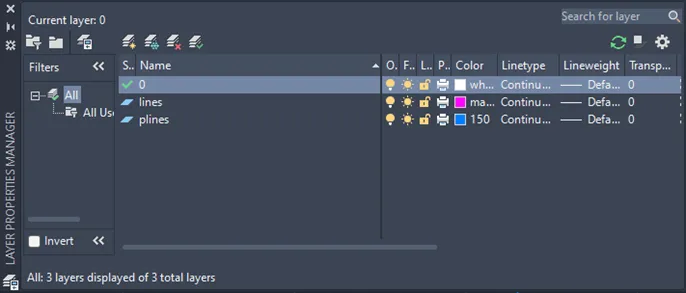
Open a new drawing in AutoCAD and create four layers (e.g., “lines” and “plines”) as shown below:
 Layer setup in AutoCAD with lines and polylines layers created
Draw overlapping geometry: Create several lines that overlap each multiple times, and add overlapping polylines as illustrated:
 Overlapping lines and polylines drawn in AutoCAD drawing
Select the geometry: With no command active, place a selection window around the lines. Open the Properties dialog box—you’ll see more lines recorded than visible on screen due to the overlapping:
 Properties dialog showing more lines than visible due to overlapping
Escape twice to deselect, then re-select the geometry.
Type `OVERKILL in the command line, re-select the lines, and press Enter.
Review the dialog box that opens:
 AutoCAD OVERKILL dialog box with object comparison settings
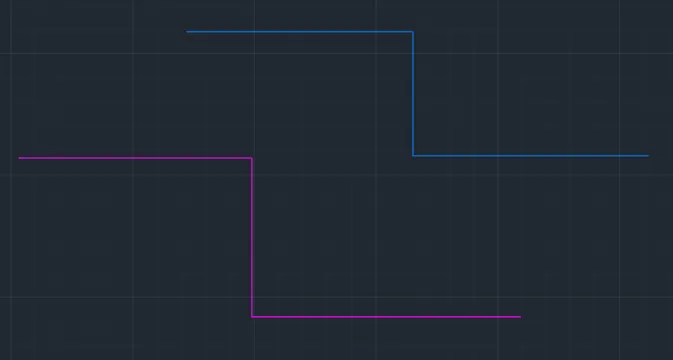 Overlapping lines and polylines drawn in AutoCAD drawing
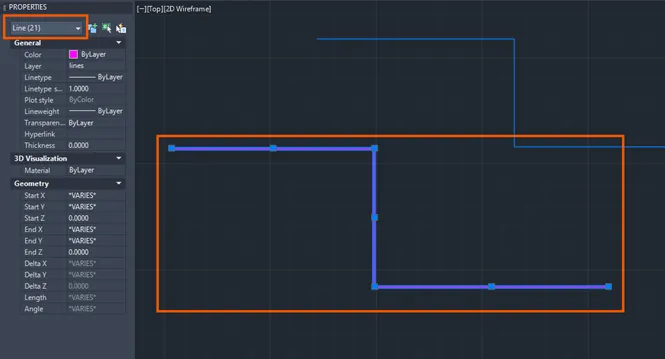 Properties dialog showing more lines than visible due to overlapping
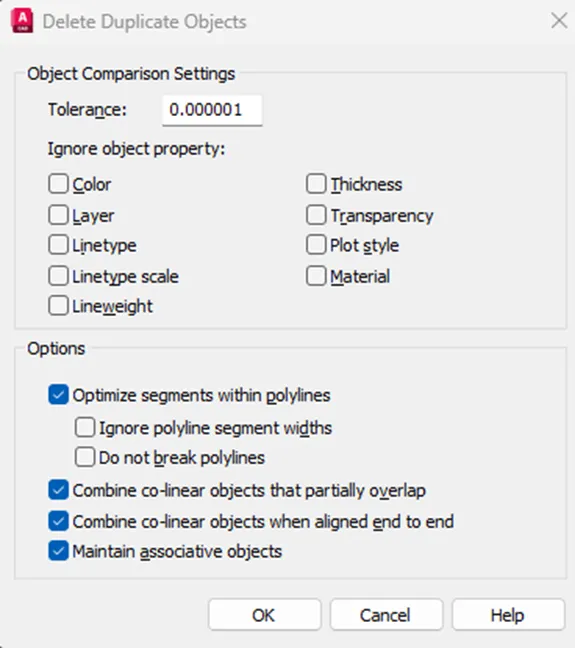 AutoCAD OVERKILL dialog box with object comparison settings
Object Comparison Settings Explained
| Setting | Description |
|---|---|
| Tolerance | Controls precision for numeric comparisons. If 0, objects must match exactly to be modified/deleted |
| Ignore Object Property | Select properties (layer, color, linetype) to ignore during comparison |
| Options | Control how OVERKILL handles lines, arcs, and polylines |
| Optimize segments within polylines | Examines line/arc segments inside polylines; removes duplicate vertices/segments and compares polyline segments with separate lines/arcs |
| Combine co-linear objects (partial overlap) | Combines overlapping objects into single objects |
| Combine co-linear objects (end-to-end) | Combines objects with common endpoints into single objects |
| Maintain associative objects | Prevents deletion/modification of associative objects |
Check the result summary in the Command Line Interface (CLI) to see how many duplicates or overlapping segments were deleted or combined:
Verify the cleanup: Select the lines again with a selection window. The Properties dialog now shows only the remaining lines:
 Properties dialog showing reduced line count after OVERKILL cleanup
Optional follow-up: Run PURGE (to remove unused named objects, layers, blocks, linetypes) and AUDIT (to check for drawing corruption) for a complete cleanup .
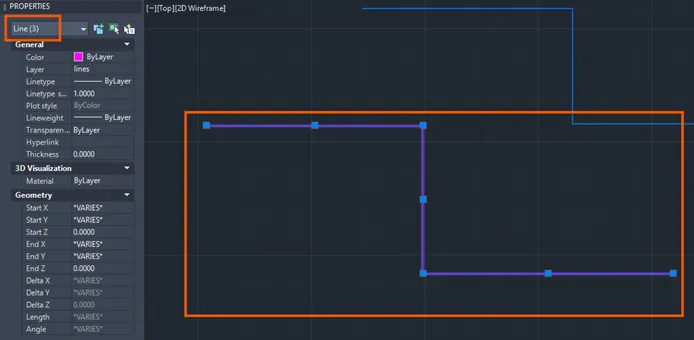 Properties dialog showing reduced line count after OVERKILL cleanup
When and Why You Should Use OVERKILL
Use the OVERKILL command in these common scenarios:
- Imported files or unknown drawings: When you receive a file with unknown history and suspect hidden overlapping/copy-over geometries
- After major editing: Following copying, trimming, or exploding blocks that may leave overlapping or hidden duplicates
- Before publishing/sending: Prior to sending drawings to others or plotting to reduce file size and avoid unintended plot/cut issues (especially for CNC or file export)
- High-density drawings: In large drawings with many objects where performance is affected by redundant geometry
Things to Watch Out For
Before running OVERKILL, keep these critical precautions in mind:
- Always backup drawings before running massive cleanup commands
- Check tolerance settings carefully: Too small = “almost overlapping” objects may not be detected; too big = you may inadvertently combine unintended objects
- Be cautious with layers, linetypes, or colors: Unless you intend to ignore these properties, OVERKILL may treat them as different objects. Use the “Ignore Object Property” option accordingly
- Verify results: After running, check for unintended consequences or missing geometry, especially in drawings with complicated block references or xrefs
- Make it part of your routine: OVERKILL + PURGE + AUDIT keeps your CAD workflow smooth and drawings lean
Final Thoughts: OVERKILL Is AutoCAD’s “Declutter” Button
Think of the OVERKILL command as AutoCAD’s fast, reliable, and often overlooked “declutter” button. It dramatically improves performance, reduces file size, and makes your workflow smoother .
Whether you’re cleaning up imported geometry or preparing a file for handoff, running OVERKILL regularly is one of the easiest ways to keep your AutoCAD work professional and efficient .
Still Got Questions?
Book Training
Master best-in-class 2D and 3D design skills with AutoCAD courses covering drawing, measurements, templates, and full design creation .
👉 Book Now
Contact Us
Get high-quality solutions for your business needs. If we can’t help directly, we’ll find someone who can .
👉 Contact Us Now