
Artificial intelligence has moved from a novelty into the core of how people write, calculate, and present their work. Microsoft 365 Copilot is now built directly into the applications millions of professionals already use every day—Word, Excel, PowerPoint, and Outlook—turning familiar office tools into AI-assisted workspaces. Instead of switching between separate apps, users can draft, analyze, and collaborate with an AI assistant sitting right inside their documents, spreadsheets, and inboxes.
What Is Microsoft 365 Copilot?
Microsoft 365 Copilot is an AI layer integrated across the Microsoft 365 suite. It doesn’t replace the applications people are familiar with; instead, it enhances them. Copilot can help draft a report in Word, summarize trends in an Excel spreadsheet, generate slides in PowerPoint, and manage email and calendar tasks in Outlook—all from within the same interface users already know.
This integration reflects a broader shift in office productivity software: rather than treating AI as a standalone chatbot, Microsoft has embedded it into the workflow itself, reducing the need to copy and paste content between different tools.
Working Smarter Across Word, Excel, and PowerPoint
Each core application benefits from Copilot in a slightly different way, tailored to how people actually use it.
Word with Copilot focuses on drafting. Users can describe what they want to write, and Copilot generates a starting draft, helping them finish documents faster without staring at a blank page.
Excel with Copilot is designed to unlock insights from data. Instead of manually building formulas or pivot tables from scratch, users can ask Copilot to help identify trends, patterns, or anomalies, which supports faster and more informed decision-making.
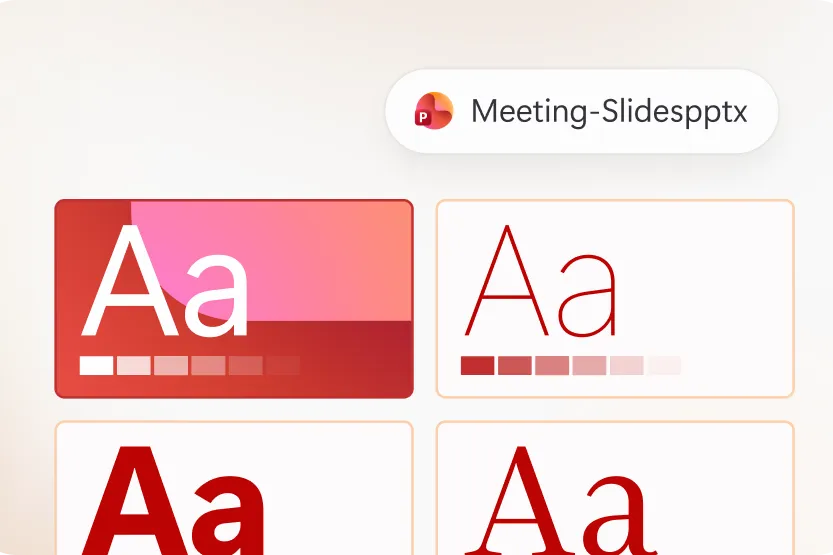
PowerPoint with Copilot turns ideas into polished presentations. Rather than manually formatting each slide, users can describe their content or feed in existing notes, and Copilot helps structure it into a coherent deck.
Together, these tools illustrate a key theme in modern office tech tips: reducing repetitive manual work so professionals can focus on higher-value tasks like strategy, analysis, and communication.
Managing Email and Meetings with Outlook Copilot
Beyond document creation, Copilot also extends into communication and scheduling. Outlook with Copilot helps move work forward by assisting with email drafting and calendar management, allowing users to keep their inbox and schedule organized without spending excessive time on routine correspondence.
This is particularly useful for professionals juggling high email volumes, where AI assistance can help prioritize messages, suggest replies, and streamline calendar coordination.
Creating Content and Working with Files
Copilot’s capabilities extend beyond the four main apps. Through the Create feature, users can describe what they want and generate images for inspiration, storytelling, or even polished headshots—useful for presentations, reports, or marketing materials.
Another practical feature allows users to add files directly to a prompt, giving Copilot context so its responses are grounded in the user’s actual content rather than generic suggestions. This is especially valuable when working with long reports, research documents, or existing datasets that need to inform new output.
For team collaboration and planning, the Analyst agent helps users brainstorm and gather insights ahead of meetings, functioning as a research and planning assistant embedded within the Microsoft 365 ecosystem.
Access Options: Browser, Desktop, and Mobile
One of the practical advantages of Microsoft 365 Copilot is its flexibility across devices. Users with a Microsoft account can access free versions of Word, Excel, and PowerPoint directly in a browser, making it easy to try Copilot-powered features without installing anything.
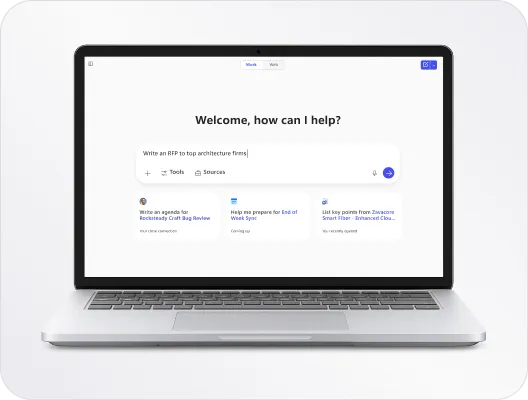
For a more focused workflow, Microsoft also offers a desktop application that brings Copilot and everyday work together in one dedicated experience.
Mobile access is also available, allowing users to continue working with Copilot-enabled tools while away from their desktop—useful for reviewing documents, checking email, or reading through analysis on the go.
Users who already hold a Microsoft 365 subscription, including work or school licenses, can sign in to install the full suite of Microsoft 365 apps.
Privacy and Control Remain with the User
A notable aspect of how Copilot is designed is that AI features only respond when explicitly used. Users retain control over when and how AI assistance is triggered, and existing privacy and security settings continue to apply. This is an important consideration for organizations concerned about data handling, as it means Copilot doesn’t operate in the background without user initiation.
It’s also worth noting that Copilot features require an eligible Microsoft 365 subscription, and availability can vary depending on the plan and region.
Conclusion
Microsoft 365 Copilot represents a shift in how everyday office software works—embedding AI assistance directly into Word, Excel, PowerPoint, and Outlook rather than treating it as a separate tool. From drafting documents and analyzing spreadsheets to building presentations and managing email, Copilot is designed to reduce repetitive tasks and help users focus on higher-value work. With flexible access across browser, desktop, and mobile, plus user-controlled privacy settings, it offers a practical entry point for professionals looking to integrate AI into their daily workflow. For those curious about the technology, comparing available Microsoft 365 plans and exploring the free browser-based apps is a low-risk way to start experiencing what AI-assisted office work looks like in practice.