
Microsoft Excel has long been one of the most widely used spreadsheet applications in the world. In Microsoft Office 2007, Microsoft introduced the Office Button in Excel as a central location for managing workbook-related tasks such as creating, opening, saving, printing, and sharing files. Although this feature was later replaced by the File tab in newer versions of Excel, understanding the Office Button remains important for users who work with Excel 2007 or encounter legacy Office environments.
This guide explains what the Office Button is, where to find it, and how each menu option functions within Excel 2007.
What Is the Office Button in Excel?
The Office Button was a distinctive feature introduced in Microsoft Office 2007 applications, including Excel, Word, and PowerPoint. It served as a centralized menu that provided quick access to commonly used file management commands and application settings.
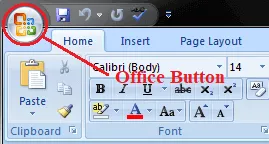
Unlike traditional menu bars, the Office Button appeared as a circular icon featuring the Microsoft Office logo. By clicking it, users could access a range of essential commands without navigating through multiple menus.
Important: The Office Button exists only in Office 2007 applications. Starting with Office 2010, Microsoft replaced it with the File tab, which contains many of the same options.
Where Is the Office Button Located?
When Excel 2007 launches, the Office Button appears in the upper-left corner of the application window. It is attached to the Ribbon interface and can be identified by its circular Office logo.
After opening Excel, users can click this button to access workbook management tools, application preferences, and sharing features.
What Is the Primary Function of the Office Button?
The primary purpose of the Office Button is to provide quick access to frequently used commands. Instead of searching through menus, users can perform important tasks from a single location, including:
- Creating new workbooks
- Opening existing spreadsheets
- Saving files
- Printing documents
- Preparing workbooks for distribution
- Sharing and publishing spreadsheets
- Accessing Excel settings
- Exiting the application
This design aimed to improve productivity and simplify navigation for Office users.
Office Button Menu Options in Excel
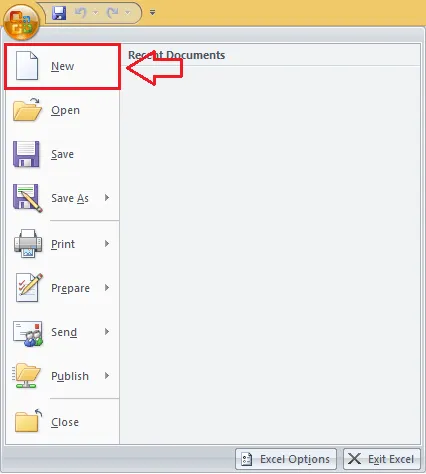
Clicking the Office Button opens a menu containing several key commands. Each option serves a specific purpose for workbook management and productivity.
New
The New command opens the New Workbook dialog box, allowing users to:
- Create a blank workbook
- Start with a predefined Microsoft template
- Use customized workbook layouts
This feature makes it easier to begin projects quickly without building spreadsheets from scratch.
Open
The Open option launches the Open dialog box, enabling users to browse their computer and select an existing Excel file.
Common uses include:
- Opening saved workbooks
- Accessing shared spreadsheets
- Reviewing archived data files
Save
The Save command stores changes made to the active workbook.
Key benefits include:
- Preserving modifications
- Preventing accidental data loss
- Updating existing files without changing their names or locations
For newly created workbooks, selecting Save for the first time automatically opens the Save As dialog box.
Save As
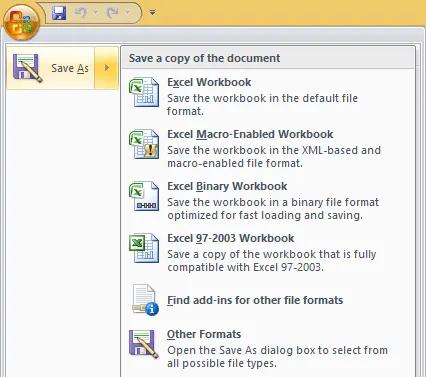
The Save As feature allows users to save a workbook under a different name, format, or location.
Available file formats include:
Excel Workbook (.xlsx)
The standard workbook format that supports most spreadsheet features but does not store macros.
Excel Macro-Enabled Workbook (.xlsm)
Designed for spreadsheets that contain VBA macros and automation scripts.
Excel Binary Workbook (.xlsb)
A binary format that can efficiently handle large datasets and macro-enabled content.
Excel 97–2003 Workbook (.xls)
A legacy format intended for compatibility with older versions of Microsoft Excel.
Find Add-ins for Other File Formats
Provides access to extensions that enable support for additional file formats not included by default.
Users can also choose Other Formats to access all supported save options.
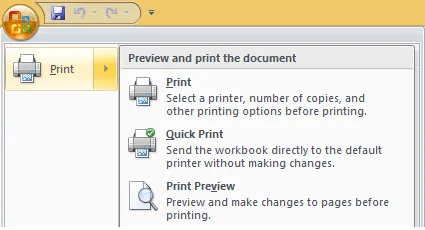
The Print command enables users to create physical copies of spreadsheets or generate PDF versions of their documents.
Additional print-related options include:
Opens the Print dialog box where users can configure:
- Printer selection
- Number of copies
- Page orientation
- Print range
Quick Print
Immediately sends the active worksheet to the default printer using previously configured settings.
Print Preview
Displays a digital representation of how the spreadsheet will appear when printed.
 Print Preview and printing options within Excel 2007
Prepare
The Prepare section helps users review, secure, and finalize workbooks before sharing them with others.
Key options include:
Properties
Allows users to view and edit workbook metadata such as:
- Title
- Author
- Keywords
- Subject information
Inspect Document
Opens the Document Inspector, which can detect and remove hidden information or personal data from the workbook.
Encrypt Document
Adds password protection to prevent unauthorized access.
Add a Digital Signature
Lets users digitally sign spreadsheets to verify ownership and authenticity.
Mark as Final
Marks the workbook as complete and makes it read-only to discourage further edits.
Run Compatibility Checker
Checks whether workbook features are compatible with older or newer Excel versions and helps prevent functionality issues.
Send
The Send command allows users to share workbooks directly from Excel.
Available options include:
Attach the current workbook to an email as either:
- XPS document
Internet Fax
Send the spreadsheet using an internet fax service, a feature that is largely obsolete today.
Publish
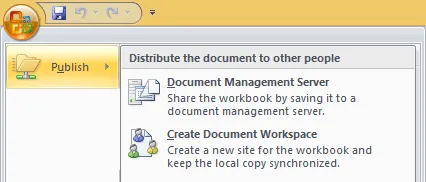
The Publish option helps distribute spreadsheets across networks and collaborative environments.
Common options include:
Document Management Server
Saves spreadsheets to network-based document management systems.
Create Document Workspace
Creates a workspace for collaboration and synchronization across multiple users and systems.
Close
The Close command closes the currently active workbook while leaving the Excel application running.
This is useful when working with multiple spreadsheets simultaneously and only one needs to be closed.
Excel Options
The Excel Options button provides access to the application’s settings and preferences.
Users can customize various aspects of Excel, including:
- Calculation settings
- Formula behavior
- Display preferences
- Save options
- Security configurations
- Ribbon customization
Through this section, Excel can be tailored to individual workflow requirements.
Exit Excel
The Exit Excel option closes the entire Excel application, including all open workbooks.
Before exiting, Excel may prompt users to save unsaved changes to prevent accidental data loss.
How the Office Button Relates to Modern Excel Versions
While the Office Button was unique to Office 2007, its functionality did not disappear. Microsoft incorporated most of its commands into the File tab, commonly known as Backstage View, beginning with Office 2010.
Modern Excel users can still access equivalent features such as:
- New
- Open
- Save
- Save As
- Share
- Options
- Exit
The difference lies primarily in the user interface rather than the underlying functionality.
Conclusion
The Office Button in Excel was a significant interface innovation in Microsoft Office 2007, providing a centralized hub for file management, printing, sharing, security, and application settings. Located in the upper-left corner of Excel 2007, it simplified access to essential commands and improved usability across the Office suite.
Although newer versions of Excel have replaced the Office Button with the File tab, understanding its features remains valuable when working with legacy spreadsheets and Office 2007 environments. Explore these options to improve your productivity and gain a deeper understanding of Excel’s file management capabilities.