
Are your PC games taking up too much space and slowing down your system? Knowing how to permanently delete games on PC is essential to free up storage, improve performance, and protect your personal data. This guide walks you through the most effective ways to remove games completely, from manual methods to automated tools.
Why You Should Permanently Uninstall Games on PC
Removing games is not just about freeing storage; it also ensures your system stays organized and your personal information remains safe. Here are the main reasons to uninstall games completely:
- Modern games can consume significant storage space. Deleting unused games creates valuable free space.
- Residual files from old games can slow down your PC. Removing them boosts system performance.
- Clearing game data protects your personal information when selling or sharing your PC.
- A clutter-free system improves overall organization and efficiency.
Manual Methods to Permanently Delete Games on PC
Although uninstalling games seems straightforward, manual deletion requires careful steps to avoid leftover files. Here are three methods you can try.
Uninstall Games Through Control Panel
Deleting games via the Control Panel is one of the most common ways to manage storage:
- Type Control Panel in the search box and select it.
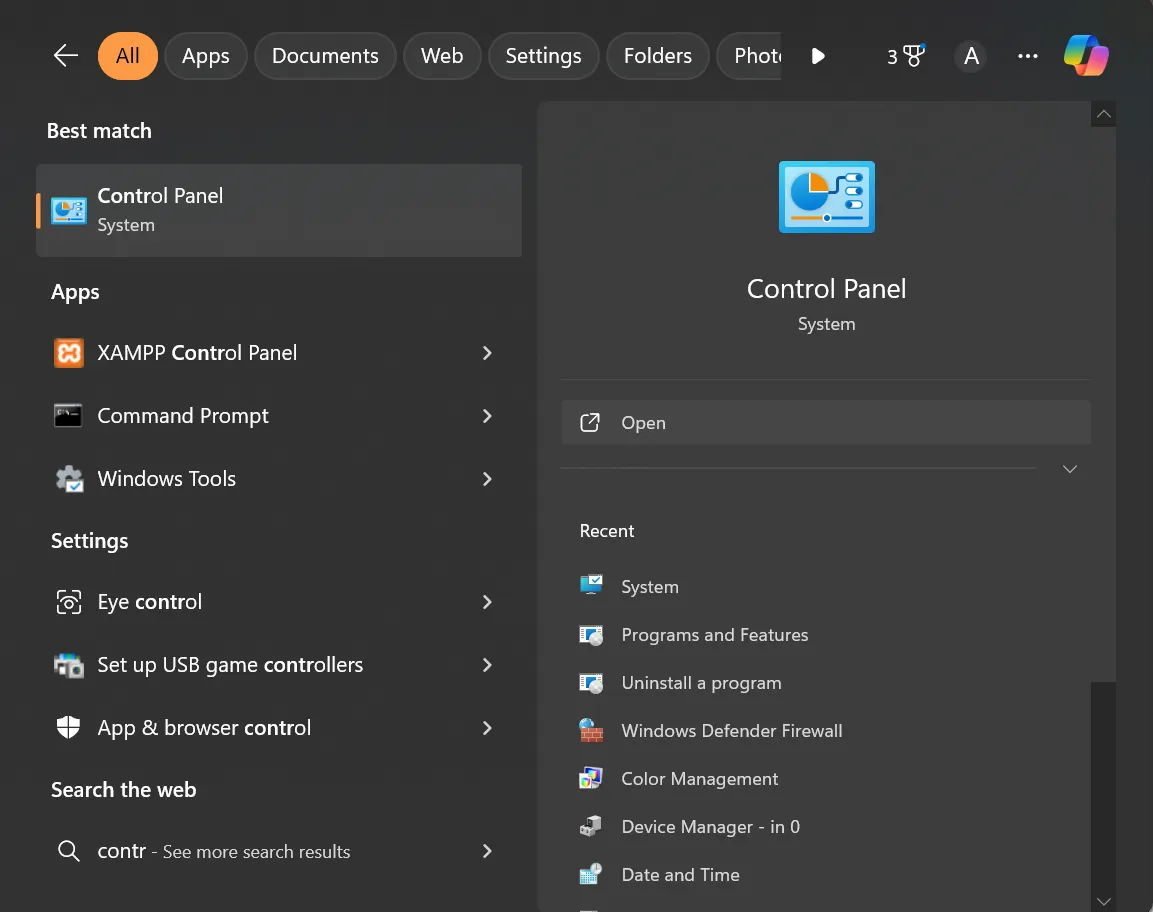
- Navigate to Programs → Programs & Features.
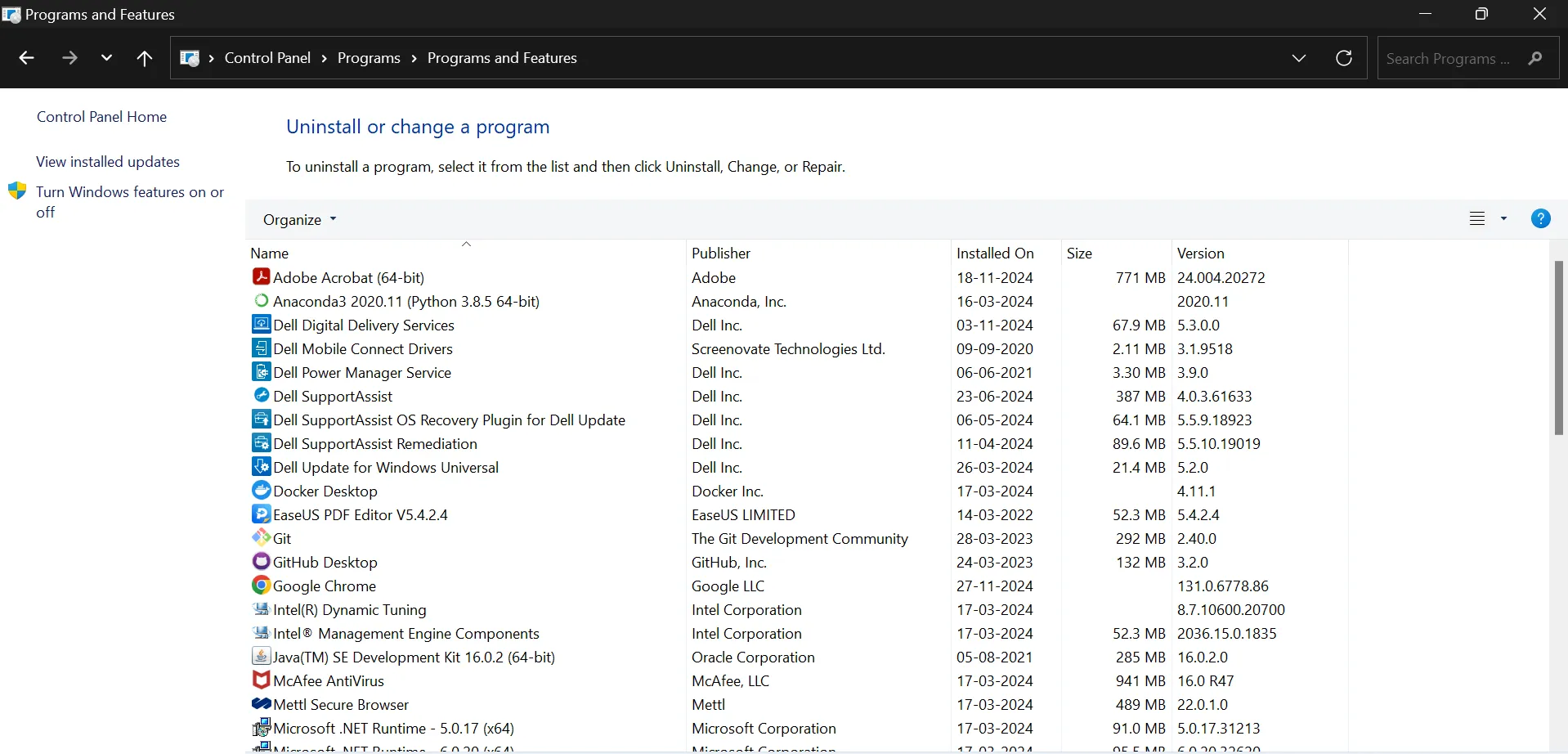
- Find the game you want to delete, right-click it, and select Uninstall.
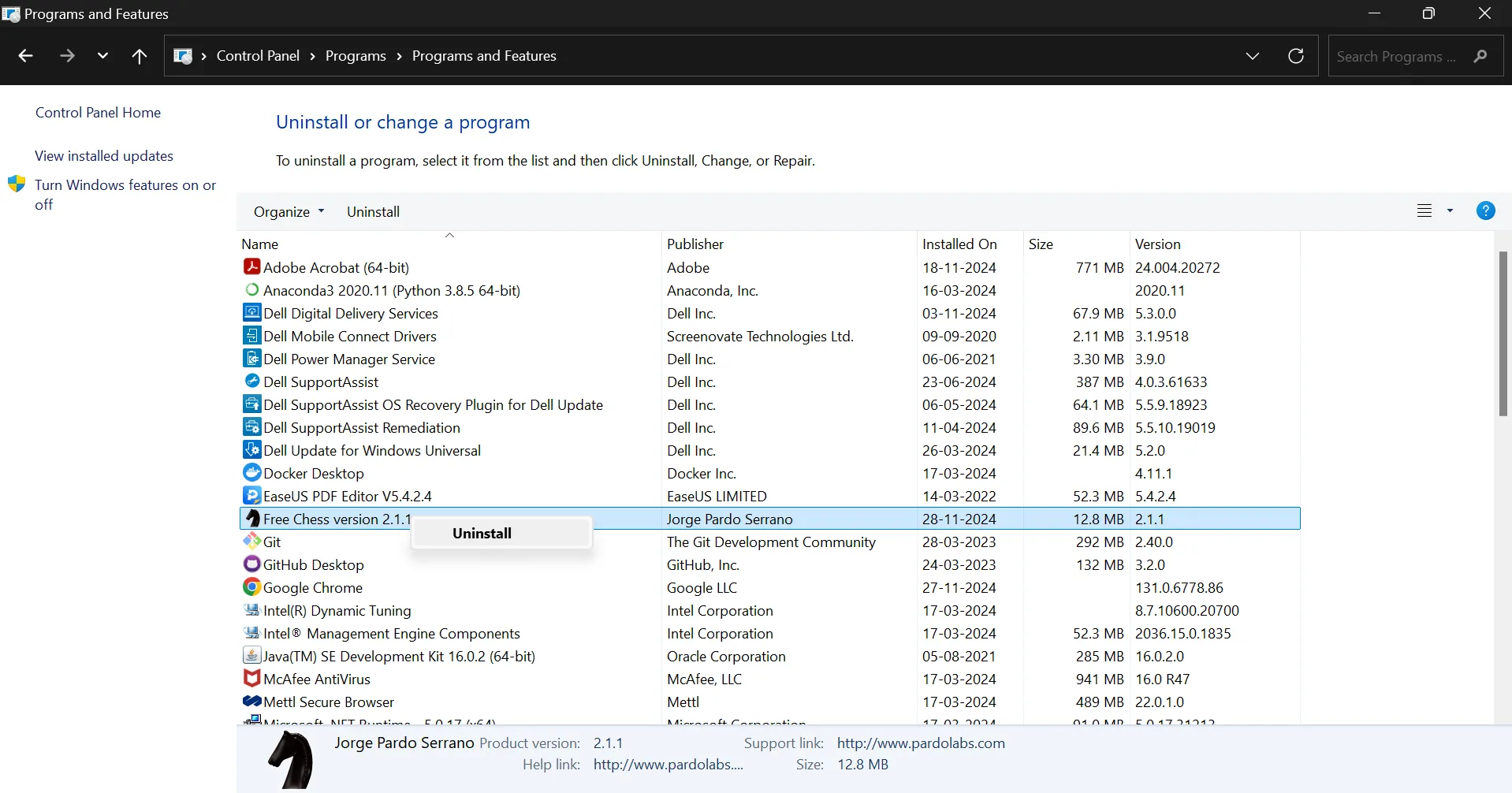
- Follow the on-screen instructions to complete the removal.
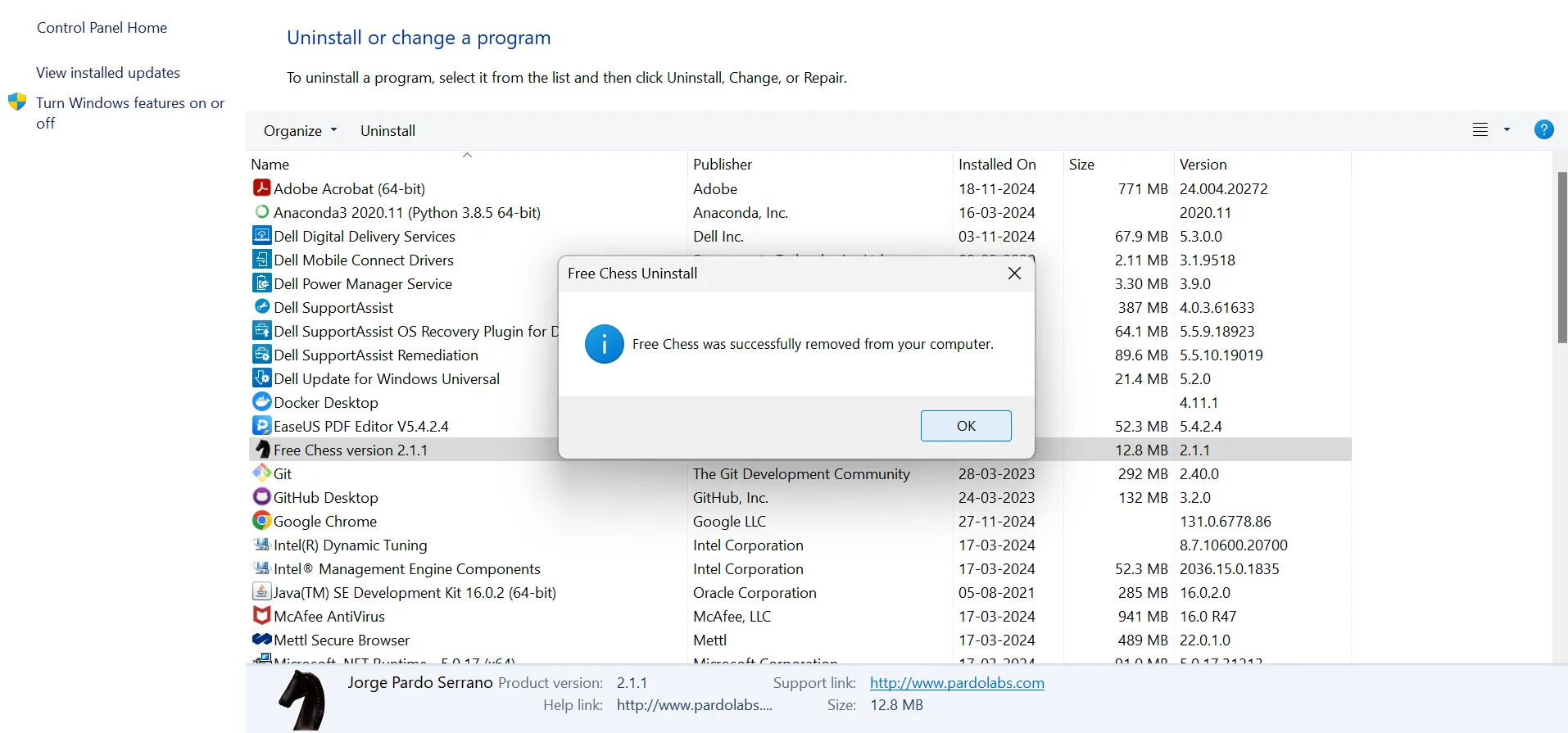 Confirmation of Successful Deletion of Games
Note: Some residual files may remain after this process.
Delete Leftover Files Manually
To ensure no traces remain, manually delete leftover files:
- Press Win + R, type %appdata%, and press OK.
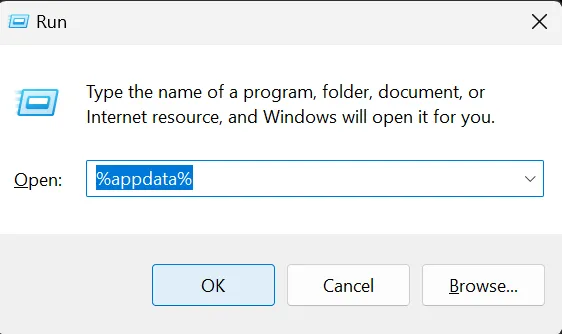
- Delete folders related to the game or its developer.
- Repeat the process by typing %localappdata%.
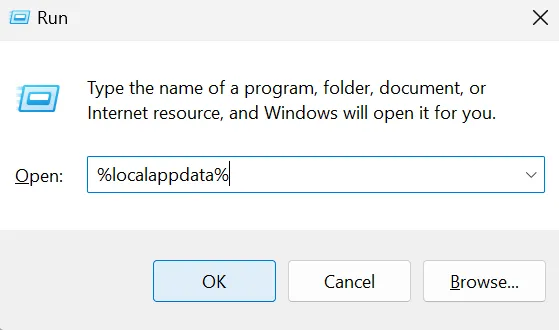 Type %localappdata%
- Check Documents, Program Files, and Program Files (x86) to remove remaining files.
Alternatively, locate the game’s folder, open uninst.exe, and follow the instructions to uninstall.
Use the Game Launcher’s Uninstall Option
Most game launchers allow direct uninstallation:
- Open your game launcher (Steam, Epic Games, Origin, etc.).
- Navigate to your library and select the game.
- Right-click and choose Uninstall.
- Verify the installation folder to ensure all files are removed.
Make Deleted Game Data Irrecoverable
Simply uninstalling games does not guarantee data removal. For secure deletion, tools like SysTools Simple Data Wipe Software permanently erase game files and leftover data, making recovery impossible and protecting your privacy.
Download for Windows | Purchase Now
Download for Mac | Purchase Now
Automated Tool for Easy Game Deletion
If you have multiple games installed, using an automated data-wiping tool simplifies the process:
- Download and install the utility, then launch it from the Start menu.
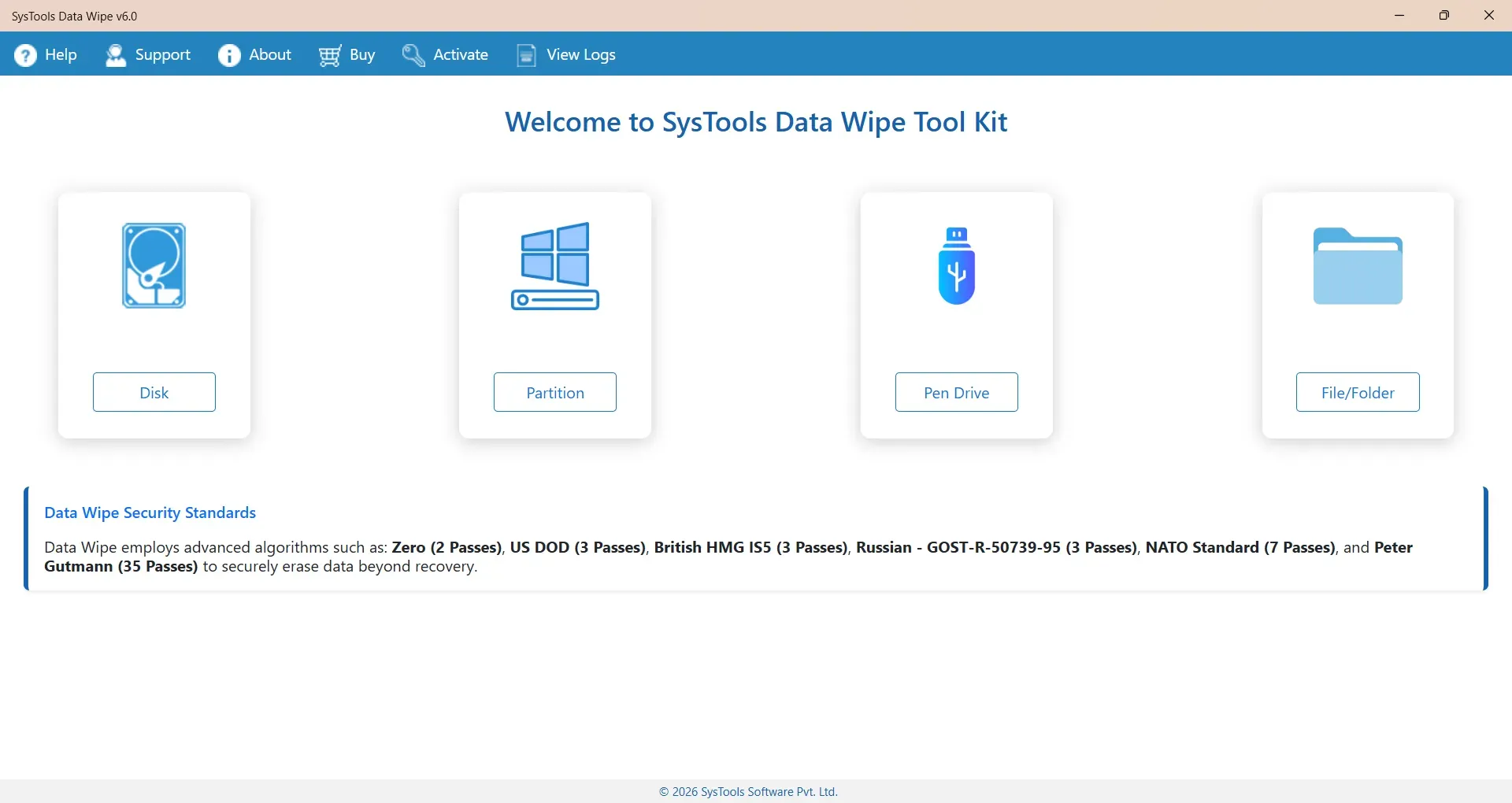
- Right-click the software and select Open.
- Click Select Folder or Select File based on your requirement.
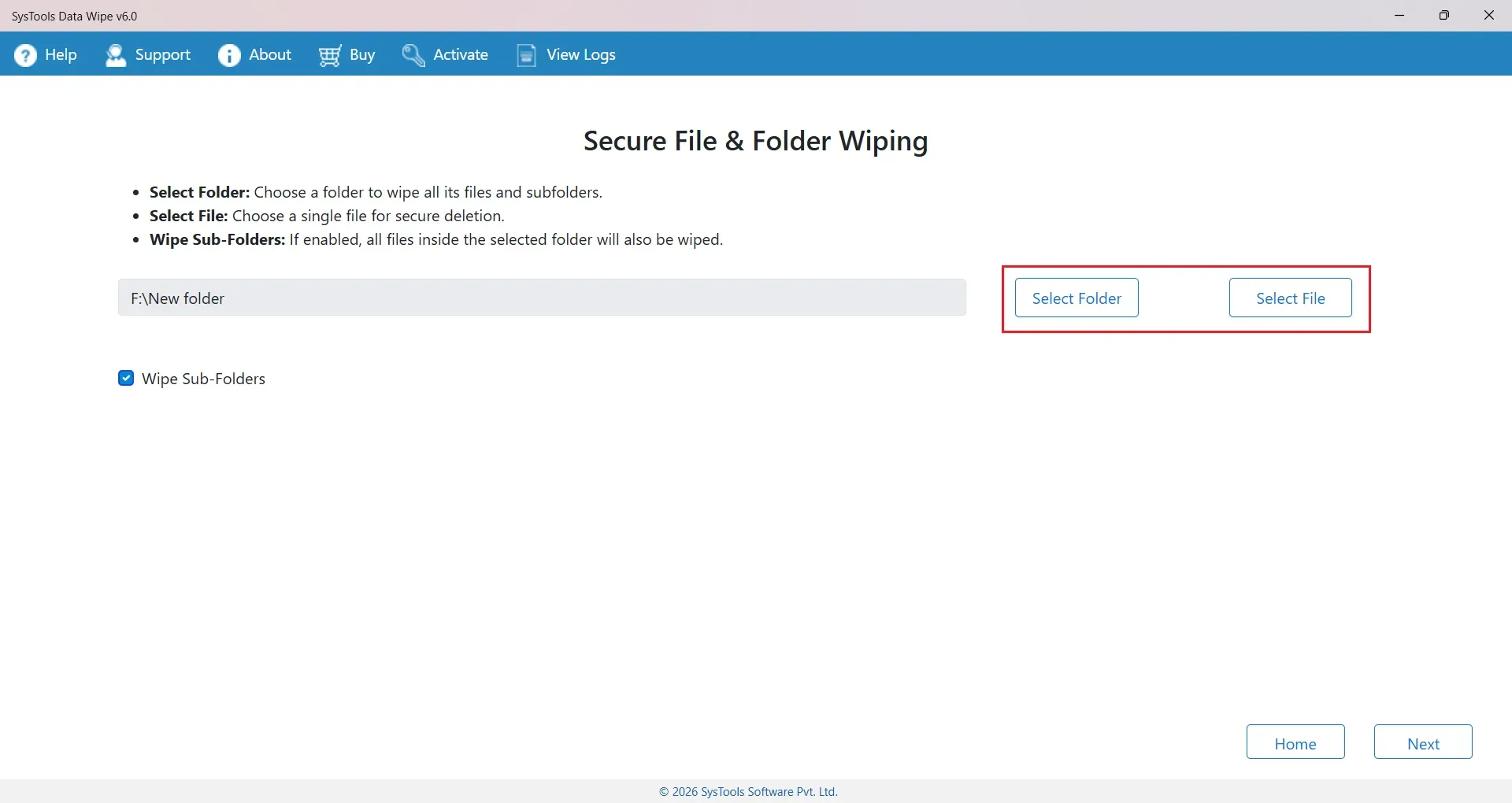 Select File or Folder
- Choose the folder you want to wipe (e.g.,
C:Program Files (x86)Game Name). - Click Next to scan the files.
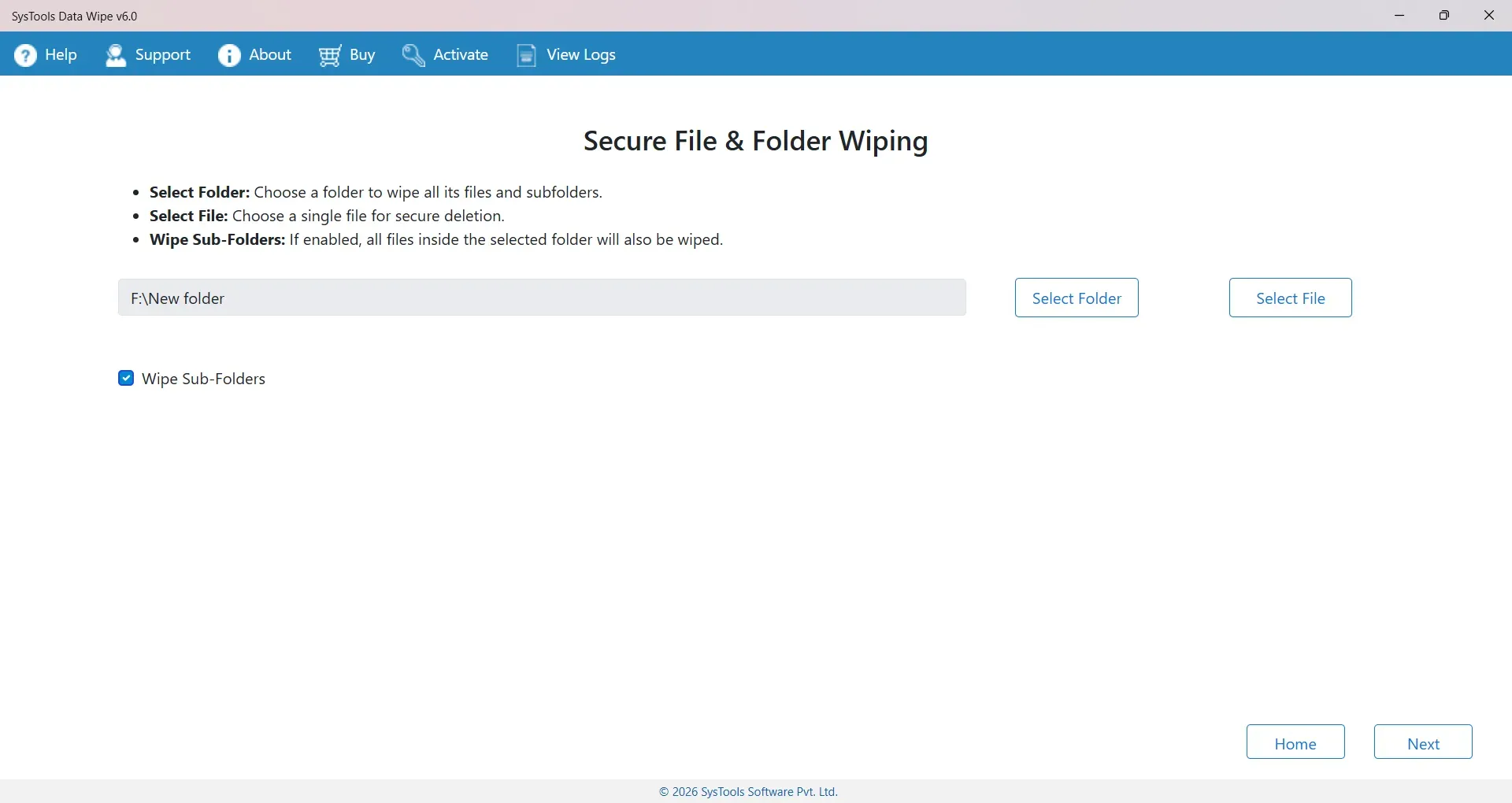
- Select a data-wiping method.
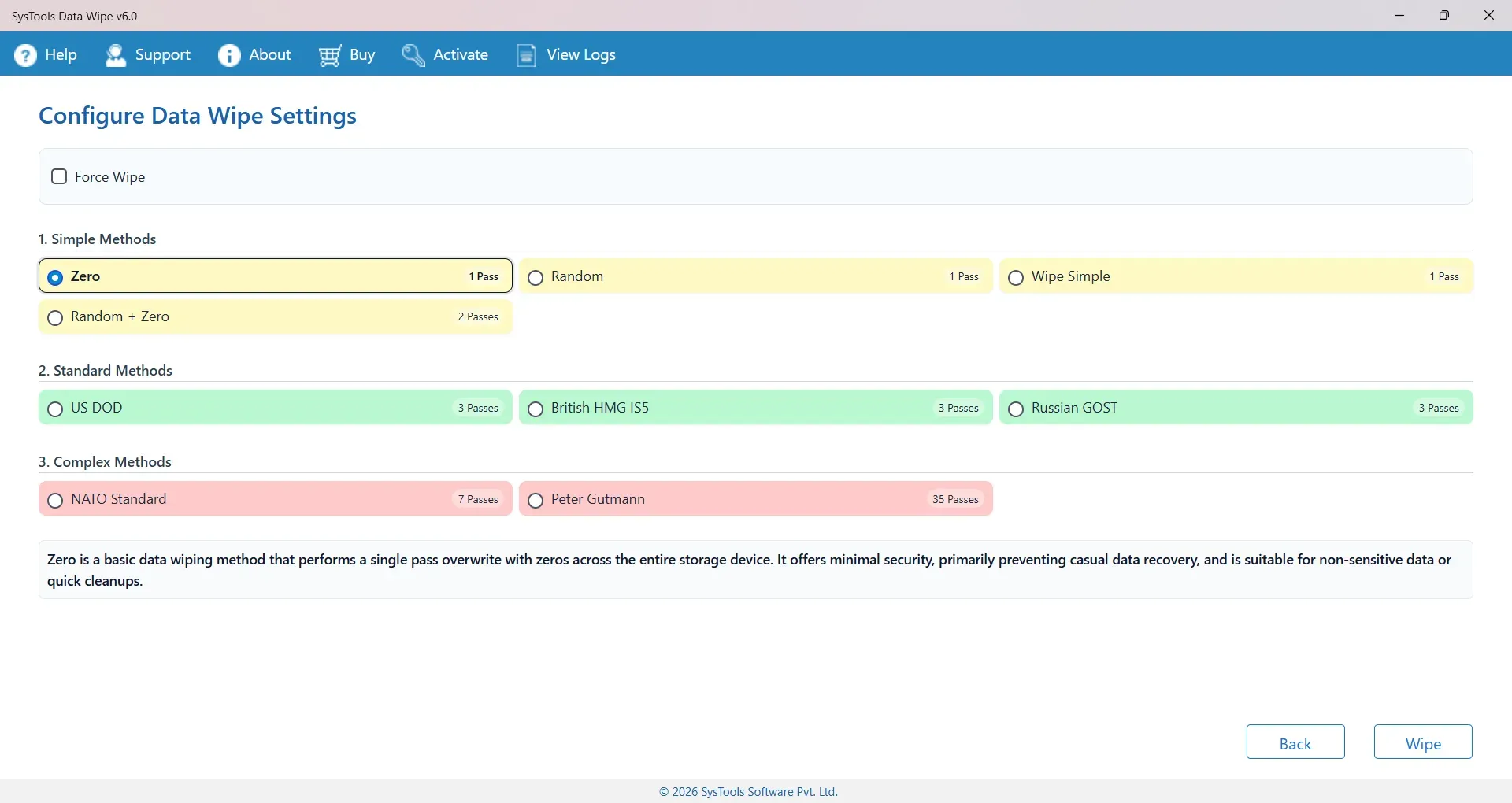 Choose a Data Wiping Method
- Press Wipe to permanently delete the files.
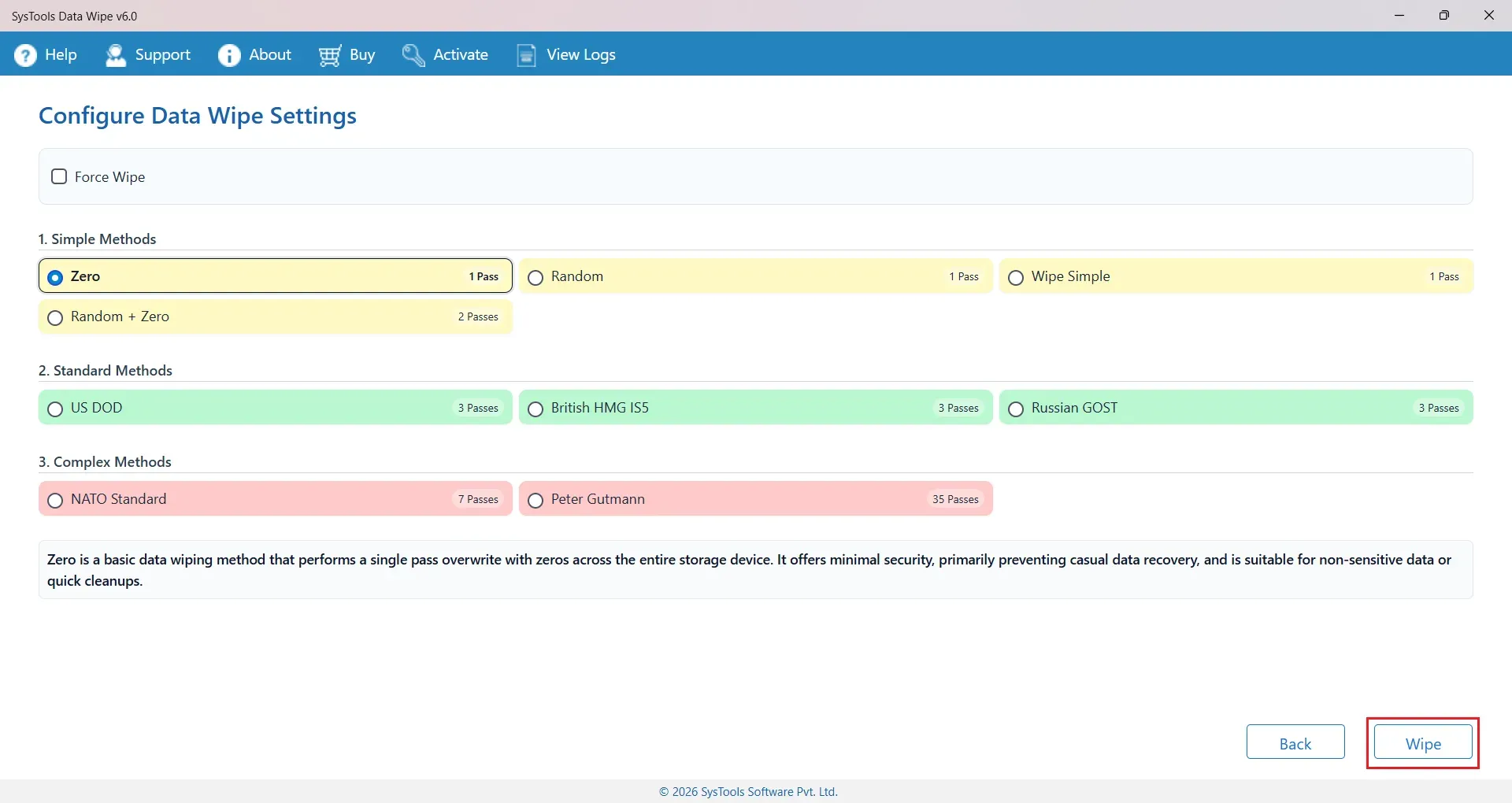 Press on Wipe Button
- Once completed, view the deletion report.
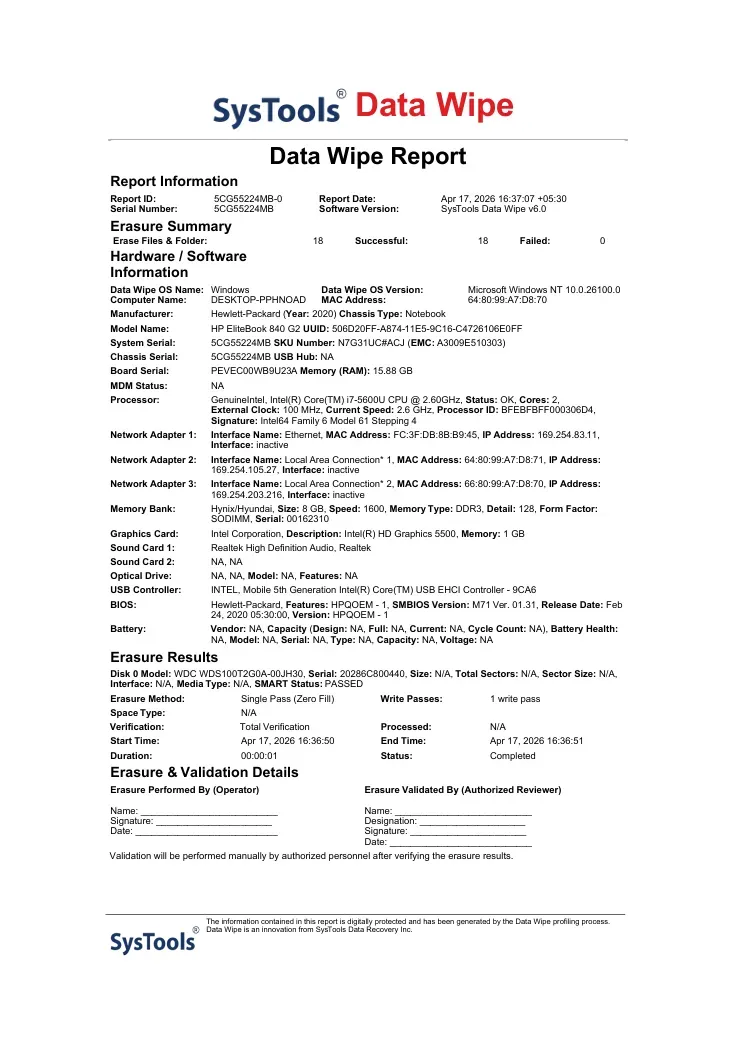 Wiping Report
Conclusion
Deleting games on PC is more than uninstalling—they occupy significant storage and may slow your system. Manual methods work but may leave traces. For complete removal, using a dedicated data-wiping tool ensures your games and leftover files are permanently deleted, safeguarding your privacy and keeping your PC organized and optimized.
By following these steps, you can free up storage, improve performance, and maintain a clean gaming environment. Choose the method that suits your needs and enjoy a faster, clutter-free PC.