When working with Excel, you may often encounter situations where you need to extract specific parts of a text string. For instance, you might want to remove the first four characters from a product code or name. This tutorial will guide you through three effective methods to achieve this using Excel’s built-in functions: RIGHT, MID, and REPLACE.
1. Removing the First Four Characters with the RIGHT Function
Suppose you have a list of product codes and want to remove the first four characters while keeping the remaining part intact.
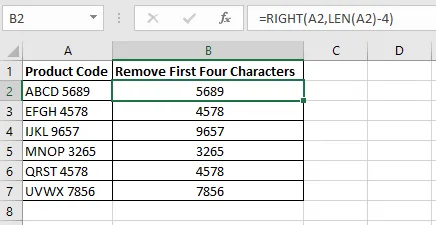
The formula used in cell B2 is:
=RIGHT(A2,LEN(A2)-4)After writing this formula, copy it down the column using the fill handle.
How the Formula Works
RIGHT Function: Extracts a specified number of characters from the right side of a text.
Example:=RIGHT("Aeroplane",4)returns"lane".LEN Function: Returns the length of a text string.
Example:=LEN("Aeroplane")returns9.Combining RIGHT and LEN:
=RIGHT(A2,LEN(A2)-4)calculates the total length of the text in A2, subtracts 4, and extracts that many characters from the right.
ForABCD 5689, the formula returns5689.
Removing the First N Characters
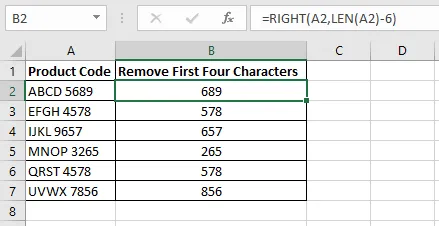
To remove a different number of characters, adjust the -4 in the formula. For example:
- Remove first 6 characters:
=RIGHT(A2,LEN(A2)-6) - Remove first 2 characters:
=RIGHT(A2,LEN(A2)-2)
2. Removing Characters with the MID Function
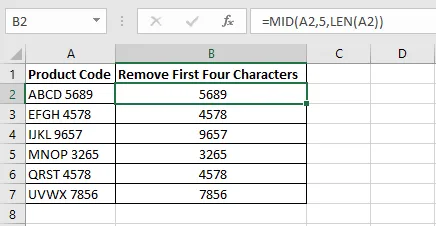
The MID function provides another method to remove the first four characters. Use this formula in cell B2:
=MID(A2,5,LEN(A2))Copy the formula down the column using the fill handle.
How the MID Formula Works
MID Function: Extracts a substring from a text starting at a specified position for a defined length.
Example:=MID("Aeroplane",3,4)returns"ropl".Start Position: The second argument
5indicates the formula starts extracting from the fifth character.Length Argument:
LEN(A2)ensures that all characters from the starting position to the end are included.
Adjusting for Different N Values
To remove a different number of characters, simply change the start position:
- Remove first 3 characters:
=MID(A2,4,LEN(A2)) - Remove first 2 characters:
=MID(A2,3,LEN(A2))
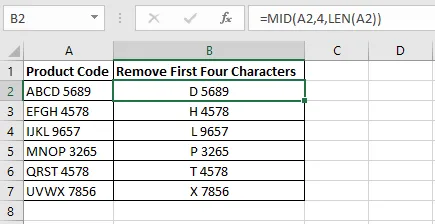 An Excel formula in column B to remove the first three characters from the product codes in column A using the Excel RIGHT and LEN functions
3. Removing Characters Using the REPLACE Function
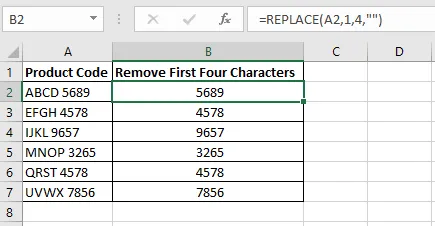
The REPLACE function is a straightforward way to remove the first four characters. Use the following formula in cell B2:
=REPLACE(A2,1,4,"")Copy the formula down the column.
How the REPLACE Formula Works
REPLACE Function: Replaces a portion of text with new text.
Arguments:
A2: Cell containing original text1: Starting position to replace4: Number of characters to replace"": Replacement text (empty string in this case)
This effectively removes the first four characters, leaving the remaining text intact.
Adjusting for Different N Values
To remove a different number of characters, change the third argument:
- Remove first 2 characters:
=REPLACE(A2,1,2,"") - Remove first 6 characters:
=REPLACE(A2,1,6,"")
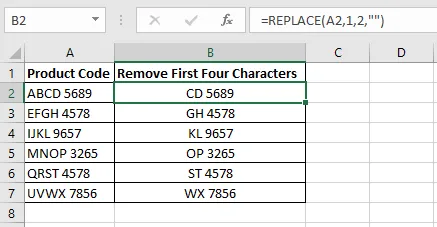 Excel formula in column B to remove the first two characters from the product codes in column A using the Excel REPLACE function
Conclusion
Removing the first few characters in Excel can be done easily using RIGHT, MID, or REPLACE functions. Each method is flexible and can be adjusted for any number of characters. By mastering these techniques, you can save time and streamline your data manipulation tasks in Excel.
Take the next step in Excel mastery:
- Explore more advanced formulas with our book: Excel Formulas and Functions: The Step by Step Excel Guide on how to Create Powerful Formulas