
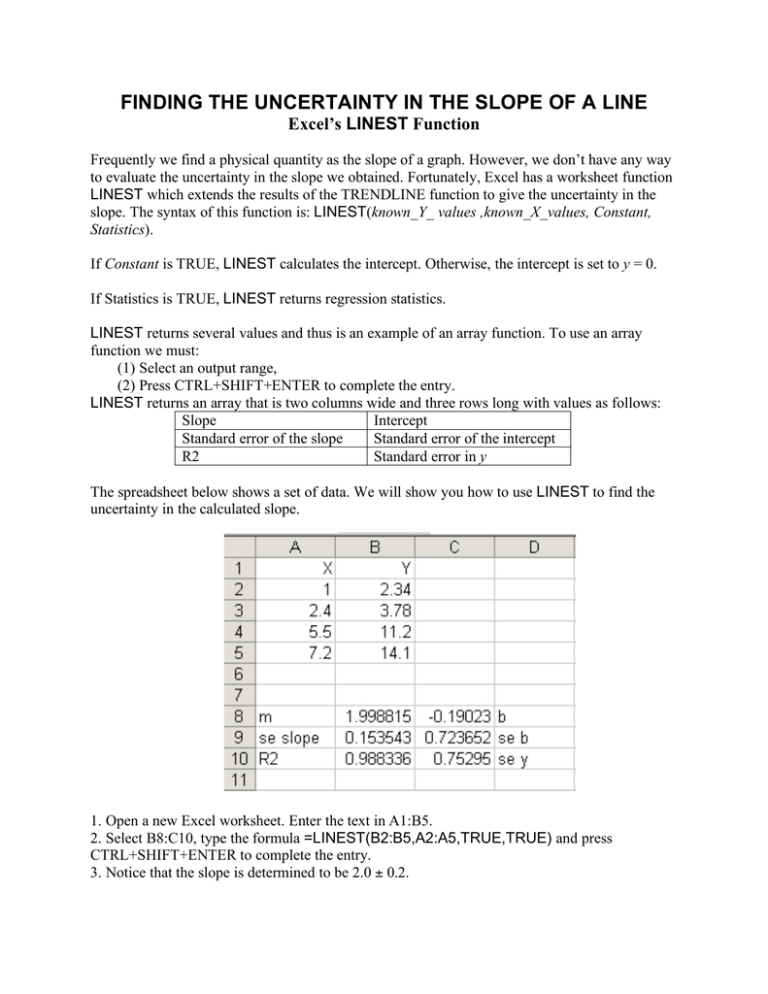
The LINEST function in Excel is a powerful tool for performing linear regression analysis. It allows users to calculate key statistics for a line or a curve, providing insights into relationships between data sets. This guide will walk you through understanding and utilizing the LINEST function with practical examples.
Understanding Linear Regression with LINEST
Linear regression is a statistical method used to model the relationship between a dependent variable and one or more independent variables. The LINEST function in Excel specifically calculates the statistics for a straight line or a curve using the least-squares method. This means it finds the line that best fits your data by minimizing the sum of the squares of the vertical distances from each data point to the line.
Key Applications of LINEST
The LINEST function is versatile and can be applied in various scenarios:
- Calculating Slope and Y-Intercept: Determine the fundamental parameters of a linear equation.
- Simple Linear Regression: Analyze the relationship between two variables.
- Multiple Linear Regression: Investigate how multiple independent variables influence a dependent variable.
- Statistical Analysis: Assess the reliability of regression results using statistics like R-squared and F-statistics.
Practical Examples of LINEST in Excel
Let’s explore how to use the LINEST function with concrete examples.
Example 1: Slope and Y-Intercept Calculation
This example demonstrates how to find the slope and y-intercept of a line using known y and x values.
Copy the following data into your Excel worksheet, starting from cell A1:
| Known y | Known x |
|---|---|
| 1 | 0 |
| 9 | 4 |
| 5 | 2 |
| 7 | 3 |
| Result (slope) | Result (y-intercept) |
| 2 | 1 |
In cells A7 and B7, enter the following array formula:
=LINEST(A2:A5,B2:B5,,FALSE)
This formula calculates the slope (in A7) and the y-intercept (in B7) based on the provided data. The FALSE argument indicates that you are not forcing the y-intercept to be zero.
Example 2: Simple Linear Regression for Sales Forecasting
Here, we use LINEST to estimate future sales based on historical data.
Enter this data into your Excel worksheet, starting from cell A1:
| Month | Sales |
|---|---|
| 1 | $3,100 |
| 2 | $4,500 |
| 3 | $4,400 |
| 4 | $5,400 |
| 5 | $7,500 |
| 6 | $8,100 |
To estimate sales for the ninth month, use the following formula in a cell:
=SUM(LINEST(B1:B6, A1:A6)*{9,1})
This formula calculates the estimated sales for the ninth month by applying the regression line derived from months 1 through 6. This showcases how Excel’s forecasting capabilities can be enhanced with LINEST.
Example 3: Multiple Linear Regression for Property Valuation
This example illustrates how to predict the assessed value of an office building based on multiple factors like floor space, number of offices, entrances, and age.
Input the following data into your Excel worksheet, starting from cell A1:
| Floor space (x1) | Offices (x2) | Entrances (x3) | Age (x4) | Assessed value (y) |
|---|---|---|---|---|
| 2310 | 2 | 2 | 20 | $142,000 |
| 2333 | 2 | 2 | 12 | $144,000 |
| 2356 | 3 | 1.5 | 33 | $151,000 |
| 2379 | 3 | 2 | 43 | $150,000 |
| 2402 | 2 | 3 | 53 | $139,000 |
| 2425 | 4 | 2 | 23 | $169,000 |
| 2448 | 2 | 1.5 | 99 | $126,000 |
| 2471 | 2 | 2 | 34 | $142,900 |
| 2494 | 3 | 3 | 23 | $163,000 |
| 2517 | 4 | 4 | 55 | $169,000 |
| 2540 | 2 | 3 | 22 | $149,000 |
Enter the following dynamic array formula in cell A19:
=LINEST(E2:E12,A2:D12,TRUE,TRUE)
This formula outputs a range of statistics, including the coefficients for each independent variable, the R-squared value, and other statistical measures. Understanding how to interpret these outputs is crucial for accurate analysis, similar to how one might use the Quick Analysis tool in Excel for basic data exploration.
Example 4: Using F and R-squared Statistics
The R-squared value (coefficient of determination) from the LINEST output indicates how well the regression line fits the data. A value close to 1 suggests a strong relationship. The F statistic helps determine if this strong relationship is statistically significant or likely due to chance.
In Example 3, the R-squared value is approximately 0.99675. To test the significance, you can compare the F statistic (459.75 in cell A18 of the output) with a critical F value or use Excel’s FDIST function.
With 11 data points (n=11) and 6 degrees of freedom (df=6), and assuming the constant is included (TRUE), the degrees of freedom for the F distribution are v1 = n – df – 1 = 11 – 6 – 1 = 4 and v2 = df = 6.
Using the formula =FDIST(459.753674, 4, 6), you get a probability of approximately 1.37E-7. This extremely small probability indicates that it’s highly unlikely for an F value this high to occur by chance. Therefore, the regression equation is useful for predicting assessed values.
Example 5: Calculating t-Statistics
The t-statistic helps determine if each individual slope coefficient is statistically significant. This is done by dividing the slope coefficient by its estimated standard error.
For the ‘Age’ variable in Example 3, the slope coefficient is approximately -234.24 and its standard error is about 13.268. The calculated t-observed value is:
t = -234.24 / 13.268 = -17.7
To assess significance, compare the absolute value of the t-observed value with a critical t-value. For a two-tailed test with 6 degrees of freedom and an Alpha level of 0.05, the critical t-value is 2.447 (obtainable using TINV(0.05,6) in Excel).
Since the absolute value of t (17.7) is greater than 2.447, the ‘Age’ variable is statistically significant in predicting the assessed value. Applying this to all variables in Example 3 reveals that floor space (5.1), number of offices (31.3), number of entrances (4.8), and age (17.7) are all significant predictors. This comprehensive statistical analysis provides a robust understanding of the data, going beyond what might be offered by basic tools like comparing Excel and Open Office Calc.
Conclusion and Call to Action
The LINEST function is an indispensable tool for anyone looking to perform in-depth statistical analysis within Excel. By understanding its capabilities and working through these examples, you can effectively model data, forecast trends, and draw statistically sound conclusions.
Ready to enhance your data analysis skills? Experiment with the LINEST function on your own datasets and unlock deeper insights.