
Amazon’s evolving platform means keeping track of your order history requires updated strategies. This guide provides a comprehensive walkthrough for importing your Amazon order history into Microsoft Excel and Google Sheets, along with advanced techniques for detailed analysis using Tiller.
Importing Amazon Order History into Microsoft Excel
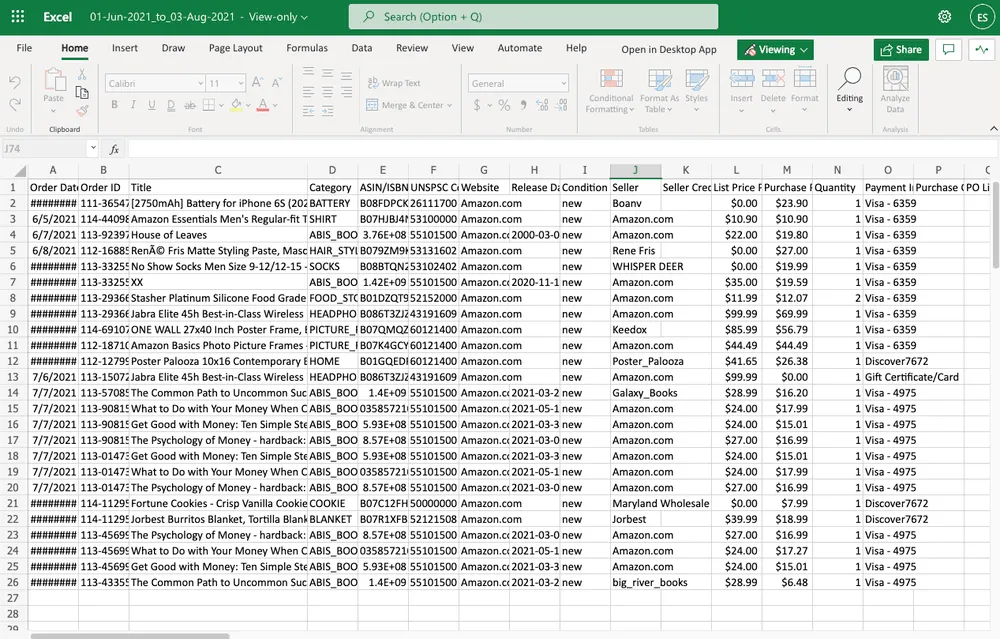
To effectively analyze your Amazon purchases within Microsoft Excel, follow these steps:
- Access Excel Online: Navigate to excel.cloud.microsoft and log in to your account.
- Upload Your File: Click on the “Upload a file” option.
- Select the Correct CSV: Choose the appropriate CSV file from your downloads. Amazon now provides multiple files, such as orders and returns. Ensure you select the correct one for your analysis. You may need to repeat this process for other relevant files.
Upon successful upload, your Amazon report will be ready for in-depth analysis and archival within Microsoft Excel.
Importing Amazon Order History into Google Sheets
For those who prefer Google Sheets, importing your Amazon order history is equally straightforward:
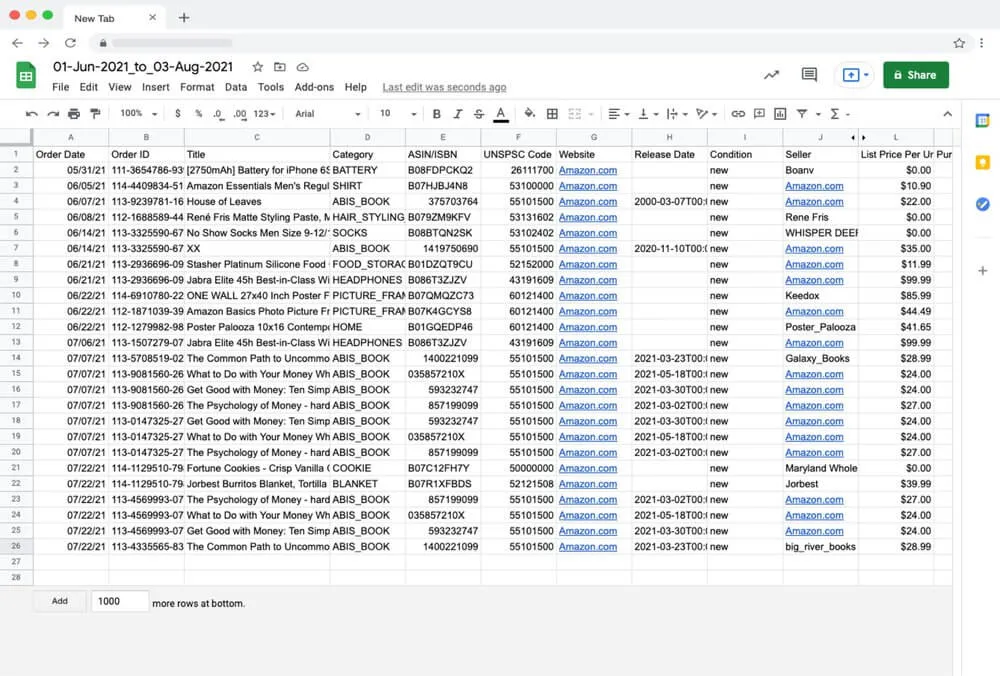
- Open a New Spreadsheet: Log in to your Google Account and create a new Google Spreadsheet.
- Initiate Upload: Go to “File” > “Open” > “Upload.”
- Add Your CSV File: Drag and drop your Amazon CSV file into the upload window, or click “Browse” to select it from your device. Similar to Excel, Amazon may provide several CSV files; ensure you import the correct one and repeat if necessary.
Your Amazon report will then be accessible for analysis and backup within Google Sheets.
Advanced Tracking with Tiller for Amazon Order History
For a more streamlined and automated approach to managing your financial data, Tiller offers a powerful solution. If you’re already a Tiller user, you know its capability to automatically update Google Sheets and Excel with your daily financial transactions, eliminating manual data entry and the need to log into multiple accounts.
Tiller natively integrates with your accounts to pull in Amazon order transactions. However, for granular detail, such as categorizing individual items within a larger order, Tiller’s free CSV Importer is invaluable.
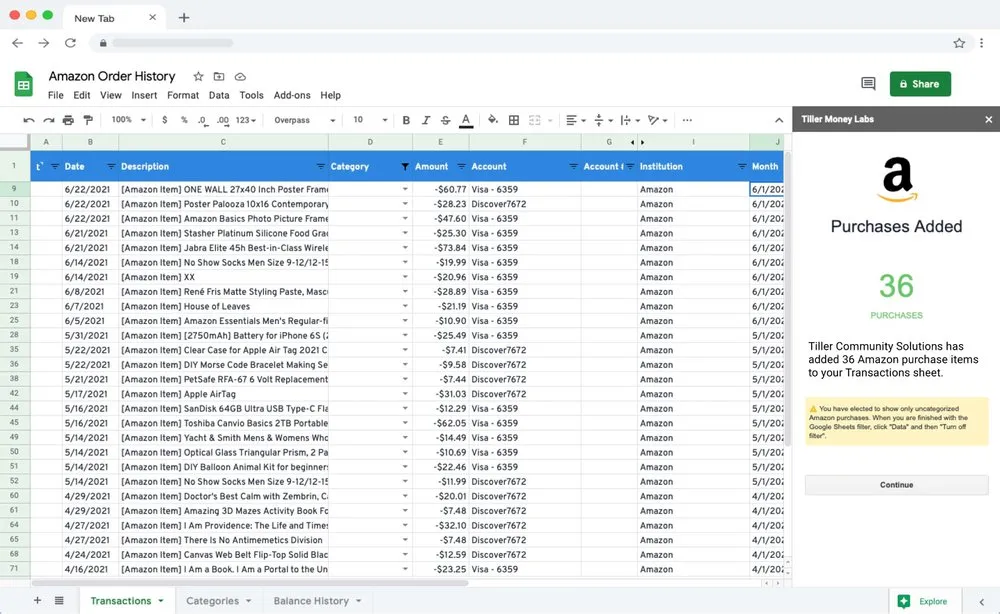
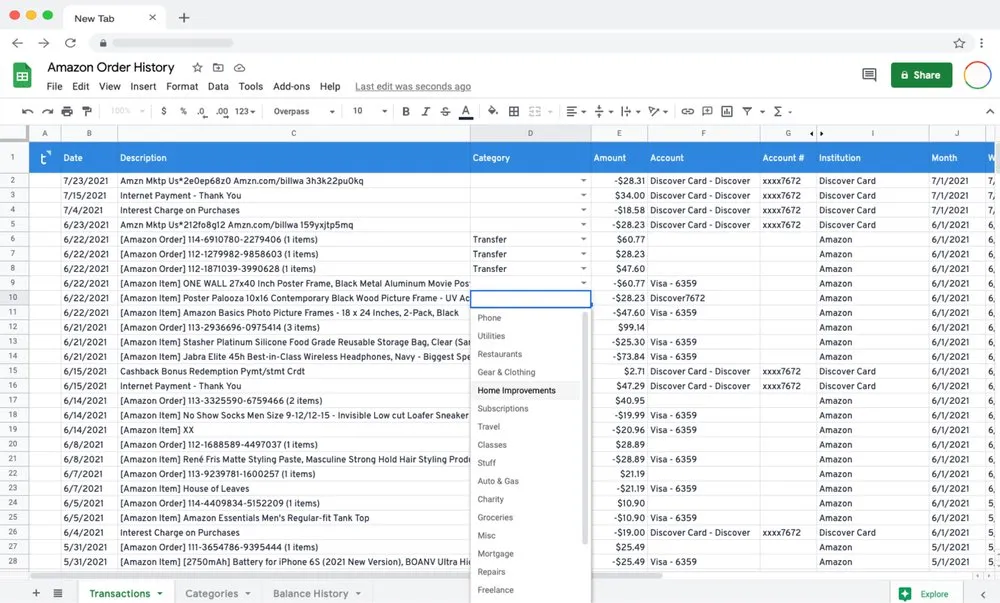
This tool, available through the Tiller Community, automates the itemization of your Amazon orders into discrete line items within your Tiller-powered Google Sheet. It can process the Retail.OrderHistory.1.csv file from Amazon’s “Your Orders” download.
The CSV Importer ensures accurate cash flow reporting by creating offsets and adding new rows for each purchased item. It clearly displays the price paid for each product and includes the product’s name and details.
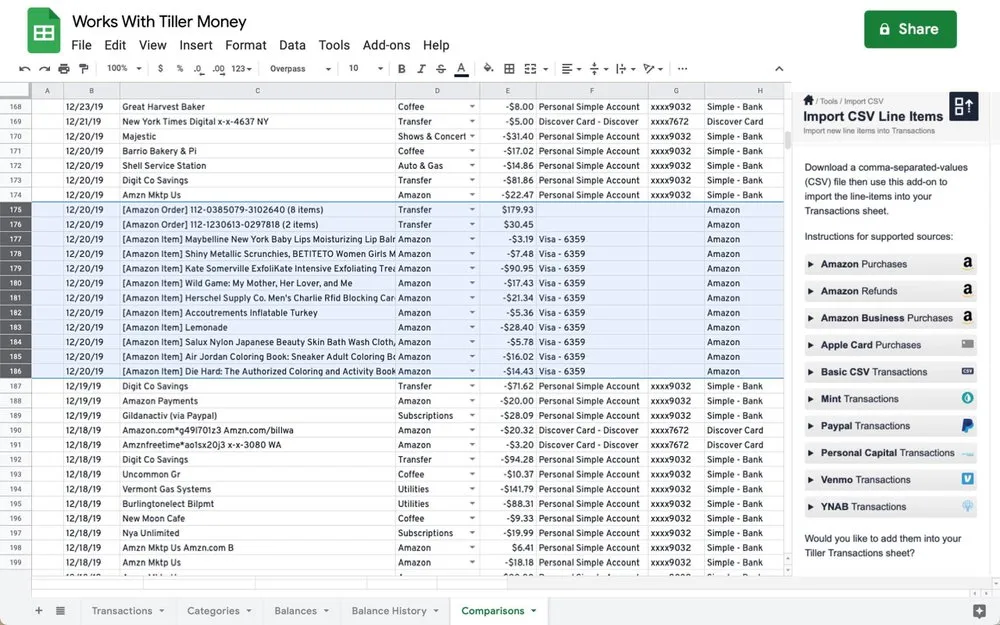 CSV File Importer Works With Tiller Money
Leveraging AutoCat for Efficient Categorization
Once your detailed order history is imported into your Tiller spreadsheet, you can categorize each transaction. Tiller’s AutoCat feature further enhances this process by enabling efficient auto-categorization of transactions based on custom rules you define. This significantly reduces the time spent on manual categorization, allowing for more accurate financial tracking.
To learn more about the CSV Importer and its capabilities, visit the Tiller Community. Share your thoughts and questions there!