
Managing large datasets in Microsoft Excel can quickly become overwhelming without the right tools. One of the most effective ways to summarize and organize worksheet data is by using the Subtotal feature. Whether you want to calculate totals, averages, or counts for grouped records, Excel can automatically generate subtotals and grand totals with just a few clicks.
This guide explains how to use Excel subtotals effectively, including how to create single-level and nested subtotals, customize summary functions, and remove subtotals when needed. If you regularly work with sales reports, inventory lists, or financial spreadsheets, mastering this Excel feature can save significant time and improve data analysis accuracy.
What Are Subtotals in Excel?
The Subtotal command in Excel automatically calculates summary values such as:
- Sum
- Average
- Count
- Max
- Min
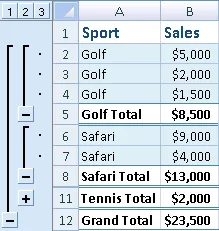
These calculations are applied to grouped data using Excel’s built-in SUBTOTAL function. Excel also creates a structured outline that lets you collapse or expand detail rows for easier navigation.
A key advantage of subtotals is that grand totals are calculated from the original detail data, not from subtotal values. This ensures more accurate calculations, especially when using functions like Average.
Important Notes Before Using Subtotals
Before inserting subtotals in Excel, keep these important requirements in mind:
- Each column should contain a header label in the first row.
- Data should be organized consistently without blank rows or columns.
- The dataset must be sorted by the column you want to group.
- The Subtotal feature does not work directly with Excel Tables.
If the Subtotal button appears grayed out, convert the table into a normal data range first. Alternatively, you can use a PivotTable for advanced data summarization.
How to Insert One Level of Subtotals in Excel
Single-level subtotals are useful when you want to summarize data based on one category, such as product type, department, or region.
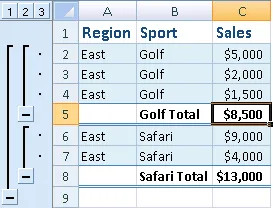
For example, you may want to subtotal sales figures by sport category.
After sorting your dataset correctly, follow these steps:
Step 1: Sort the Data
Select the column you want to group by, then go to:
Data → Sort & Filter → Sort A to Z
or
Sort Z to A
Sorting ensures Excel can group related records properly.
Step 2: Open the Subtotal Tool
Go to:
Data → Outline → Subtotal
The Subtotal dialog box will appear.
Step 3: Configure the Subtotal Settings
Inside the dialog box:
- In At each change in, select the grouping column.
- In Use function, choose a summary function such as Sum.
- In Add subtotal to, select the columns containing numeric values.
For example:
- Group by: Sport
- Function: Sum
- Add subtotal to: Sales
Step 4: Customize Additional Options
You can further customize subtotal behavior using these settings:
- Page break between groups: Inserts automatic page breaks after each group.
- Summary below data: Displays subtotal rows beneath detail rows.
- Clear Summary below data if you prefer summaries above the records.
Step 5: Add Additional Summary Functions
Excel allows multiple subtotal calculations for the same dataset.
For example, you can display both:
- Total Sales
- Average Sales
To avoid overwriting existing subtotals, clear the Replace current subtotals checkbox before adding another calculation.
How to Create Nested Subtotals in Excel
Nested subtotals allow you to summarize data within larger groups. This is especially useful for multi-level reports.
For example:
- Outer group: Region
- Inner group: Sport
- Summary: Sales totals
Insert the Outer Subtotals
First, create the primary subtotal grouping.
Steps for Outer Subtotals
- Sort the dataset by the outer category.
- Open the Subtotal dialog box.
- Select the outer grouping field, such as Region.
- Choose the calculation function, such as Sum.
- Select the value column, such as Sales.
- Configure optional settings if needed.
After applying the subtotal, Excel inserts summary rows for each region.
Insert Nested Subtotals
Next, create the inner subtotal group.
Steps for Nested Subtotals
- Open the Subtotal dialog again.
- In At each change in, select the nested category, such as Sport.
- Choose the summary function.
- Clear the Replace current subtotals option.
- Apply the subtotal.
Excel will now display layered subtotal levels within each region.
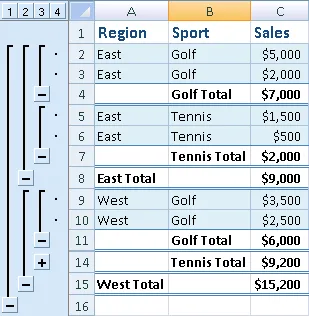
This structure makes complex reports much easier to analyze and navigate.
How to Expand or Collapse Subtotals
Once subtotals are added, Excel automatically creates outline controls beside the row numbers.
You can:
- Collapse detail rows to show only subtotals
- Expand groups to review detailed records
- Display only grand totals for a simplified report view
This feature is especially useful when working with large Excel datasets and financial reports.
How to Remove Subtotals in Excel
If you no longer need subtotals, Excel allows you to remove them quickly without deleting your data.
Steps to Remove Subtotals
- Select any cell within the subtotal range.
- Go to:
Data → Outline → Subtotal
- In the dialog box, click Remove All.
Excel will remove all subtotal rows and outline formatting while keeping the original dataset intact.
Common Issues When Using Excel Subtotals
Subtotal Option Is Grayed Out
This usually happens because the data is formatted as an Excel Table. Convert it to a normal range before using the feature.
Subtotals Disappear After Filtering
When filters are applied, subtotal rows may become hidden. Clearing all filters usually restores the subtotal display.
Incorrect Grouping Results
If subtotals are not grouping correctly, verify that the data is sorted by the grouping column before applying the Subtotal command.
Best Practices for Using Subtotals in Excel
To get the best results with Excel subtotals:
- Keep datasets clean and consistent
- Avoid blank rows or merged cells
- Sort data before grouping
- Use clear column headers
- Combine subtotals with filters for faster analysis
For advanced reporting, consider combining subtotals with PivotTables, conditional formatting, and Excel formulas.
Conclusion
The Excel Subtotal feature is a powerful built-in tool for summarizing and organizing large datasets efficiently. Whether you need simple grouped totals or complex nested summaries, subtotals help streamline data analysis while improving spreadsheet readability.
By understanding how to sort data, apply summary functions, and manage nested groupings, you can build cleaner and more professional Excel reports in less time. Start using Excel subtotals in your daily workflow to simplify reporting, improve productivity, and make data-driven decisions faster.