

You cannot directly convert a Revit 2025 RVT file to Revit 2023 because Revit does not support saving files to older versions. The practical workaround is to export the Revit 2025 model as an IFC file and import that IFC into Revit 2023 for geometry exchange and coordination.
If you have a Revit 2025 model and need to open it in Revit 2023, you have hit a hard limit in Autodesk’s version policy. Revit does not include a native “Save As” function for older versions. This means you cannot directly convert an RVT file from 2025 to 2023. The core answer is that you will need a workaround, and the most practical method is to export your model to IFC (Industry Foundation Classes) from Revit 2025 and then import that IFC file into Revit 2023.
Revit 2025 to 2023 conversion: what actually works
Revit 2025 files cannot be opened directly in Revit 2023. When you attempt to open a newer-version RVT file, Revit 2023 will display a version mismatch error and refuse to load the model. The underlying reason is that Autodesk structures the RVT file format to be forward-compatible, meaning newer versions can open older files, but the reverse is not supported. This is a deliberate design choice to manage the complexity of evolving BIM features and database schemas. There is no official converter, plugin, or hidden setting that will allow Revit 2023 to read a native Revit 2025 RVT file.
Understanding this limitation is the first step. It prevents you from spending time searching for a non-existent tool and pushes you toward the practical workflows that do work. The common alternatives for moving data from a newer to an older Revit version are:
- IFC export and import: Exports geometry and basic property data to an open-standard format that Revit 2023 can read.
- Coordination Model linking: Uses Autodesk Docs to reference a newer-version model for coordination and clash detection, without making it editable.
- Manual rebuilding: Recreating the necessary model elements natively in Revit 2023.
A direct file conversion that preserves all Revit intelligence is not possible. The goal is to equip you with the workflow that best matches your project needs, starting with the most commonly applicable method: the IFC transfer.

Move a Revit 2025 model into Revit 2023
The IFC workflow is the closest you can get to a file conversion for model geometry and basic information. It involves exporting a clean IFC file from Revit 2025 and then importing that IFC file into Revit 2023. The result is a model you can view, coordinate, and use for clash detection, but it will not behave as a native Revit file. This process is suitable for exchanging model geometry when a fully editable RVT file is not required.
Preparing the Revit 2025 export file
Before exporting, clean up the model to ensure only the necessary information is transferred. Open your Revit 2025 project and review the scope. Remove any views, sheets, or links that are not required for the exchange. This simplifies the export and reduces the potential for errors.
To start the export, go to the File menu, select Export, and then choose IFC. In the IFC Export dialog, you will need to select a configuration. For a standard geometry exchange, the default IFC 2×3 Coordination View 2.0 setup is often sufficient. If you are working with structural elements, consider the IFC 4 Reference View, which handles structural profiles and precast elements better. In practical Revit work, the coordination view is the most reliable for general architectural and MEP model exchange.
Before finalizing the export, check the model elements. Families that contain complex nested components or adaptive points can sometimes export with unexpected geometry. The export process will generate a file with an .ifc extension. A common failure mode is selecting an export scope that is too broad, resulting in a file that is large and slow to import. Use the Export command on the File menu and select the specific 3D view you want to export to control the scope.

Importing and organizing the IFC model
In Revit 2023, open a new or existing project. Go to the Insert tab and click on Import IFC. Browse to the .ifc file you exported from Revit 2025. Revit will analyze the file and display the IFC Import Options dialog. Here, you can control how the IFC data is mapped to Revit categories. The default settings are generally adequate for a successful import.
The imported model will appear as a set of elements, each assigned to a Revit category. For instance, an IFC wall becomes a Revit wall, and an IFC slab becomes a Revit floor. However, these elements will be “dumb” solids and surfaces. They are not native Revit families with parametric constraints. After the import, use the Visibility/Graphics settings to manage the display of the imported elements. You can also use the IFC Class parameter to filter and select elements of a specific type. This is the point where you begin to assess what has come through the transfer.
Data changes after using IFC as a downgrade workaround
Using IFC as a downgrade workaround is a compromise. You are trading native editing capability for access to the model geometry. This section details exactly what you lose and what remains, which is critical for making an informed decision about whether this workflow is acceptable for your project.
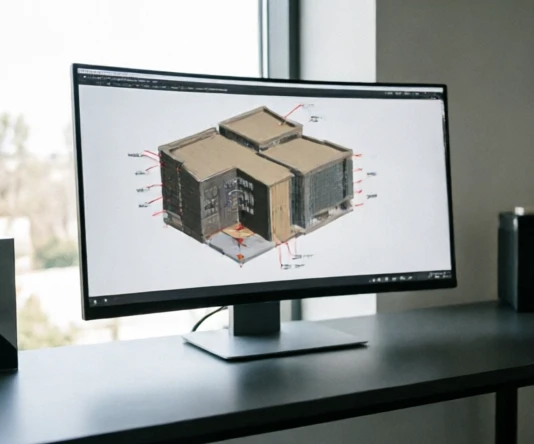
Revit features affected by IFC transfer
The IFC format is designed to exchange model data, not to preserve the full intelligence of a Revit file. As a result, several core Revit features are fundamentally altered or lost.
- Parametric Behavior: Native Revit walls and floors are driven by constraints and formulas. After IFC import, these elements lose their parametric relationships. You cannot, for example, change the height of a wall by editing a type parameter; you must manually edit the shape of the solid.
- Families and Types: IFC does not recognize Revit families. Instead, it classifies elements by their IFC class (e.g., IfcWall, IfcSlab). All elements of a given IFC class are imported as Revit generic models or system families, depending on the mapping. The concept of a hosted family, like a door hosted to a wall, is lost. The door and the wall become separate, unconnected elements.
- Worksharing Data: Any worksharing information, such as who created an element or when it was last modified, is not preserved in the IFC export. The imported model is static.
- Phases and Design Options: Phase information is generally not maintained. The entire imported model will belong to the same phase. Design options are also flattened; you will need to re-establish these project structures in Revit 2023.
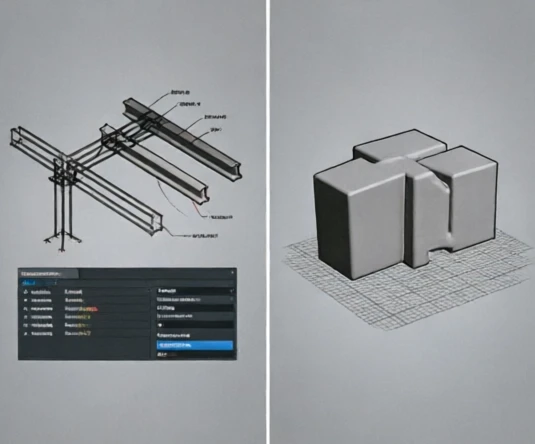
Model intelligence that may not survive
Beyond the standard features, the kind of information that makes a Revit model a true BIM model is often the first to degrade.
- Element Relationships: In a native Revit file, a structural beam knows it is attached to a column. This relationship provides stability and allows for automatic updates. In an IFC transfer, these relationships are often reduced to simple geometric adjacency. You will need to re-establish many of these connections manually if the model is to be used for structural analysis or detailed fabrication.
- Shared Parameters and Project Parameters: If your Revit 2025 model uses shared or project parameters for scheduling or data exchange, these are typically not included in a standard IFC export. While you can map some properties to IFC attributes, this requires careful setup in the export configuration. The out-of-the-box export will generally strip away this custom data.
- Imported Object Verification: After import, inspect the geometry for anomalies. Elements that are not correctly mapped to a Revit category may appear as generic models, making them difficult to work with. A classic diagnostic sign is a model that appears visually correct but responds to selection and editing in unexpected ways. This indicates that the intelligence has been lost.
Choose between IFC, rebuilding, and collaboration options
Deciding which method to use depends on your project’s specific requirements. You must weigh the need for editability against the time and cost of rebuilding the model. This section provides a framework to help you choose the right approach.
Migration method selection table
| Method | Best use case | Data preserved | Main limitation |
|---|---|---|---|
| IFC export and import | Geometry exchange, model handoff, and coordination across Revit versions | Model geometry and some classification or object information | Native Revit families, parameters, and relationships may require recreation |
| Manual rebuilding in Revit 2023 | Projects that require full native editing and parametric control | Recreated native elements, families, and relationships | Requires more time and manual modeling effort |
| Coordination Model workflow | Reference-only review, clash coordination, and visual alignment | Reference geometry for coordination purposes | Imported content is not intended for native element editing |
Choose the right transfer path
| If… | Then… |
|---|---|
| The main goal is exchanging model shape and basic information with Revit 2023 | Use IFC export and import as the transfer method. |
| The project requires native Revit families, editable parameters, and parametric relationships | Rebuild critical elements directly in Revit 2023 instead of relying on IFC conversion. |
| The team only needs a reference model for review, alignment, or coordination | Use a Coordination Model approach rather than converting the model into editable Revit elements. |
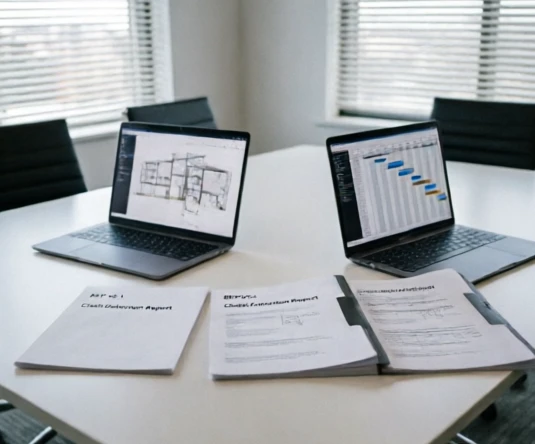
When IFC export is the practical choice
IFC is the practical choice when geometry is the primary concern. If you are coordinating with a structural engineer or an MEP consultant who only needs the architectural model for clash detection and background viewing, IFC is ideal. It provides a single file that can be shared quickly without requiring the recipient to have the same version of Revit. It is also a good choice for short-term project handoffs, such as submitting a model for a permit review where the review authority does not need to edit the file.
In these scenarios, the loss of parametric behavior is an acceptable trade-off for the ability to move the model. The key is to confirm that the necessary geometry and classification are correct. From an editorial review of BIM workflows, the recurring failure mode is assuming that an IFC model is equivalent to an RVT model and then trying to edit it as if it were native.

When rebuilding or referencing is better
Rebuilding is the safer choice when the Revit 2023 team needs to continue developing the project. If you need to make significant changes to the building layout, add new families, or run detailed energy analysis, rebuilding the critical elements natively is the only reliable path. This approach ensures that all native functionality is available. It is more time-consuming but prevents the hidden errors that can arise from working with converted geometry.
The Coordination Model workflow is an alternative when you do not need to edit the model at all. The newer-version model can be linked into Revit 2023 via Autodesk Docs. This allows you to see the model in your project, snap to its geometry, and run clashes against it, but you cannot select or modify its elements. This is ideal for large-scale coordination where the design is being finalized in Revit 2025 but must be reviewed in Revit 2023. This method works because the Coordination Model is visualized but not loaded into the Revit database. Additionally, changes across model versions can be highlighted in Revit.
Verify the Revit 2023 model after transfer
After the IFC file is imported into Revit 2023, you must perform a thorough verification. You cannot trust the model to be fully functional. The verification process ensures the model is usable for its intended purpose and helps you identify areas that need manual correction.
Check imported elements and relationships
Begin with a visual inspection. Compare the imported model to a known good reference, such as a screenshot or PDF of the original Revit 2025 model. Check for missing geometry, incorrect extrusions, or elements that appear to be in the wrong location.
Then, test the element relationships. Select a wall and see if you can change its height or thickness easily. If the wall is behaving as a generic solid, the parametric relationship is broken. Check if doors and windows are hosted to walls or if they have become independent, free-floating elements. If they are not hosted, they will not move with the wall.
Post-IFC model verification checklist
- Confirm imported categories match the expected Revit categories and review incorrectly classified elements. For example, an IFC beam might be imported as a generic model instead of a structural framing member.
- Verify project levels and coordinates align with the original model before continuing production work. A coordinate misalignment can cause major issues when the model is used for coordination.
- Check linked references and IFC-related files for correct paths and loading status.
- Review shared parameters and confirm required information fields are still available. This is often where data loss is most critical.
- Validate critical schedules against the expected element data before issuing or editing the model. If a schedule is not populated, the necessary data was not transferred.

Confirm project readiness for teams
Once the model elements are verified, consider the collaborative setup. If the original project used worksharing, the imported model will not have this structure. You will need to create a new workset configuration in Revit 2023 before allowing team members to check out elements. Check the views and sheets. While the import may preserve some view template settings, you will likely need to recreate the primary plan, section, and 3D views to ensure they are aligned with your project standards. Only when these checks are complete and the team understands the limitations of the model can it be considered production-ready.
IFC transfer readiness example
Situation: A Revit 2025 architectural model must be opened in Revit 2023 for continued coordination work.
Steps:
- Review the Revit 2025 model scope and remove unnecessary views, linked files, or content that is not required for exchange.
- Export the model from Revit 2025 using IFC settings appropriate for the required geometry and classification output.
- Import the IFC file into Revit 2023, organize imported references, and review the resulting model structure before editing.
Result: The Revit 2023 environment can access the transferred model geometry for coordination and review, while elements needing native behavior can be identified for rebuilding.
Note: IFC transfer is an exchange workflow rather than a native RVT downgrade, so critical editable content should be checked before production use.
Maintain mixed Revit 2025 and 2023 workflows
To avoid repeating the conversion process and its inherent data loss, you need a long-term strategy for mixed-version teams. The best practice is to establish a clear version policy at the project’s inception and stick to it.
Version compatibility planning workflow
- Agree on the target Revit version or exchange format before project changes begin. This is the most important step. All major production work should happen in the agreed-upon version.
- Upgrade files when moving forward to newer Revit versions. Upgrading is safe and straightforward, as newer versions are designed to read older files.
- Use compatible exchange formats when older-version access is required. Reserve IFC for coordination and reference purposes, not for native editing.
- Review transfer limitations before assigning production tasks. Ensure everyone understands which data will be lost if an IFC file is used.

A key aspect of this strategy is to avoid converting the same model back and forth. Repeatedly exporting and importing via IFC will degrade the model’s quality. Instead, decide which version the model will live in and manage contributions from other versions using IFC as a reference or by rebuilding necessary components. For teams using cloud worksharing, note that Revit Server and cloud worksharing typically require all team members to be on the same version. Mixed-version collaboration is generally not supported.
Immediately after understanding this limitation, review your project timeline and agree on a single production version. If you must work with a file in Revit 2023, you now have the workflow to handle it. Start by exporting your model from Revit 2025 using a clean IFC file, then verify the results in Revit 2023 using the checklist provided, so you can proceed with confidence, knowing exactly what data you are working with.
FAQ
Can Revit 2025 files be converted to Revit 2023 without any data loss?
No, a Revit 2025 file cannot be directly converted to Revit 2023 without data loss. Revit does not provide a native backward save option. The IFC export workflow can transfer model geometry and some information, but native families, parameters, relationships, and other Revit intelligence may not be preserved.
Is there a free Revit file version converter online?
There is no official converter or hidden setting that allows Revit 2023 to open a native Revit 2025 RVT file. The practical alternatives are exporting to IFC, using a Coordination Model workflow, or rebuilding required elements directly in Revit 2023.
Does Revit 2025 have an export option for older Revit formats?
No, Revit 2025 does not include an export option that saves an RVT file in an older Revit format. To move model information to Revit 2023, you need to use an exchange workflow such as IFC export and import rather than a native RVT downgrade.
Can Revit families be moved from Revit 2025 to Revit 2023?
Revit families do not transfer as native families through a standard IFC workflow. IFC exports model information for exchange, but family intelligence, hosted relationships, and parametric behavior may be lost. Elements that require native Revit functionality may need to be recreated in Revit 2023.