
Microsoft Office applications offer a straightforward process for converting your documents, spreadsheets, presentations, and more into PDF format. This guide provides step-by-step instructions for saving your work as a PDF across various Office programs, ensuring your files maintain their formatting and are easily shareable.
Saving as PDF in Desktop Applications
Most Microsoft Office desktop applications share a similar method for exporting to PDF. The primary difference lies in the exact menu options or tabs you’ll use.
Microsoft Access
For tables or reports in Microsoft Access, follow these steps to publish them as PDF files:
- Open the table or report you wish to convert.
- Navigate to the External Data tab.
- In the Export group, select PDF or XPS.
- Enter a name for your PDF file in the File Name field.
- From the Save as type list, choose PDF (*.pdf).
- You can select Standard (publishing online and printing) for high print quality or Minimum size (publishing online) if file size is a greater concern.
- Click Options to customize page settings, decide whether to print markup, and configure other output options. Click OK to confirm.
- Finally, select Publish.
Note: Power View sheets cannot be saved as PDF files.
Microsoft Excel
Excel users can save their workbooks as PDFs through the “Save As” or “Export” functions.
- Go to the File tab.
- Select Save As or Export. If prompted, choose a location and folder.
- In the File Name box, enter your desired file name.
- In the Save as type list, choose PDF (*.pdf).
- You have the option to check Open file after publishing if you want the PDF to open automatically.
- Similar to Access, choose between Standard (publishing online and printing) for quality or Minimum size (publishing online) for smaller file sizes.
- Click Options to set page ranges, include markup, and adjust other PDF settings. Select OK when done.
- Click Save or Export.
Microsoft OneNote
OneNote allows you to export entire notebooks or specific sections as PDFs.
- Select the File tab.
- Choose Export.
- Under Export Current, specify which part of the notebook you want to save.
- Under Select Format, choose PDF (*.pdf).
- Click Export.
- In the Save As dialog box, provide a name for your PDF file.
- Click Save.
Microsoft PowerPoint
Presentations can be easily converted into PDF documents.
- Go to the File tab.
- Select Save As or Export. Choose a location if prompted.
- Enter a file name in the File Name box.
- From the Save as type list, select PDF (*.pdf).
- Check Open file after publishing if desired.
- Choose between Standard for quality or Minimum size for reduced file size.
- Click Options for further customization and then OK.
- Click Save.
Microsoft Project
Project offers PDF export with options for page range and information inclusion.
- Go to File > Save As. Select a location.
- Enter a file name.
- In the Save as type list, choose PDF Files (*.pdf).
- In the Document Export Options dialog box, select a Publish Range, choose whether to Include Non-printing Information, and optionally select ISO 19500-1 compliance for PDF/A.
Formatting tips: While Project has limitations with PDF formatting, you can adjust appearance via File > Print, and then modifying options like Dates, Orientation, Paper Size, and Page Setup.
Microsoft Publisher
Publisher provides options for optimizing PDF output for print or online viewing.
- Select the File tab.
- Choose Save As. Select a location if needed.
- Enter a file name.
- From the Save as type list, select PDF (*.pdf).
- Click Change (or Options in Publisher 2013/2016) to adjust picture resolution, non-printing information, and print options. Select OK when done.
- Check Open file after publishing if you want the PDF to open automatically.
- Click Save.
Microsoft Visio
Visio allows you to save your diagrams and flowcharts as PDFs.
- Go to the File tab.
- Select Save As. Choose a location.
- Enter a file name.
- In the Save as type list, select PDF (*.pdf).
- You can choose to Automatically view file after saving, select Standard (publishing online and printing) for high quality, or Minimum size (publishing online) for smaller files.
- Click Options to configure page settings and other output choices, then click OK.
- Click Save.
Microsoft Word
Word offers comprehensive options for creating PDFs, including accessibility and compatibility features.
- Select File > Save As or Save a Copy if the file was previously saved.
- Choose Browse to select a save location.
- In the drop-down list for file type, select PDF.
- Click Save.
More PDF options: Selecting More Options > Options allows you to customize your PDF:
- Page range: Choose specific pages to include.
- Publish what: Select Document showing markup to include tracked changes, or Document for the final version.
- Create bookmarks using: Automatically generate bookmarks from Headings or Word Bookmarks.
- Document properties: Include metadata in the PDF.
- Document structure tags for accessibility: Enhance readability for screen readers.
- ISO 19005-1 compliant (PDF/A): Ensures long-term archiving and consistent appearance.
- Bitmap text when fonts may not be embedded: Prevents font substitution issues by embedding fonts as images.
- Encrypt the document with a password: Restrict access to the PDF.
Opening and copying content from a PDF with Word: You can open a PDF in Word to copy its content. Go to File > Open and select the PDF file. Word will convert the PDF content into an editable Word document.
Saving as PDF on Mac and Web Versions
Microsoft Office also provides PDF export capabilities for Mac users and web-based applications.
Office for Mac
For Mac users, the process is integrated into the “Save As” function.
- Select File.
- Choose Save As.
- At the bottom of the window, select File Format.
- Choose PDF from the available options.
- Name your file and select Export.
Note: When using Best for printing, hyperlinks may not convert correctly in Word for Mac.
Office for the Web (Word, PowerPoint, OneNote)
You can convert documents to PDF using the web versions of Office applications.
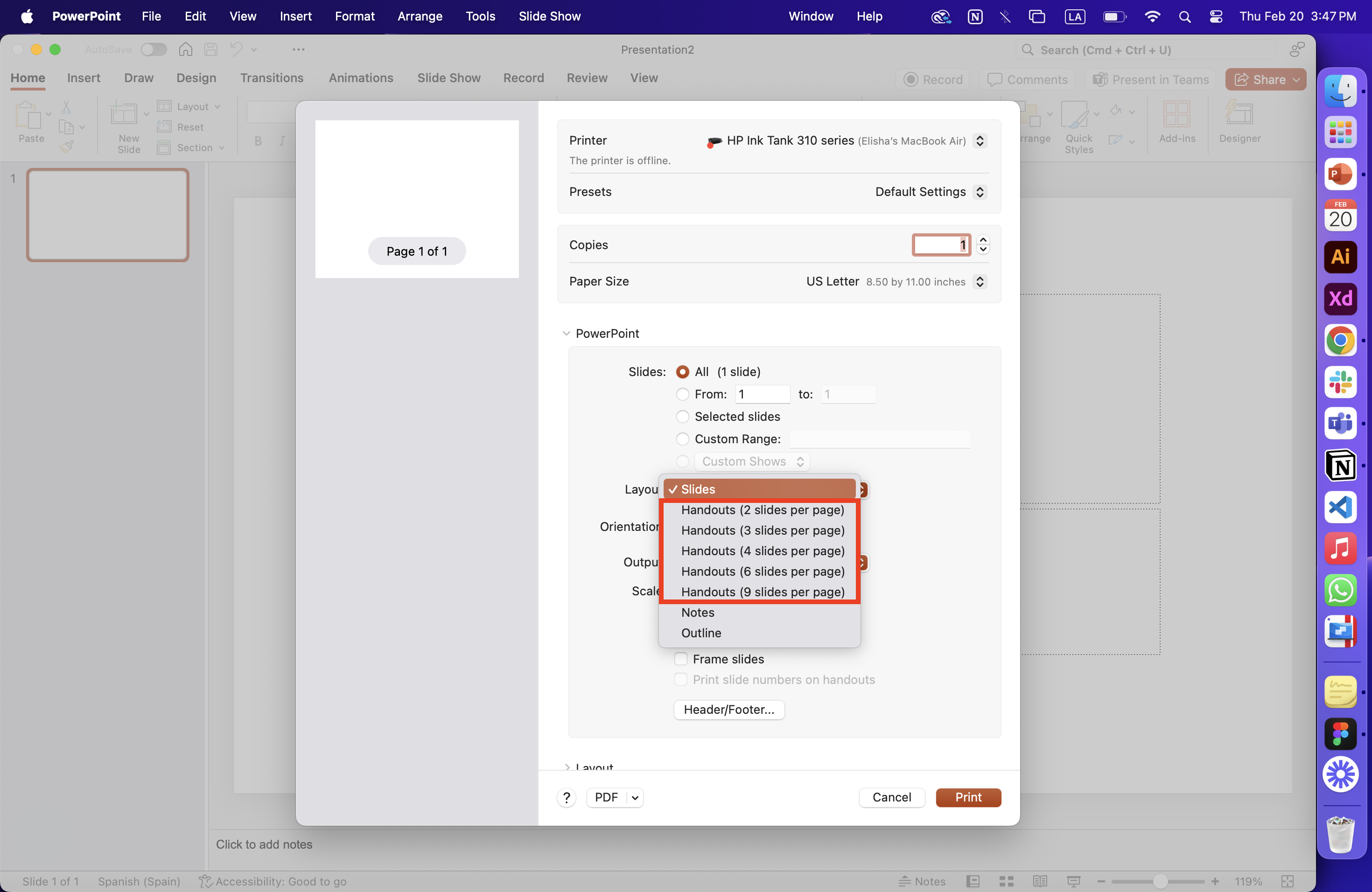
- Select File > Print > Print. (In PowerPoint, you’ll choose one of three formats).
- From the Printer dropdown menu, select Save as PDF and then click Save.
- In the subsequent Explorer menu, name your PDF and choose its save location, then click Save.
This method generates a basic PDF preserving your document’s layout. For more advanced options like adding bookmarks, use the desktop applications. You can open these web-based documents in their desktop counterparts by selecting Open in Desktop App from the toolbar (or editing dropdown in Word). If you don’t own a desktop app, you can try or buy Microsoft 365.
iOS Devices
On iOS, exporting to PDF is a simple process within the mobile apps.
- For Word documents or Excel workbooks, tap the File button in the top left.
- Choose Export.
- Select PDF.
This process allows you to easily convert your files to PDF format on the go.