
Keeping your workbook organized becomes much easier when you know how to change sheet tab colors in Excel. If your spreadsheet contains multiple worksheets, assigning different colors to tabs helps you quickly identify related data, reduce navigation time, and improve productivity.
This guide explains two simple methods to change worksheet tab colors in Excel, shows how to apply colors to multiple sheets simultaneously, and highlights a useful tool for automating financial reporting workflows.
Why Change Sheet Tab Colors in Excel?
Color-coding worksheet tabs is an effective way to organize large Excel workbooks. When a file contains many sheets, colored tabs make it easier to distinguish different categories of information at a glance.
For example, you might:
- Use blue tabs for actual financial reports.
- Use green tabs for budget or forecast worksheets.
- Use red tabs for confidential or review-required sheets.
- Assign different colors to separate departments, projects, or reporting periods.
This simple organizational technique improves workbook navigation and reduces the likelihood of opening the wrong worksheet.
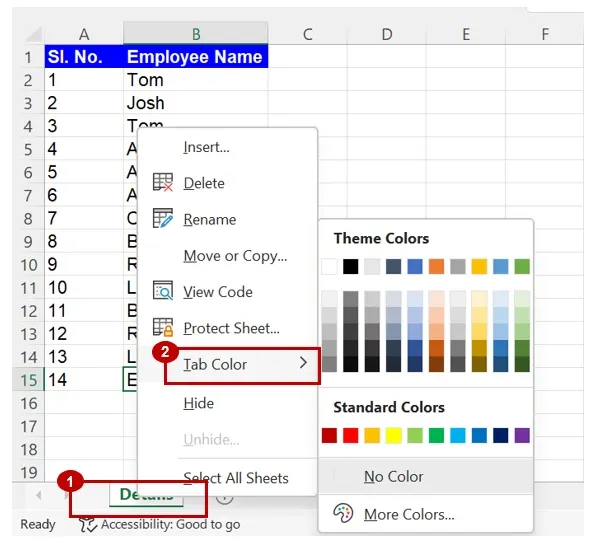
Method 1: Change a Sheet Tab Color Using the Right-Click Menu
The quickest way to change a worksheet tab color is through the context menu.
Follow these steps:
- Select the worksheet you want to customize.
- Right-click the worksheet tab.
- Choose Tab Color.
- Select your preferred color from the palette.
If you need a custom shade:
- Click More Colors.
- Choose a color from either the Standard or Custom tab.
- Click OK to apply it.
After selecting a color, the worksheet tab will immediately display the chosen color, making it easier to identify.
Method 2: Change a Sheet Tab Color from the Home Ribbon
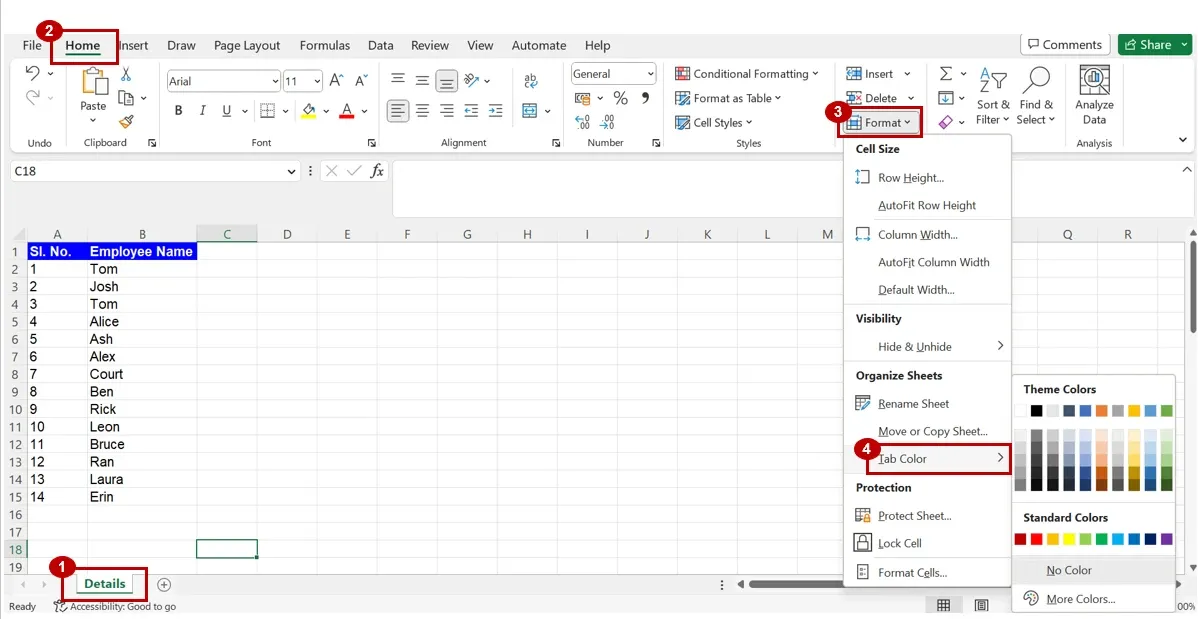
Excel also allows you to change tab colors from the Ribbon interface.
To do this:
- Select the worksheet.
- Go to the Home tab.
- Click Format.
- Choose Tab Color.
- Select the color you want to apply.
The remaining process is identical to the first method, including the option to choose custom colors.
Both approaches achieve the same result, so you can use whichever fits your workflow best.
How to Change the Color of Multiple Sheet Tabs at Once
Excel also supports applying the same tab color to multiple worksheets simultaneously.
Select Non-Adjacent Worksheets
If the worksheets are not next to each other:
- Hold down the Ctrl key on Windows or Command on Mac.
- Click each worksheet tab you want to include.
- Once all desired tabs are selected, apply a tab color using either of the methods described above.
Select Adjacent Worksheets
If the worksheets are next to each other:
- Click the first worksheet tab.
- Hold the Shift key.
- Click the last worksheet tab in the sequence.
Excel will automatically select every worksheet between the first and last tabs. You can then assign a color to all selected worksheets in one step.
Using this feature is particularly helpful when organizing quarterly reports, departmental workbooks, financial statements, or project files with consistent color coding.
Tips for Organizing Excel Workbooks with Tab Colors
To make the most of worksheet colors, consider establishing a consistent color system throughout your workbook.
Some practical ideas include:
- Blue: Actual results
- Green: Forecasts or budgets
- Yellow: Worksheets under review
- Red: Critical or confidential information
- Gray: Archive or historical data
Maintaining a consistent color convention helps collaborators understand the workbook structure more quickly and reduces confusion when multiple people edit the same file.
Automate Financial Reporting with Google Sheets
If you’re using Excel or Google Sheets for financial analysis, budgeting, forecasting, or financial modeling, automating repetitive tasks can significantly improve efficiency.
Solutions such as LiveFlow allow finance teams to synchronize financial data, automate updates, and work with ready-made financial reporting templates. Whether you’re preparing an income statement or managing consolidated financial reports across multiple entities, automation can reduce manual work and keep your numbers current.
Users who primarily work in Excel can also connect Excel and Google Sheets to streamline reporting workflows without constantly copying and pasting data.

Conclusion
Knowing how to change sheet tab colors in Excel is a simple but valuable skill for keeping workbooks organized and easy to navigate. Whether you use the right-click menu or the Home Ribbon, assigning colors takes only a few clicks. You can also apply colors to multiple worksheets simultaneously, making it easy to organize even large spreadsheets.
Adopting a consistent color-coding system will improve workbook readability, especially when working with financial reports, project trackers, or complex datasets. Start organizing your worksheets today to make your Excel files easier to manage and more efficient to use.