
Converting designs from PDF to editable AutoCAD formats like DWG and DXF is crucial for modern design and manufacturing workflows. While PDFs are excellent for sharing and viewing, they lack the editability required for precise modifications and seamless integration into CAD processes. This guide will walk you through why this PDF to CAD conversion is essential, the tools available, and the benefits of professional assistance, all while ensuring design integrity and enhancing collaboration.
The detailed shop drawings and schematics that manufacturers rely on are often shared in PDF format. Though a universal standard for sharing/viewing, PDFs are not much helpful when you need to edit or integrate these designs into the CAD workflow. That is why converting them to editable DWG or DXF format is necessary. In this guide, we discuss why this PDF to CAD conversion really matters, the available tools for conversion and the benefits of using professional CAD drafters. We also take you through the step-by-step conversion process and the common challenges you may face while doing so.
Reasons Why PDF to AutoCAD Conversion is Crucial
PDFs are ideal for sharing and viewing, but their static nature hinders editing and integration into CAD workflows. Converting these files into AutoCAD’s editable DWG and DXF formats unlocks several key advantages for design and manufacturing processes.
Editability and Precision for Detailed Designs
When you need to make specific modifications to a design, a PDF is highly restrictive. Converting to DWG or DXF allows for precise edits to intricate details, ensuring that your design intent is accurately reflected in the final product. This level of control is vital for error-free fabrication.
Seamless Integration into CAD Workflows
The manufacturing industry heavily relies on CAD data for designing, prototyping, and producing parts. By converting PDFs to DWG/DXF, you can effortlessly import these files into your existing CAD workflow, leading to smoother processes and improved project management. This streamlines the journey from design to production.
Preserving Original Design Integrity
Maintaining the integrity of the original design is paramount when transitioning from the conceptual stage to manufacturing. DWG/DXF formats retain the original design’s dimensions, layers, and other critical details. This meticulous preservation minimizes the chances of errors during the fabrication phase, ensuring the final output matches the original blueprint.
Enhancing Collaboration and Communication
Static PDF files can impede collaboration, especially when multiple team members or stakeholders need to review and annotate designs. Converted DWG and DXF files offer the flexibility needed for effective teamwork, improving communication and ensuring everyone is aligned throughout the project lifecycle. This dynamic collaboration is key to successful project outcomes.
Convert your PDFs into accurate, editable CAD drawings with ease. Connect with our team NOW »
Software Options for PDF to DWG/DXF Conversion
Several tools can facilitate the conversion of PDF files to DWG or DXF. The choice often depends on your existing software and the complexity of the files.
Utilizing AutoCAD’s Native Features
As Autodesk’s flagship CAD software, AutoCAD offers robust built-in features for importing and converting PDF files directly into DWG and DXF formats.
Key AutoCAD Features for PDF Import:
- Direct PDF Import: AutoCAD can import PDF files without the need for third-party plugins.
- Parameter Control: During import, you can manage layers, scale, resolution, and other crucial parameters for an accurate conversion.
- Accuracy and Reliability: AutoCAD’s native conversion capabilities are known for their high accuracy and reliability, preserving design fidelity.
Exploring Third-Party Conversion Software
For users who may not have AutoCAD or require specialized conversion features, numerous third-party tools are available. These often provide additional functionalities to optimize the conversion process.
Popular Third-Party Converters:
- Any PDF to DWG Converter: This specialized tool is designed for efficient and accurate batch conversion of PDFs to DWG/DXF, significantly speeding up the process for multiple files.
- Able2Extract: Beyond DWG/DXF, this software supports multiple output formats, offering greater flexibility for various project needs.
- Scan2CAD: A powerful PDF to DWG/DXF converter, Scan2CAD includes advanced features like Optical Character Recognition (OCR) to accurately extract text from scanned PDF documents, further enhancing data integrity.
Step-by-Step PDF to DWG/DXF Conversion in AutoCAD
Converting PDFs to editable CAD formats within AutoCAD is a straightforward process. Follow these steps for a successful conversion:
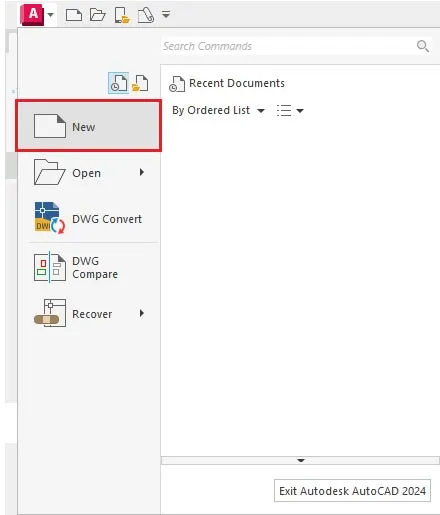
1. Open AutoCAD and Initiate a New Drawing
Begin by opening AutoCAD and creating a new, blank drawing file by navigating to “File” > “New”.
2. Import the PDF File
Use the PDFIMPORT command. You can access this by typing PDFIMPORT into the command line or by selecting the “PDF Import” option under the “Insert” tab.
3. Configure Import Settings
Before the import begins, AutoCAD presents several options to customize the conversion:
- Pages: Choose specific pages from the PDF to import.
- Layers: Decide whether to import the PDF onto a single layer or to create multiple layers based on the PDF’s structure.
- Resolution: For optimal detail and accuracy, select “high quality.”
- Scale: Adjust the scale to match the desired units and size for your converted drawing.
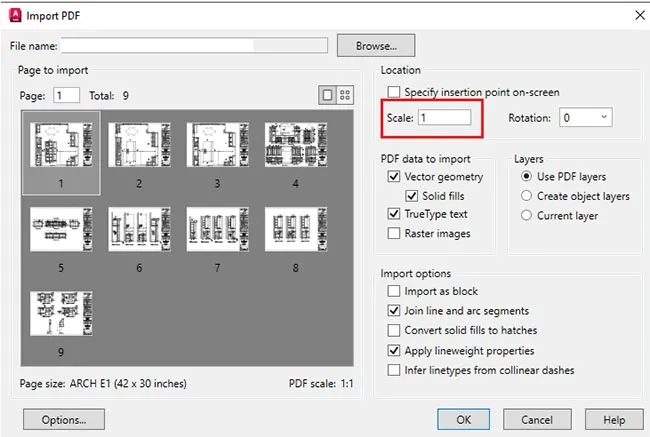
3. Adjust Import Settings 3. Adjust Import Settings4. Execute Conversion and Edit
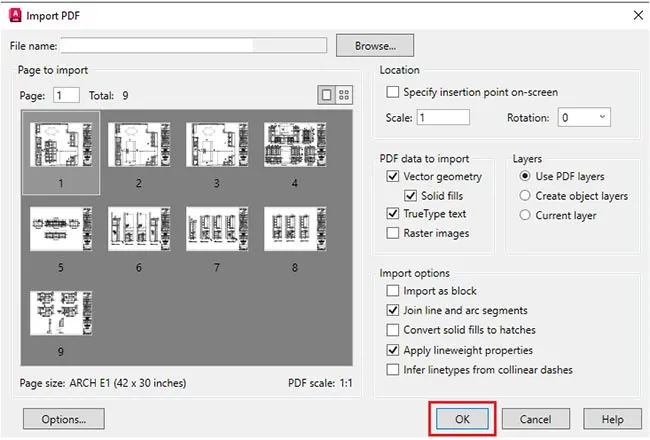
Click “OK” to initiate the import process. Your non-editable PDF is now converted into an editable DWG/DXF format, ready for modifications.
5. Save as DWG or DXF
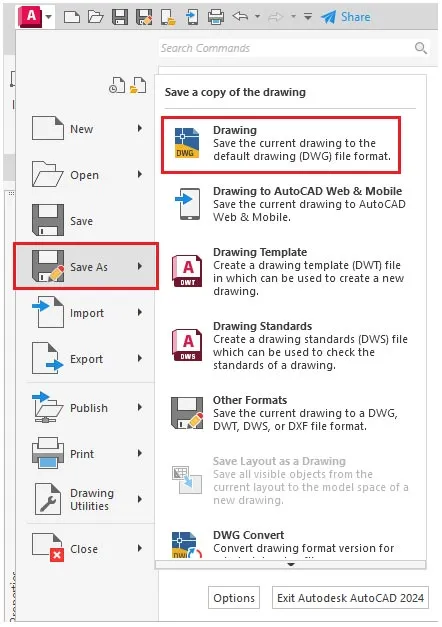
Once you have completed your edits, save the file by going to “File” > “Save As.” Select either DWG or DXF from the save as type dropdown menu.
 5. Save as DWG or DXF
Get editable AutoCAD files from scanned PDFs quickly and reliably. Partner with us »
Converting PDFs to DWG/DXF Using Third-Party Software
If you’re using third-party software instead of AutoCAD, the conversion process generally follows these steps:
1. Launch the Conversion Application
Open your chosen PDF to DWG/DXF conversion software.
2. Import the PDF Document
Use the “Open” or “Import” function within the software to load your source PDF file.
3. Configure Conversion Options
Most software will present output settings before conversion:
- Output Format: Select either DWG or DXF.
- Layers: Choose whether to preserve original layers, merge them, or create new ones.
- Text Recognition (OCR): If your PDF contains text, enable OCR to ensure accurate extraction.
- Resolution and Scaling: Set these parameters based on the required clarity and dimensions of the final CAD file.
4. Initiate Conversion
Click “Convert” or “Start” to begin the process. The software will upload and process your PDF, generating a CAD file based on your selected settings.
5. Save and Verify the Output
After conversion, save the file to your desired location. Open the newly created DWG/DXF file in AutoCAD or compatible software to review and make any necessary edits.
Common Challenges in PDF to AutoCAD Conversion and Their Solutions
While the conversion process is generally effective, certain issues can arise. Understanding these common problems and their solutions can help ensure a smoother workflow.
Accuracy and Alignment Issues
- Problem: Elements in the converted file may be misaligned or deformed.
- Solution: Carefully configure scale and resolution settings during import, prioritizing the highest resolution source file to capture maximum detail.
Layering Problems
- Problem: Layers may be flattened or lost, complicating editing.
- Solution: When using AutoCAD, select the “import layers” option. With third-party tools, look for settings that preserve or reconstruct layer information.
Text and Font Distortions
- Problem: Text may appear missing or distorted in the converted DWG/DXF file.
- Solution: Utilize OCR features in third-party tools for accurate text extraction. For AutoCAD conversions, manual verification and correction of text during the auditing phase are necessary.
File Size and Performance Issues
- Problem: Large or complex PDFs can result in large files that impact software performance.
- Solution: Simplify the PDF before conversion by removing unnecessary objects. In AutoCAD, use the
Purgecommand to clean up drawings.
Compatibility Issues
- Problem: Some PDF objects may not convert correctly, leading to missing information.
- Solution: Thoroughly check the converted file against the source PDF for missing elements and add them manually in AutoCAD. Keep your CAD software updated to ensure compatibility with the latest file formats.
The Advantages of Outsourcing CAD Conversion Services
While dedicated software can handle less complex conversions, outsourcing to professional CAD conversion services offers significant advantages, especially for critical projects.
- Expertise and Accuracy: Trained CAD drafters ensure the preservation of all dimensional attributes, annotations, and original information, which is vital for complex projects.
- Time Savings: Outsourcing frees up your team to focus on core business activities, while experts efficiently handle the conversion process, delivering faster, error-free CAD files.
- Customization: Professional services adapt to your specific standards, procedures, and workflows, incorporating your preferred layering, naming conventions, and formatting.
- Access to Specialized Tools: Outsourcing partners utilize professional CAD conversion software, often yielding superior results compared to general consumer tools.
- Professional Quality Assurance: Reliable service providers conduct comprehensive QA checks, reviewing converted files against your specifications and standards before delivery.
Conclusion
Converting PDF files to editable DWG/DXF formats is essential for improving collaboration and streamlining processes from design to fabrication across industries like furniture, millwork, and sheet metal. The ability to edit and integrate successfully converted files into your CAD processes enhances efficiency and reduces errors.
While DIY conversion is feasible for simple tasks, outsourcing CAD conversion offers greater accuracy, speed, and flexibility for larger projects. By understanding the available tools and potential challenges, you can ensure your designs are accurately translated into editable CAD formats, facilitating seamless integration and effective project execution.
Frequently Asked Questions: PDF to DWG/DXF Conversion in AutoCAD
How accurate are PDF to DWG/DXF conversions?
Conversions are generally adequate but depend heavily on the original PDF’s quality and the conversion software used. Some manual cleanup after conversion often leads to more accurate results.What if complex PDF files result in missing elements?
For highly complex, multi-layered PDFs, high-end conversion tools with appropriate settings and the ability for manual adjustments are necessary.Can I accurately extract text from scanned PDFs?
Yes, with tools offering OCR capabilities like Scan2CAD. However, the final quality is significantly influenced by the original PDF’s scan quality.What if a conversion tool isn’t working well?
Try a different conversion tool. You can also employ a hybrid approach: use a tool for initial conversion and then manually check and fix any errors. Always verify the quality of your source PDF.
Digitize old project PDFs into clean and editable CAD documents. Get in touch with our experts TODAY »