
Determining the day of the week for a specific date in Excel is a common task that can streamline scheduling, project planning, and data analysis. Whether you need to identify weekends, calculate workdays, or simply display day names, Excel provides powerful functions like WEEKDAY and TEXT to get the job done efficiently.
This comprehensive guide will walk you through multiple methods to extract and work with day-of-week information, from basic formulas to advanced conditional formatting techniques.
Understanding the WEEKDAY Function
The WEEKDAY function is Excel’s built-in tool for converting dates into numeric day-of-week values. The basic syntax is straightforward:
=WEEKDAY(serial_number, [return_type])
By default, WEEKDAY returns a number from 1 (Sunday) to 7 (Saturday). This simple output becomes incredibly useful when combined with other functions for filtering, conditional formatting, and complex date calculations.
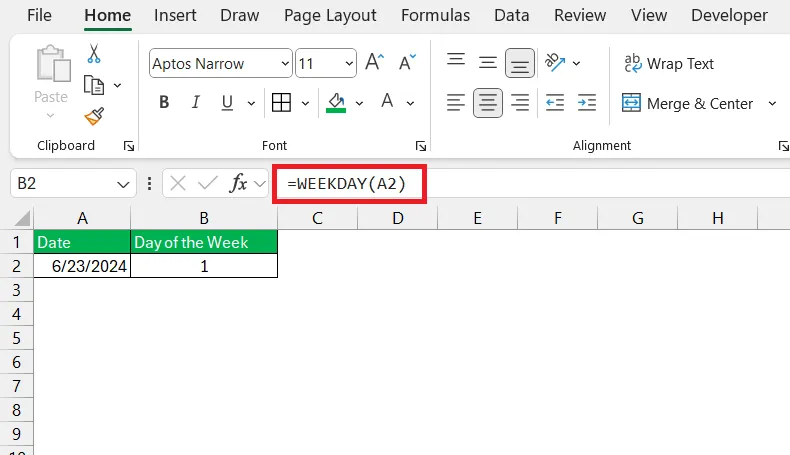
For instance, if cell A2 contains the date June 23, 2024, the formula =WEEKDAY(A2) would return 1 (since June 23, 2024, was a Sunday, and 1 represents Sunday in the default system).
Customizing Return Types
The optional return_type parameter lets you define which day counts as the first of the week. Common options include:
- 1 or omitted: Sunday = 1 through Saturday = 7
- 2: Monday = 1 through Sunday = 7 (ideal for workweek analysis)
- 3: Monday = 0 through Sunday = 6
Using return_type 2 is particularly helpful for business contexts where you want Monday as the start of the week, making it easier to identify weekends (values 6 and 7).
Displaying Day Names with TEXT Function
While numeric day values are useful for calculations, you’ll often need to display the actual day name. The TEXT function offers the simplest solution:
=TEXT(A2, "dddd")
This formula converts a date into its full weekday name. For June 23, 2024, the result would be “Sunday.”
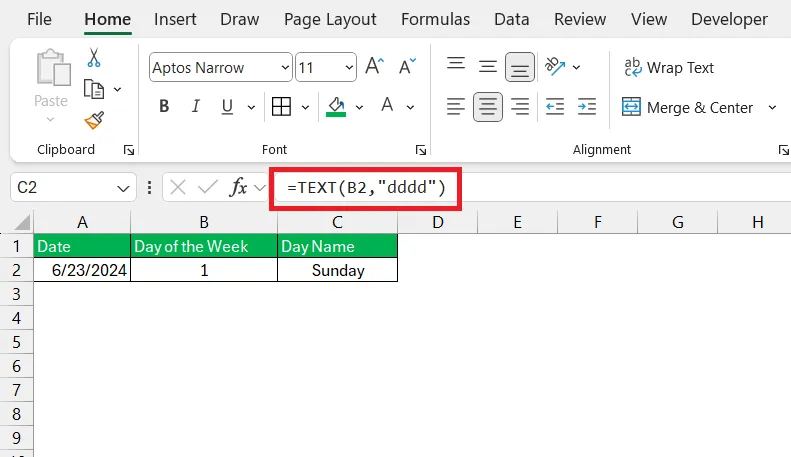
For abbreviated day names, use “ddd” instead:
=TEXT(A2, "ddd")
This returns three-letter abbreviations like “Sun,” “Mon,” or “Tue.”
Creating Custom Two-Letter Abbreviations
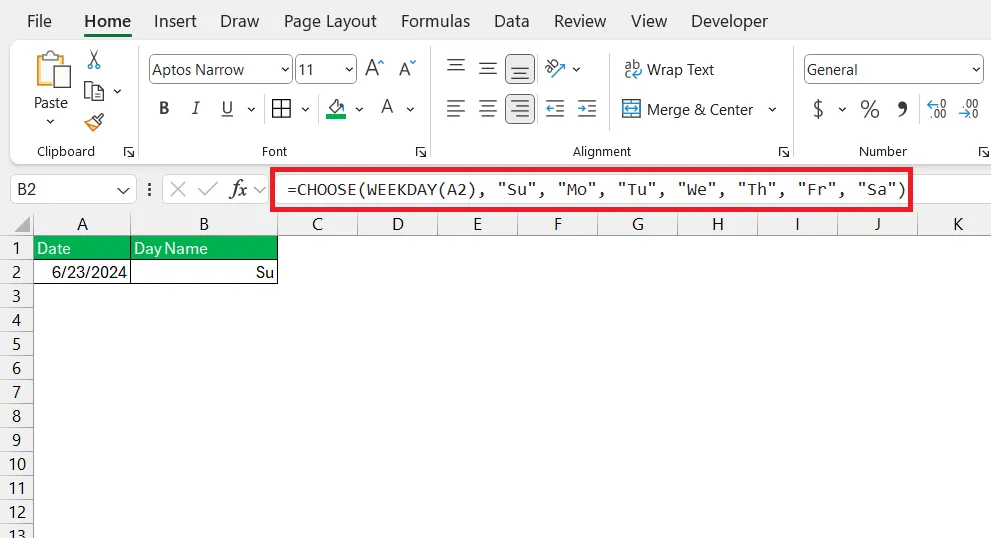
Sometimes you may need even shorter abbreviations, such as “Su” for Sunday or “Mo” for Monday. The CHOOSE function combined with WEEKDAY gives you complete control:
=CHOOSE(WEEKDAY(A2), "Su", "Mo", "Tu", "We", "Th", "Fr", "Sa")
This formula maps each numeric weekday (1 through 7) to your custom two-letter abbreviation, perfect for dashboards or compact reports where space is limited.
Advanced Weekend Analysis Techniques
Highlighting Weekends with Conditional Formatting
Visual indicators make it easy to spot weekends in large datasets. Conditional formatting with the WEEKDAY function can automatically highlight Saturday and Sunday cells:
- Select your date range
- Go to Home > Conditional Formatting > New Rule
- Choose “Use a formula to determine which cells to format”
- Enter the formula:
=WEEKDAY($A2, 2)>=6 - Set your desired formatting (fill color, font color, etc.)
- Click OK
This formula uses return_type 2 (Monday=1, Sunday=7) and checks if the day number is 6 (Saturday) or 7 (Sunday). Any cell meeting this condition will receive your chosen formatting.
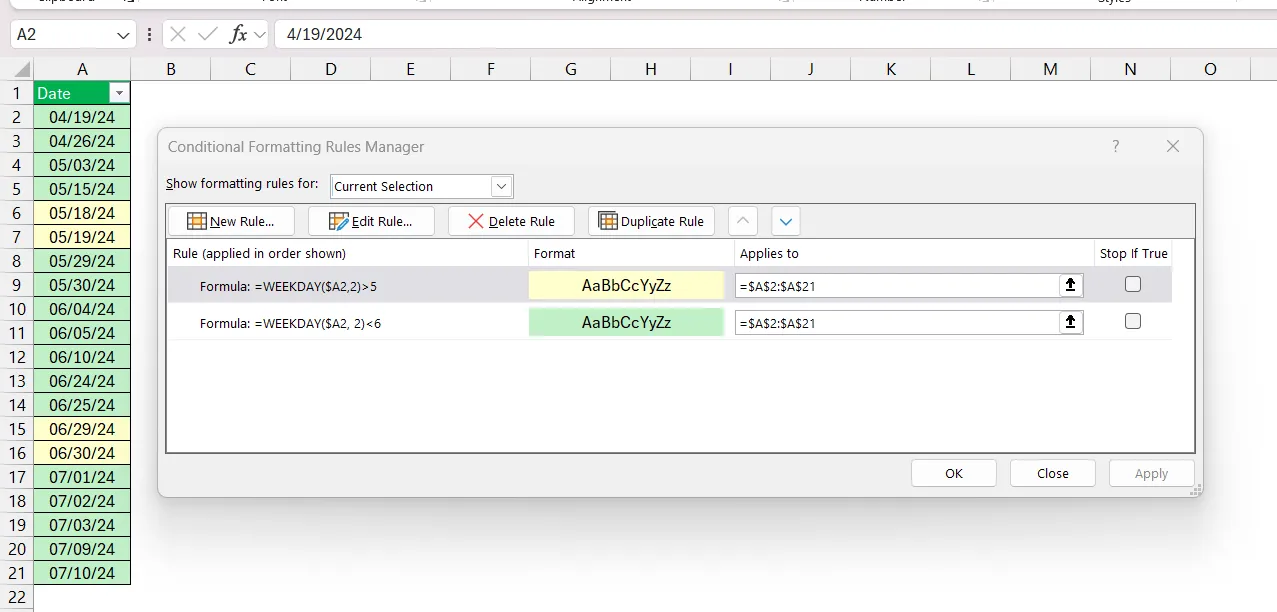 Conditional formatting applied to highlight weekend dates in Excel
For highlighting only weekdays, use =WEEKDAY($A2, 2)<=5 to identify Monday through Friday.
Counting Weekends and Workdays
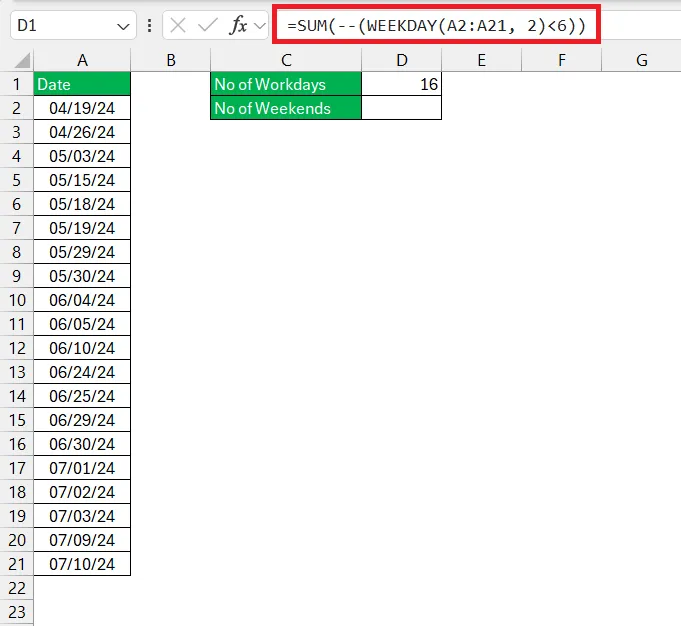
To analyze how many weekends or workdays exist within a date range, combine the WEEKDAY function with SUMPRODUCT or SUM and array formulas.
Counting workdays (Monday-Friday):
=SUMPRODUCT(--(WEEKDAY(range, 2)<6))
Counting weekends (Saturday-Sunday):
=SUMPRODUCT(--(WEEKDAY(range, 2)>=6))
These formulas count each date in your range that meets the specified condition. The double negative (--) converts the TRUE/FALSE results into 1s and 0s for summing.
For more precise calculations that account for holidays, consider using the NETWORKDAYS function, which automatically counts workdays and allows you to exclude custom holiday lists.
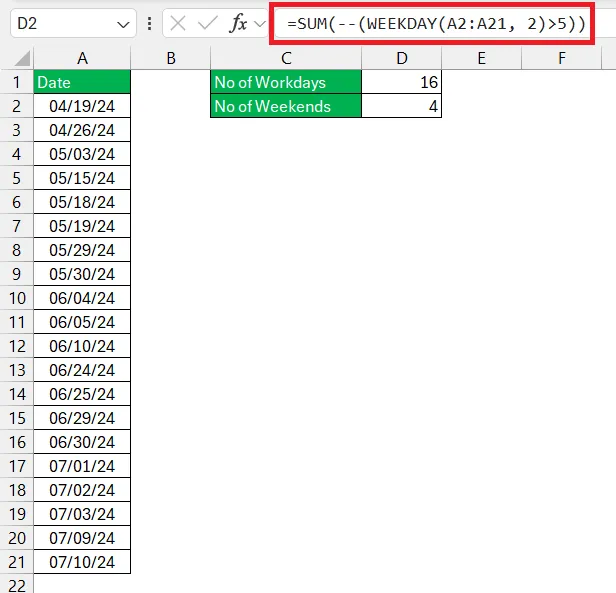 Formula counting weekends using SUMPRODUCT and WEEKDAY functions
Common Errors and Troubleshooting
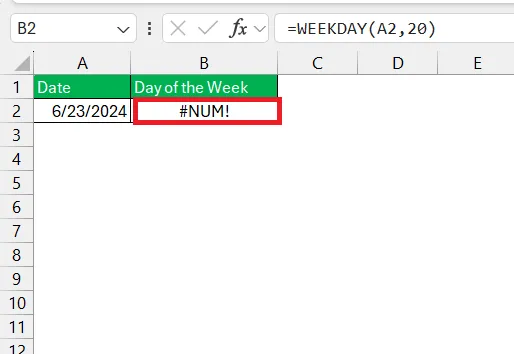
#NUM! Error
The #NUM! error occurs when the return_type argument falls outside the permitted range. Valid return_type values are:
- 1-3 (for the original set of return codes)
- 11-17 (for the newer set introduced in Excel 2010)
If you accidentally enter 4 or 10, Excel will return #NUM!. Always verify your return_type value against the accepted ranges.
#VALUE! Error
The #VALUE! error typically appears when:
- The date argument contains non-numeric data
- The date falls outside Excel’s acceptable range (January 1, 1900 to December 31, 9999)
- Text or incompatible data types are used where a date should be
Check that your referenced cells contain valid dates, not text strings that look like dates. Use the ISNUMBER function to verify if Excel recognizes the value as a date.
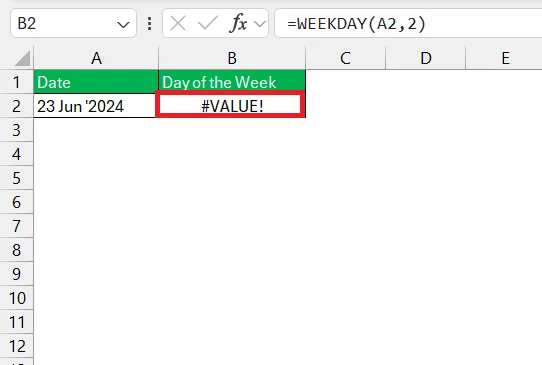 Excel VALUE error when non-numeric data is used as date argument
Pro Tips for Working with Weekday Functions
Use DATE Function for Cleaner Formulas
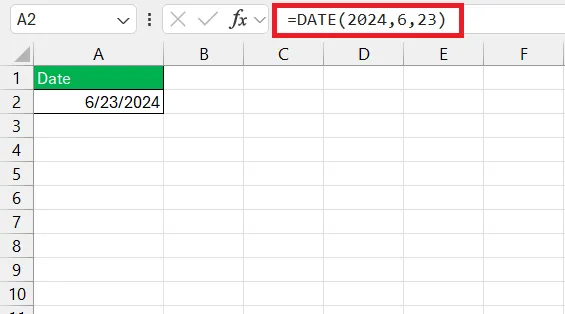
Instead of typing dates directly as text, use the DATE function to ensure Excel interprets them correctly:
=WEEKDAY(DATE(2024, 6, 23))
This approach eliminates ambiguity with regional date formats and makes your formulas more portable across different systems.
Verify Regional Date Settings
Excel’s date handling depends on your system’s regional settings. If your computer uses DD/MM/YYYY format but you enter dates in MM/DD/YYYY format, calculations will be incorrect. Always verify:
- Your system’s date format (Control Panel > Region)
- That Excel recognizes your dates as actual date values (check the cell format)
Convert Text to Dates
If you have dates stored as text, use the DATEVALUE function to convert them before applying weekday formulas:
=WEEKDAY(DATEVALUE(text_date))
This ensures your formulas work correctly even when data comes from external sources that don’t maintain proper date formatting.
Frequently Asked Questions
Is there a formula for day of week in Excel?
Yes, Excel provides multiple formulas for day-of-week calculations. The WEEKDAY function returns numeric values (1-7), while the TEXT function with “dddd” or “ddd” returns day names. For custom abbreviations, combine CHOOSE with WEEKDAY for complete control over the output.
How to find the day of the week in Excel?
Use the TEXT function with the appropriate format code: =TEXT(date_cell, "dddd") returns the full day name. For abbreviated names, use =TEXT(date_cell, "ddd"). Both formulas work with any valid Excel date.
How to use the weekday formula in Excel?
Follow these steps:
- Click on the cell where you want the result
- Type
=WEEKDAY( - Enter the cell reference containing your date, e.g.,
=WEEKDAY(A1) - Press Enter
Excel displays a number from 1 to 7, with 1 representing Sunday and 7 representing Saturday by default. To change the starting day, add a return_type parameter: =WEEKDAY(A1, 2) makes Monday=1.
Mastering Excel’s weekday functions transforms how you handle date-based data, from simple day-name displays to complex scheduling automation. Whether you’re managing project timelines, analyzing sales patterns, or organizing shift schedules, these techniques provide the foundation for efficient date analysis. Start implementing these formulas in your spreadsheets today to save time and eliminate manual date counting.