
Introduction
Export Outlook contacts to Excel quickly and safely to manage, analyze, or migrate your address book. This guide explains each step, covers common issues, and offers advanced options (PowerShell, Outlook Web workaround, data cleaning) so you can finish the task with confidence.
Main content
Who this is for and purpose
This article targets English‑speaking office users, IT staff, and small business operators who need to export contacts from Outlook Desktop into Microsoft Excel for reporting, backup, CRM import, or migration. The goal is to preserve all essential instructions from the original Vietnamese guide while presenting them naturally for international readers.
Quick process summary
- Open Outlook and go to People (Contacts).
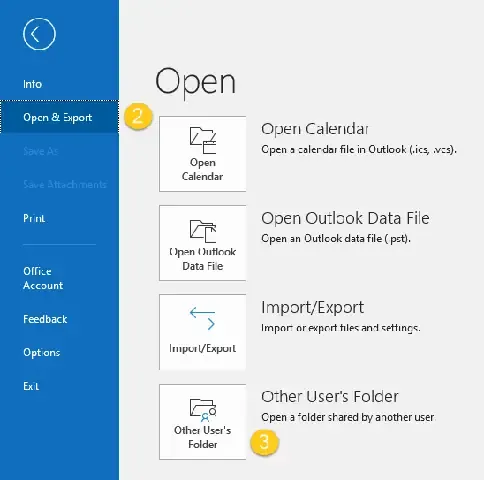
- File → Open & Export → Import/Export.
- Choose Export to a file → Next.
- Select Comma Separated Values (CSV) → Next.
- Select the Contacts folder → Next.
- Choose a save location and file name, then Finish.
- Open the CSV in Excel, edit, and Save As .xlsx if desired.
1. Prepare your Outlook environment
1.1 Confirm Outlook version
Export options are available in Outlook Desktop (Outlook 2016, 2019, Microsoft 365). The wizard is the same across versions, though menus may look slightly different. Export from the desktop client — Outlook Web (online) does not support direct export.
1.2 Verify permissions
If using a corporate account, ensure you have read/write access to the Contacts folder. Some organizations restrict export operations for privacy or security reasons.
2. Export contacts from Outlook (step‑by‑step)
2.1 Open People (Contacts)
Open Outlook and click the People icon (bottom-left). You should see your saved contacts.
2.2 Launch the export wizard
Go to File → Open & Export → Import/Export. In the Import and Export Wizard choose Export to a file and click Next.
2.3 Choose CSV format
Select Comma Separated Values (CSV). CSV is compatible with Excel and many CRMs. Click Next.
2.4 Select the Contacts folder
Select the Contacts folder you want to export. If you maintain multiple contact folders (personal vs. work), pick the correct one. Click Next.
2.5 Choose save location and options
Click Browse, pick a folder, and enter a filename (example: Contacts_Export.csv). Optionally choose Do not export duplicate items. Click Finish to start the export. The duration depends on contact count.
2.6 Open and verify
Open the resulting CSV with Excel to confirm columns (First Name, Last Name, Email, Phone, Address, Notes, etc.) appear correctly.
3. Open and clean the CSV in Excel
3.1 Open the CSV
In Excel: File → Open → select Contacts_Export.csv. Excel normally detects commas as delimiters.
3.2 Inspect and tidy columns
Check key columns (Name, Email, Phone, Address). Remove irrelevant columns (e.g., Notes) if not needed.
3.3 Convert to Excel workbook
When edits are complete: File → Save As → Excel Workbook (.xlsx). Use descriptive names like Contacts_2026.xlsx.
4. Advanced options
4.1 Export from Outlook Web (workaround)
Outlook Web lacks direct export. Two practical approaches:
- Sync Outlook contacts to Google Contacts, then export CSV from Google Contacts.
- Use a third‑party migration tool or your organization’s sync solution.
4.2 Automate with PowerShell (corporate scale)
PowerShell can export many mailboxes or scheduled exports. Example script (basic):
Add-Type -AssemblyName Microsoft.Office.Interop.Outlook
$outlook = New-Object -ComObject Outlook.Application
$namespace = $outlook.GetNameSpace("MAPI")
$contacts = $namespace.GetDefaultFolder(10).Items
$csvPath = "C:ExportsContacts.csv"
$csv = "FirstName,LastName,Email,Phone`n"
foreach ($c in $contacts) {
  $csv += "$($c.FirstName),$($c.LastName),$($c.Email1Address),$($c.BusinessTelephoneNumber)`n"
}
Set-Content -Path $csvPath -Value $csv -Encoding UTF8
Modify fields and error handling to match your environment and compliance rules.
4.3 Data cleaning tips in Excel
- Use Text to Columns to split combined fields.
- Apply TRIM to remove extra spaces.
- Use Conditional Formatting to flag invalid emails.
- For delimiters inside fields, consider exporting as Tab Delimited or using text qualifiers.
5. Security and privacy best practices
- Protect CSV/XLSX files with passwords if they contain sensitive personal data.
- When sharing, prefer secure file links (OneDrive/Google Drive) with restricted access rather than unencrypted email attachments.
- Comply with local privacy laws (GDPR for EU subjects) and your organization’s data policies.
6. Troubleshooting common issues
- Some fields missing: Check Outlook View Settings → Columns and enable fields you need.
- Misaligned rows: Commas inside notes can break CSV layout; export as Tab Delimited or use text qualifiers.
- Empty CSV: Ensure you exported the correct folder and that it contains contacts.
- Encoding problems: If you see garbled characters, export as Unicode Text (.txt) or ensure UTF‑8 encoding when saving.
7. Integrations and next steps
- Import the Excel file into CRM systems like Salesforce or HubSpot using their CSV import tools.
- Use Microsoft Power BI to build interactive contact reports.
- Automate ongoing syncs with Zapier or Power Automate to keep spreadsheets updated.
Images and illustration
Conclusion
Exporting Outlook contacts to Excel is straightforward when you follow the steps above: use the Import/Export Wizard to create a CSV, verify and clean the data in Excel, and secure the file before sharing. For bulk or repeated exports, use PowerShell or automation tools to save time. Ready to proceed? Export a small test set first to confirm field mapping and encoding.
References
- Microsoft Support: Export contacts from Outlook (Outlook desktop)
- Google Contacts: Import & export contacts (for Outlook Web workaround)